
Introduction P2Anim.Duration = new Duration(TimeSpan.FromSeconds(0.5));
P2Anim.To = new Point(155, 277);
MovePointDown.Children.Add(P2Anim);
P3Anim.SetValue(Storyboard.TargetPropertyProperty, new PropertyPath("(Path.Data).(PathGeometry.Figures)[0].(PathFigure.Segments)[0].(BezierSegment.Point3)"));
P3Anim.Duration = new Duration(TimeSpan.FromSeconds(0.5));
P3Anim.To = new Point(100, 277); private void MyPath_MouseEnter(object sender, MouseEventArgs e)
{ P1AnimBack.Duration = new Duration(TimeSpan.FromSeconds(0.5));
P1AnimBack.To = new Point(45, 200);
MovePointUp.Children.Add(P1AnimBack);
P2AnimBack.SetValue(Storyboard.TargetPropertyProperty, new PropertyPath("(Path.Data).(PathGeometry.Figures)[0].(PathFigure.Segments)[0].(BezierSegment.Point2)"));
P2AnimBack.Duration = new Duration(TimeSpan.FromSeconds(0.5));
P2AnimBack.To = new Point(155, 200);
MovePointUp.Children.Add(P2AnimBack);
P3AnimBack.SetValue(Storyboard.TargetPropertyProperty, new PropertyPath("(Path.Data).(PathGeometry.Figures)[0].(PathFigure.Segments)[0].(BezierSegment.Point3)"));
P3AnimBack.Duration = new Duration(TimeSpan.FromSeconds(0.5));
P3AnimBack.To = new Point(100, 200);
MovePointUp.Children.Add(P3AnimBack); private void MyPath_MouseLeave(object sender, MouseEventArgs e)
{ 0. BezierSegment Point1="200,155.228469848633" Point2="155.228469848633,200" Point3="100,200"/>
1. <BezierSegment Point1="44.7715263366699,200" Point2="0,155.228469848633" Point3="0,100"/>
2. <BezierSegment Point1="0,44.7715263366699" Point2="44.7715263366699,0" Point3="100,0"/>
3. <BezierSegment Point1="155.228469848633,0" Point2="200,44.7715263366699" Point3="200,100"/> After plugging in those three sets of coordinates and recompiling, the object now behaves as expected when the MouseLeave event is raised, returning our point to its starting position.
My last two articles were based on Code behind Animation in Silverlight 3 through for Double Animation and Color Animation. In this article we will try the similar thing but with Point Animation.
Creating a Simple Silverlight Application
Open up Blend 3 and Create a new Silverlight Application.
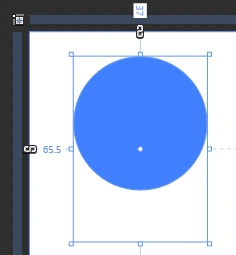
<Path Height="277" Width="200" Canvas.Left="306" Canvas.Top="65" Fill="#FF4080FF" Stretch="None" x:Name="RedPath" Cursor="Hand">
<Path.Data>
<PathGeometry>
<PathFigure IsClosed="True" StartPoint="200,100">
<BezierSegment Point1="200,155.228469848633" Point2="155.228469848633,200" Point3="100,200"/>
<BezierSegment Point1="44.7715263366699,200" Point2="0,155.228469848633" Point3="0,100"/>
<BezierSegment Point1="0,44.7715263366699" Point2="44.7715263366699,0" Point3="100,0"/>
<BezierSegment Point1="155.228469848633,0" Point2="200,44.7715263366699" Point3="200,100"/>
</PathFigure>
</PathGeometry>
</Path.Data>
</Path>
private Storyboard MovePointDown = new Storyboard();
Storyboard.SetTargetName(MovePointDown,"MyPath");
private PointAnimation P1Anim = new PointAnimation();
P1Anim.SetValue(Storyboard.TargetPropertyProperty, new PropertyPath("(Path.Data).(PathGeometry.Figures)[0].(PathFigure.Segments)[1].(BezierSegment.Point1)"));
P1Anim.Duration = new Duration(TimeSpan.FromSeconds(0.5));
P1Anim.To = new Point(45,277);
MovePointDown.Children.Add(P1Anim);
private PointAnimation P2Anim = new PointAnimation();
private PointAnimation P3Anim = new PointAnimation();
P2Anim.SetValue(Storyboard.TargetPropertyProperty, new PropertyPath("(Path.Data).(PathGeometry.Figures)[0].(PathFigure.Segments)[0].(BezierSegment.Point2)"));
MovePointDown.Children.Add(P3Anim);
LayoutRoot.Resources.Add("MovePointDown",MovePointDown);
MovePointDown.Begin();
}
Compile and run the program by pressing F5. When you place the mouse pointer over the blue ellipse, the bottom point will move downward.
One of the nuances in working with PointAnimation types is that an animation to return the point to its starting location does not return the calues to 0, as was done in the examples that used translations. Instead, the points need to be returned to the locations that are specified in the XAML definition of the object. Here's the code for the project:
<Path Height="277" Width="200" Canvas.Left="306" Canvas.Top="65" Fill="#FF4080FF" Stretch="None" x:Name="RedPath" Cursor="Hand">
<Path.Data>
<PathGeometry>
<PathFigure IsClosed="True" StartPoint="200,100">
<BezierSegment Point1="200,155.228469848633" Point2="155.228469848633,200" Point3="100,200"/>
<BezierSegment Point1="44.7715263366699,200" Point2="0,155.228469848633" Point3="0,100"/>
<BezierSegment Point1="0,44.7715263366699" Point2="44.7715263366699,0" Point3="100,0"/>
<BezierSegment Point1="155.228469848633,0" Point2="200,44.7715263366699" Point3="200,100"/>
</PathFigure>
</PathGeometry>
</Path.Data>
</Path>
Let's do a quick walkthrough to see what happens when the points are returned to 0,0.
private Storyboard MovePointUp = new Storyboard();
Storyboard.SetTargetName(MovePointUp, "RedPath");
private PointAnimation P1AnimBack = new PointAnimation();
private PointAnimation P2AnimBack = new PointAnimation();
private PointAnimation P3AnimBack = new PointAnimation();
P1AnimBack.SetValue(Storyboard.TargetPropertyProperty, new PropertyPath("(Path.Data).(PathGeometry.Figures)[0].(PathFigure.Segments)[1].(BezierSegment.Point1)"));
LayoutRoot.Resources.Add("MovePointUp", MovePointUp);
MovePointUp.Begin();
}
Press F5 to run the project. Place the pointer inside the BlueEllipse object. The bottom point will glide down as the MousePointDown storyboard plays. Now move the pointer off the BlueEllipse object. The point returns to the specified coordinate of 0,0, which is located at the top-left corner of the Path object's bounding box, rather than its starting point on the ellipse.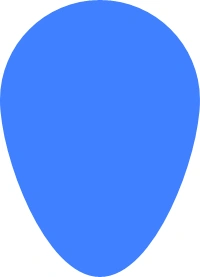
So how do you know which point from the XAML is the right one to use? Each BezierSegment has three sets of point data that describe the curve. With the reference storyboard for this project and a bit of detective work, we can identify the corresponding points between the object and those being modified by the storyboard.
The first PointAnimation in the MovePointUp storyboard has the following TargetProperty:
(Path.Data).(PathGeometry.Figures)[0].(PathFigure.Segments)[1].(BezierSegment.Point1)
The BezierSegments in the object are numbered as follows
P1AnimBack.To = new Point(45, 200);
P2AnimBack.To = new Point(155, 200);
P3AnimBack.To = new Point(100, 200);
That's it you have experienced the PointAnimation through code behind. Hope you have enjoyed.
Enjoy Animating.

Point Animation in Silverlight 3
Join the conversation! Your thoughts help the community grow.
Sign in to leave a comment
It is the same account you read, post and publish with — and you will come straight back to this page.
Former memberPosted Jul 22, 2009, 5:34 AM
Great article to read :)