Today in this article I’m going to show you how to populate the picker view using MVVM.
Model View View-Model (MVVM) is a UI Based Design Pattern. The main object of MVVM is to provide a rich UI, testability features, code more reusability and complex data binding.
It helps to improve the separation of the business and presentation layers without any direct communication with each other.
Prerequisites
- VS 2017 Community Edition
- Xamarin
Creating the Project in VS 2017
- Open Visual Studio 2017 Community Edition.
- Create a new project by going to File -> New -> Project.
- A new window will open. Select Visual C# -> Cross-Platform under installed.
- Now, on the right side, select Cross-Platform mobile App (Xamarin.Forms) and then give the suitable name for the project, select the destination folder for the project, and click OK.
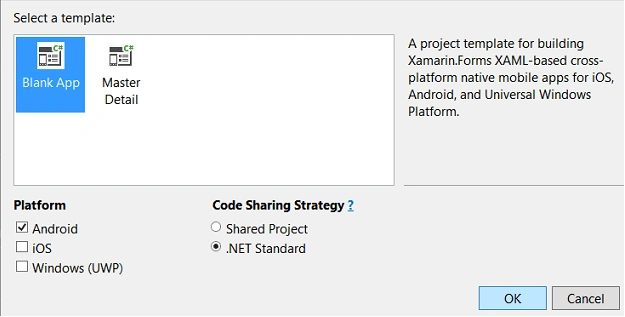
Now, a new window will open. Select the Blank App and choose the platforms you want to work with. After that select .NET Standard on Code Sharing Strategy and then click OK.
Creating the Model, the Service and ViewModels used in the project
In .NET Standard project add 3 new folders - Models, Services, and ViewModels.
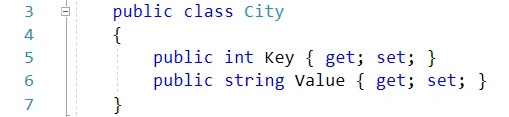
In Models folder, create a new class called City and write the following C# code for creating the properties Key and Value,
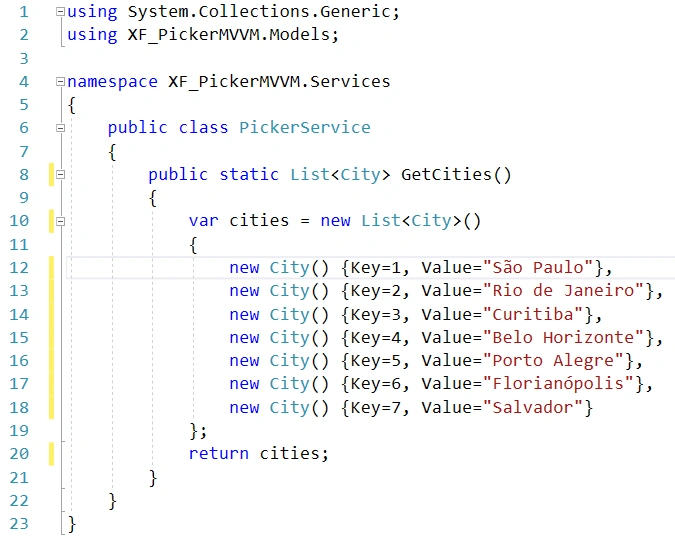
Similarly, under Services, create a new class called PickerService and write the following C# code to return a list of cities,
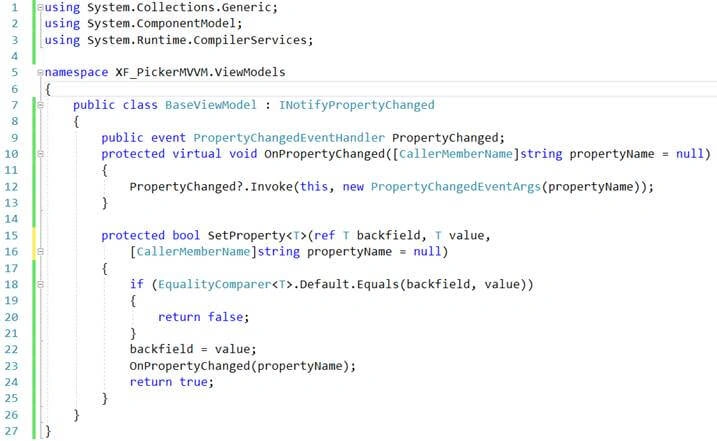
Now, in ViewModels create a class called BaseViewModel and write the following C# code that implements the INotifyPropertyChanged interface and defines the SetProperty() that updates the backing field value,
In ViewModels folder create the class MainPageViewModel that inherits from BaseViewModel class and will act as the ViewModel for the view MainPage. Write the following C# code in this class:
- using System.Collections.Generic;
- using System.Linq;
- using XF_PickerMVVM.Models;
- using XF_PickerMVVM.Services;
- namespace XF_PickerMVVM.ViewModels {
- public class MainPageViewModel: BaseViewModel {
- public List < City > ListCities {
- get;
- set;
- }
- public MainPageViewModel() {
- ListCities = PickerService.GetCities().OrderBy(c => c.Value).ToList();
- }
- private City _selectedCity;
- public City SelectedCity {
- get {
- return _selectedCity;
- }
- set {
- SetProperty(ref _selectedCity, value);
-
- CityText = "City : " + _selectedCity.Value;
- }
- }
- private string _cityText;
- public string CityText {
- get {
- return _cityText;
- }
- set {
- SetProperty(ref _cityText, value);
- }
- }
- }
- }
In this code we created 3 properties: ListCites, that returns a list of cities, SelectedCity that return the selected citiy and CityText that represents the value of the city.
Setting the MainPage.xaml view
Now, we can setting our view MainPage.xaml using the Picker view and the following properties:
- ItemsSource – get the source of data;
- ItemDisplayBinding – Get or Set a binding that selects a property that will be displayed for each object in the list of items;
- SelectedItem – get the selected item;
- <?xml version="1.0" encoding="utf-8" ?>
- <ContentPage xmlns="http://xamarin.com/schemas/2014/forms" xmlns:x="http://schemas.microsoft.com/winfx/2009/xaml" xmlns:local="clr-namespace:XF_PickerMVVM" x:Class="XF_PickerMVVM.MainPage" Title="Picker with MVVM">
- <StackLayout>
- <Label Text="Select a city" FontSize="Medium" TextColor="BlueViolet" />
- <Picker Title="--Select--" ItemsSource="{Binding ListCities}" ItemDisplayBinding="{Binding Value}" SelectedItem="{Binding SelectedCity}" />
- <Label Text="{Binding CityText}" TextColor="OrangeRed" />
- </StackLayout>
- </ContentPage>
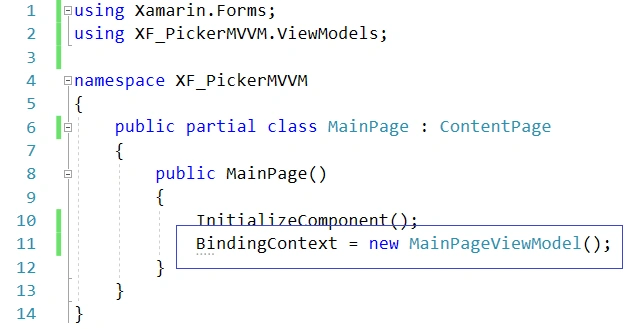
Finally in the code-behind file MainPage.xaml.cs include the code to create an instance of our ViewModel,

Running the app we get the following result,
So, in this way, we can populate the view Picker with data using MVVM in Xamarin.Forms.
Get Source Code XFPickerMVVM.zip.


BAT MANPosted Apr 26, 2021, 12:17 AM
It helped me thanks a lot
Nicolas SarmientoPosted Nov 12, 2020, 12:10 AM
Thanks. I'm Using Xamarin with Prism and just needed a few changes to make it work thanks a lot
Hiren PatelPosted Sep 14, 2020, 10:58 AM
How to get selected values in viewmodel and depending upon the value bind another picker ?
شان محمدPosted Sep 10, 2020, 2:23 AM
How to set bydefault value in picker in mvvm?
robertoPosted Jan 20, 2019, 10:22 AM
Yeah nice article.i’ m learning so it’s a bit difficult for me. Please could you explain what if i want to change the list? For example States instead Cities ...and back ? Thanks
Arvind ChourasiyaPosted Sep 21, 2018, 2:09 AM
Nice article. Looking forward for more mvvm posts related to deep business logic like filtering, showing by order etc. Thank you.