

Scenario
Consider a scenario that you have a SharePoint list and you want it so that whenever a user enters items in the list, that item should be posted on a Facebook wall post.
Approach
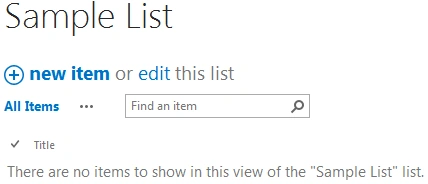
Here, I have a custom list “Sample List” with “Title” column.
Click on “List >> Nintex Workflow”

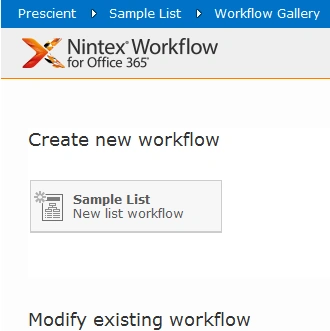
It will open up the Nintex page. Click on “Sample List Create List Workflow”
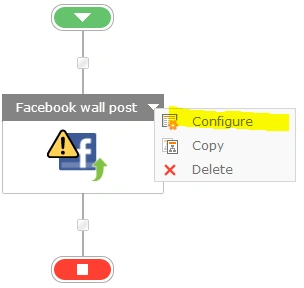
Now, search in the action “Facebook wall post” and drag and drop to the Workflow Designer canvas. After placing the action, double click on the action or click on down arrow and select “Configure”.
Once you click on the “Configure” option you will get the configuration setting screen.
Note the following points
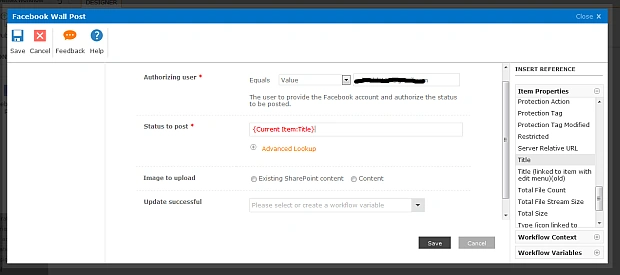
- Authorizing user: Enter the email account associated with the Facebook account on which you have to post the detail.
- Status to post: Here you have to configure the contents that should be posted on Facebook wall. Here I have selected the “Title” field from current item on which workflow has been fired. Here if you have more than 1 column in list and you want to combine value of all the fields that can be done also.
- Image to upload: If you also want to upload the image along with text then you can configure this option too. Here I am leaving this blank as our requirement is to post the text on Facebook wall post.
- Upload successful: Here you can save the response from Facebook to any workflow variable.
- Once all the configuration is done the configuration screen will look like as shown in the following image
- Click on “Save”
- Now you are done with your workflow configuration
Now click on “Publish” from the workflow designer ribbon. And you will see the publish screen. Give a unique name to the workflow and configure other parameter. Select “Start when items are created” in “Start option”. Here you can select the Start option as per your requirement.
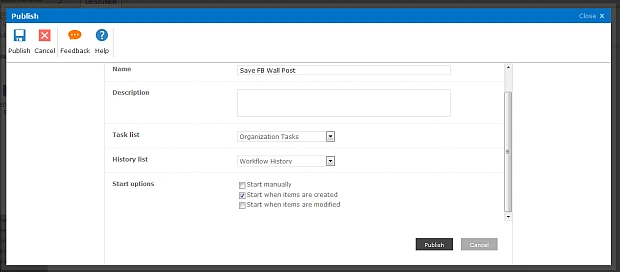
- Click on “Publish”
- And your workflow will be published
Once the work has been successfully published, go to the “Sample List” and create an Item.
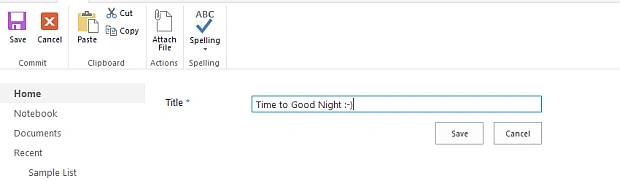
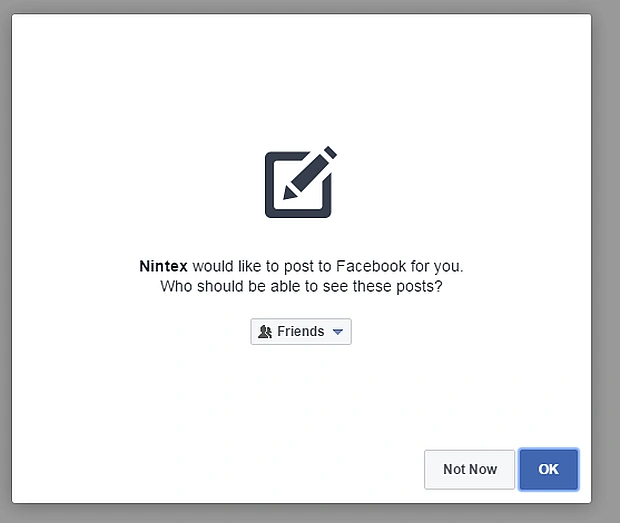
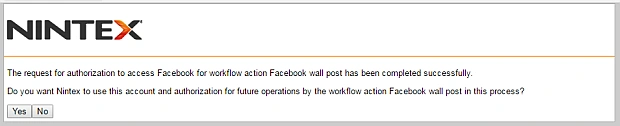
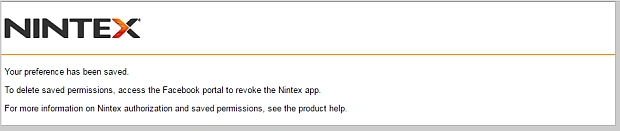
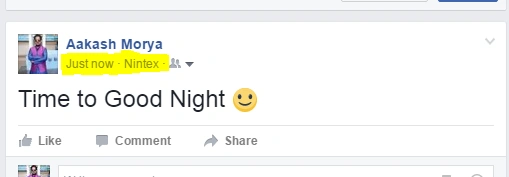
Click on “Save”. And workflow will be fired.
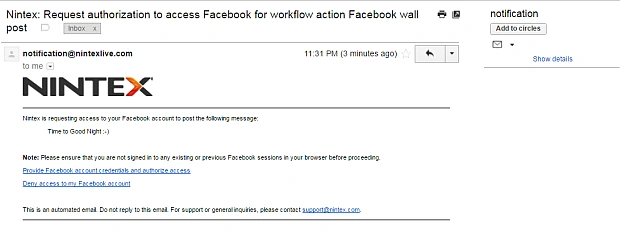
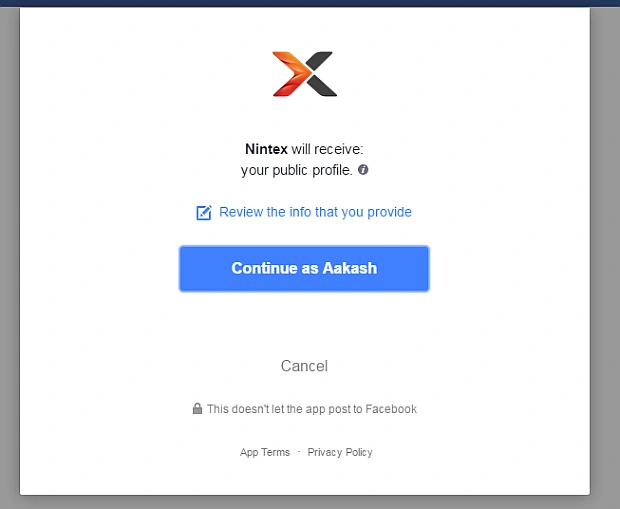
Join the conversation! Your thoughts help the community grow.