

Introduction
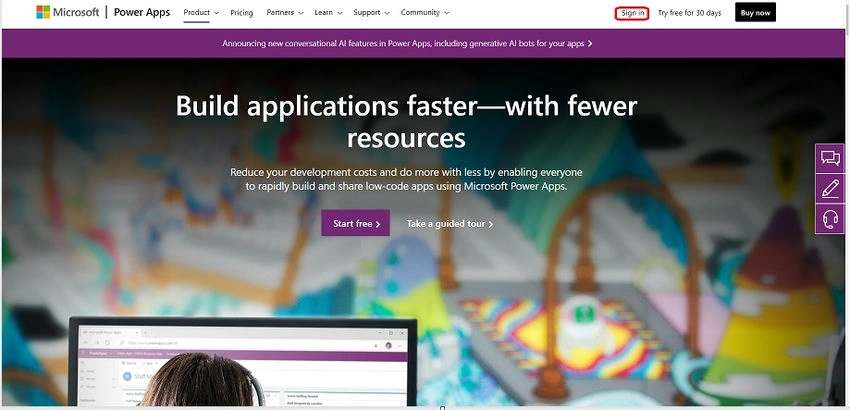
Microsoft Power Apps is a powerful platform that empowers users to create custom applications without the need for extensive coding skills. To embark on this exciting journey, you need a professional email ID and an understanding of the tenant creation process. In this guide, we'll walk you through the steps to sign up for Power Apps using your professional email ID and gain access to the vast potential it offers.
Steps for obtaining the PowerApps subscription
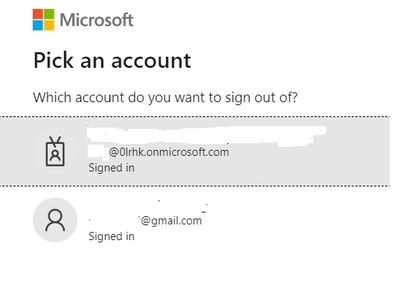
Step 1. Obtaining a Professional Email ID If you don't have a professional email ID, the first step is to get one. A professional email ID is typically associated with your organization's domain (e.g., [email protected]). Many organizations provide their employees with such email addresses, so check with your IT department or employer if you're unsure.
If you are a student and have to proceed with learning new things on the PowerApps, then you must create a tenant from which you will be able to PowerApps. We will have the tenant created for you. With the help of that tenant, you will be able to proceed with the next steps.
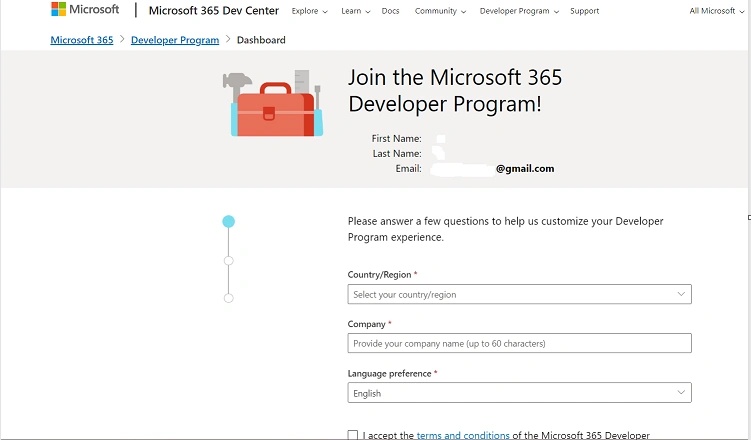
To create a tenant with PowerApps, you would have to create a Developer365 account, and you have to answer a few questions to get proceed with the Developer program account.
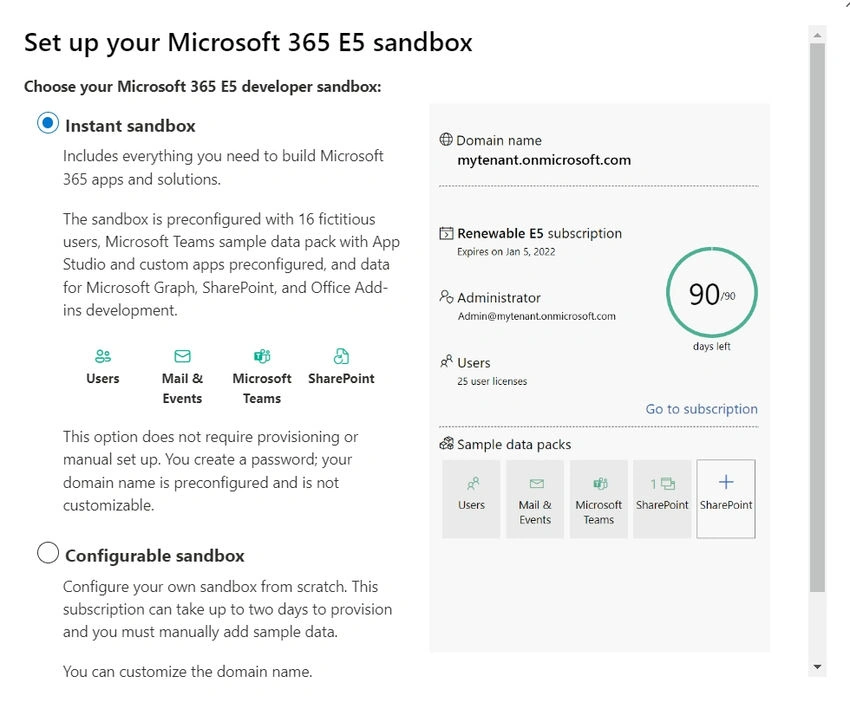
Post the creation of the Developer 365 account, you would be able to get the pop-up that would enable you to have the E5 Sandbox creation, which can be chosen as either Instant Sandbox, which will create you a sandbox instantly, and that will have all the M365 apps and solutions been installed in it. Another one is the Configurable Sandbox, in which you have built in all the details from scratch by yourself. All the Sandbox that you create are renewable ones, and you have to renew it every 90 days. All your data will be erased, and solutions inside your Sandbox will be removed post 90 days. You would have to renew or create a new Sandbox post that and start using the second one.
Once you had specified the way that you want to select, you would next have to select the name and password for your Sandbox.
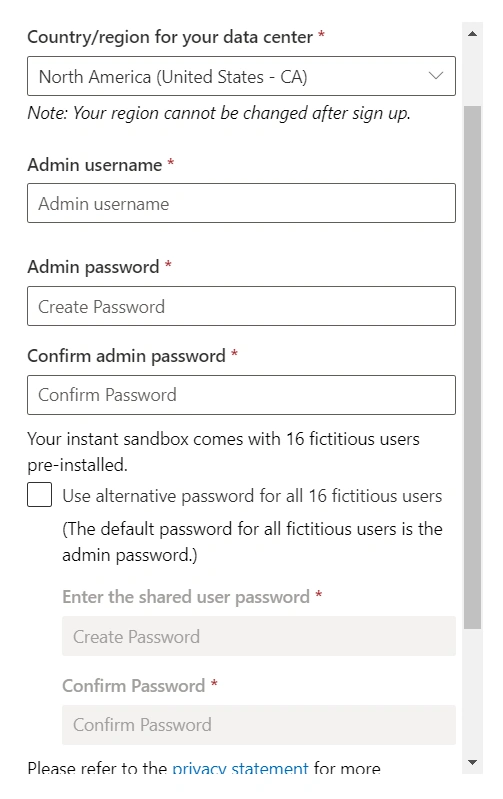
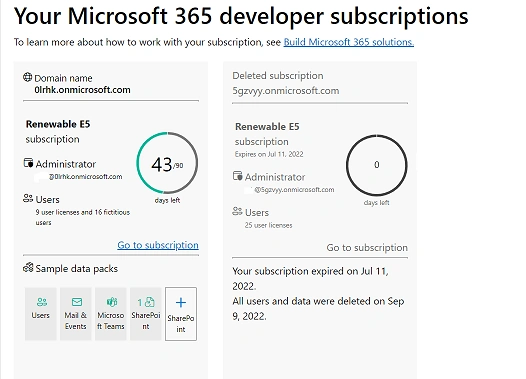
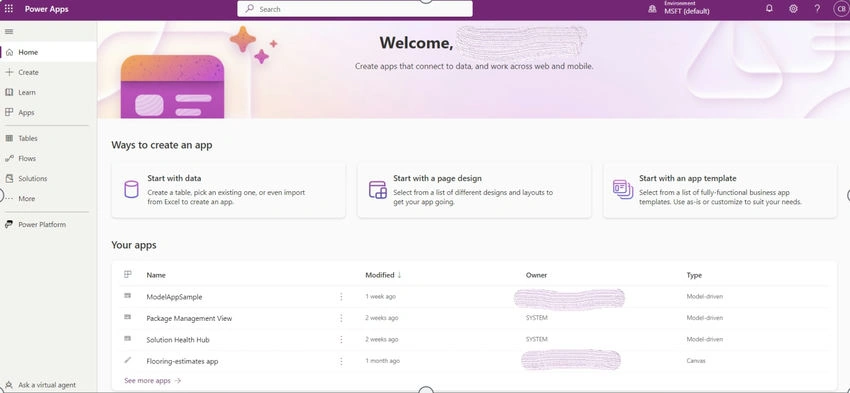
Once you have given the admin id and password in your Sandbox, you would be able to have the domain created for you. We will have the renewable E5 account will also be created for the same.
Jai KumarPosted Jul 30, 2023, 2:49 AM
Well-structured article
Janarthanan SPosted Jul 29, 2023, 11:00 AM
Very well written article Bhargavi