

Data Label and Axis Formatting
We will see how we can configure some of the important properties related to Power BI charts, including x-axis, y-axis, title, and data labels.
Let’s get started.
Note
The below configurations and steps are applicable to both Power BI desktop and Power BI web service online. Open Power BI desktop application >> Create a new Report or open the existing .PBIX file. For Power BI web service – open the report in Edit Mode
The below configurations and steps are applicable to both Power BI desktop and Power BI web service online. Open Power BI desktop application >> Create a new Report or open the existing .PBIX file. For Power BI web service – open the report in Edit Mode
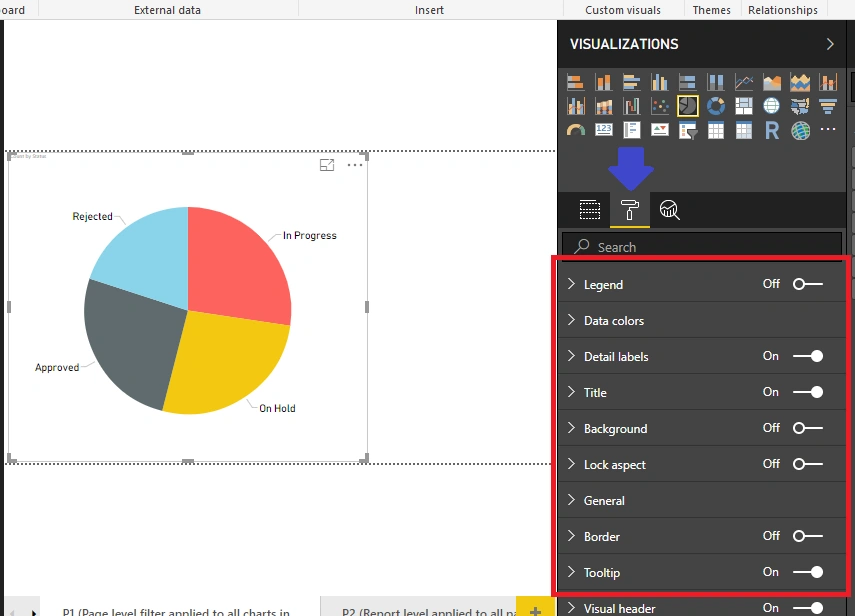
Select or click on any chart for which you want to do the configurations >> click on the format icon on the right side to see the formatting options, as shown below. You have the following options:
Legend, Data colors, Detail labels, Title, Background, Tooltip, Border
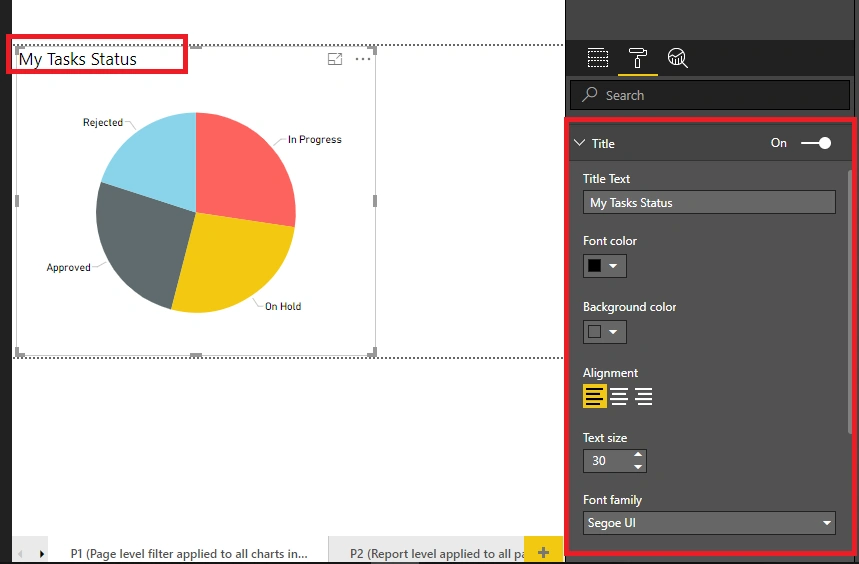
To format the title of your chart, make the configuration from the Title section as below. Set color, size, font-family, background color, alignment
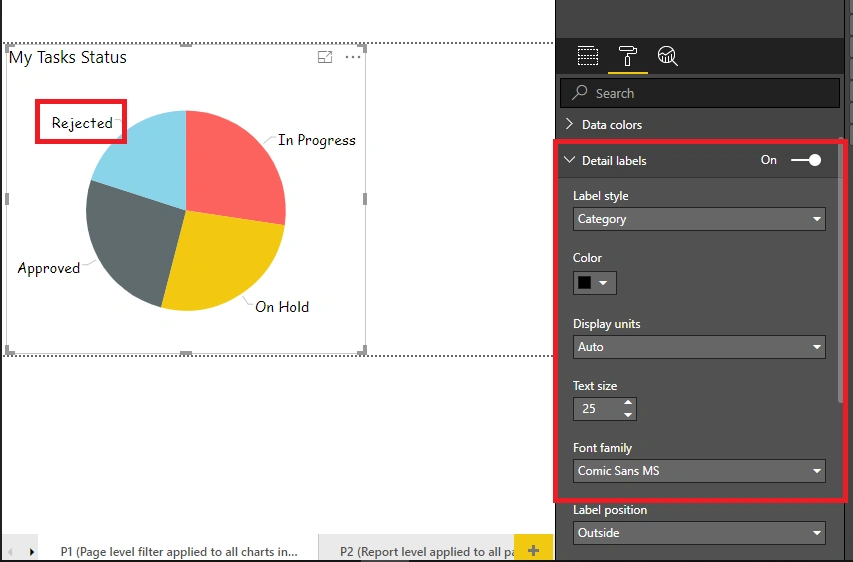
To format the labels shown on the chart, configure formatting options from the Detail labels menu as shown below [Note: Depending upon the type of chart, these settings vary, check the next step for column chart].
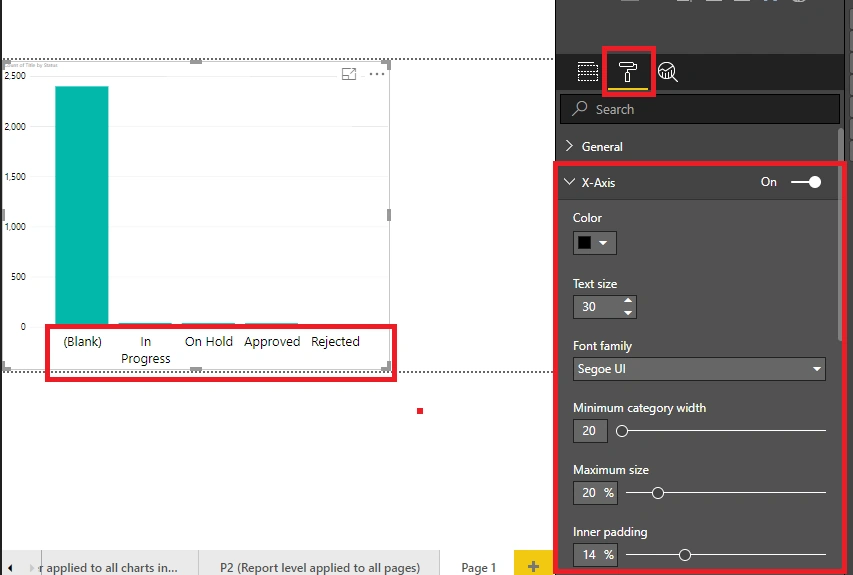
For a column chart, you will see the option to format X-Axis and Y-Axis. Format labels are shown on X-Axis with color, text size, font family etc.
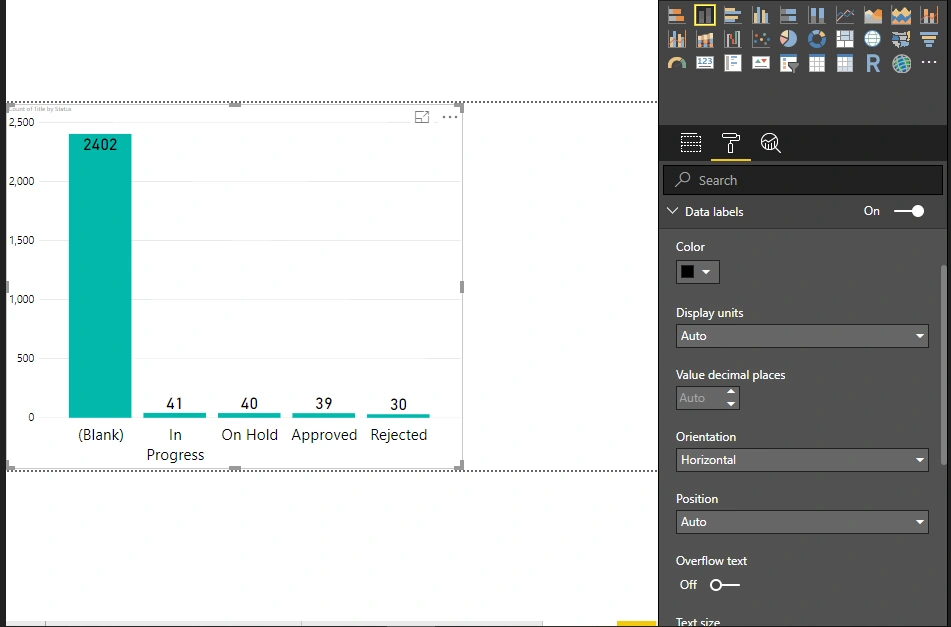
Formatting Data Labels: By default, these values are not visible. To see values on the chart, you need set data labels to On. You can set the color, size, background, etc. for data labels from this section.
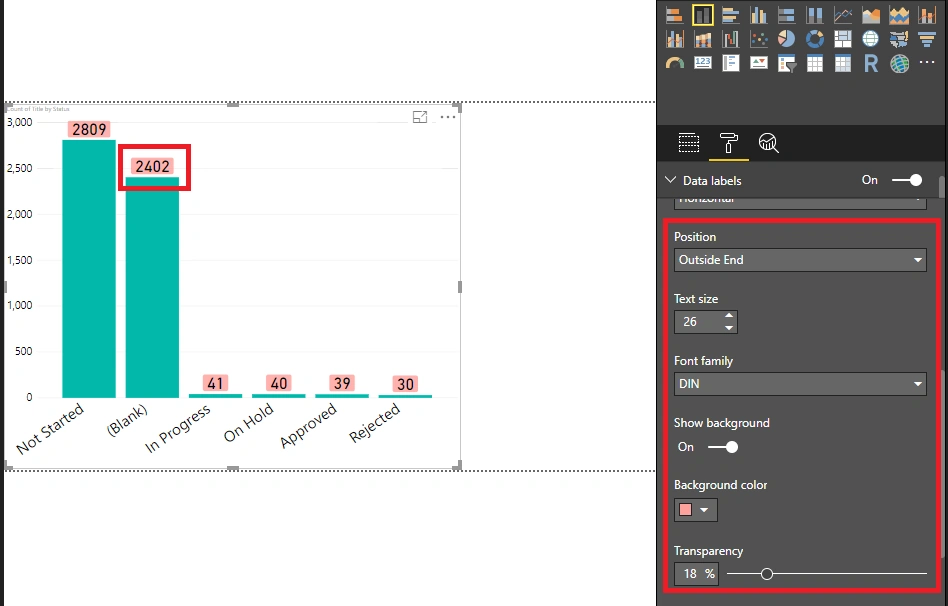
As shown below, I am showing the data labels outside the columns with the background color. Choose "Show Background" as Yes and set the color.
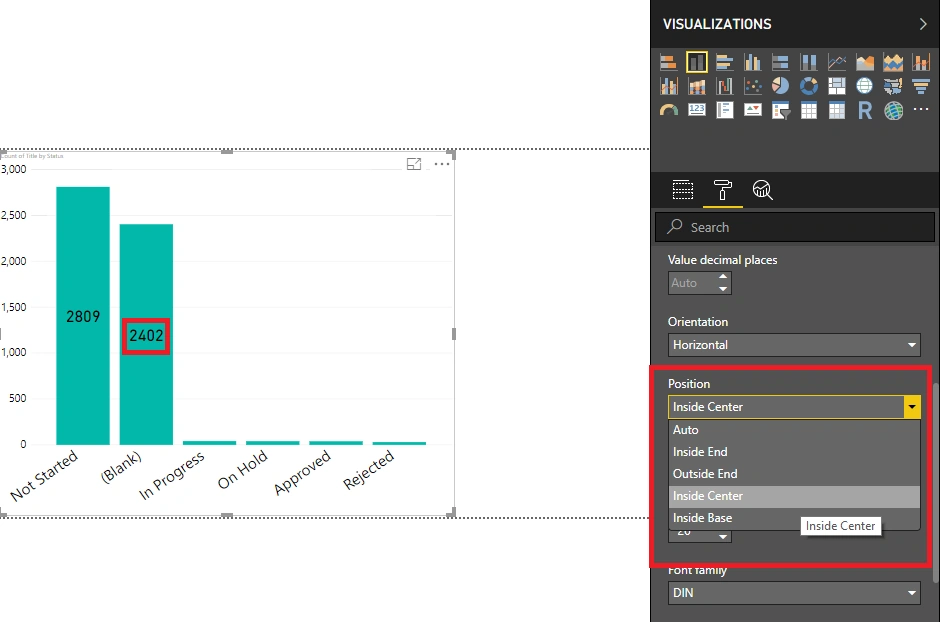
You can set the position of data labels at various places – Outside End, Inside End, Inside Center, Inside Base. You can choose the orientation to horizontal or vertical.
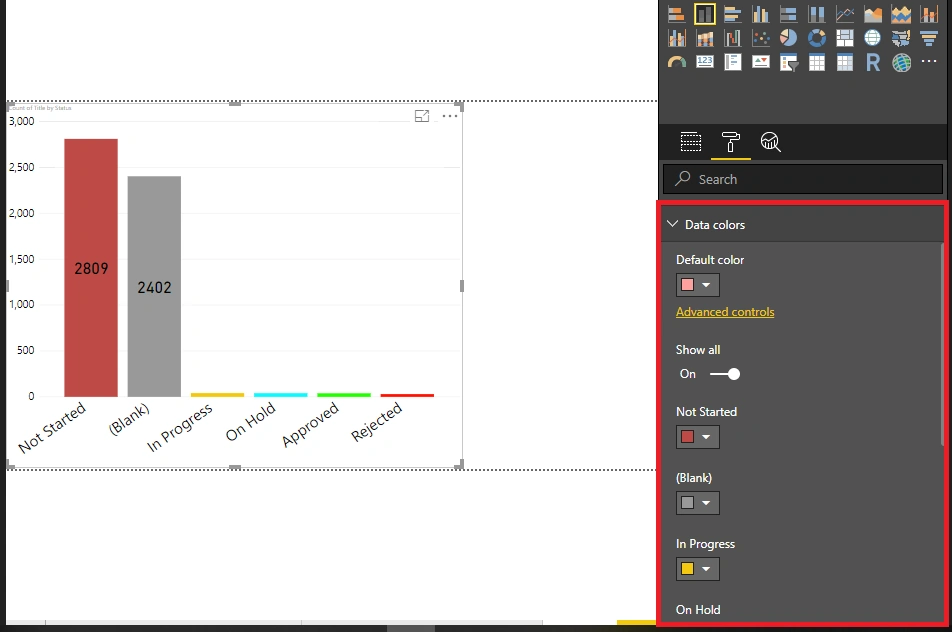
How do we set different colors to bars/columns depending on a data value in a chart?
From the Data colors menu, under formatting, you can set specific colors to a specific value bar/column.
Join the conversation! Your thoughts help the community grow.