

Introduction
When working in a large set of Data, definitely we cannot use the data as it is. We need to perform some refinements so that we can exactly look into the data in which we are interested. In Power BI, this process is called Data Transformation, which can be done in different ways. In this article, we will have a look at the different ways of data transformations.
Different ways of Data Transformations in Power BI
First thing first, in order to perform data transformation, we need to load the data. As for this article, I am going to use SQL Server as my data source and load the data from the table [Sales].[SalesDetails].
SELECT [SalesId]
    ,[ProductName]
    ,[Quantity]
    ,[DateofSale]
FROM [PracticalWorks].[Sales].[SalesDetails]
The above T-SQL Statement results as,

Fig.1 SalesDetails table’s result set
Now we have to load the data from the data source.
Load Data into Power BI from Data Source
Select the SQL Server option from the Home ribbon tool.
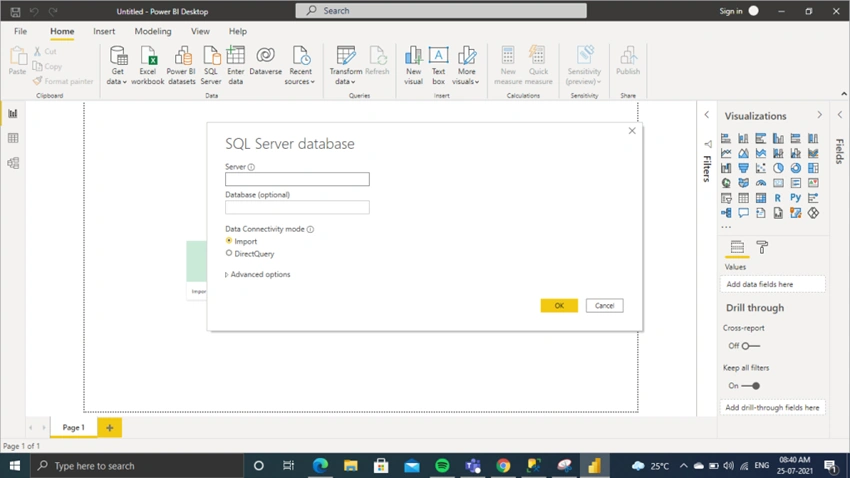
Fig.2 Connect to SQL Server Data source
Choose the Database and table(s) and then click the Transform Data button as shown below.

Fig.3 Choose Transform Data option from the Data Source
Now the data will be loaded into a new window which is called the Power Query Editor Window, where we are going to perform most of the data transformations.
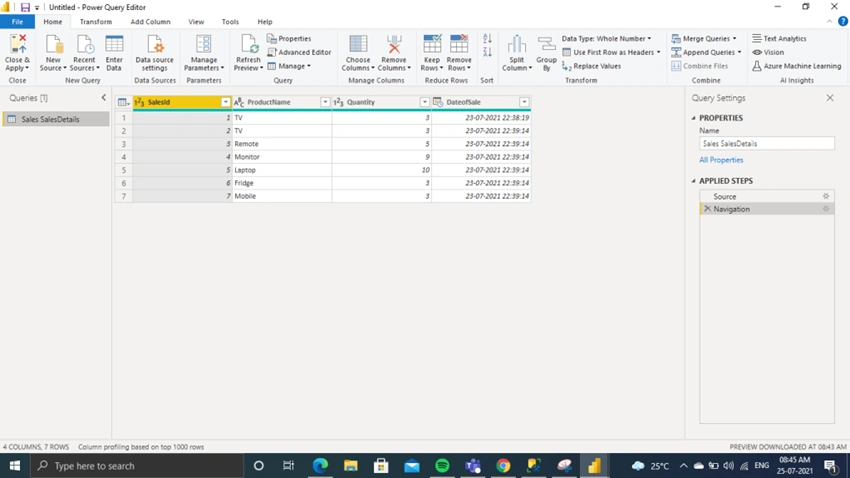
Fig.4 Power Query Editor Window
Renaming the Data source name - Queries Session
If we look at the left corner of the Power Query Editor window, we can see an option as Queries. Under this session, all the different data sources are listed with the default data source’s file name. i.e. When a SQL table is loaded, then that table’s name is listed in this session, if we load an Excel file, then its file name is shown up.
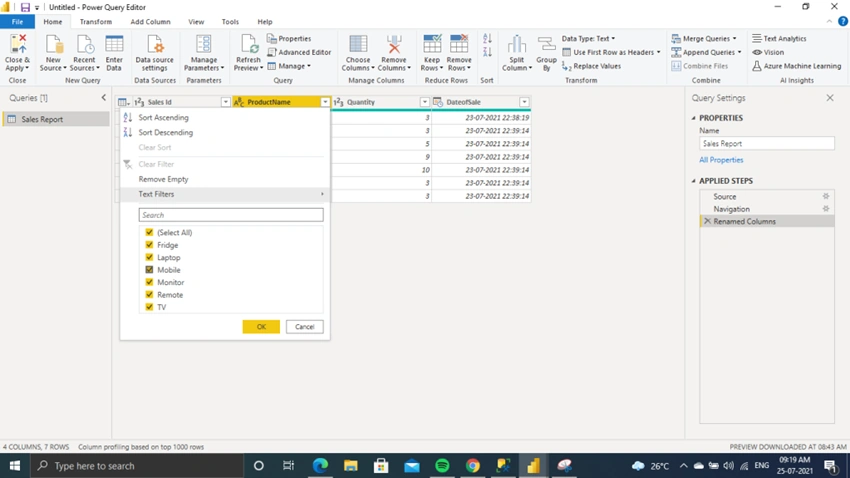
This may be difficult for us when we have multiple data sources for a single Power BI. We can rename this data source as per our wish. To rename the data source name, just double-click the source and rename it.

Fig.5. Renaming Data sources


Join the conversation! Your thoughts help the community grow.