

Overview
In this article, we will learn how to publish the Power Virtual Agent to MS Teams and Integrate the Power Virtual Agent Bot with MS Team. With Power Virtual Agents, we can publish bots to engage with our customers on multiple platforms or channels. These include websites, mobile apps, and messaging platforms like Microsoft Teams. In order to Integrate Bot with MS Teams, we will follow the below two key concepts:
- Publishing Bot
- Integration with MS Team
We will go through the two key concepts in detail.
Publishing Bot
Once you’ve created a Power Virtual Agent Bot, you need to publish it before your customers or end-users can interact with it. Here are the steps required to publish your Bot.
Step 1. Go to the Publish tab on the left navigation pane.
Step 2. Click on the Publish button to publish the latest topics and content available in your bot to end-users.
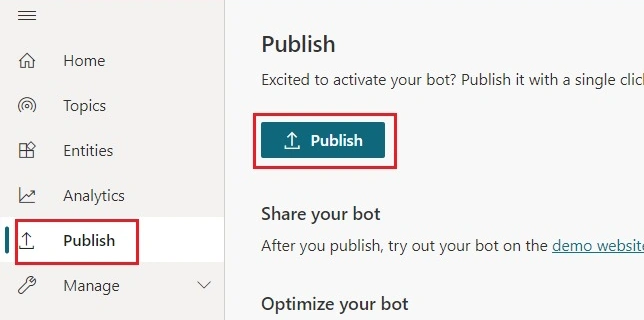
Once you click on the Publish button, the publishing process will get started and the process will check for any errors in topics or content.
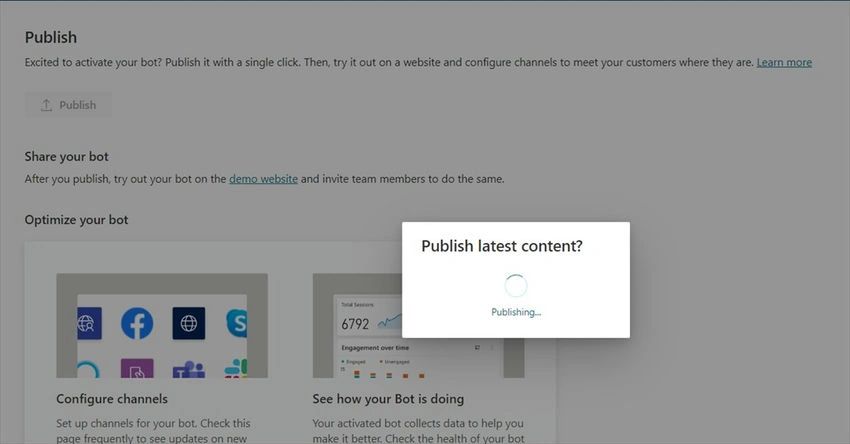
If there are no errors, then the publishing process will be completed successfully.
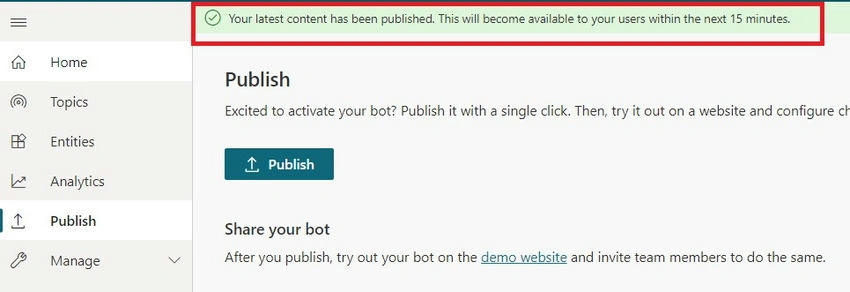
Now, the latest content has been published successfully. The latest content will be available in the next 15 minutes on multiple channels such as MS Team, Slack, and Facebook if the Bot is already integrated.
The publishing process has been completed and we will see how to integrate it with MS Teams.
Integration with MS team
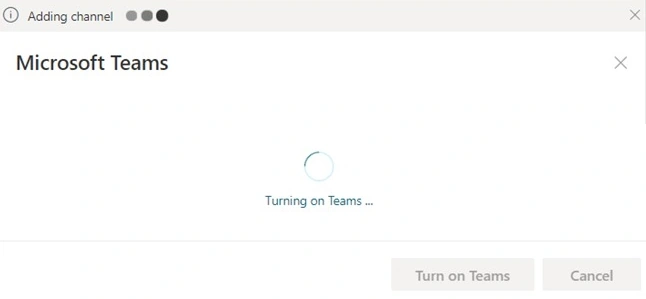
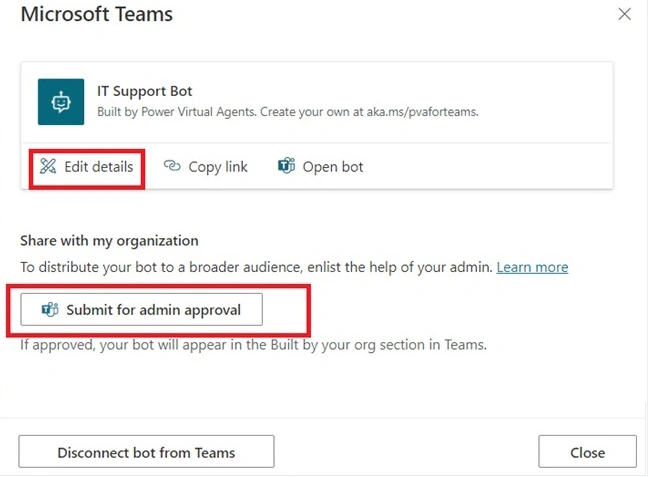
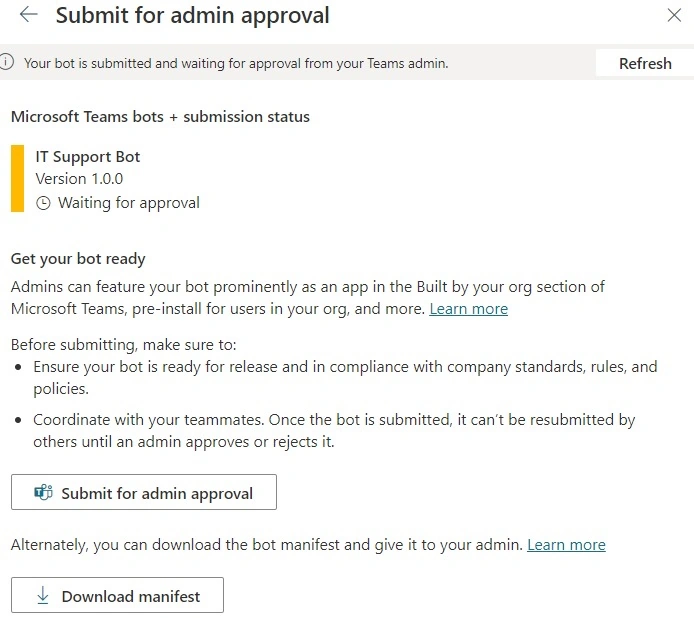
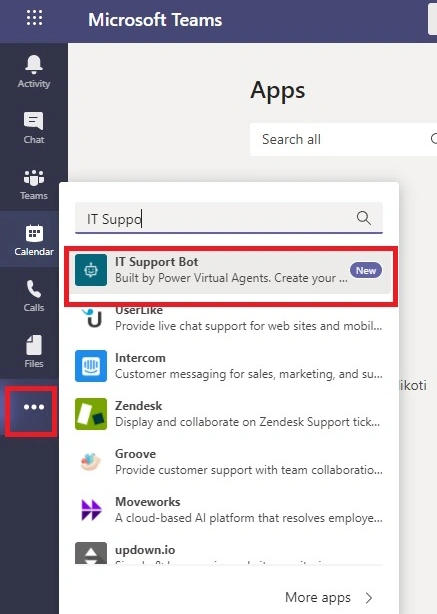
Before we get started with Integration with MS Team, there are some prerequisites that need to be taken care of. You need to have Team Service Admin or Global Admin permissions to change the App Permission policies in the Microsoft Teams admin center. Here are the steps to be followed
App permission policies control all the apps we want to make available to Teams users in your organization.
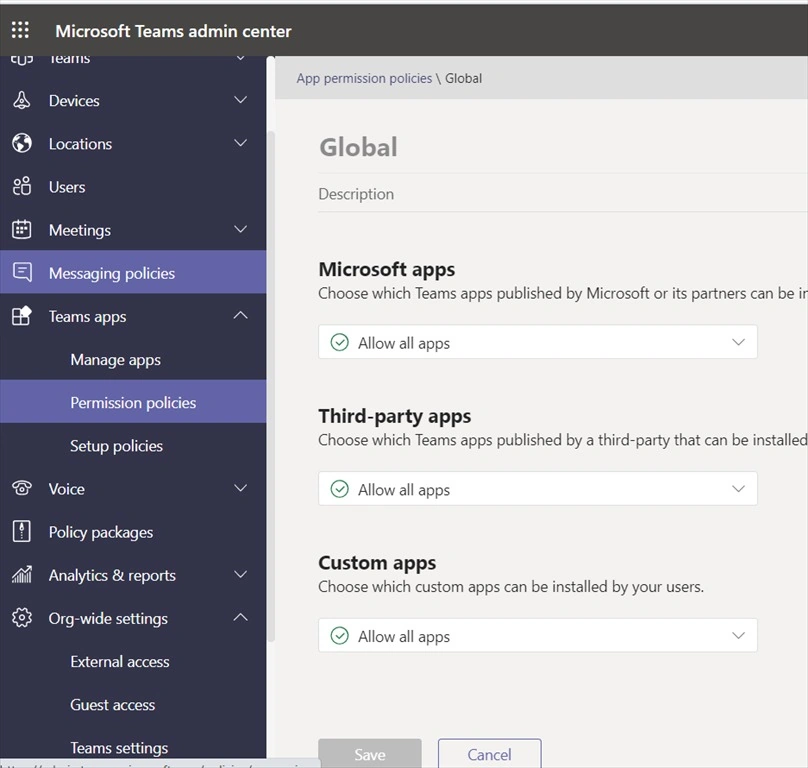
Step 1. In the left navigation of the Microsoft Teams admin center, go to Teams apps > Permission policies.
Select the Global (Org-wide) default policy and click on Edit. Select All Allow App from the dropdowns as shown below and click on Save. Once the Global (Org-wide) default policy is saved, it takes a few hours for the change to take effect.



Oodit JethwaPosted Mar 2, 2021, 4:26 PM
Awesome, really very helpful
Bhargav ReddyPosted Oct 14, 2020, 9:55 AM
Very well written article. Keep posted Kiran.