

Introduction
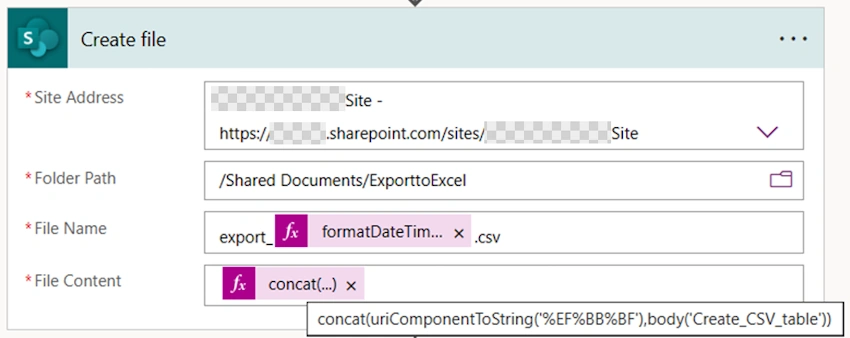
I frequently see situations where an Excel report is requested by the business. But can we use PowerApps to save it as a CSV file? Then we can, with Power Automate's assistance. With Power Automate's assistance, numerous needs in PowerApps can be fulfilled.
The training department makes use of the training app. The purpose is to compile a report on every training. To download a report upon button click, they require a provision.
Scenario
We will look at how to save a report in CSV format using PowerApps using a list of data that needs to be exported as a report.
Objective
Power Apps may transform table data from a collection or data source into an Excel-openable CSV file.
In this article, I'll show you how to export a file to Excel using Power Apps.
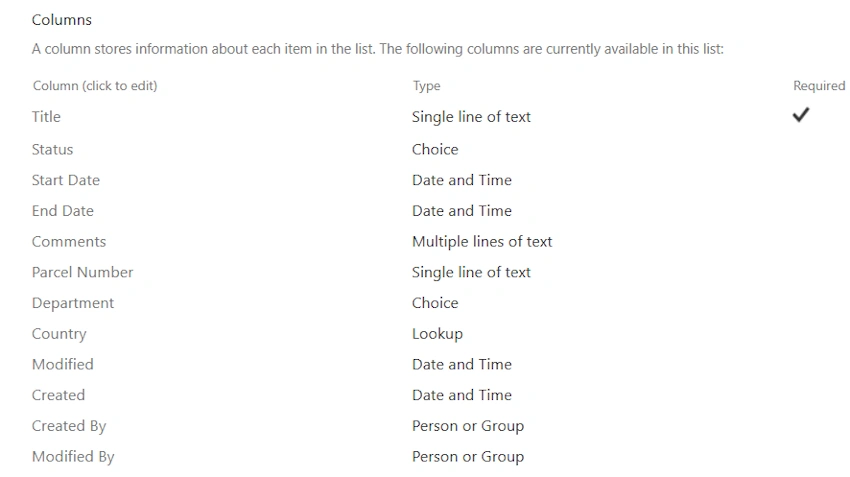
Step 1. A SharePoint list is created
Make a new SharePoint list to hold the training information.
Step 2. To present Information add A Table To The App
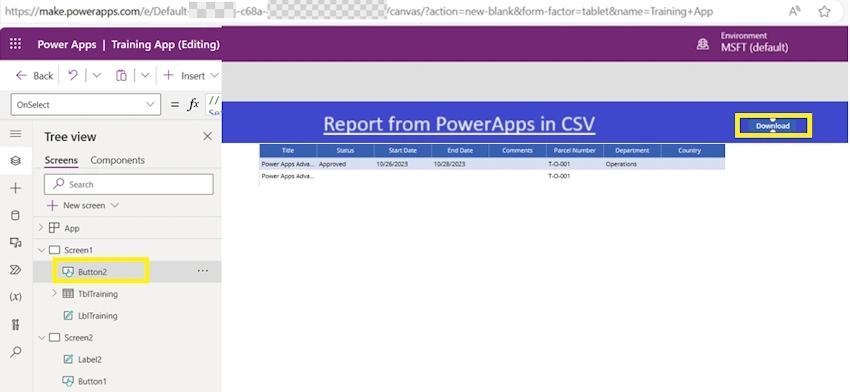
Open Power Apps Studio and create a new app from the beginning. At the top of the screen, place a label with the title.

Step 3. Connect to Datasource
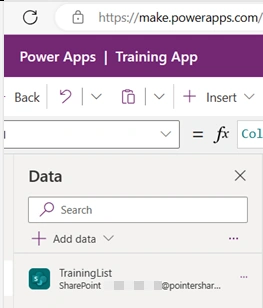
Include the datasource TrainingList which is a SharePoint list.
Inserting a data table and changing the item attributes to "TrainingList" will allow you to view this training list. The columns (datacards from PowerApp) that are not needed can be deleted.
Step 4. Prepare a JSON Sample For The Excel Flow Export
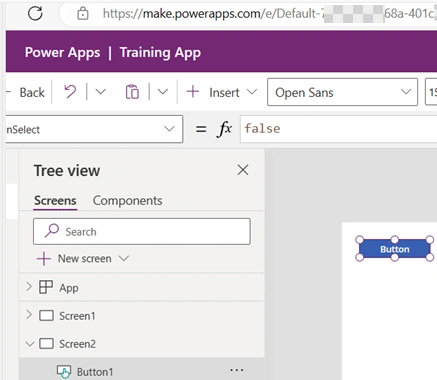
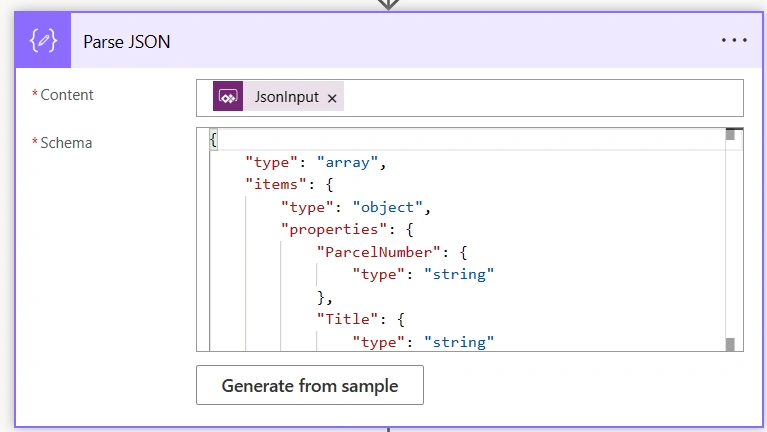
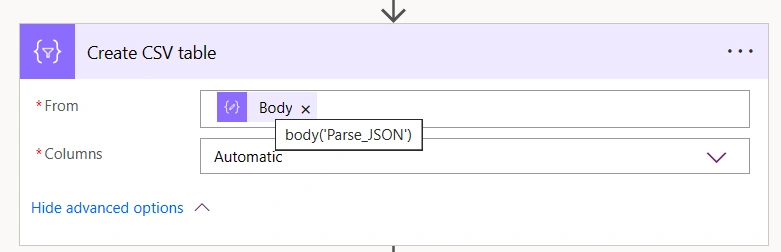
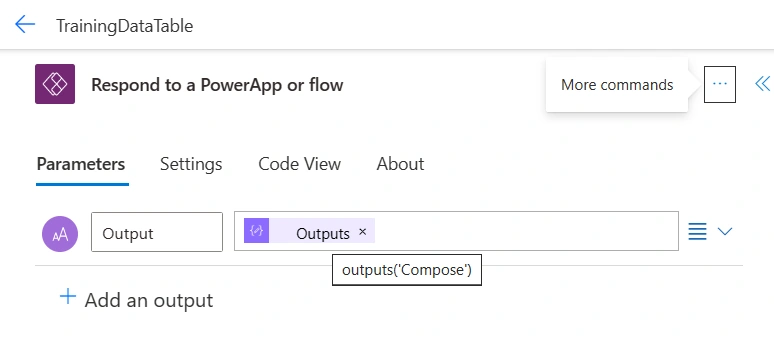
As Power Automate will be used to create the CSV file, we need a way to send data from the table into a flow as shown in the above screenshot. We will convert the data into a JSON format in order to accomplish this. To prepare to generate the flow, we first need to create a sample of the JSON that is being delivered. Create a brand-new, blank screen and then place a button on it.
Step 5. Button formula on onselect attribute
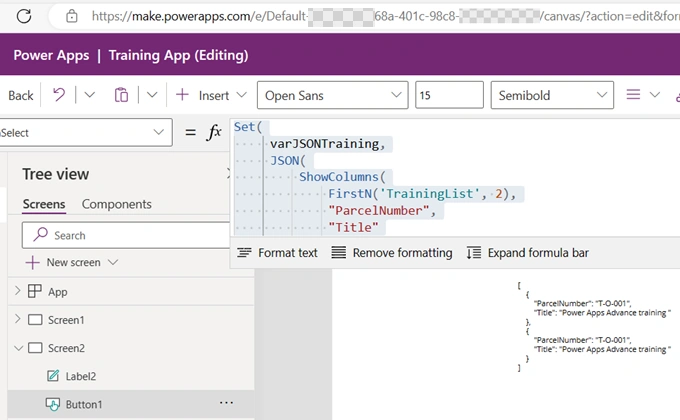
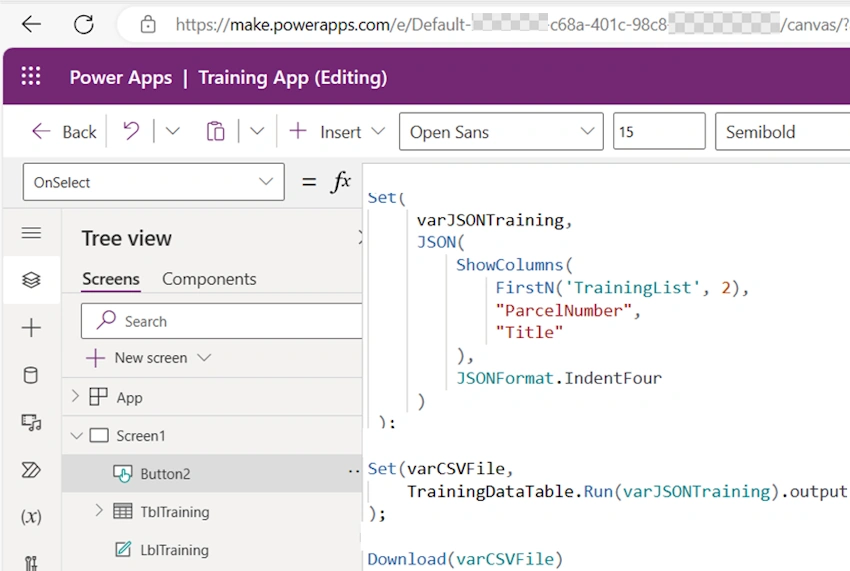
Put this code in the OnSelect attribute of the button. The JSON function can be used to convert table data from a collection or datasource into text formatted as JSON.
Set(
    varJSONTraining,
    JSON(
        ShowColumns(
            FirstN('TrainingList', 2),
            "ParcelNumber",
            "Title"
        ),
        JSONFormat.IndentFour
    )
)
Step 6. To present the results Pass the variable on the label
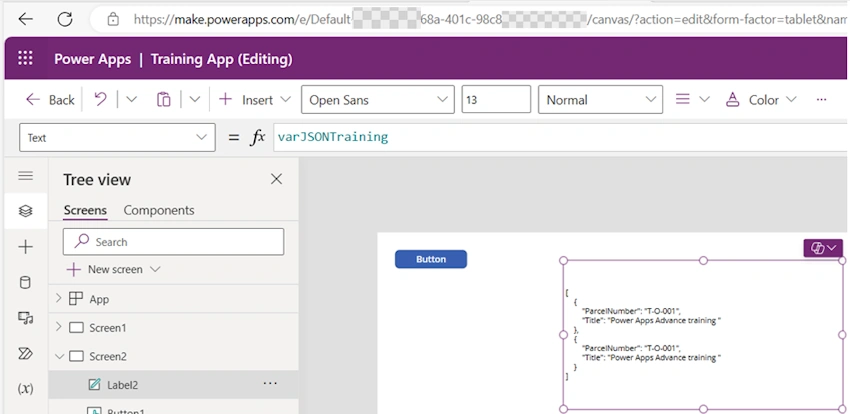
After that, add a label on the button's side and enter this code into the Text attribute.
This is the JSON-formatted text that will appear on the label. That's it for now; let's get started building our flow. This JSON sample will be used shortly.


Join the conversation! Your thoughts help the community grow.