Before reading this article, I highly recommend reading the following previous
parts:
Deploying Azure service from Visual Studio
This article is designed to showcase the creation of a simple ASP.NET web role project and its deployment into the Azure cloud environment using Visual Studio itself. However, the Windows Azure Portal is sufficient to create, configure and deploy any cloud service through its full-fledged user interface. You shall come to an understanding of the various features of the Visual Studio IDE that are directly correlated with the live Azure portal. In fact, there is no need to rely on a browser to access the Azure development portal. Whatever you create or configure in Visual Studio, for instance a website, virtual machine, or database, shall be immediately reflected into the Azure portal. Overall, the objective behind writing this paper is to guide the developer in the direct manipulation of the Azure service using Visual Studio.
Prerequisites
This article expects you to have at least a minimal understanding of .NET development, especially ASP.NET with C# and Object-Oriented Programming concepts. You will need the following hardware and software to complete the practice exercises in this article:
• One of the Windows 7 editions, Windows Server 2008 with Service Pack 2, or Windows 8
• Visual Studio 2010, or any later edition
• Windows Azure SDK.
• An Internet connection to work with Windows Azure.
Getting Started
Managing projects and solutions in the cloud through the Windows Azure Portal is simple and straightforward. In this section, you deploy your sample web role project to the cloud using Azure Services as a host. You follow the manual deployment process using Visual Studio, so that you can familiarize yourself with all the procedures involved in the process. This article shows this manually deployment process by creating a simple ASP.NET web role project that yields the square root of an integer.
Step 1
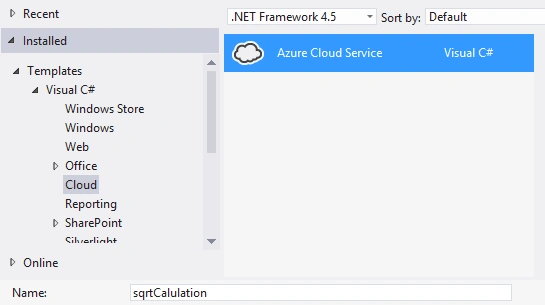
Launch Visual Studio that is dully leveraging the Azure SDK. Choose an Azure Cloud Service project, name it sqrtCalaculation. Subsequently, add a WebRole from the prompted template. Visual Studio will therefore create solution the associtaed essential files.
Step 2
Now, open the Default.aspx design file from the WebRole1 file hierarchy. Arrange a couple of ASP.NET controls such as text box, labels and button there.
Step 3
Then, place the following Square root calculation logic in the button click event handler.
- protected void btnCal_Click(object sender, EventArgs e)
- {
- try
- {
- if (txtVal.Text != "")
- {
- double d = double.Parse(txtVal.Text);
- lblOut.Text = Math.Sqrt(d).ToString();
- }
- }
- catch(Exception)
- {
- lblOut.Text = "Enter Numeric Value only";
- txtVal.Text = "";
- }
- }
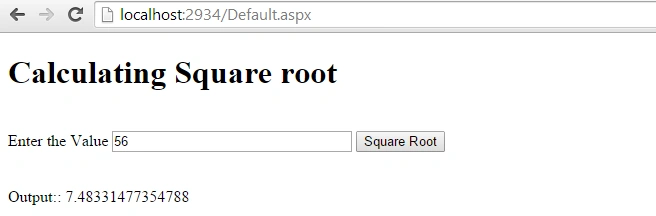
Finally, save the entire solution. It is always recommended to test the Azure service project in the local emulator before absolute deployment. So, this is the output of the local browser:
 Step 4
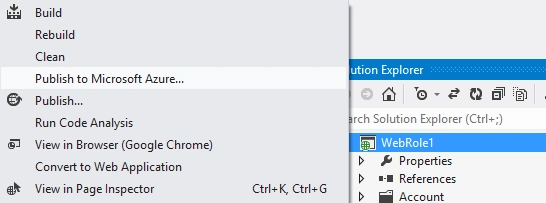
The testing at the Local Emulator is done, now let's start deploying it over the cloud using Visual Studio. Therefore, go to the Solution Explorer, right-click WebRole1 and choose the Publish to Microsoft Azure command.
 Step 5
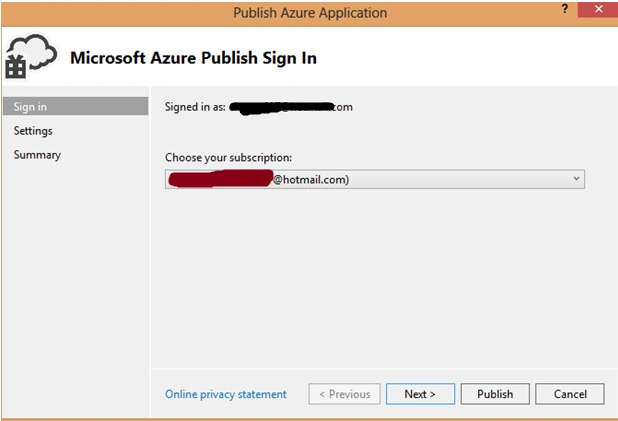
It is necessary to sign-in into an Azure account first, hence, the Visual Studio asks to enter cloud Azure credentials. Subsequently, choose the service subscription as in the following. Since the Azure cloud does not offer services for free.
Step 6
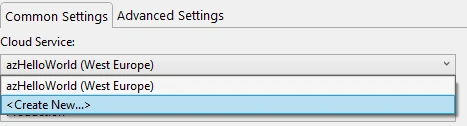
Thereafter, create a new cloud service as you were have created using the Windows Azure Portal by accessing in the browser as in the following:
Step 7
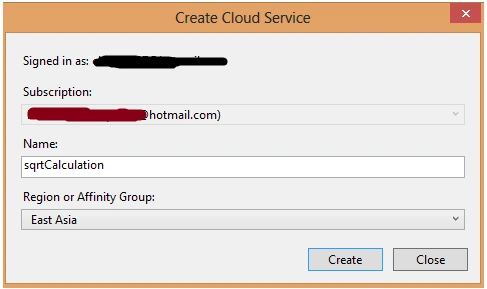
The process of configuring a new cloud service is quite simple like as earlier; just name it sqrtCalcualtion that you had assigned to your prior cloud services in the Visual Studio. Moreover, choose an affinity group where the cloud service will actually be located as in the following:
Step 8
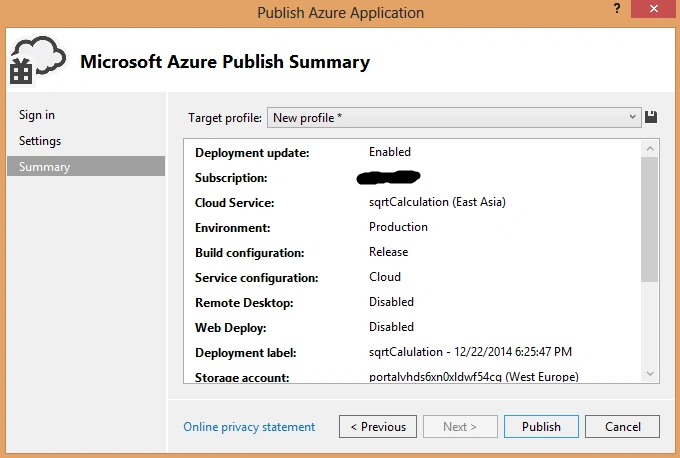
Your service will then be created and the following dialog box is showing the summary of essential parameters, including subscription, service name, storage account, deployment label, build configuration and service configuration that shall be required during the execution of an Azure cloud service at the time of deployment. Interestingly, you don't need to configure them manually like as you performed in the Azure development portal. Everything is yielded automatically.
Step 9
Finally, publish that service. Here, the Visual Studio performs two tasks implicitly, first create the package of this service and then deploy the service file along with the configuration file to the cloud automatically. Here, you can monitor the current uploading and deployment process; however, it will take some time to finish.

Step 10
Once the uploading process is initiated, you can even observe the current running activities using production Logs altogether.
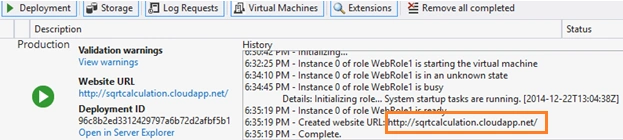
When the service is successfully deployed, then its corresponding URL will also be created, notice it in the previous figure. Finally, test this service live by entering the URL sqrtCalculation.cloupdapp.net in the browser.
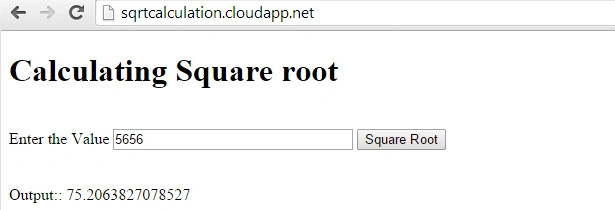
The changes about this service will even be automatically reflected in the Azure Development portal. Here, you can easily ensure the creation of the sqrtCalculation service as in the following:

Summary
It is not necessary to rely fully on the Azure development portal to create, configure and deploy a cloud service. Instead, the Visual Studio IDE alone is capable of quickly doing it without even going through the hassle of development portal. What this article shows is the creation and deployment of a cloud service using the Visual Studio IDE.


Bhuvanesh MohankumarPosted Apr 23, 2016, 5:53 PM
Useful for our students for training
Santhakumar MunuswamyPosted Apr 25, 2015, 8:10 AM
Thanks for nice article sir
Yatendra SharmaPosted Mar 21, 2015, 1:18 AM
nyc article sir