

Introduction
In this article, we will discuss the steps that we need to flow to prepare Interactive Reports and Dashboards using the Data in Power BI.
Import Data from Data Source
The first thing is we have to load the data from the data sources. In our previous articles we have discussed this, please feel free to refer to those just in case if required.
For this article, we are going to use SQL Server as our Data source. Now let's connect to our SQL Server Data source by providing the Server name and Database name by selecting the Get Data from Ribbon tool and choosing the SQL Server as the data source option and loading the data.
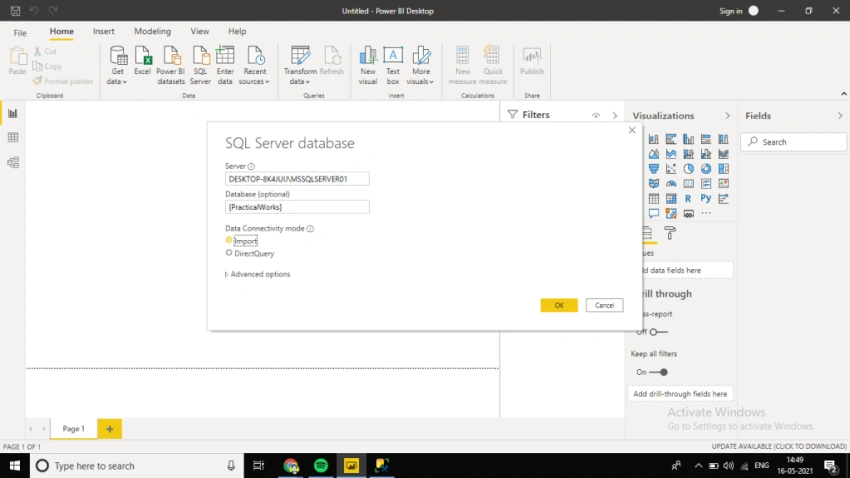
Fig.1 Choose SQL Server as Data source and provide the server name and database name to connect with
Transforming Data
Sometimes after loading the data into Power BI, the data might not be incorrect form to prepare the report. But no need to worry about this, Power BI provides lots of options to transform those data.
Filtering by Column
The common transforming thing which we commonly do in all reporting is to eliminate some unused columns. We should always keep the columns that are really in need. We can eliminate the unused columns at any time. And also it's really easy to add a new or deleted column back to the report.
Sample
From the imported data we want to remove a few columns which are really no need in this report. To do this, we have to select Home from the Ribbon tool and select the Transform Data.

Fig.2 Choose Transform Data option from the Home Ribbon Tool
From the loaded data, let's remove the CreatedBy Column since we no longer required it in this report.
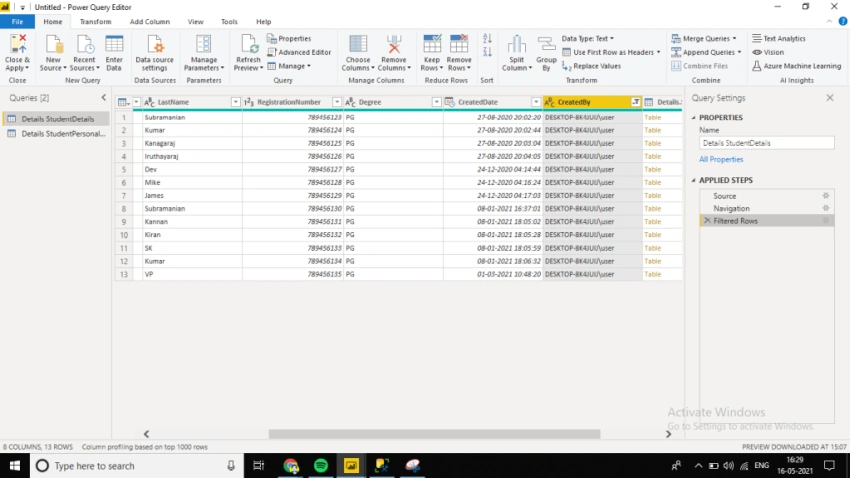
Fig.3 Columns that are loaded from the database table
It is very easy to remove the column from the report, just right-click over the column name and we can see Remove from the option list and click Remove. Once clicked, the column will no longer be present in the report.
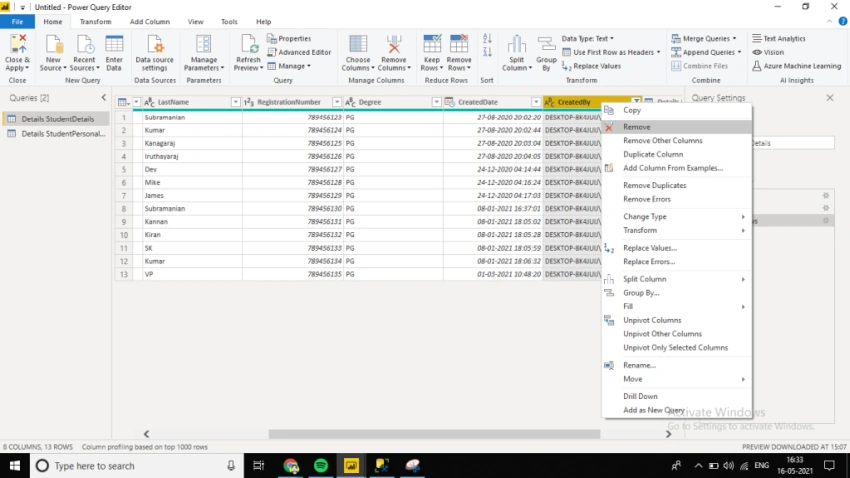
Fig.4 Remove the Unused column from the Report
Join the conversation! Your thoughts help the community grow.