

In this article we can explore a real-life scenario to show a Print button on an InfoPath form in view/edit mode. You can also extend the solution to other list forms.
Why the Print button is needed on forms
By default there is no print button on SharePoint forms.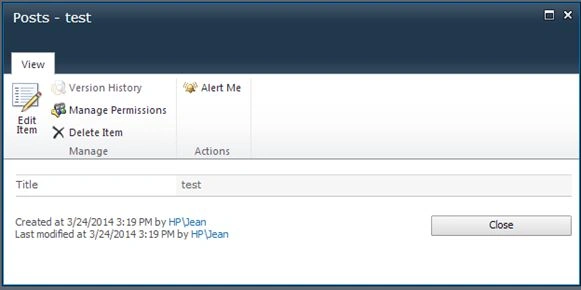
Procedure
The following is the procedure to create a Print button. We are using HTML and JavaScript for the solution.
Step 1: Enable Modeless forms
By default the view/edit forms are opened as dialog (modal) forms. We need to change this to edit the page.
Choose "List" > "List Settings" > "Advanced Settings"
Set the last option to No.
Now you can see the View form is opened in full page mode.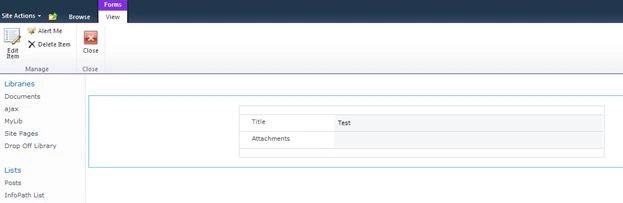
The following is the Edit form.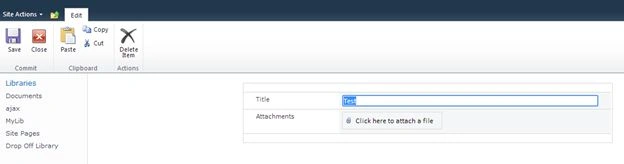
Step 2: Edit Page
Open a list item in View Form, choose the "Site Actions" > "Edit Page" option to bring the page to edit mode. Add a Content Editor Web part and enter the following HTML contents.
<input onclick="window.print();" type="button" value="Print"/>

Click OK to save the changes. Choose Stop Editing from the page tab. The page will look as in the following.
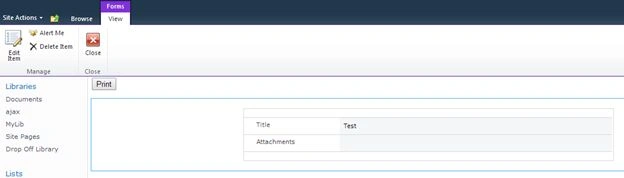
We added a Print button that will invoke the window.print() method on click.
Step 3: Test the page
Refresh the list and open a list item in View Page. Click on the Print button and you can see the Print Dialog appearing as in the following.
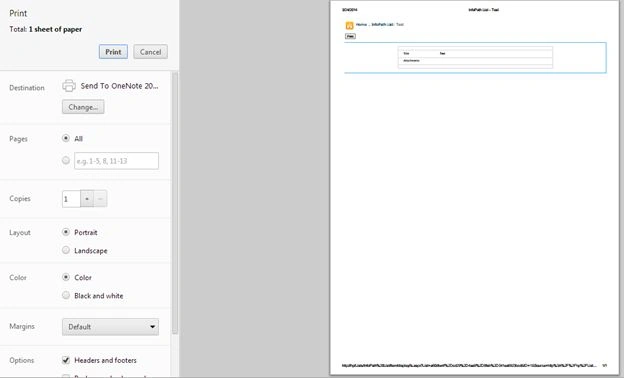
This confirms the print functionality integration. You can also repeat the same for the Edit form.
Step 4: Enable back dialog
Now we need to re-enable the dialog form. Go to "List Settings" > "Advanced Settings" and enable the "Dialog" option.
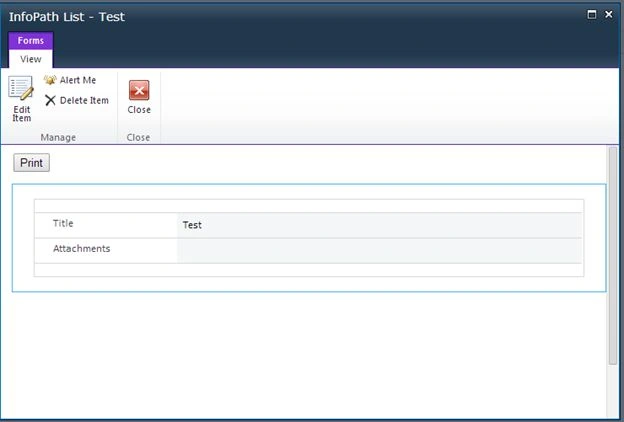
You can see the Print button there too.

The print() method prints the contents of the current window.
Custom Action
For having a custom action you can refer to the solution below:
WireBear InfoPath Printer

References
Window print() Method
Summary
In this article we explored a scenario of showing a Print button on InfoPath forms.
יעל עפרוניPosted Mar 6, 2022, 11:13 AM
Is there a way puting a link on a pic inside the infopath
Tarique AslamPosted Oct 3, 2016, 4:58 AM
Is there a way I can only only print the table data (labels and field values)
Jean PaulPosted Mar 26, 2014, 2:17 AM
Yes Mahesh, The component gives the feel of integrated print button :)
Mahesh ChandPosted Mar 26, 2014, 2:13 AM
Ha . you would think there is a Print button by default.
Jean PaulPosted Mar 26, 2014, 1:57 AM
Yeah! and Lakshman, there is a custom-action solution mentioned towards the end of article. It looks more professional, though the component prints author name on the button-click.
Lakshmanan Sethu SankaranarayanPosted Mar 26, 2014, 1:56 AM
Let go back to my customers with this print option.