

This article shows how to print from a Windows Forms form. Here in this example I am using a Patient Detail form. I am inserting data into a SQL Server Data Table and printing the slip.
The following is my Form1.cs.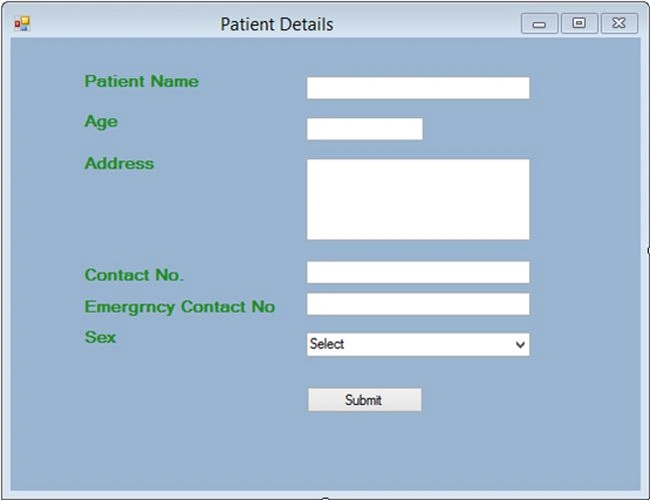
Image 1
On the Submit button click I am opening another form and inserting this form data into SQL Server.
- using System;
- using System.Collections.Generic;
- using System.ComponentModel;
- using System.Data;
- using System.Drawing;
- using System.Linq;
- using System.Text;
- using System.Windows.Forms;
- using System.Data.SqlClient;
- namespace PatientsAdmitReport
- {
- public partial class Form1 : Form
- {
- public Form1()
- {
- InitializeComponent();
- }
- SqlDataAdapter da;
- DataSet ds;
- SqlConnection con;
- private void button1_Click(object sender, EventArgs e)
- {
- con = new SqlConnection(@"DATA SOURCE=MyPC\SQLSERVER2K8;INTEGRATED SECURITY=TRUE;DATABASE=TEST");
- da = new SqlDataAdapter("INSERT INTO Patient(PatientName,Age, Address,ContactNo, EmergencyContactNo, Sex) VALUES('" + txtPatientName.Text + "','" + txtAge.Text + "','" + txtAddress.Text + "','" + txtContactNo.Text + "','" + txtEmergencyContactNo.Text + "','" + cmbSex.SelectedItem.ToString() + "')", con);
- ds = new DataSet();
- da.Fill(ds);
- Form2 frm2 = new Form2();
- this.Hide();
- frm2.lblPatientName.Text = txtPatientName.Text.ToString();
- frm2.lblAge.Text = txtAge.Text.ToString();
- frm2.lblAddress.Text = txtAddress.Text.ToString();
- frm2.lblContactNo.Text = txtContactNo.Text.ToString();
- frm2.lblEmergencyContactNo.Text = txtEmergencyContactNo.Text.ToString();
- frm2.lblSex.Text = cmbSex.SelectedItem.ToString();
- frm2.Show();
- }
- }
- }
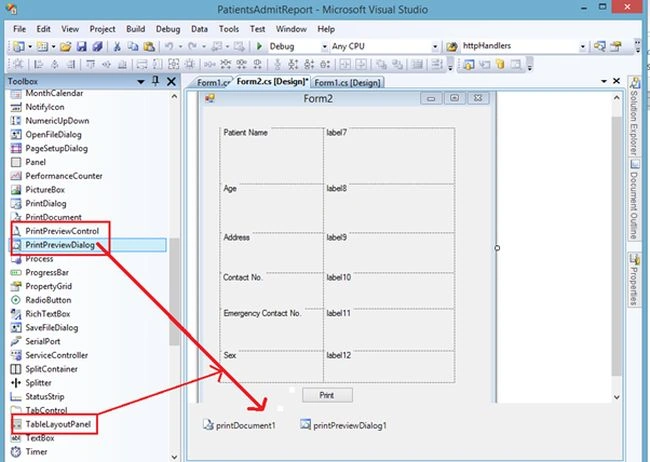
Image 2
Now, I am showing my data in label7, label8, label9 …… label12. As you can see I am using these labels on form1. So I need to change the Modifier property of these labels like the following.
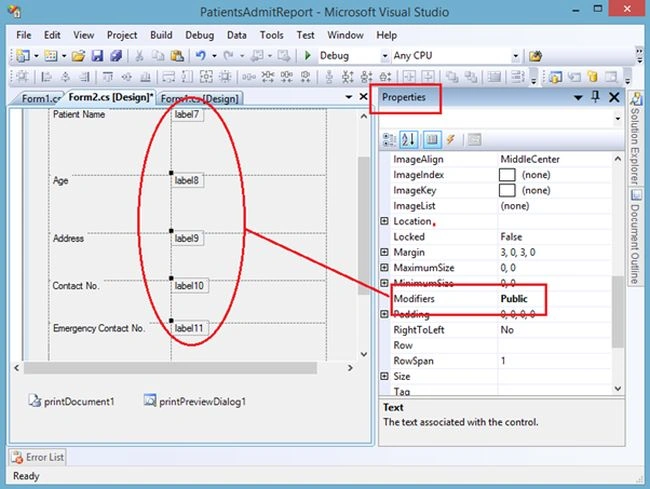
Image 3
Now, right-click on printPreviewDialog1 and select Properties and set the Document Properties to printDocument1 like the following.
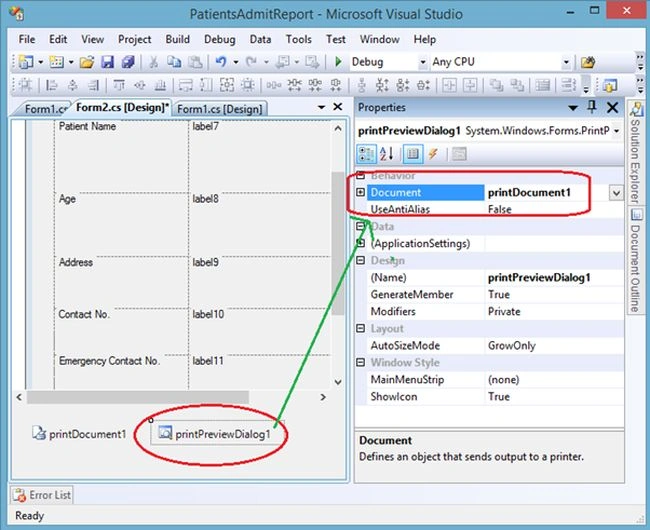
Image 4
Now, right-click on printDocument1 and select Properties in the set PrintPage event like the following.
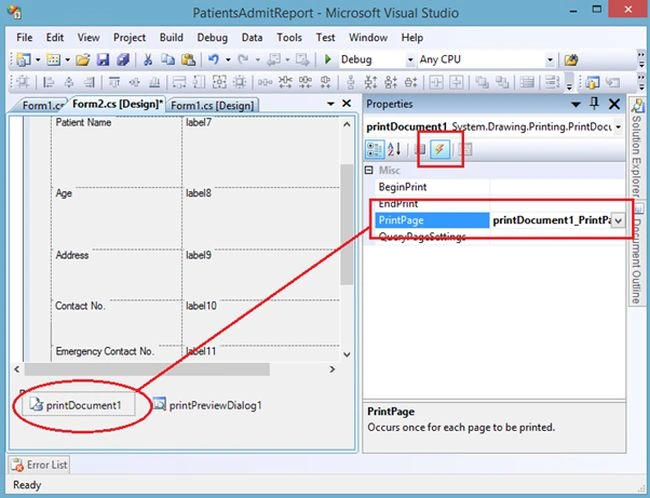
Image 5
Now, the code of form 2 is:
- using System;
- using System.Collections.Generic;
- using System.ComponentModel;
- using System.Data;
- using System.Drawing;
- using System.Linq;
- using System.Text;
- using System.Windows.Forms;
- using System.Drawing.Printing;
- namespace PatientsAdmitReport
- {
- public partial class Form2 : Form
- {
- public Form2()
- {
- InitializeComponent();
- }
- private void print_Click(object sender, EventArgs e)
- {
- PrintScreen();
- printPreviewDialog1.ShowDialog();
- }
- [System.Runtime.InteropServices.DllImport("gdi32.dll")]
- public static extern long BitBlt(IntPtr hdcDest, int nXDest, int nYDest, int nWidth, int nHeight, IntPtr hdcSrc, int nXSrc, int nYSrc, int dwRop);
- private Bitmap memoryImage;
- private void PrintScreen()
- {
- Graphics mygraphics = this.CreateGraphics();
- Size s = this.Size;
- memoryImage = new Bitmap(s.Width, s.Height, mygraphics);
- Graphics memoryGraphics = Graphics.FromImage(memoryImage);
- IntPtr dc1 = mygraphics.GetHdc();
- IntPtr dc2 = memoryGraphics.GetHdc();
- BitBlt(dc2, 0, 0, this.ClientRectangle.Width, this.ClientRectangle.Height, dc1, 0, 0, 13369376);
- mygraphics.ReleaseHdc(dc1);
- memoryGraphics.ReleaseHdc(dc2);
- }
- private void printDocument1_PrintPage(object sender, PrintPageEventArgs e)
- {
- e.Graphics.DrawImage(memoryImage, 0, 0);
- }
- }
- }
Image 6
Here fill in the patient details and click on Submit.
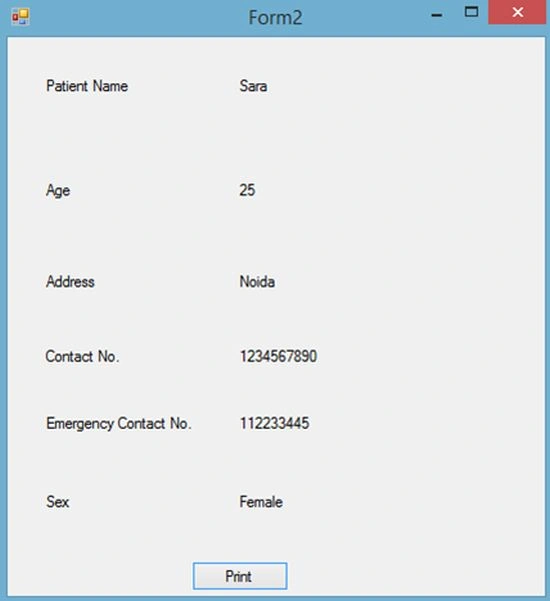
Image 7
This is the slip here. Click on the Print button.
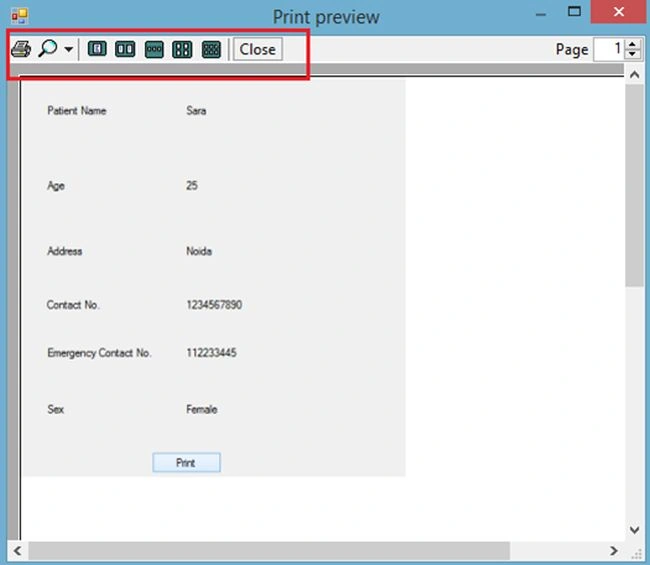
Image 8
From here by clicking on the Print option you can print the slip. You can also increase the size of the slip.
Now, see the following in the database:
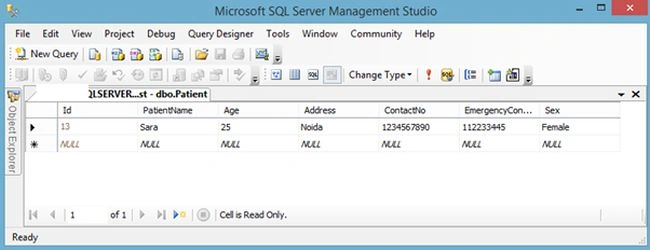
Image 9
The following is my table design.
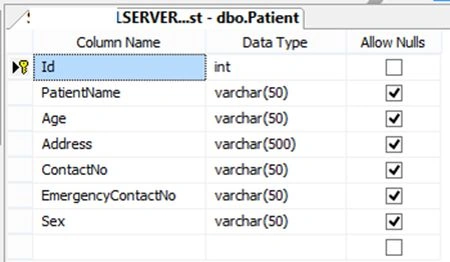
Image 10
Amaea KhanPosted Nov 14, 2020, 4:02 AM
Thanks for the code..but the issue is that when it is showing print preview that also includes the print button..can you give a solution to avoid that button
asif uddinPosted Oct 24, 2018, 9:34 AM
Hello sir. print quality is not good what should i have to do ???
Sudhagar SudhagarPosted Oct 26, 2017, 9:46 AM
Thanks Very Much....
John Chelikuzhiyil George, PMPPosted Apr 6, 2017, 6:20 PM
Thanksa lot ...great help...
Virendra ParodkarPosted Nov 19, 2015, 11:38 PM
Rahul Saxena very nice explaination. It would be appreciated if you could help me with printing of the screenshot image with dot matrix printer. please help. thanks in advance.
Ali AhmedPosted Nov 7, 2015, 4:50 AM
Simply Best.
Chris ChanPosted Oct 8, 2015, 4:00 AM
thanks! ^--^
Aquib IqbalPosted Aug 28, 2015, 2:15 AM
This is nice one... Sir I have one question , I want to store that slip in PDF format after printing it. How to do that?
IsraelPosted Aug 13, 2015, 8:52 PM
That's good. But the out print is not very clear. There is another way to do it.
Rahul Kumar SaxenaPosted Jul 20, 2015, 3:33 AM
Thanks Pintoo Yadav
Rahul Kumar SaxenaPosted Jul 20, 2015, 3:33 AM
Thanks idran
Pintoo YadavPosted Jul 20, 2015, 2:38 AM
Good Examples Rahul
idranPosted Feb 4, 2015, 9:03 AM
Great rahul saxsena
varsha dodiyaPosted Dec 29, 2014, 4:59 AM
Rahul Saxena sir , you have explained it so well , but can you plz tell me if i need to pass values dynamically .
Ebrahim MoharramiPosted Dec 25, 2014, 1:23 PM
very nice
Shoaib QuraishiPosted Nov 17, 2014, 8:28 AM
how to stretch the form to fit on A4 size page?
Faizal HussainPosted Nov 9, 2014, 6:04 AM
Hai Rahul, How to set center alignment (Title Bar Text) in your forms
Udaya kumarPosted Nov 1, 2014, 6:58 AM
Nice