

Introduction
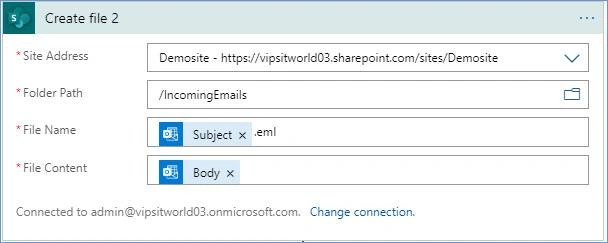
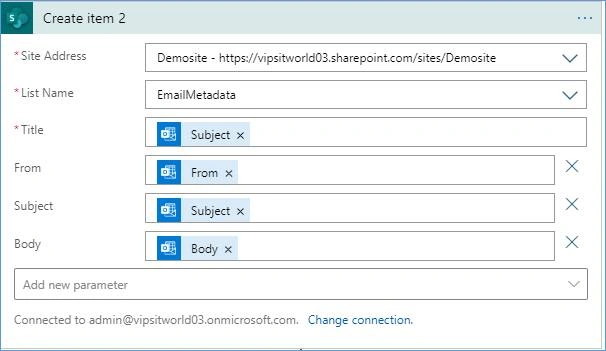
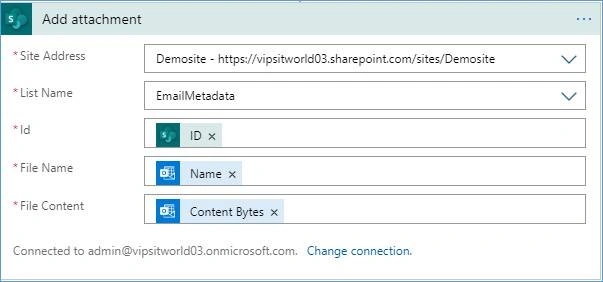
Recently, working on one of the SharePoint-based project, one of the requirement was to process incoming emails in SharePoint Online (Office 365). In other words, the incoming email needs to be saved in a SharePoint List or Library along with its metadata and attachments. So, I decided to use the Azure Logic Apps approach, wherein the email (.eml file) can be saved along with its attachments and other metadata in SharePoint List & Library.
Note
- In SharePoint on-premise, there are email enabled Lists/Libraries and you can also configure incoming email settings in Central Administration, however in SharePoint Online, there is no as such direct way to process incoming emails, so you need to implement other alternatives like Logic Apps, etc.
- Earlier, you can use Site Mailbox, however SharePoint Online deprecated Site Mailbox feature as of July 2017.
- Office 365 Groups could be another alternative that is created at the tenant level.
- Power Automate (Microsoft Flow) can also be considered as one of the alternatives.
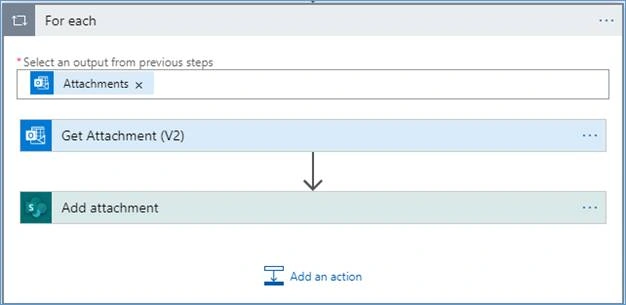
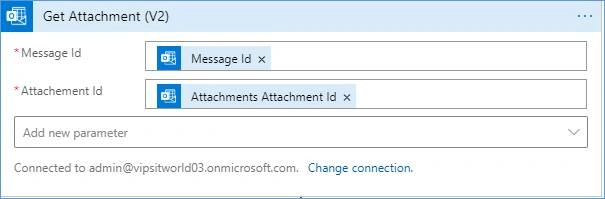
- Outlook treats inline images as attachments so those will be saved as attachments to the SharePoint list item.
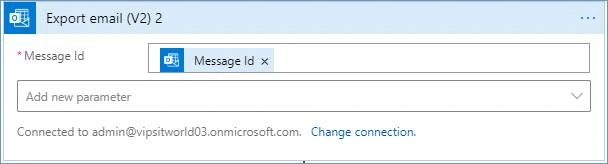
- Utilize the Outlook Action “Export Email” to capture the body content of the Email.
In this article, I will explain how you can use Azure Logic Apps to save the incoming email, metadata (From, To, CC, Subject, and Body, etc.) and attachments in a SharePoint Online List & Library, so let’s get started!
Prerequisites
- An Azure subscription
- An email account from an email provider supported by Logic Apps, such as Office 365 Outlook, Outlook.com, or Gmail.
Create your logic app
- After the Logic Apps Designer opens, under Templates, select Blank Logic App.
- On the designer in the search box, enter when a new email arrives as your filter. Select this trigger for your email provider.
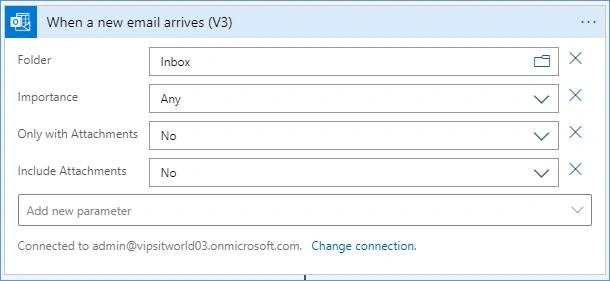
If you're asked for credentials, sign in to your email account so Logic Apps can connect to your email account.
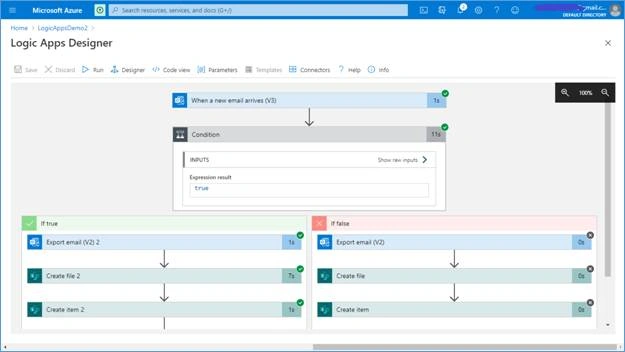
- Under the trigger, select new step. In the search box, enter condition. Create a condition that checks for emails that have attachments.
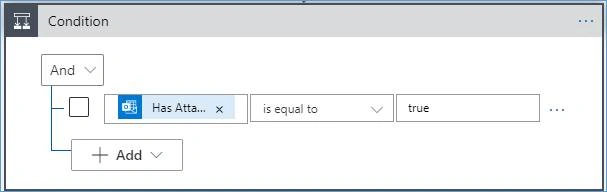
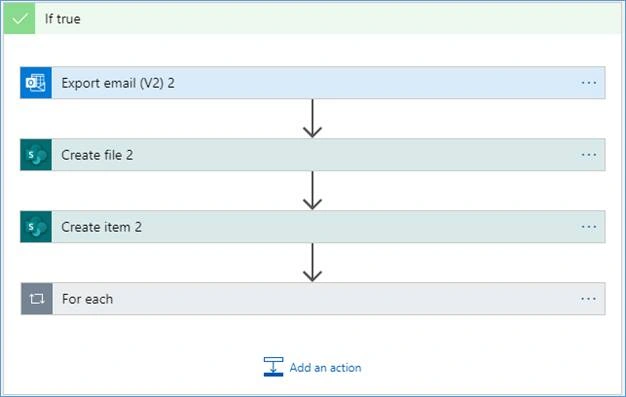
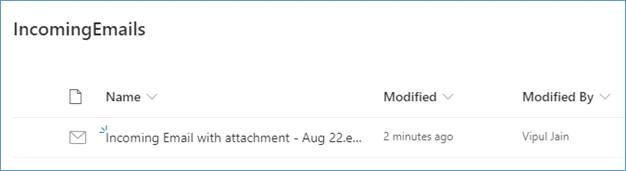
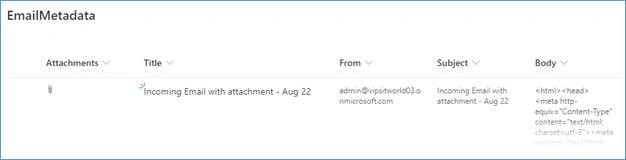
- The above condition will check if the incoming email has attachments. If it’s true, then Logic App will save the email in a SharePoint Library and will save the attachments and email metadata in a SharePoint List.

shekhar gPosted Sep 26, 2020, 11:02 PM
Good Article. Thank you :)