

Introduction
This article provides the basic concepts of the MVC framework. The MVC framework separates the data access layer, business logic code, and the graphical user interface, that must be defined and designed to let the user interact with the application. This application has the following three parts:
- Model: This part of the framework stores the data of the application, such as databases, text data, files, and/or other web resources.
- View: This is the graphical user interface of the application. It would contain various buttons, text boxes, and other controls to let the user interact with the application to complete projects, depending on the sort of the software used.
- Controller: The actual back-end code constitutes the controller of the framework. A controller controls the data coming from the users, or going to the user, from a model.
This sets up a condition of validation, because the stream of data (coming from or going to the user) is always validated on the controller. That is why it makes the data more consistent by removing any chance of invalid data entry or unauthorized data deletion from the application's data source.
Background of MVC
In this short section, I will try to provide a basic overview of the MVC framework. This section is not for Java-specific framework, but for the MVC framework itself. Beginners might be interested in knowing what this MVC framework is how it interacts and how it makes the software development efficient. But, if you already understand the MVC framework, then you don't really want to read this section. Continue to the development of the application, in the next section.
The MVC framework is generally a term for a software architecture for implementing the user interfaces. You can separate the software's source code into the following three layers.
- Model
- View
- Controller
Then, you can develop them separately. This way you don't need to scratch your head once your application reaches an enterprise level and your source code looks a bit messy and cannot be debugged. In MVC you have all three of your layers separate. This way you can control, develop, debug, or add features to all of the layers separately.
A very good feature of the MVC framework is that it hides the data access layer from the users. That is, the data access layer or the data is never actually called directly, by the user; from the interface. This way, the user must perform the actions that they are allowed. This feature allows the developers to create groups or roles of users, that are allowed to access the data; such as Admins, Guests and so on.
Another good thing about this framework, is that it doesn't let the application get complicated and all three segments of the application interfere with each other, in a single source code package . This way, you understand where the problem occurred. Common examples of this would be:
- When you understand that the problem is in the data access layer. For example, in the database you've allowed null entries, so now spam users would be able to leave the data inconsistent and cause a problem of redundancy. You can edit the data access layer, so that you can define the columns to not have null values.
- When the view is not showing the data correctly, such as scenarios where the binding of the data is not accurate, or the format is not correct like the format of the date and time values. You can simply edit the View section, of your application, to make it work again. Instead, of editing the entire page containing various variables for back-end code and/or the data access code.
- When the logic is not correctly defined, sometimes the data is correct. The view is correctly bound to the resources, but the logic of your application is not correct. This type of problem is hard to analyze, because the developer must think about where the code went wrong, by giving it a rough try or by debugging the code using the IDE and putting a few breakpoints at the locations.
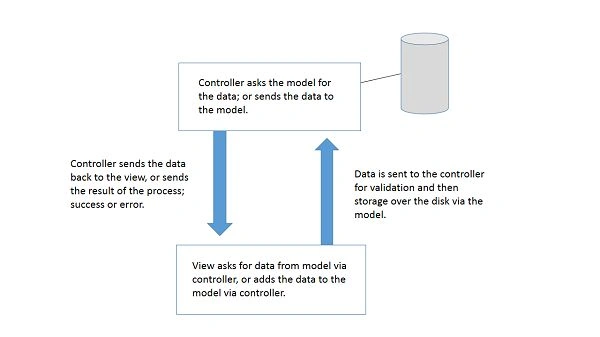
These are a few of the good points of the MVC framework, for developing the software applications. In a visual representation, the MVC framework works in the following way:
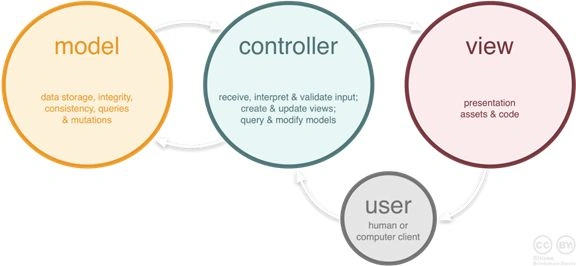
I wrote an article about the ASP.NET MVC framework. I demonstrated the MVC framework, before digging deeper into the ASP.NET's MVC framework, just like this one. So, if you're interested in learning more for MVC framework, you might be interested in reading that article. Only, the MVC section, not the ASP.NET part. You can read that article here and you can also post any queries or questions about that article.
Building the application
Now, for the actual implementation of this framework and building over the Java-based application. In the following procedure, I will show you how you can (using this very framework) create applications. Starting from applications as simple as a Hello world application, to as much complex as enterprise-level applications, using Java.
Setting the environment: for Java beginners
For developing Java applications, you are required to have an environment set up. An environment requires an IDE for writing the source code and managing the required libraries, into one single package. A few of the popular ones are the following:
- Eclipse for Java: Eclipse is a greatly used Java IDE. It supports other languages too, but since we're talking about Java applications I highlighted only Java.
- NetBeans by Oracle: NetBeans is an IDE developed under the Oracle license and is mostly used by beginners, because it helps them create a GUI by drag-and-drop feature. I am also using NetBeans for Java development, for Android development I prefer Eclipse. You can choose on your own, as your taste would like.
And the Java SDK. It depends on which level of application you're going to develop. There are many types of Java SDKs available for you and you can choose from among them. I am using the Java SE SDK. It satisfies my requirements. A list of the Java SDKs available for download and popular are the following:
- Java SE: Standard edition. Perfect for small applications, like desktop or other applications that are not too complex.
- Java EE: Enterprise edition. Should be preferred over Java SE, if you're going to develop an enterprise application and the program is complex.
- Java ME: Micro edition. It is used to develop mobile applications, such as jar applications and other projects that are to be run on mobile devices. It should be used, because it requires less memory and a small heap size for the application to run, thus suitable for mobile application programming.
- Then, they continue to all the way to TV, Cards, and so on. Learn more here.
You can download any SDK, and the Java language would be similar. So, the code in my article would be a good fit, in any condition. You can download and install the SDK on your machine. Once this step has been taken you can continue to the programming.
The installation of the IDE would require a JAVA_HOME system variable to be declared. This is a simple task, but a bit confusing for beginners. Go to the properties of "My Computer" and inside the Advanced system settings, then Environment variables. Inside it, create a new system variable and name it JAVA_HOME. The value must be the location where the bin folder is located.
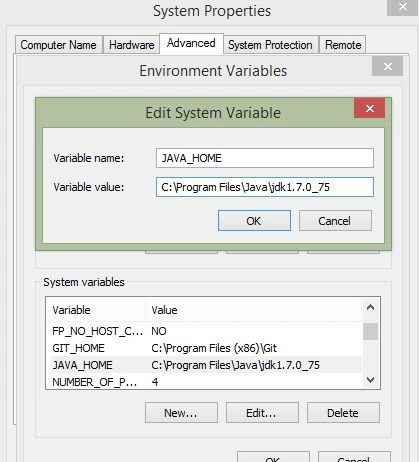
Creating the application
The source code is relative to my IDE, yours might be different.
The next step is to create the application. Depending on your IDE, create a new application, a simple Java based application.
You should take care of one thing. Unlike C#, in Java your class name and the file name, containing the class, must match for the programs, to run. I f they don't, then Java would complain. Saying, the class must exist in its own file. So, if you want to continue with this article, you should name your application's files, as I have (I will specify the names of the packages and the files along with the code they contain). Or, you can create your own project and then edit the names of the classes and/or packages.
When you create the application, in Eclipse, it would be an empty project. Whereas in NetBeans, it creates the entire package (with exact same name of the application) and create a class with a Main function. In my case, I named the project JavaHelloCollections. If you want to follow the article, name it as it is. Otherwise, just follow the concept of "first package in the application". The class file in this package (depending on your IDE) would be located under the package, open it.
- package javahellocollections;
- public class JavaHelloCollections {
- public static void main(String[] args) {}
- }
This is a very basic application that does nothing but compiles and runs. Up to this stage the application has been created but lacks the MVC pattern of programming. That stage comes after this one. So, to create the business logic of our application, we're actually not going to edit this file. We're going to define the MVC pattern of our application and then we will use that pattern to ensure that the user interacts with the view. The view interacts with the controller and the controller provides the data from the model after making calls, to the model.
Implementing the MVC pattern
As far as I now, we've set our environment and created the application that runs. Now, implement the MVC pattern in our application and ensure that the application follows the rules.
In Java we create packages just like we create namespaces in C#, C++, and other object-oriented programming languages. Packages allow us to make a collection of similar classes, or classes that are required in the same order or for the same cause. In our application, we must create an MVC pattern. For that, we can create three packages. One for Model, one for View, and one for Controller. Then, we can add all of our Models, Views, and Controllers in these packages and use them in various packages, wherever needed.
This way, we can separate all three sections from one another, yet we can call them in our sections by importing the packages. This way, the model would be left to be used by the controller. The view should make a call to the controller to get or update the data.
In this article, I will be using a file example to read and write the data to the file. You can use your own data source; database, web resource, and so on.
We will develop the application first and then, see the changes by running the application. There is no requirement to follow to create the view first, then create a controller to render the view, and then create a model to add data. We can start by creating a section, then merge them into one single application, and then run it.
Creating the Model
Let us start by creating a model for our application. This model would provide the data to our application. One thing you should consider is, that the model is not just a class to define the structure of the data, in our application. We do in the database applications. The structure must be defined there. In a simple application there is no need. This ambiguity, is generally defined and created, by the Entity Framework on .NET framework, where you define a class for the structure of your database table and then fill in a collection of objects of that class from the database. A model is the part that contains your data. It can provide you with the data and can update the data. Even the controller, makes a call to the model to update itself, which means that the controller sends the data to the model and the model then updates the data on the disk.
First, create a new package. Remember, to create a new package under the same project and not the same package. These would be two separate packages, for the same project and we will be using them in our application, where required. Name this package JavaMVCModels. Once done, create a new class file under it. This class would act as our model for the application. Name it, HelloWorldModel. Open the file and alter the file. Our scenario is:
- Allow the user to load the data from a data source, such as a file.
- Allow the user to update the data in the file.
Inside the class, write the following code:
- /*
- * To change this license header, choose License Headers in Project Properties.
- * To change this template file, choose Tools | Templates
- * and open the template in the editor.
- */
- package JavaMVCModels;
- import java.io.*;
- import java.nio.file.Files;
- import java.nio.file.Paths;
- /**
- *
- * @author AfzaalAhmad
- */
- public class HelloWorldModel {
- public String getData() throws FileNotFoundException, IOException {
- if (!(new File("F:\\file.txt").isFile())) {
- // Create -- Make sure file exists -- the file before continuing
- Files.createFile(Paths.get("F:\\file.txt"));
- }
- String data;
- // We will be using a try-with-resource block
- try (BufferedReader reader = new BufferedReader(
- new FileReader("F:\\file.txt"))) {
- // Access the data from the file
- // Create a new StringBuilder
- StringBuilder string = new StringBuilder();
- // Read line-by-line
- String line = reader.readLine();
- string.append("<html>");
- // While there comes a new line, execute this
- while (line != null) {
- // Add these lines to the String builder
- string.append(line);
- string.append("<br />");
- // Read the next line
- line = reader.readLine();
- }
- string.append("</html>");
- data = string.toString();
- } catch (Exception er) {
- // Since there was an error, you probably want to notify the user
- // For that error. So return the error.
- data = er.getMessage();
- }
- // Return the string read from the file
- return data;
- }
- public boolean writeData(String data) throws IOException, FileNotFoundException {
- // Save the data to the File
- try (BufferedWriter writer = new BufferedWriter(
- new FileWriter("F:\\file.txt"))) {
- // Write the data to the File
- writer.write(data);
- // Return indicating the data was written
- return true;
- } catch (Exception er) {
- return false;
- }
- }
- }
The preceding code can be explained in the following few stages:
- First, is the declaration of the package in which this class exists. JavaMVCModels is the package that would contain the class file.
- The class name and the file name is similar.
- The class contains two methods, one to extract the data and one to save the data from the user.
The preceding code uses the File APIs of the Java language. You can find File, BufferedWriter, BufferedReader and other classes in the Java documentations. I do not need to explain them. They store data to and extract data from files.
In Java SE 7, there is the new functionality of try-with-resources blocks, that automatically clean and dispose of the resources. A similar one is being used here, otherwise I would have used a finally block, to manually call the .close() function. This is well described on the Java documentations.
The model doesn't need to interact with the view or the controller. Instead, the controller would trigger the functions of the model. That is why we're not going to write any other code apart from getting/setting the data of our application. That is the exact reason I am not importing any other package in this class (apart from that Java IO API for data access). In other classes, you will see that I will be making an import to other classes and packages as a whole.
Creating the view: using the NetBeans
Note: If you're using the Eclipse IDE, then you can simply write the code from my View. Eclipse doesn't support drag-and-drop for the Swing GUI, like NetBeans does.
Now, for the View portion of the application, a similar process should be taken under consideration. A new package with the name JavaMVCViews, would be created and a class for HelloWorldView, would be created. But, in a slightly different manner, you should create the package first. Once you've created it, create a new swing JFrame form. Fill in the details and then continue. In my case the name was HelloWorldView.
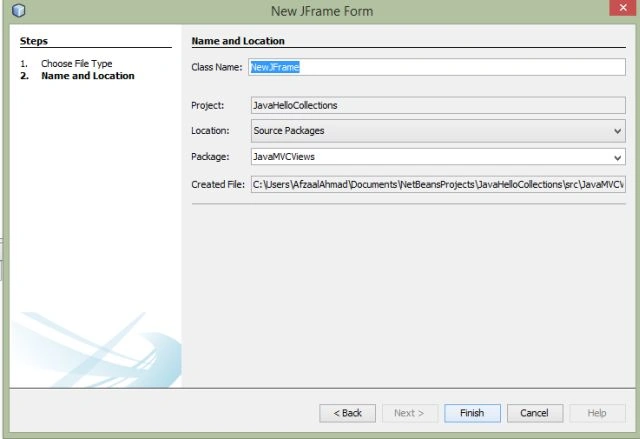
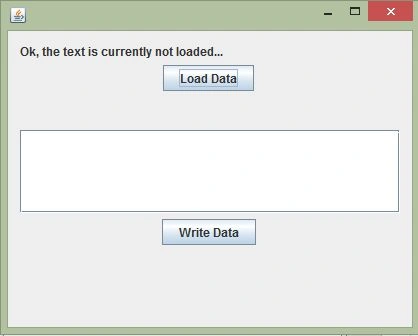
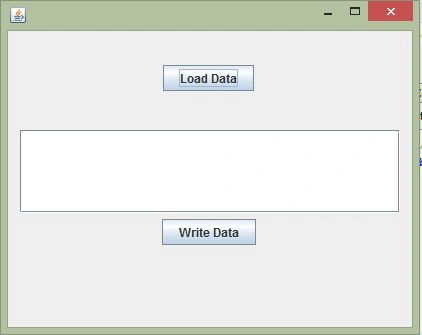
NetBeans allows the developer to use a toolbox to drag-and-drop the controls over the window box and create the GUI for their applications. You can use the same and create a simple GUI, that would look like the following one.
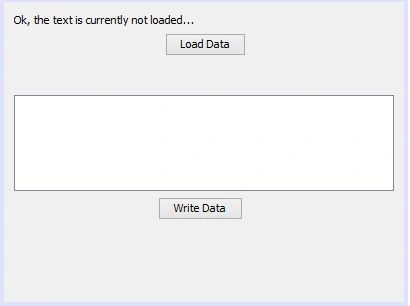
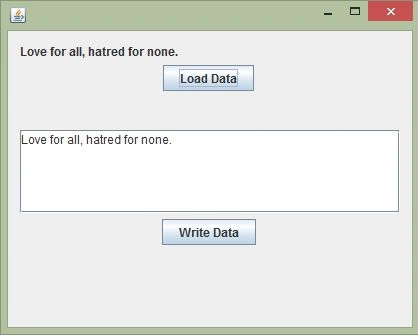
This is our view for the application. It contains enough controls for our application to work like it must. The View's work is to display what controller is allowed. This view contains a few controls, that controller should be able to interact with to display them, or hide them on will.
Qamar AbbasPosted Apr 2, 2016, 5:12 AM
Good Article to understand basics of MVC
Sr KarthigaPosted Feb 14, 2016, 8:01 AM
Good one sir
Gowtham RajamanickamPosted Apr 21, 2015, 1:07 AM
intrestng
Suthish NairPosted Feb 27, 2015, 5:13 AM
Interesting topic..