

Introduction
Promoted Links app is a new feature introduced in SharePoint 2013. They store the links that will be shown as Tiles in the pages. Navigate to the team site; by default, a web part will be added that displays the tiles as shown in Figure 1.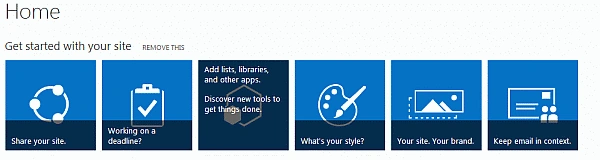
Figure 1: Tiles
These tiles can be customized by creating a Promoted Links list and adding links to that list.
Promoted Links
- Navigate to the SharePoint Site.
- Click on Site Contents in the quick launch.
- Click on add an app.
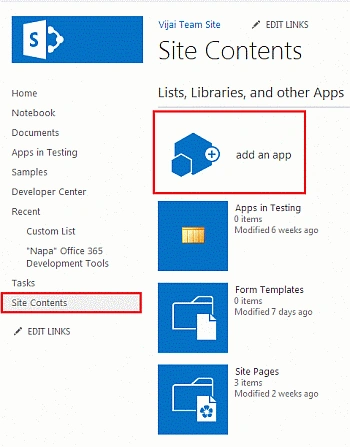
Figure 2: Site Contents
- Click on Promoted Links app from the available apps.
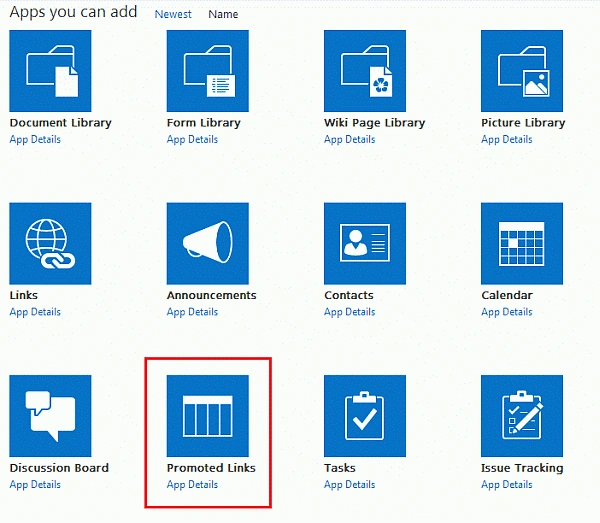
Figure 3: Promoted Links app
- Enter the Name and click on Ok.
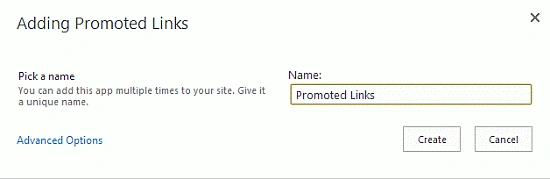
Figure 4: Create Promoted Links
- The Promoted Links app is created successfully.
- By default the Tiles view will be as shown in Figure 5.
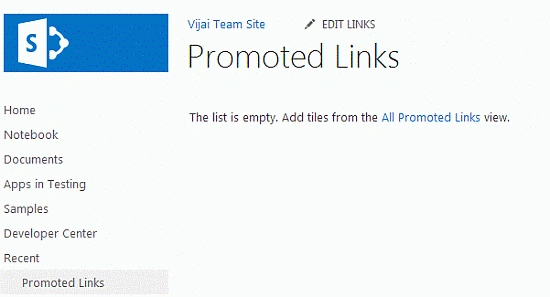
Figure 5: Tiles view
- Click on "All Promoted Links".
- Click on "new item".
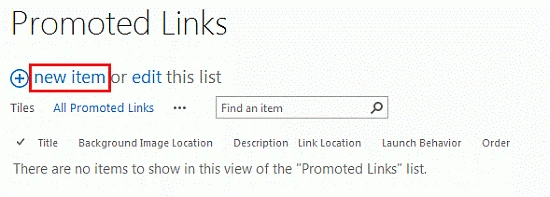
Figure 6: new item
- Enter the Title, Background Image Location, Description, Link Location, Launch Behavior and Order.
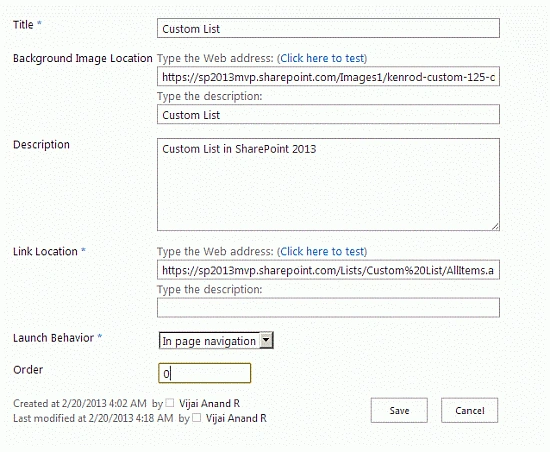
Figure 7: Create a new item
- Click on "Save".
- Click on "Promoted Links" in the quick launch bar, you can find the links in Tiles view.
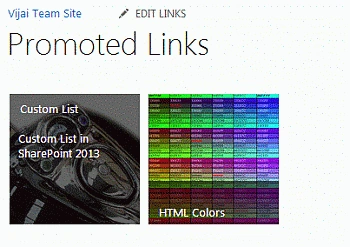
Figure 8: Custom tiles
Launch Behavior
The following options are available in the Launch Behavior: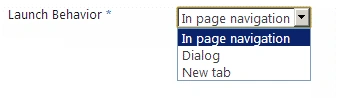
Figure 9: Launch behavior
- In page navigation - When you click on the link it will be opened in the same tab.
- Dialog - When you click on the link it will be opened as a Dialog as shown in Figure 10
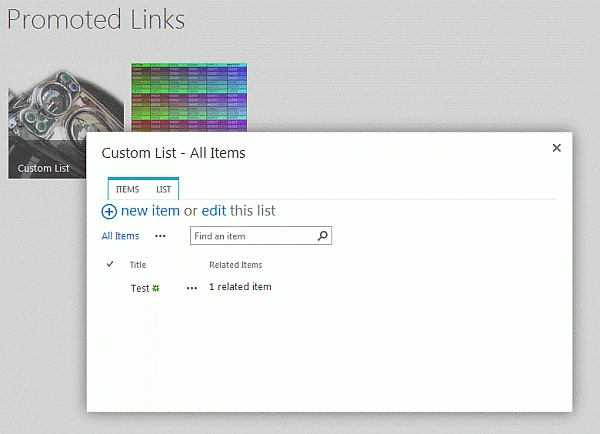
Figure 10: Dialog launch
- New Tab: When you click on the link it will be opened in a new tab.
Summary
Thus in this article you have seen about the Promoted Links app in SharePoint 2013.
Join the conversation! Your thoughts help the community grow.