
Introduction
Windows 8 offers the best way to protect portable storage devices like USB connected drives and hard drives which does not exist in Windows prior to Vista. Microsoft offers BitLocker based on full disk encryption technologies.
Note
In Windows 8, BitLocker and BitLocker To Go require Windows 8 Pro or Enterprise.
Both BitLocker and BitLocker To Go provide a full disk encryption facility, unlike the other older Microsoft encryption features. It is applied at the file or folder level. But now Windows 8 provides it in a slightly different feature present in the Control Panel called BitLocker Drive Encryption.
To apply the BitLocker feature from the Control Panel do the following steps.
Step 1
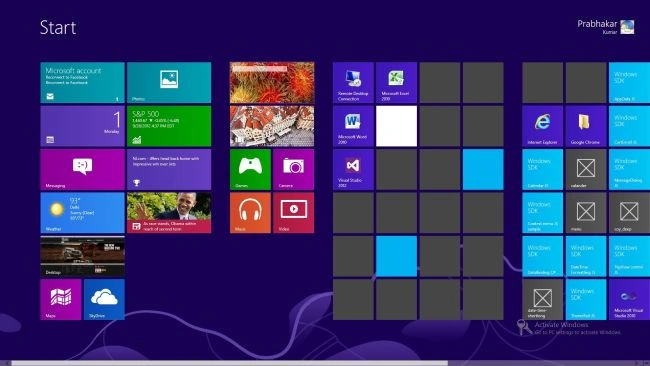
Open the start screen in Windows 8; see.
Step 2
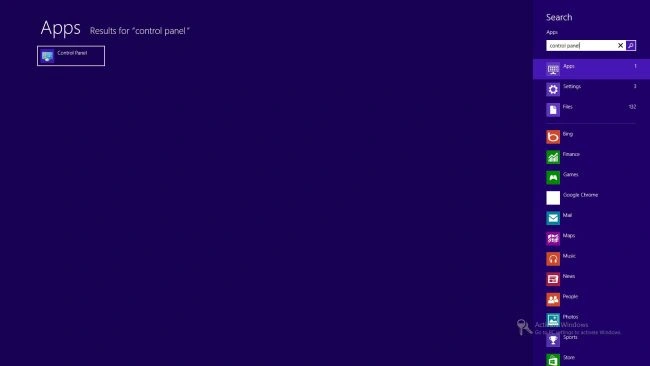
Enter Control Panel into the search box.
Step 3
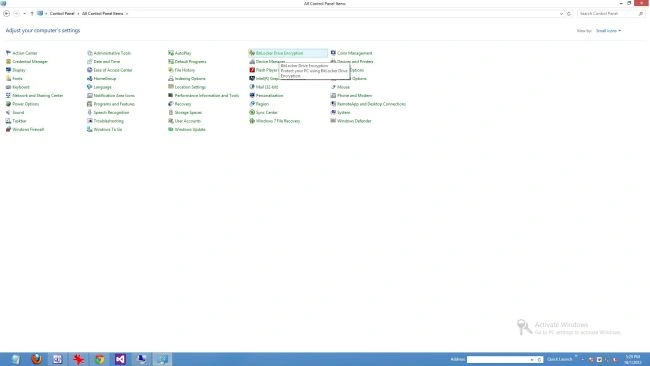
The All control panel items window opens where you select the BitLocker Drive encryption option.
Step 4
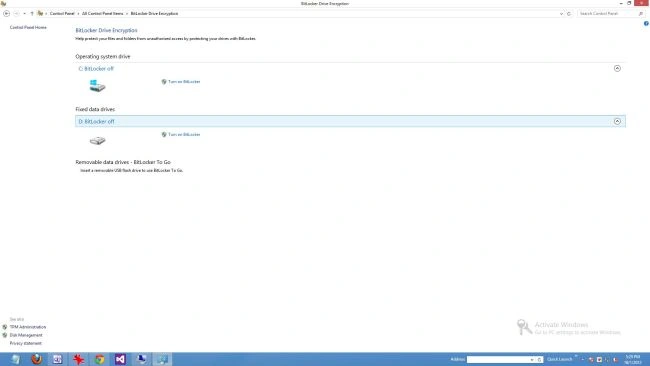
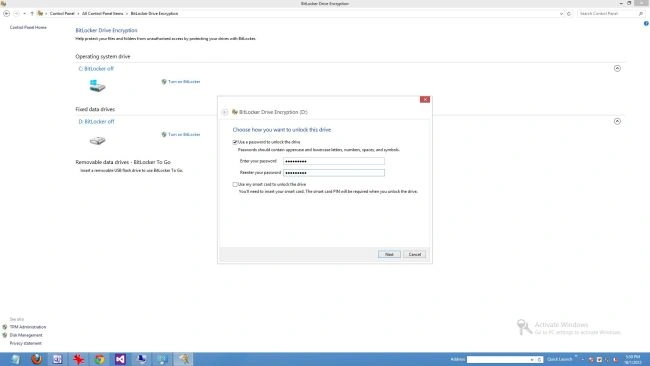
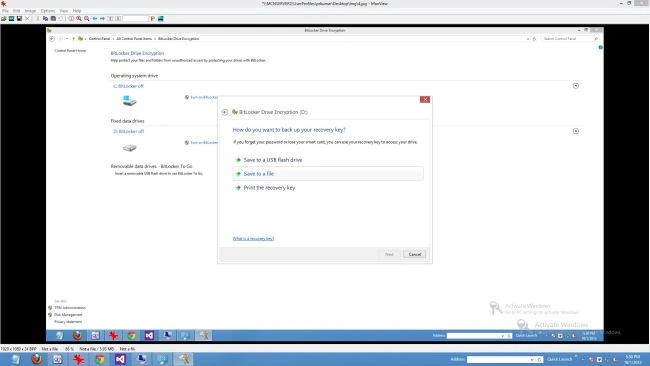
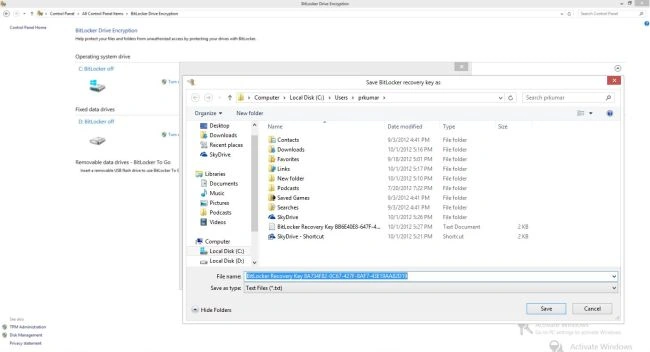
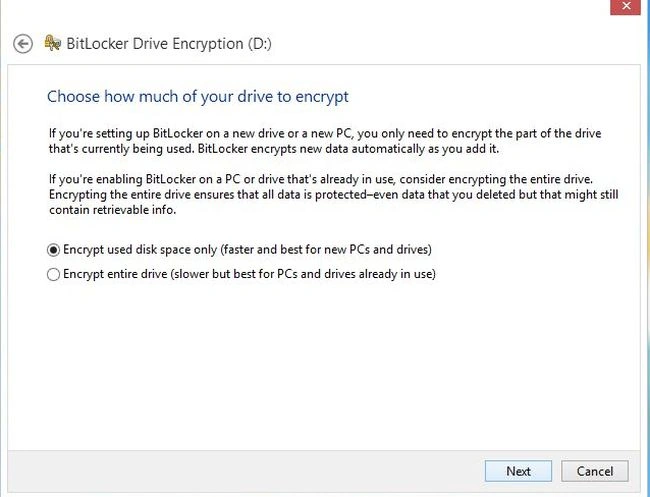
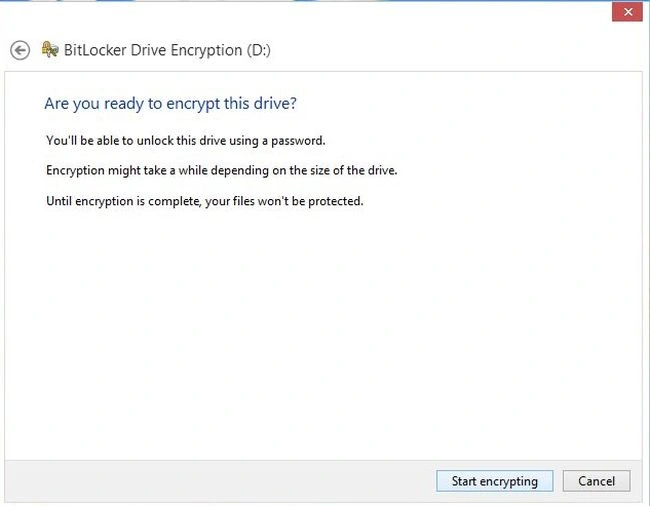
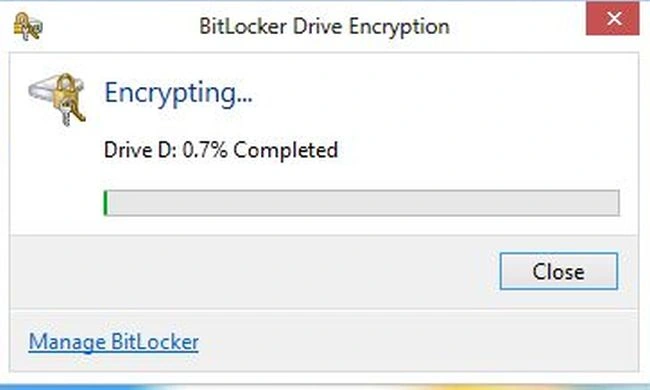
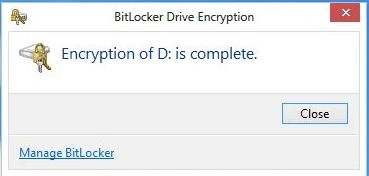
Select the turn on BitLocker option of the D Drive within the BitLocker Drive encryption window.
Step 5
Join the conversation! Your thoughts help the community grow.