

Introduction
In the previous article, I spoke about the cucumberjs basics. In this article, we will be talking about integrating protractor with cucumber. If you have not visited my previous article, I ask you to click on this link.
Configuring Protractor
If you have not installed the protractor in your machine, I would recommend you to visit this website (https://www.protractortest.org/#/). This contains all the info on setting up the protractor. In this article, I am using the VScode editor; however, you can use any editor.
Go to VScode editor -> Terminal-> New Terminal
Inside the terminal, please execute the below commands. All the steps are mentioned on the protractor website.
- npm install -g protractor
- webdriver-manager update
- webdriver-manager start
After executing the above commands, we need to check whether protractor is working fine or not. To check that, please consider the below example.
Create a ".js" file in the project and add the below code (Ex: protractorTest.js)
- describe('angularjs homepage todo list', function() {
- it('should add a todo', function() {
- browser.get('https://angularjs.org');
- element(by.model('todoList.todoText')).sendKeys('write first protractor test');
- element(by.css('[value="add"]')).click();
- var todoList = element.all(by.repeater('todo in todoList.todos'));
- expect(todoList.count()).toEqual(3);
- expect(todoList.get(2).getText()).toEqual('write first protractor test');
- // You wrote your first test, cross it off the list
- todoList.get(2).element(by.css('input')).click();
- var completedAmount = element.all(by.css('.done-true'));
- expect(completedAmount.count()).toEqual(2);
- });
- });
In the below example, I have given the "directConnect". We use this command in order to directly execute in the browser without starting the "webdriver -manager". This applies only to Chrome and Firefox. The rest of the browsers "directconnect" will not work
- exports.config = {
- //seleniumAddress: 'http://localhost:4444/wd/hub',
- directConnect: true,
- specs: ['protractorTest.js']
- };
- protractor conf.js
- npm install protractor-cucumber-framework --save-dev
- Feature: Login
- In order to login to the application
- As a User
- I need to enter the Valid username and Password
- Scenario: In order to login to the angular app
- Given open the application "http://www.way2automation.com/angularjs-protractor/registeration/#/login"
- When user login with "angular" and "password"
- And User enters the Admin "TestUser"
- Then user should login succcessfully
- .\node_modules\.bin\cucumber-js .\features\Login.feature
- 1) Scenario: In order to login to the angular app # features\Login.feature:6
- √ Given open the application "http://www.way2automation.com/angularjs-protractor/registeration/#/login" # features\stepDefinition\LoginDefinition.js:4
- √ When user login with "angular" and "password" # features\stepDefinition\LoginDefinition.js:10
- ? And User enters the Admin "UserNames"
- Undefined. Implement with the following snippet:
- When('User enters the Admin {string}', function (string) {
- // Write code here that turns the phrase above into concrete actions
- return 'pending';
- });
- ? Then user should login succcessfully
- Undefined. Implement with the following snippet:
- Then('user should login succcessfully', function () {
- // Write code here that turns the phrase above into concrete actions
- return 'pending';
- });
You can copy the step definition and implement the same in your "stepdefinition.js" file.
- var {Given, When, Then, Before} = require('cucumber');
- const { browser, element } = require('protractor');
- Before({timeout: 60 * 1000}, function() {
- // Does some slow browser/filesystem/network actions
- browser.manage().window().maximize();
- });
- Given(/^open the application "([^"]*)"$/, function (string) {
- return browser.get(string);
- });
- When('user login with {string} and {string}', function (string, string2) {
- // Write code here that turns the phrase above into concrete actions
- element(by.model('Auth.user.name')).sendKeys(string);
- element(by.model('Auth.user.password')).sendKeys(string2);
- return console.log("entered the user name and password");
- });
- When('User enters the Admin {string}', function (string) {
- // Write code here that turns the phrase above into concrete actions
- element(by.model('model[options.key]')).sendKeys(string);
- return console.log("enetered the logged in user name");
- });
- Then('user should login succcessfully', function () {
- // Write code here that turns the phrase above into concrete actions
- return console.log("success");
- });
Now once the "Logindefinition.js" file is implemented, you need to integrate it with protractor. For that, you need to do some modifications in the "conf.js" files. Create a "protractor.conf.js" file in the project and add the below code.
You can use "directConnect" to directly open the application. You need to add "framework and frameworkPath", In the specs section you need to add the feature file name, and "cucumberOpts" section you can add the step definition file names related to the ".feature" file. If you do not have any tags keep that as "false" as of now.
If you do not know what is "tags" in cucumber, you can refer here.
- exports.config = {
- //seleniumAddress: 'http://127.0.0.1:4444/wd/hub',
- directConnect:true,
- getPageTimeout: 60000,
- allScriptsTimeout: 500000,
- framework: 'custom',
- // path relative to the current config file
- frameworkPath: require.resolve('protractor-cucumber-framework'),
- capabilities: {
- 'browserName': 'chrome'
- },
- // Spec patterns are relative to this directory.
- specs: [
- 'features/*.feature'
- ],
- cucumberOpts: {
- require: 'features/stepDefinition/LoginDefinition.js',
- tags: false,
- }
- };
Multiple Test Data and Multiple Scenarios
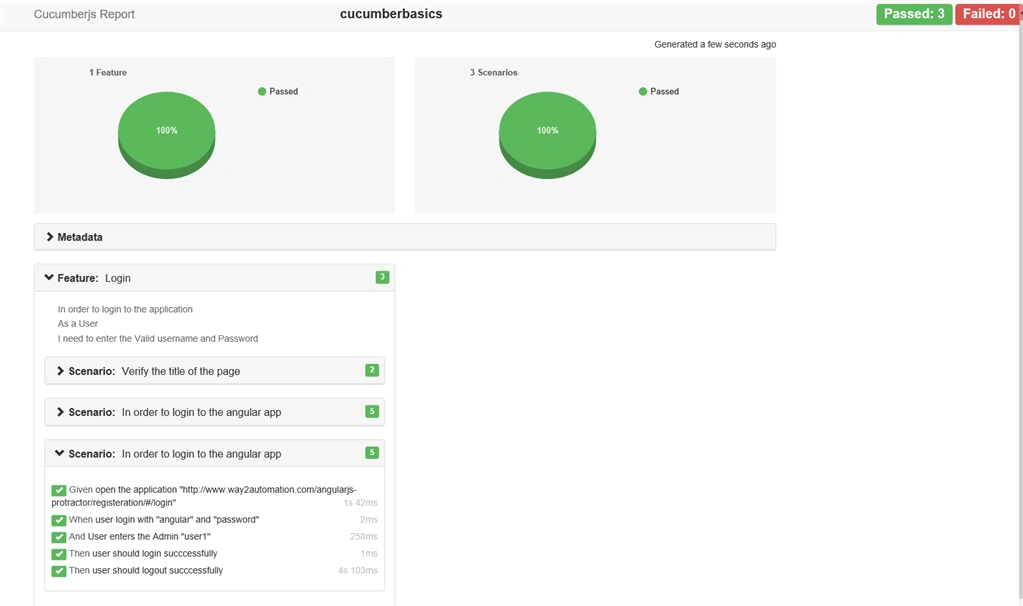
In the above example, I have created only one scenario which runs for only one test case. In this example, I will explain how to create multiple scenarios with dynamic test data execution.

Join the conversation! Your thoughts help the community grow.