

GitHub is a version control system that is used to work across shared projects. You can also use it to put your project on the cloud, so you'll never worry about its sequential backups. GitHub will save all your project versions before and after changing.
Microsoft is providing GitHub Extensions for visual studio. You can download and install it from here. I'm going to show you how to make a project in visual studio and publish it to GitHub.
I'm writing this with snapshots so that you can easily understand what I'm doing. I'm writing it with steps. Please put your comments as feedback because I'm very new to writing articles.
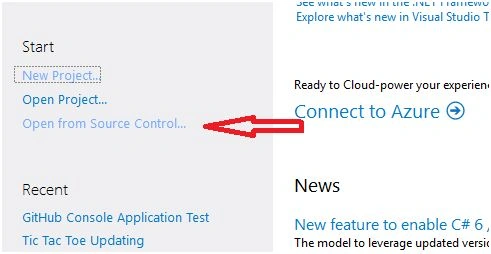
- Open Visual Studio and select the option "Open from Source Control." This option is used to create a project on some Version Control Systems like GitHub or TFS etc.
TFS stands for Team Foundation Server.
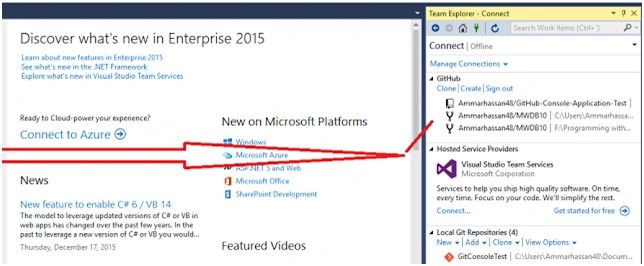
- After selecting "Open from Source Control" a small window named "Team Explorer - Connect" will open. A list of projects under the tab of GitHub will be shown in that window.
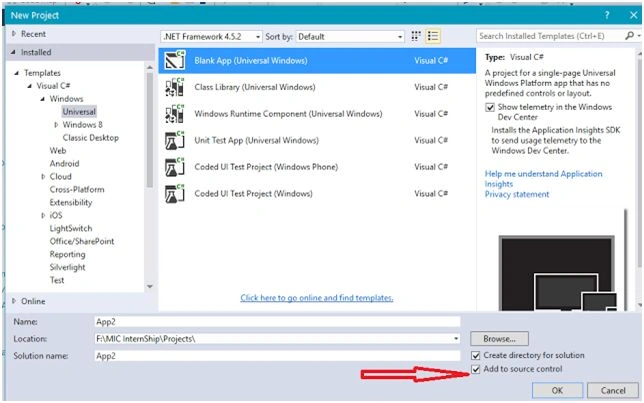
- After selecting your project type and name you need to focus on a small check box on bottom right corner, "Add to Source Control." By default, this check box is not checked. You must check it to put your project on GitHub. After that click OK.
- You'll be shown another small window, as shown below. You must choose your version control system from provided options. Select Git and click OK.
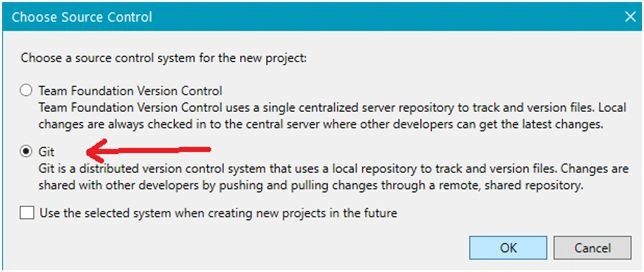
a. Team Foundation Version Control is Microsoft's Version Control system that is also very famous.
- After this you'll be shown two types of repositories.
a. Online repositories
b. Local repositories
Under local repositories, the project you just created will be visible.

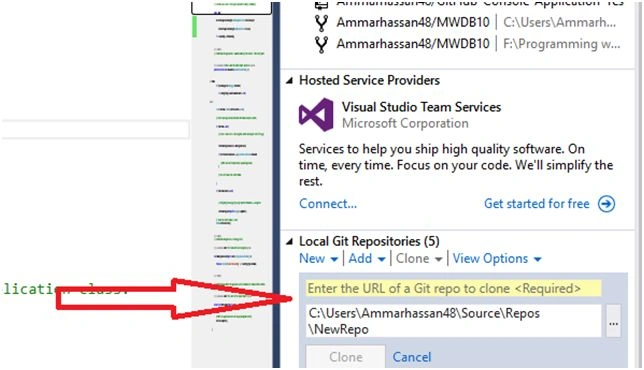
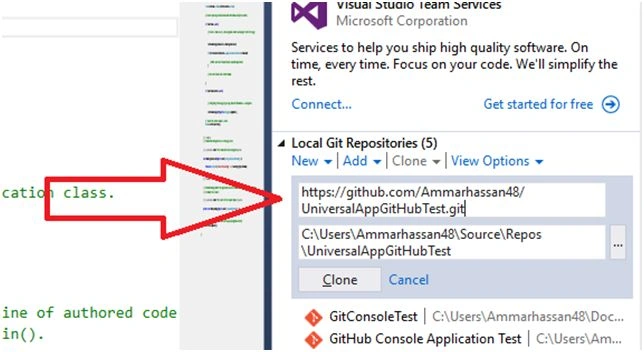
- To sync your local project with online GitHub click on Clone. VS will ask for the URL of online repository. It is that repository which you've already created on GitHub website. If you didn't create it yet simply open GitHub and create your account.
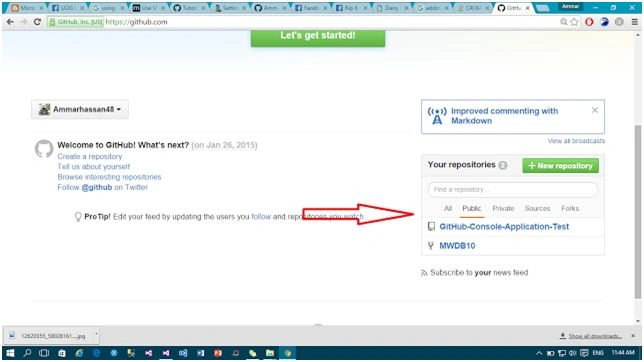
- Open your GitHub account. You'll find few option over there.
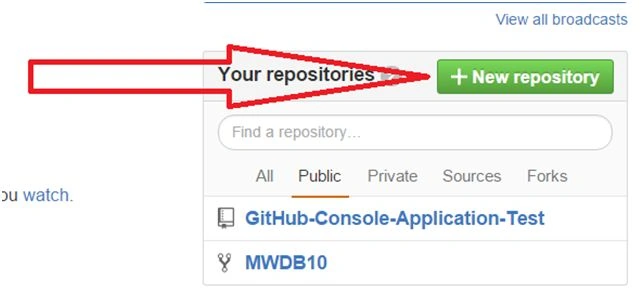
- Click to create New Repository.
Your already created repositories will be shown here also.
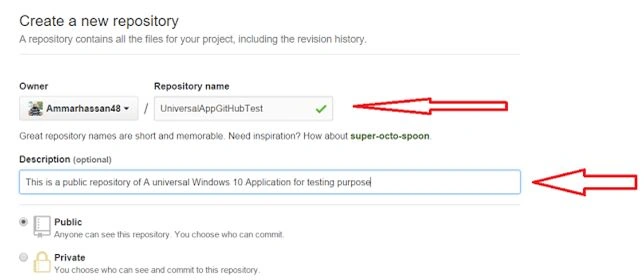
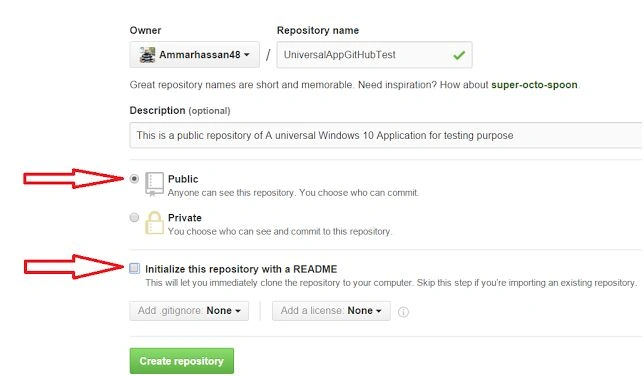
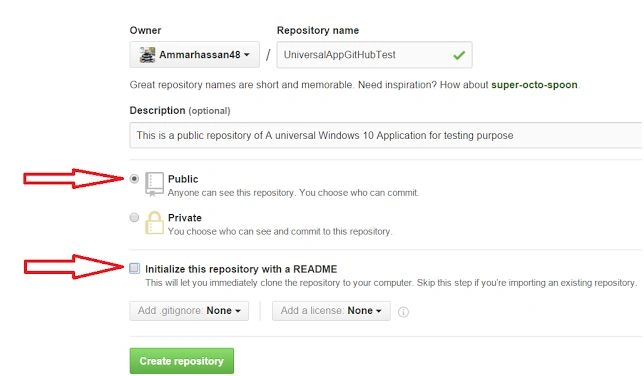
- Once you click new repository. You'll be provided a form to fill with some information.
a. Repository name > set a name for your repository to access it from web using URL like: " Owner / Repository name ".
b. Write a description for your repository.
- You'll find two buttons Public and Private.
a. Public: Anyone can see and access your project.
b. Private: You've option to set the access level of your project.
c. Initialize this repository with a README: If you check it . a copy of online repository will be sync to your desktop immediately. So leave it
UnCheck and click Create Repository.
- Your repository has been created. Copy the URL of your repository as shown in picture below.
- Now come back to your visual studio and paste the URL of your repository and click "Clone". Your local project will be sync to your online repository.
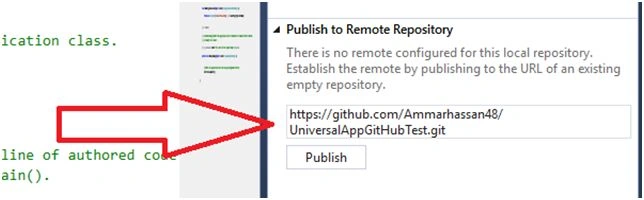
- In case to publish your repository. Just paste the URL of online repository and click Publish.
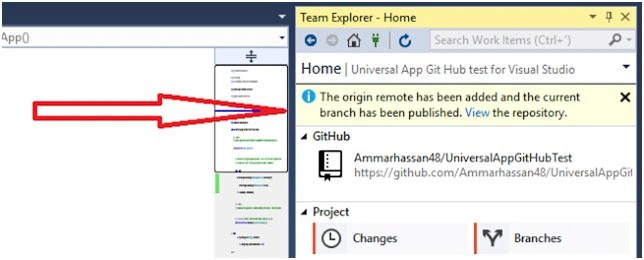
- You can see your synced repository online by clicking "View" as given in below picture.
Anil KumarPosted Mar 10, 2017, 12:11 AM
Thanks for sharing Ammar Shaukat
Debasis SahaPosted Mar 24, 2016, 7:11 AM
Nice One..
Ammar ShaukatPosted Mar 23, 2016, 3:52 AM
thanks all.
Ammar ShaukatPosted Mar 23, 2016, 3:52 AM
thanks Mobeen Sarwar
Kumaresh RajalingamPosted Feb 14, 2016, 1:33 AM
Nice share
Sr KarthigaPosted Feb 14, 2016, 12:19 AM
Good one
Mobeen SarwarPosted Feb 12, 2016, 6:07 AM
Good work
Ehsan SajjadPosted Feb 5, 2016, 5:09 AM
Good one
Vivek KumarPosted Feb 4, 2016, 2:36 PM
Nice article
Humayun Kabir MamunPosted Feb 3, 2016, 11:06 PM
Nice...
Shashangka ShekharPosted Feb 3, 2016, 10:09 PM
Nice share, Thanks but there's another way GitHub Desktop : https://desktop.github.com
Santhakumar MunuswamyPosted Feb 3, 2016, 2:53 PM
Thanks for nice share
Ankit SaxenaPosted Feb 3, 2016, 11:10 AM
Very nice explanation.
Asfend YarPosted Feb 3, 2016, 12:01 AM
thanks for such an amazing article
Mohammed IbrahimPosted Feb 2, 2016, 2:13 PM
nice
Shubham KumarPosted Feb 2, 2016, 4:20 AM
nice one
Sibeesh VenuPosted Feb 2, 2016, 4:01 AM
Nice Share