

Using the By QlikView personal edition tool you can analyze data in sources such as Excel Spreadsheets, databases, or text files. You can create charts from your data in a database or Excel file.
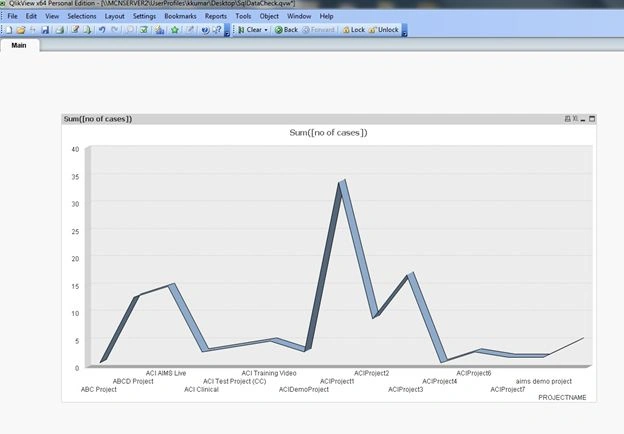
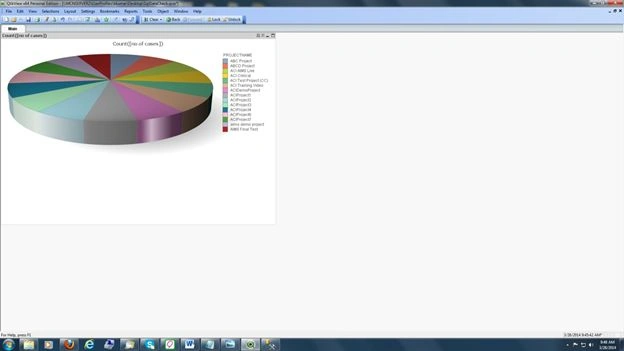
Use the following procedure to create a bar chart, line chart or pie chart from a SQL Server database.
Step 1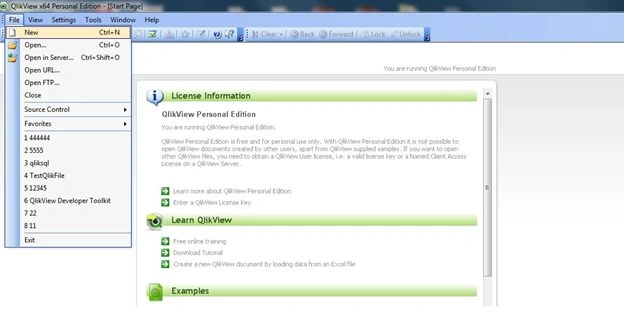
- Open QlikView tool and select file new menu
- The Select data source form will be shown.
Step 2
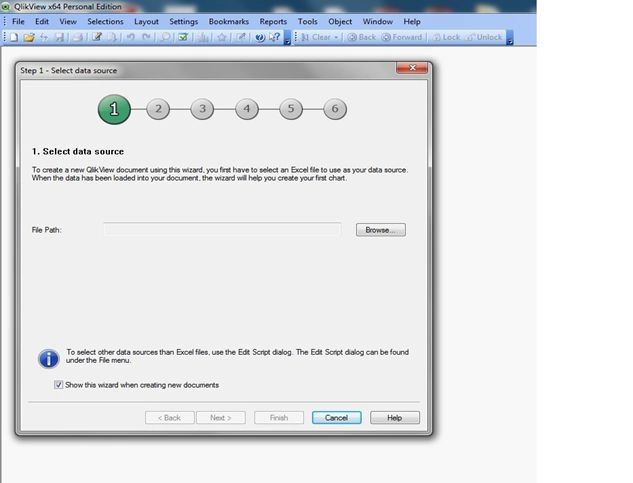
- Cancel this popup by Clicking the cancel button.
- Go to the file menu and click edit script
Step 3
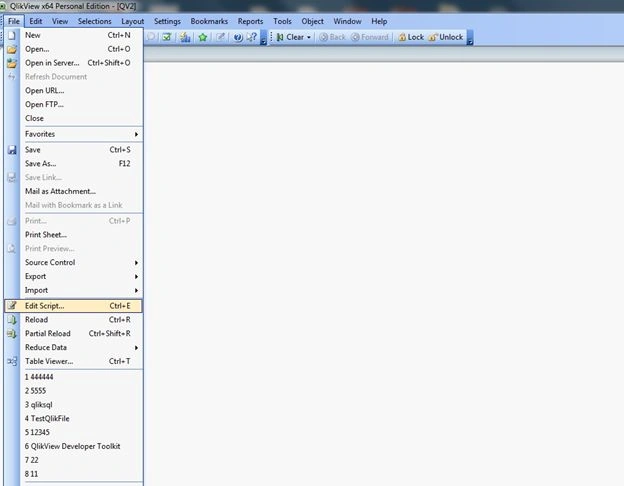
- The Edit script form will be shown.
- Go to the Database section
Step 4
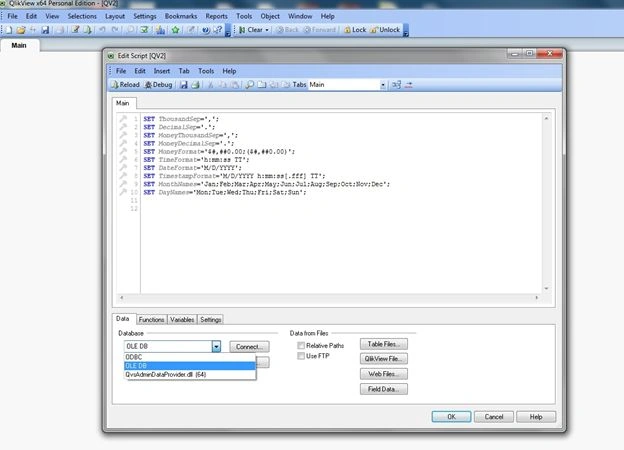
- Select OLEDB in the database combo box and click the connect button.
- Then the data link properties form will be shown
- Select the “Microsoft OLEDB provider for SQL Server” option in the data link properties pop-up.
Step 5
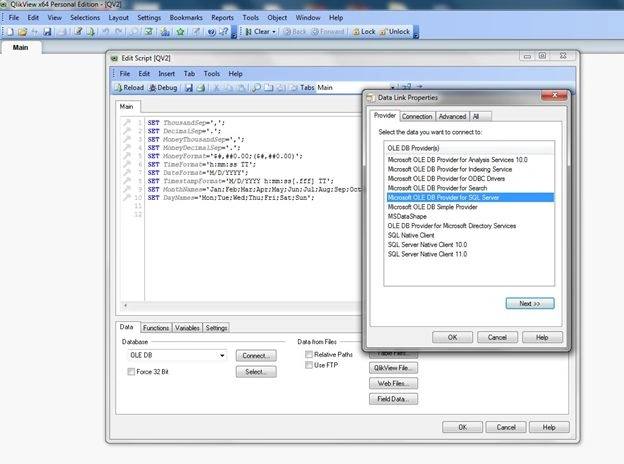
- Click the next button in the data link properties pop-up.
Step 6
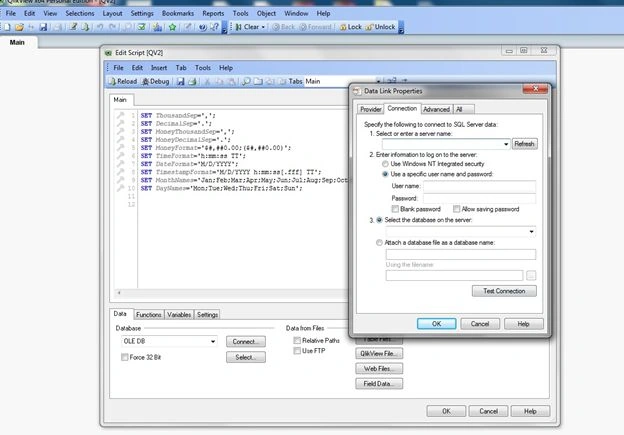
- The Connection tab will be opened of data link properties pop-up.
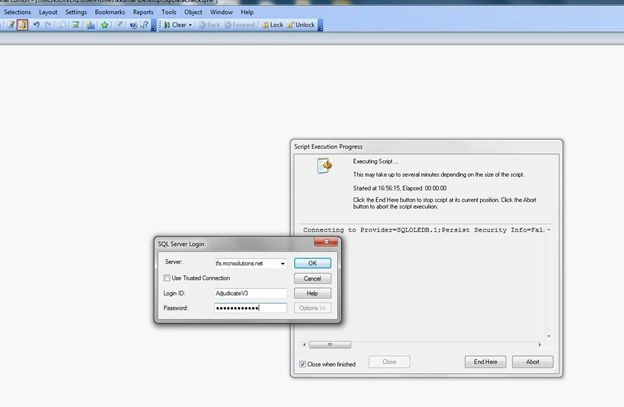
- Fill in the data base details like servername, user id and password.
- Select the database on the server and click the “Test Connection” button.
Step 7
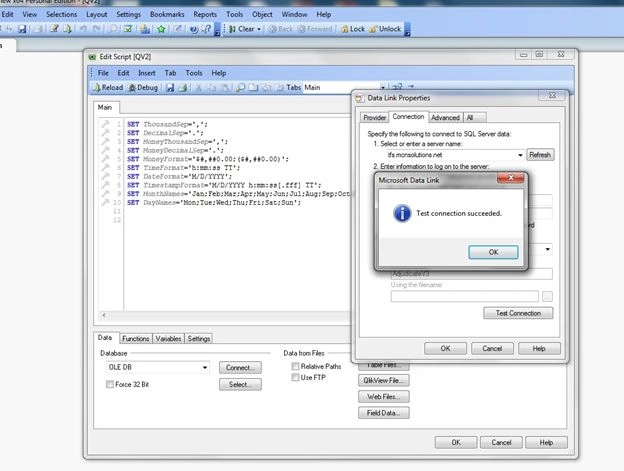
- A Test Connection Succeded pop-up will be shown when all the database details are correct.
Step 8
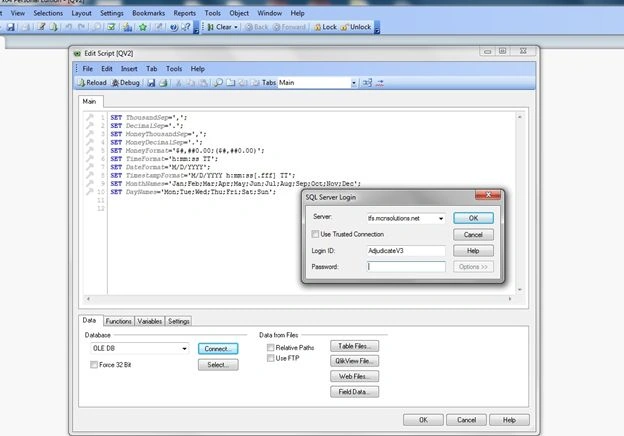
- On the database section of the “Edit script” pop-up click the “select” button below the “connect” button.
- Then the select statement dialog will be shown.
Step 9
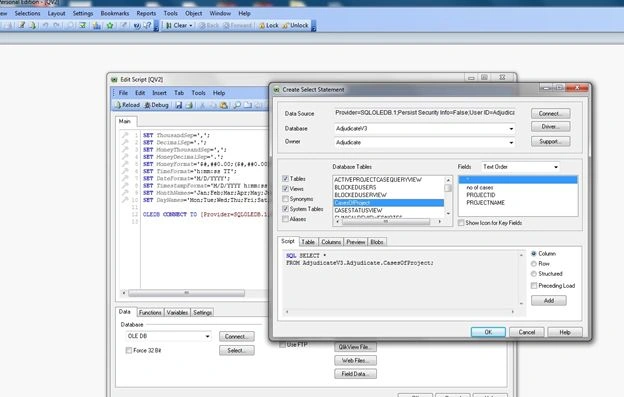
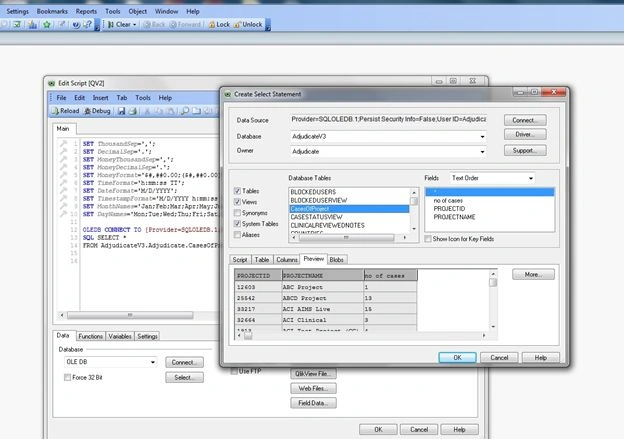
- Select the view or table for the data analisis.
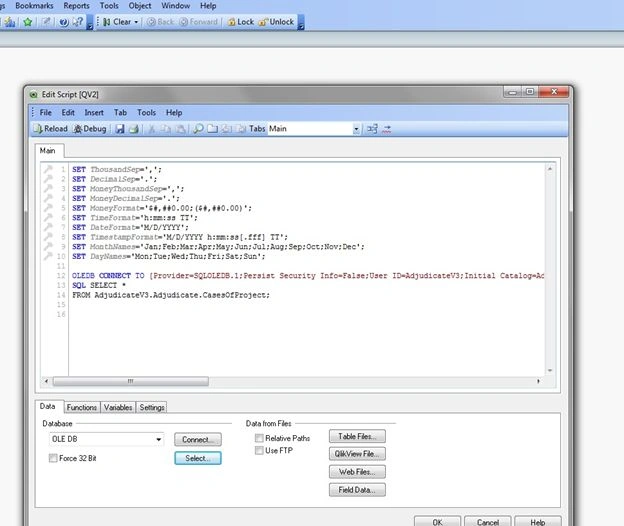
- Click the "OK" button.
Step 10
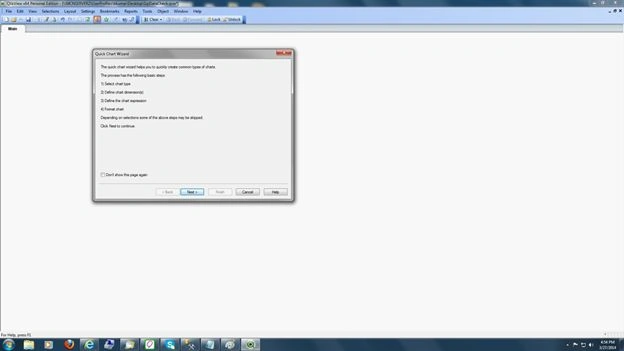
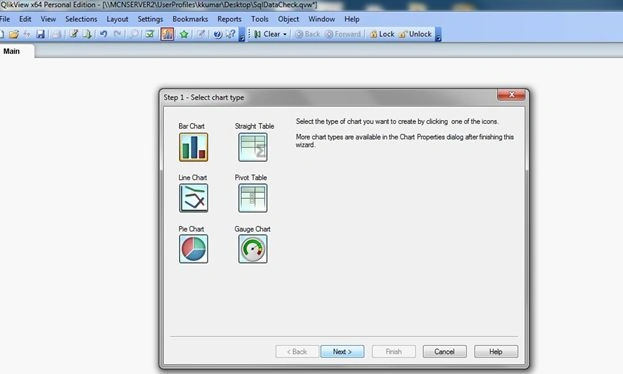
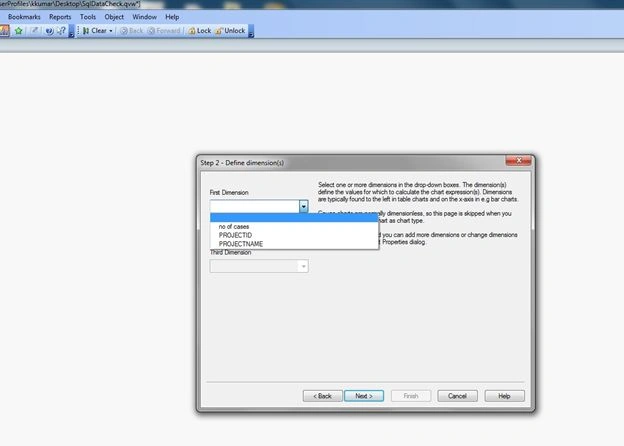
Join the conversation! Your thoughts help the community grow.