

This article shows you how to use Rabbit MQ with c# application. Here I will explain how to consume the WEB API, how Rabbit MQ is broadcasting, and how the client application uses the broadcast message.
What is Rabbit MQ & its features?
RabbitMQ is an open-source message broker software that facilitates communication and data exchange between various components of distributed applications. RabbitMQ functions as a message queue, managing the routing, queuing, and delivery of messages from senders (producers) to receivers (consumers).
- Decoupling applications: RabbitMQ can be used to decouple applications, which means that they can communicate with each other without being a monolith.
- Implementing async communication: RabbitMQ can be used to implement asynchronous communication, which means that messages are sent and received without blocking the sender or receiver.
- Real-time streaming: RabbitMQ can be used to implement real-time streaming, which means that messages are delivered in real time.
- Load balancing: RabbitMQ can be used to load balance messages between different consumers.
- Failover: RabbitMQ can be used to provide failover for applications. This means that if one RabbitMQ node fails, another node can take over and continue to deliver messages.
- Auditing: RabbitMQ can be used to audit messages. This means that you can track who sent and received messages and when they were sent and received.
- Monitoring: RabbitMQ can be monitored to track its performance and health.
Benefits of RabbitMQ
- Multi-platform communication which means that messages are serialized/deserialized in common languages such as JSON.
- Open source for that very large community can develop and improve the issues.
- Flexible, Reliable, and Scalable.
- Support Multiple protocols (STOMP, MQTT, RPC, HTTPS, HTTP, etc).
RabbitMQ Installation
Download Rabbit MQ for Windows as I am using Windows Operating System.
RabbitMQ Download Link and Installation Process
Default Configuration
- Endpoint address: http://localhost:15672/
- Login: guest
- Password: guest
- Windows Service Name: RabbitMQ
- Windows menu item to start the service if not started: RabbitMQ Service - start
Create Dotnet core webapi and broadcast the message (Using the Latest .Net 8).
- Tools: Visual Studio 2022
- Check the latest dotnet version
- Open CMD and type: dotnet --version
- Check all the versions: dotnet --list-SDKs
Step 1. Add new dotnet webapi project.
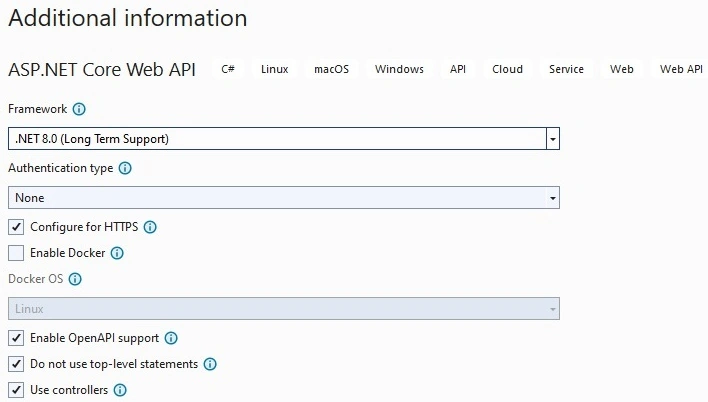
Step 2. Select the framework.

Step 3. Create the project and also please check and confirm that the project is the .net 8 framework.
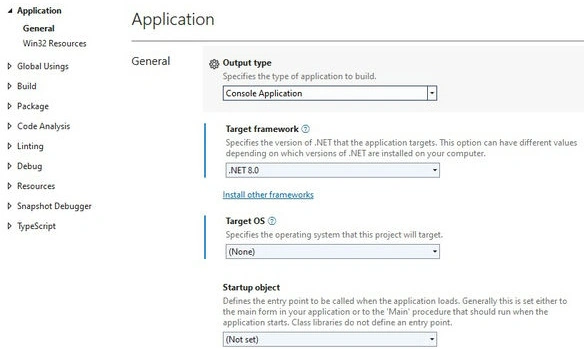
Then start the coding
Add NewFolder call Model, and add Product Model class with the name of Product.cs.
namespace RabbitMQProductApi.Models
{
    public class Product
    {
        public int ProductID { get; set; }
        public string ProductName { get; set; }=string.Empty;
        public string ProductDescription { get; set; }= string.Empty;
        public int ProductPrice { get; set; }
        public int ProductStock { get; set; }
    }
}
Add NewFolder call RabbitMQ, add Rabbitmq interface name with IRabbitMQProducer.cs.
namespace RabbitMQProductApi.RabbitMQ
{
    public interface IRabbitMQProducer
    {
        public void SendProductMessage<T>(T message);
    }
}
Add a new RabbitMQProducer Class and consume the IRabbitMQProducer interface. Please install the latest RabbitMQ.Client from nuget.org.
using RabbitMQ.Client;

namespace RabbitMQProductApi.RabbitMQ
{
    public class RabbitMQProducer : IRabbitMQProducer
    {
        public void SendProductMessage<T>(T message)
        {
            var factory=new ConnectionFactory() { HostName = "localhost" };
            var connection = factory.CreateConnection();
            var channel = connection.CreateModel();
            channel.QueueDeclare(queue: "ProductQueue", durable: false, exclusive: false, autoDelete: false, arguments: null);
            var json= System.Text.Json.JsonSerializer.Serialize(message);
            var body = System.Text.Encoding.UTF8.GetBytes(json);
            channel.BasicPublish(exchange:"", routingKey: "ProductQueue", basicProperties: null, body: body);
        }
    }
}
Add a New folder called Data ( Which is used for Database purposes), Please be sure that you have installed Entity framework for this project using nuget.org.
using Microsoft.EntityFrameworkCore;
using RabbitMQProductApi.Models;

namespace RabbitMQProductApi.Data
{
    public class DBContextClass:DbContext
    {
        protected readonly IConfiguration Configuration;
        public DBContextClass(IConfiguration configuration)
        {
            Configuration = configuration;
        }
        protected override void OnConfiguring(DbContextOptionsBuilder optionsBuilder)
        {
            optionsBuilder.UseSqlServer("Server=Machine Name;Database=ProductDB;Trusted_Connection=True;");
            optionsBuilder.UseSqlServer(Configuration.GetConnectionString("DefaultConnection"));
        }

        public DbSet<Product> Products { get; set; }
    }
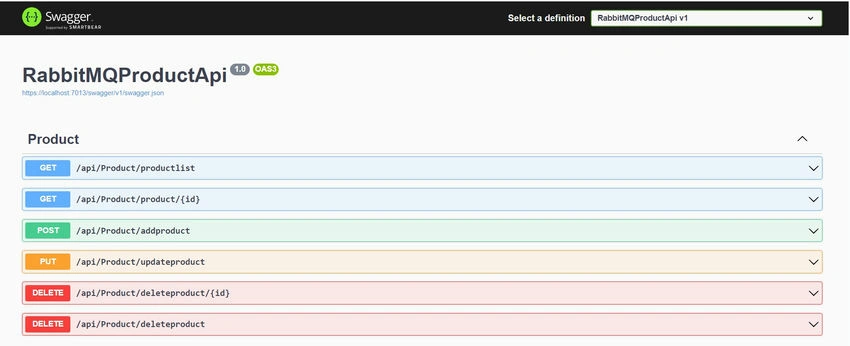
}

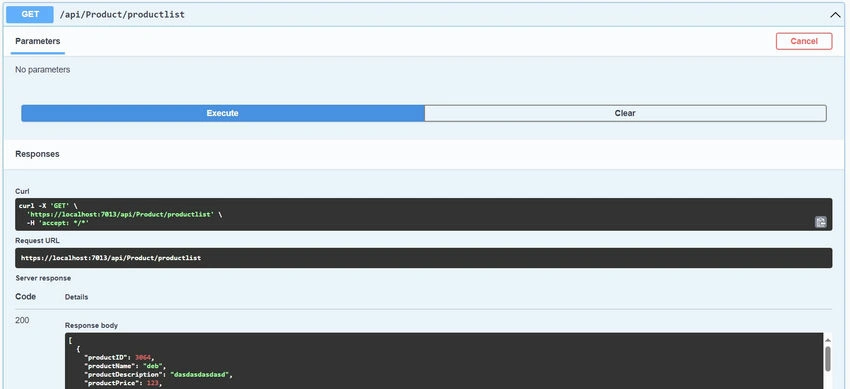
Join the conversation! Your thoughts help the community grow.