Introduction
This article demonstrates how to create an object and destroy it using scripts in Unity.
Prerequisites
Unity Environment version 5.6.1
Create a Sphere
Step 1
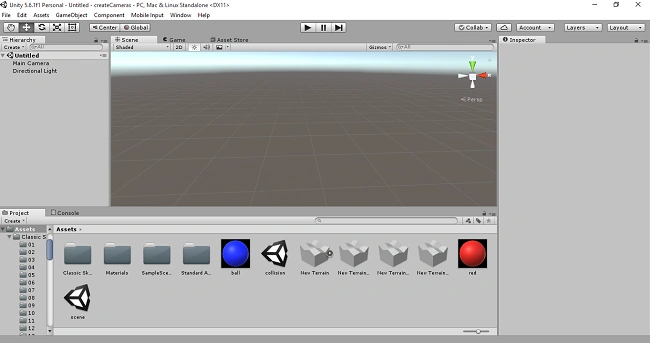
First, you have to open the Unity project. Go to File>> New scene. Create a new scene like the following.
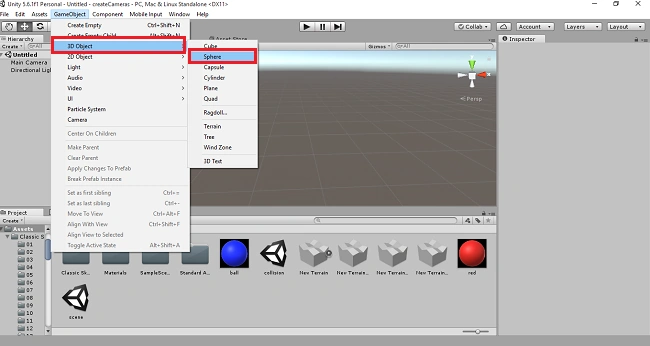
Click on the GameObject menu in the menu bar. Select the 3D objects and pick the Sphere option.
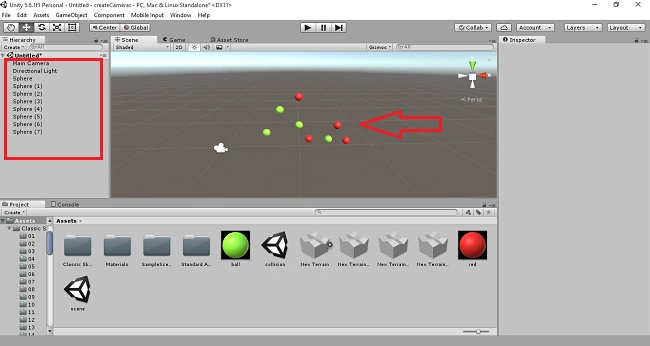
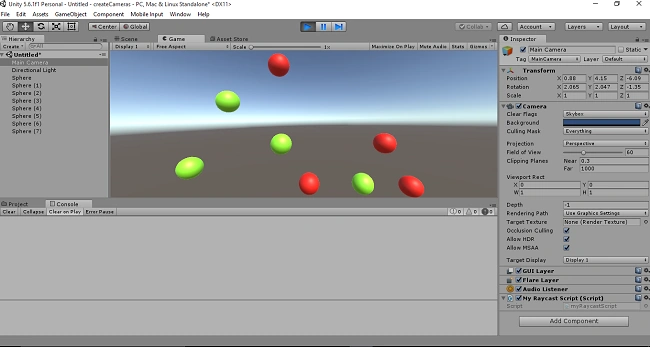
Create more spheres. Now, I have created 8 spheres in the scene view. I will change the sphere color into green and red.
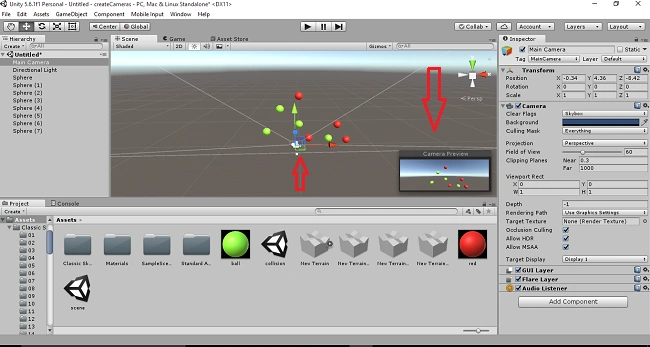
Set the camera so as to display all the spheres in Game View.
Create Script
Step 2
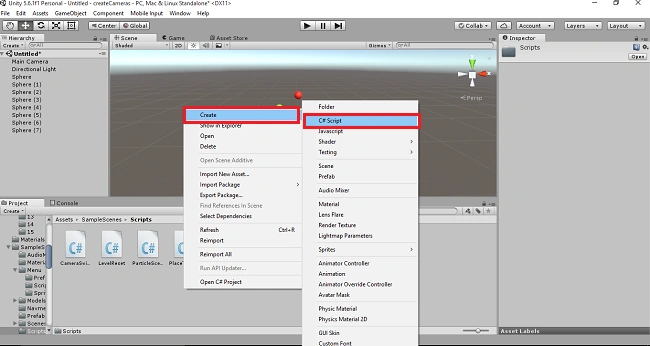
Right-click on the Assets panel, select Create, and pick the C# script.
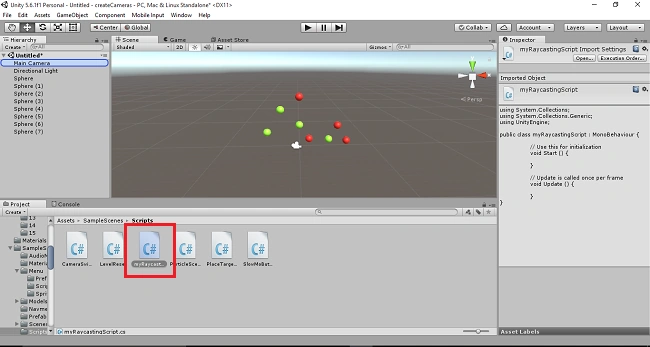
C# script will be added to the Assets. Rename the script as myRaycastScript. Drag and drop the script into the Main camera.
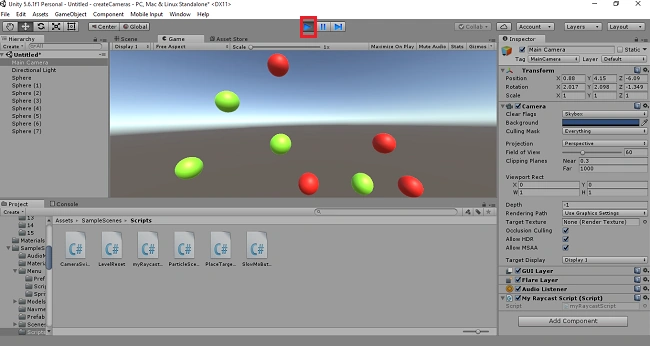
Click on the “Play” button. The spheres will be displayed in the Game View.
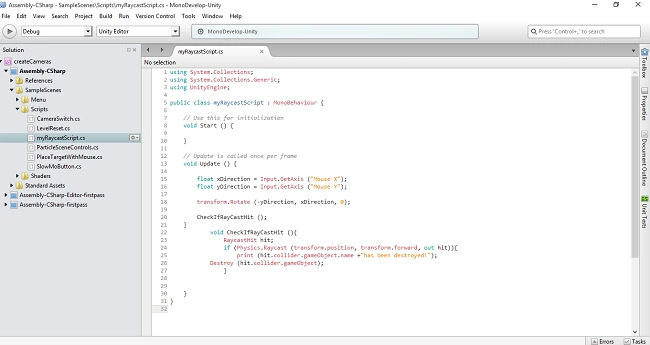
Go to the mono-developmentUnity. Write the code as given below.
- using System.Collections;
- using System.Collections.Generic;
- using UnityEngine;
-
- public class myRaycastScript : MonoBehaviour {
-
-
- void Start () {
-
- }
-
-
- void Update () {
-
- float xDirection = Input.GetAxis ("Mouse X");
- float yDirection = Input.GetAxis ("Mouse Y");
-
- transform.Rotate (-yDirection, xDirection, 0);
-
- CheckIfRayCastHit ();
- }
- void CheckIfRayCastHit (){
- RaycastHit hit;
- if (Physics.Raycast (transform.position, transform.forward, out hit)){
- print (hit.collider.gameObject.name +"has been destroyed!");
- Destroy (hit.collider.gameObject);
- }
- }
- }
Save the program.
Click on the Play button. The spheres will be displayed.
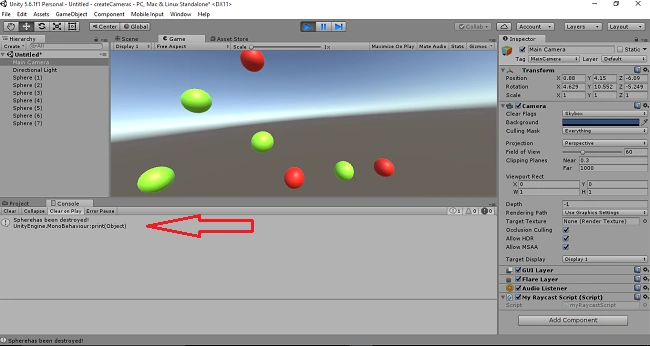
Move the mouse into any particular sphere. The sphere will be destroyed. The sphere will be destroyed by the hierarchy panel. The message will be displayed in the Console View.
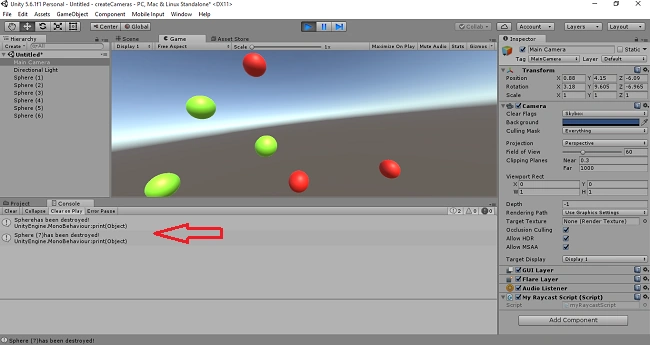
The sphere 7 will be removed into the Game View.
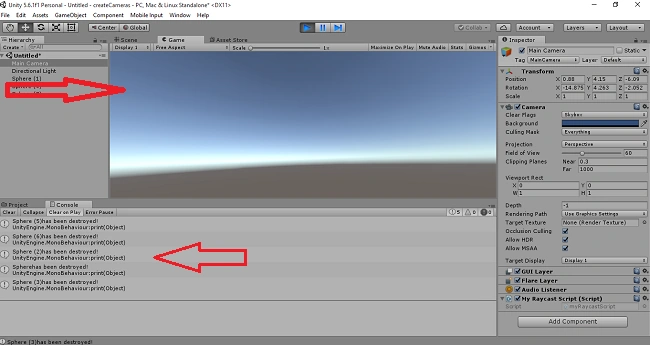
Destroy all the spheres and it will display the message into the console view.
Summary
I hope, you understood how to create the object and destroy it using C# scripts in Unity.


Chittaranjan SwainPosted Oct 19, 2019, 3:51 AM
Nice article...
ramachandran cPosted May 17, 2018, 7:13 AM
Hi gayau now i have asp.net c# .. i wanna game developer what do next
Elavarasan RPosted Sep 12, 2017, 2:03 AM
thanks gamer... nice article...
Joe WilsonPosted Jun 30, 2017, 2:21 PM
Thank you very much for sharing it.
Sundaram SubramanianPosted Jun 30, 2017, 11:27 AM
Thanks Gamer !!!. Nice Article.