

Introduction
React is an Open Source JavaScript library. It is used for developing scalable, simple, and fast front-ends for web & mobile applications. It handles the view layer of mobile and web applications. React is flexible and can be used in any application.
Description
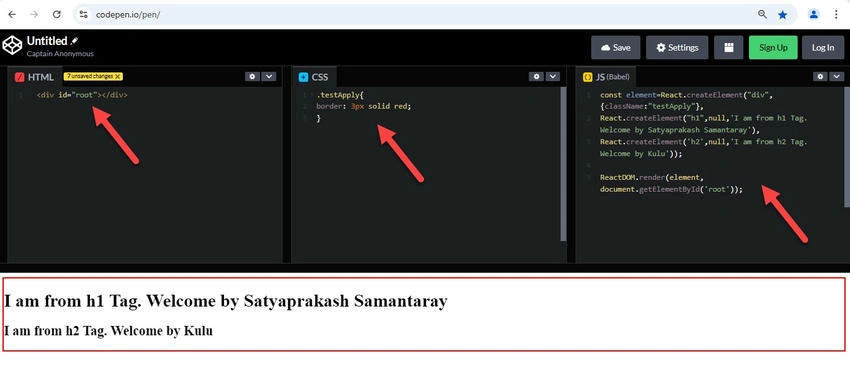
In this article, We learn about React elements. Also, we know the steps to create React Elements and how to render React Elements. Difference between React with JSX and React without JSX. Also, How to work on React on both Desktop and Mobile platforms.
Please visit the React articles to understand the beginning.
- Part 1: React Tutorial For Beginners - Introduction
- Part 2: React Tutorial For Beginners - Steps to Install and Setup React
The below React articles are for a basic understanding of React sample applications.
- Create & Download Area Chart using React Apexcharts with Bootstrap
- React Apexcharts: Create & Download Column Bar Chart with Bootstrap
- Create Animated ATM Cards Using React With Bootstrap
What is React Element?
- React Elements are the smallest building blocks of React applications.
- It is a plain object describing what we want to appear in terms of the DOM nodes.
- An Element can be created by using JSX or React without JSX.
- React Element is more flexible and cheap than DOM elements.
In this article, we will learn.
- What are React Elements
- How to Create React Elements
- Rendering Elements using Container
Working on reacting with JSX
Open the React project using Visual Studio Code.
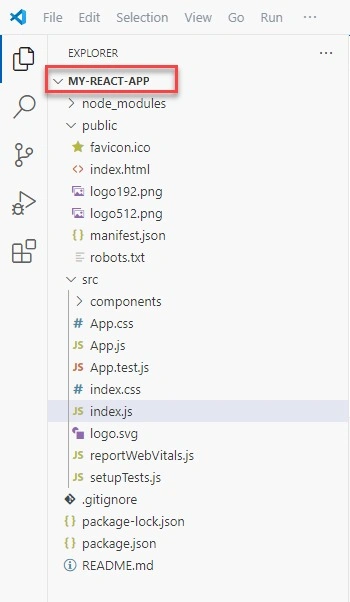
Let's create our first React Element using JSX. Open the index.js file from the src folder.
We want to create an element of the h1 type.
Code Ref index.js
import React from 'react';
import ReactDOM from 'react-dom';
import './index.css';

const element = <h1 className="testApply">Hello, world</h1>;

ReactDOM.render(element, document.getElementById('root'));
We have created an Object of type h1 and assigned it to a variable called an element. This element should be rendered into the Browser DOM, and for that, we need a container.
const element = <h1>Hello, world</h1>;
This is not a string, but this is a jsx convention. The above-created Element can be rendered into it By writing.
ReactDOM.render(element, document.getElementById('root'));
This method renders this element into a container of id = root. There is a div with id as the root; we will use that div as our container.
Open Index.html.
Code Ref Index.html
<!DOCTYPE html>
<html lang="en">
  <head>
    <meta charset="utf-8" />
    <link rel="icon" href="%PUBLIC_URL%/favicon.ico" />
    <meta name="viewport" content="width=device-width, initial-scale=1" />
    <meta name="theme-color" content="#000000" />
    <meta
      name="description"
      content="Web site created using create-react-app"
    />
    <link rel="apple-touch-icon" href="%PUBLIC_URL%/logo192.png" />
    <!--
      manifest.json provides metadata used when your web app is installed on a
      user's mobile device or desktop. See https://developers.google.com/web/fundamentals/web-app-manifest/
    -->
    <link rel="manifest" href="%PUBLIC_URL%/manifest.json" />
    <!--
      Notice the use of %PUBLIC_URL% in the tags above.
      It will be replaced with the URL of the `public` folder during the build.
      Only files inside the `public` folder can be referenced from the HTML.

      Unlike "/favicon.ico" or "favicon.ico", "%PUBLIC_URL%/favicon.ico" will
      work correctly both with client-side routing and a non-root public URL.
      Learn how to configure a non-root public URL by running `npm run build`.
    -->
    <title>React App</title>
  </head>
  <body>
    <noscript>You need to enable JavaScript to run this app.</noscript>
    <div id="root"></div>
    <!--
      This HTML file is a template.
      If you open it directly in the browser, you will see an empty page.

      You can add webfonts, meta tags, or analytics to this file.
      The build step will place the bundled scripts into the <body> tag.

      To begin the development, run `npm start` or `yarn start`.
      To create a production bundle, use `npm run build` or `yarn build`.
    -->
  </body>
</html>
In index.html, that div id is defined.
<div id="root"></div>
Code Ref index.css
.testApply{
border: 3px solid red;
}
Let's say we want to assign some styles to this element. Create a CSS class with the class name as a test class in index.css. Apply this class to the element using the className attribute.
const element = <h1 className="testApply">Hello, world</h1>;
An Element contains type and properties, here h1 is the type and this element contains className as property. An Element can be as simple as the one we have created or an element can contain elements inside it.
Output
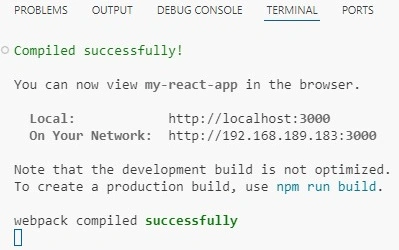
Run React Application using the command in VS Code terminal >> npm start.
Then we can see that the React application is compiled successfully.

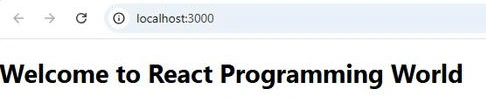
Here, We create two elements and try to render both elements.
Code Ref index.js
Using the same container root, We implement 2 div elements.
import React from 'react';
import ReactDOM from 'react-dom';
import './index.css';
const element = <h1 className="testApply">Hello, world</h1>;
ReactDOM.render(element, document.getElementById('root'));
const element1 = <h1 className="testApply">Hello, world One</h1>;
ReactDOM.render(element1, document.getElementById('root'));





Join the conversation! Your thoughts help the community grow.