

Introduction
Azure Service Bus is a message broker used by enterprises to send and receive messages or data payloads between applications. This approach is helpful when we want to avoid using APIs to send and receive data between applications. This approach is also very helpful for microservices communication when we want to exchange messages between multiple microservices. Queues are used for point-to-point communication. Message broker uses the FI-FO approach to send messages from source to destination. It assures at least one delivery of a message till certain attempts. Once the number of attempts exceeds at the receiver's end to acknowledge the messages, the messages are pushed into the dead letter queue. We will take a walkthrough of how to receive messages using queues.
The messages are received and sent using these three protocols:
- AMQP - Advanced Messaging Queuing Protocol
- SBMP - Service Bus Messaging Protocol
- HTTP - HyperText Transfer Protocol
Setting messages is also very flexible in Azure Service Bus. Not every message or data payload is useful. We can do various operations on messages to fit our scenario. We can acknowledge them, abandon it, defer the message and move the message to alternate queue i.e. Dead letter queue that will not be received again by normal means.
Approaches
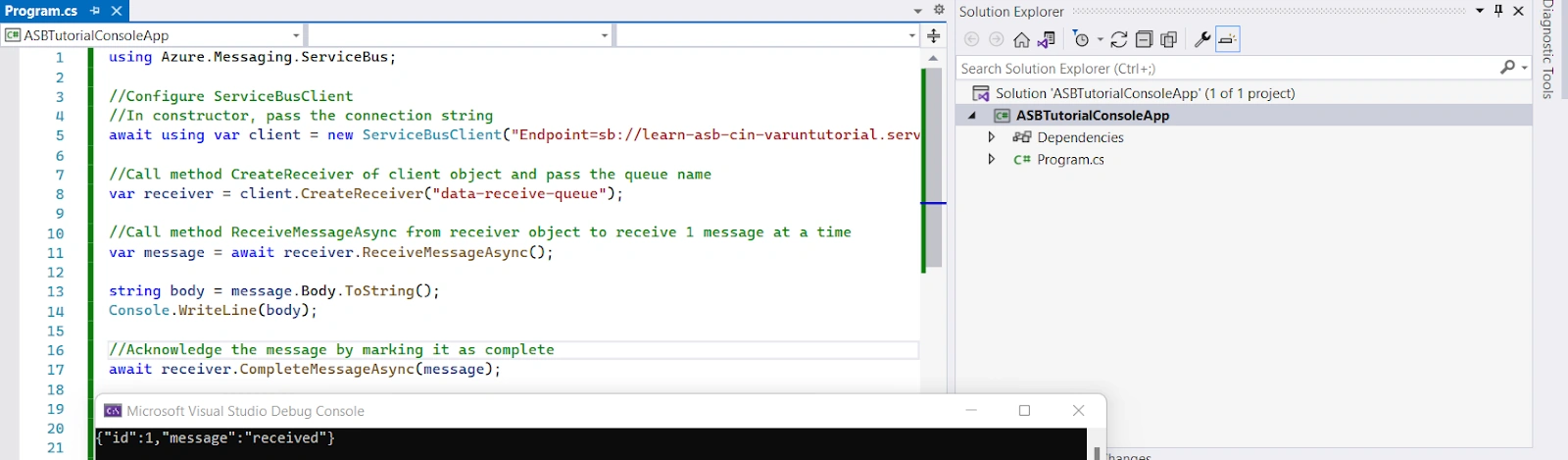
There are two approaches offered by Azure Service Bus SDK to receive messages.
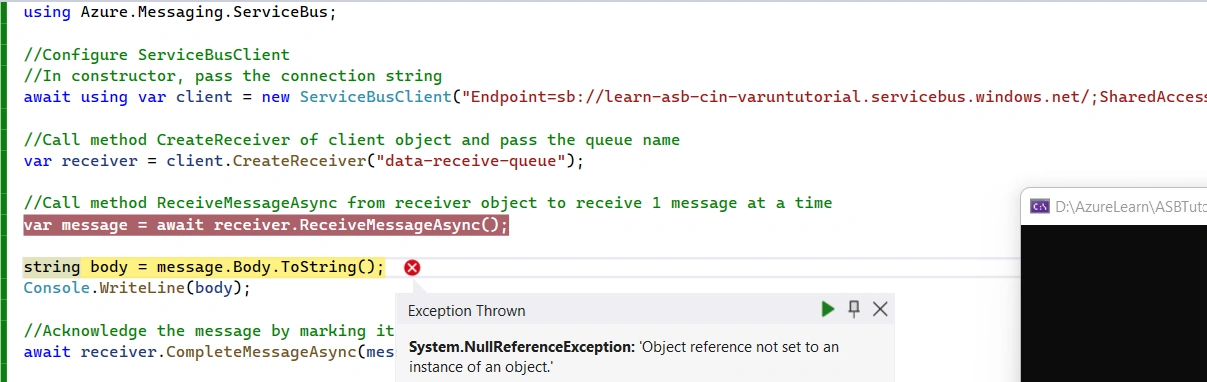
- Service Bus Receiver - It is used to simply receive the messages and perform operations on them. It is a vanilla implementation that does core operations.
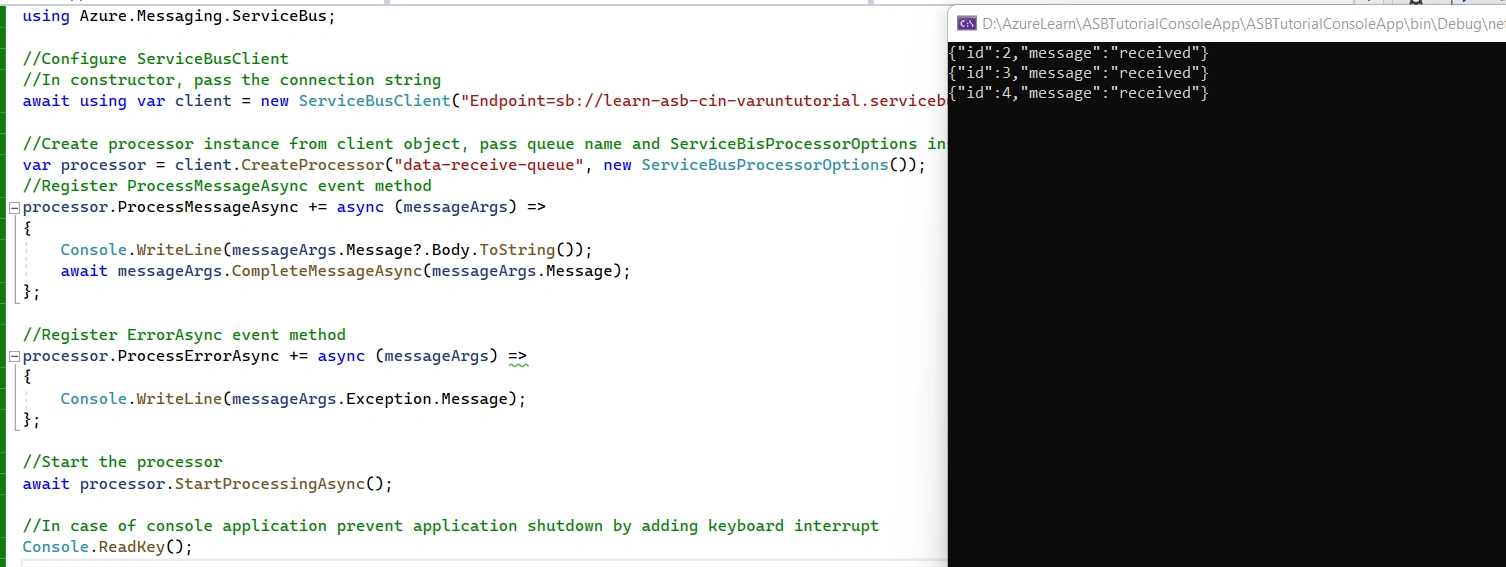
- Service Bus Processor - It is a wrapper around service bus receiver and works on an event based model to receive messages and perform operations on them. It contains a callback method to perform operations on received messages.
For more control, we must use a Service Bus Receiver.
Setup
- Azure Service Bus Instance (Basic and above)
- Visual Studio 2022
- .NET 6
Provisioning Instance and Creating Messages
- Open portal.azure.com
- Search Service Bus
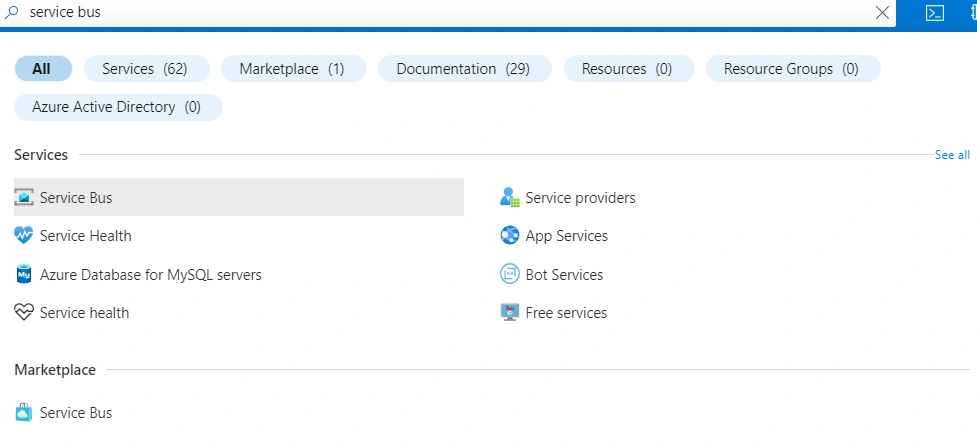
- Click + Create
- Fill the below details,
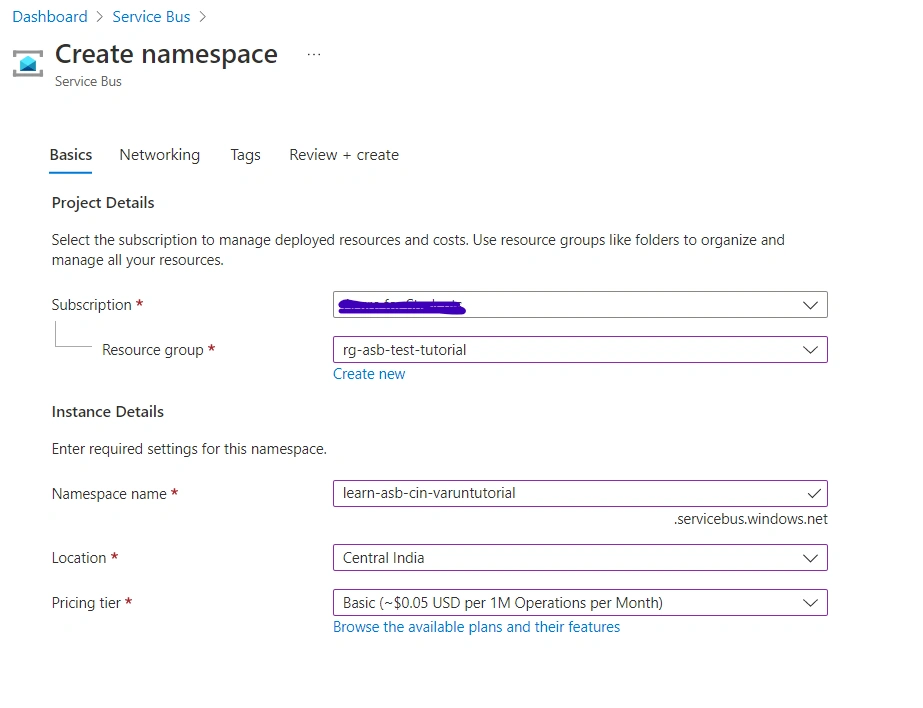
- Click Next, Next and Create
- Once created, Click Go to Resource.
- Open Queues under Entities and on right side click ” + Queue”
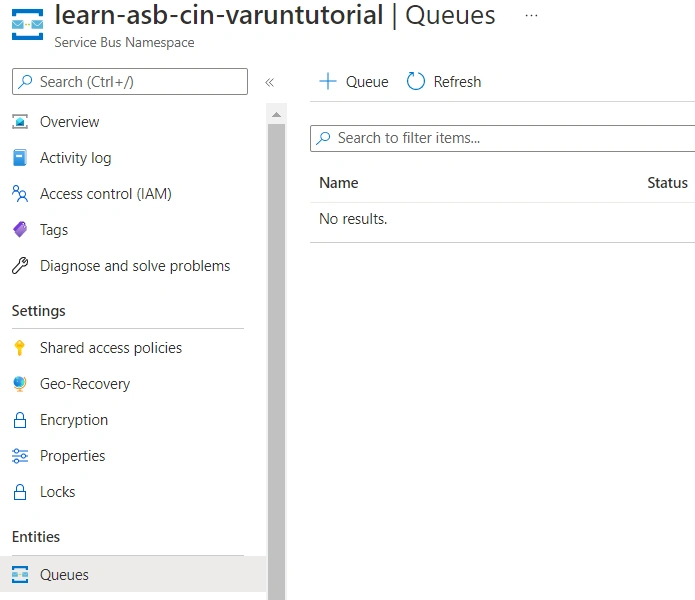
- Fill the following configuration
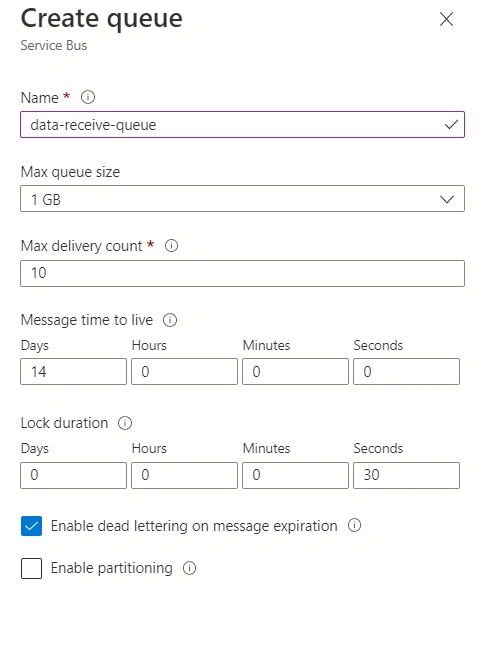
- Click Create.
- Open Queue.
- Select Service Bus Explorer (preview) under Settings.
- Select Send Tab
- Create a JSON payload {"id":1,"message":"received"}
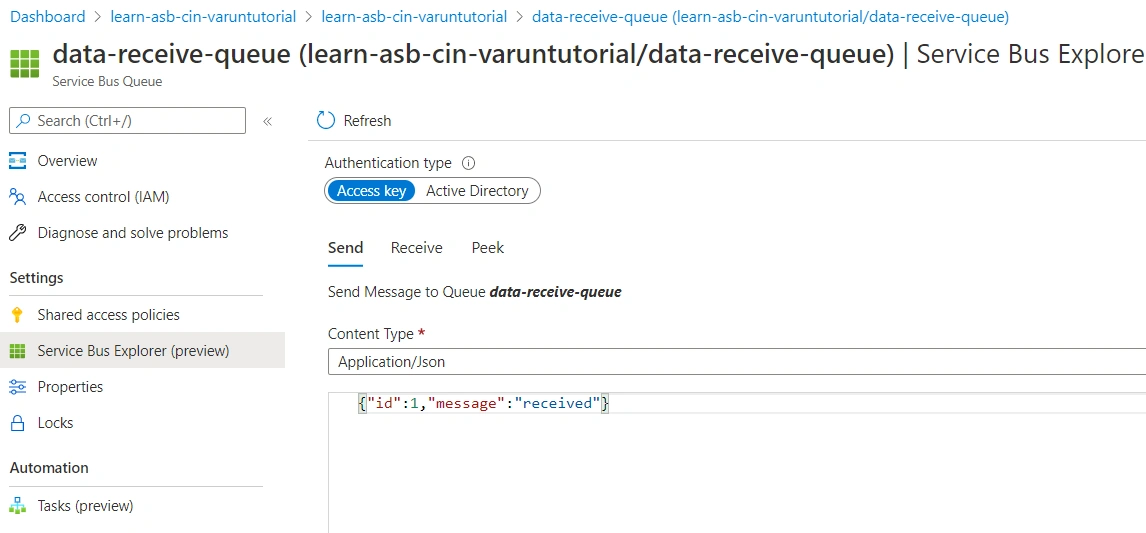
- Click Send
- Under Settings section select “Shared access policies”
- Click on “ + Add ”
- Write policy name and select the checkbox to listen and click Create.
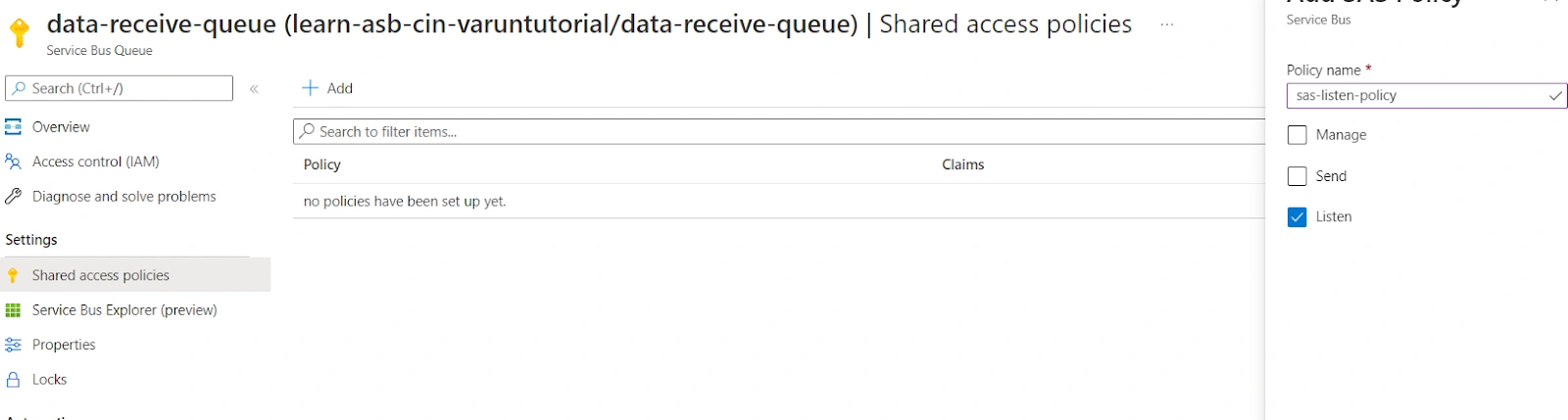
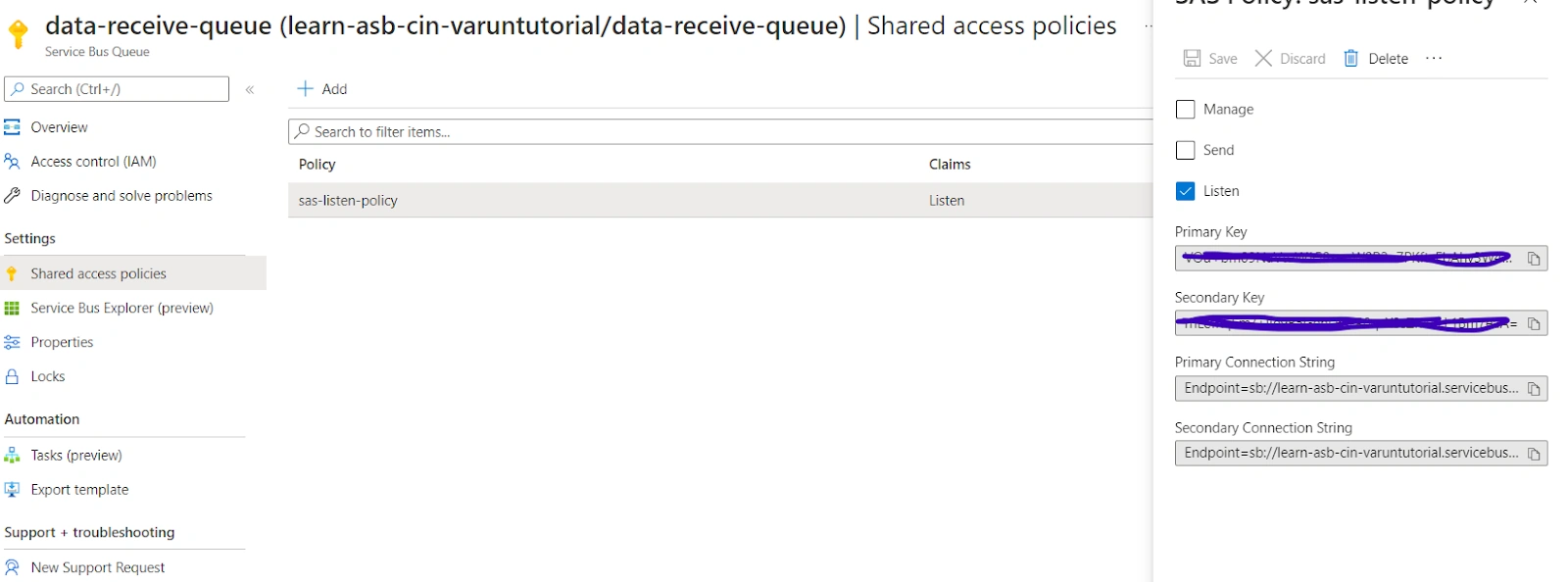
Note: We must always follow the principle of least privilege when assigning any permissions - Select the policy name and copy Primary or Secondary Connection String.
Join the conversation! Your thoughts help the community grow.