

The main aim of this article is to generate a PDF according to our requirement in Universal Windows App. So far so many APIs are there to generate PDFs but do not support Windows environment. You can get more information from msdn How to generate PDF on Windows Phone in VB or C#.
Now, I’m going to create a Project with Employee Information as an example to generate the Selected Employee Details as a PDF.
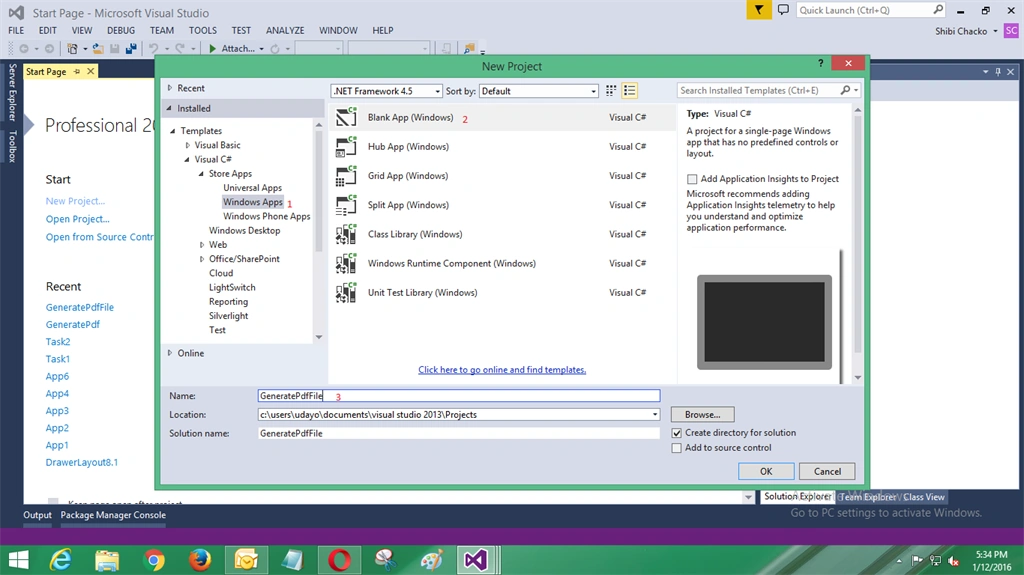
Step 1: Open Visual Studio 2013, click New Project, choose Windows Apps, select Blank App, and name as GeneratePdfFile. After that click OK.
Step 2:
Add a Class, name it as Employee and add the following code. This contains two classes i.e Employee and EmployeeModel; Employee class is having all the properties and EmployeeModel contains all the Methods to access the employee data.
- public class Employee
- {
- public int EmployeeId
- {
- get;
- set;
- }
- public string EmployeeName
- {
- get;
- set;
- }
- public string Designation
- {
- get;
- set;
- }
- public string Salary
- {
- set;
- get;
- }
- public string PhoneNumber
- {
- get;
- set;
- }
- }
- public class EmployeeModel
- {
- List < Employee > emp = new List < Employee > ();
- public List < Employee > GetAllEmployees()
- {
- emp.Add(newEmployee()
- {
- EmployeeId = 101, EmployeeName = "uday", Designation = "Developer", Salary = "30000", PhoneNumber = "9xxxxxxxx9"
- });
- emp.Add(new Employee()
- {
- EmployeeId = 102, EmployeeName = "Stephen", Designation = "Developer", Salary = "20000", PhoneNumber = "8xxxxxxxx9"
- });
- emp.Add(new Employee()
- {
- EmployeeId = 103, EmployeeName = "Tom", Designation = "Tester", Salary = "35000", PhoneNumber = "6xxxxxxxx9"
- });
- emp.Add(new Employee()
- {
- EmployeeId = 104, EmployeeName = "Sathish", Designation = "Architect", Salary = "50000", PhoneNumber = "7xxxxxxxx9"
- });
- return emp;
- }
- public Employee GetEmployeeById(int Id)
- {
- Employee _emp = emp.SingleOrDefault(xl => xl.EmployeeId == Id);
- return _emp;
- }
- }
- }
Step 3: In MainPage.Xaml.Cs add the following code to display the data in a List View.
- public sealed partial class MainPage: Page
- {
- EmployeeModel _empModel;
- Employee emp;
- public MainPage()
- {
- this.InitializeComponent();
- _empModel = new EmployeeModel();
- emp = new Employee();
- this.DataContext = _empModel.GetAllEmployees();
- }
- }
Step 4: In order to display the data I used Data Binding concept. Now in MainPage.Xaml add the following code. Add this line in the beginning of the url:
- DataContext="{Binding EmployeeModel, RelativeSource={RelativeSource Self}}"
Then add the following code,
- <Grid Background="{ThemeResource ApplicationPageBackgroundThemeBrush}">
- <Grid.RowDefinitions>
- <RowDefinition Height="Auto"></RowDefinition>
- <RowDefinition Height="*"></RowDefinition>
- </Grid.RowDefinitions>
- <Grid.ColumnDefinitions>
- <ColumnDefinition Width="Auto"></ColumnDefinition>
- <ColumnDefinition Width="*"></ColumnDefinition>
- </Grid.ColumnDefinitions>
- <StackPanel>
- <ListView Header="List of Employees" FontSize="30" Margin="30,100" x:Name="lstempDisplay" ItemsSource="{Binding}" Height="Auto">
- <ListView.ItemTemplate>
- <DataTemplate x:Name="dataTemplate">
- <StackPanel>
- <TextBlock Text="{Binding EmployeeId}" Foreground="#FFFF" />
- <TextBlock Text="{Binding EmployeeName}" Foreground="#FFFF" />
- <TextBlock Text="{Binding Salary}" Foreground="#FFFF" />
- <TextBlock Text="{Binding Designation}" Foreground="#FFFF" />
- <TextBlock Text="{Binding PhoneNumber}" Foreground="#FFFF" />
- </StackPanel>
- </DataTemplate>
- </ListView.ItemTemplate>
- </ListView>
- </StackPanel>
- </Grid>
Now run the application and see the output.
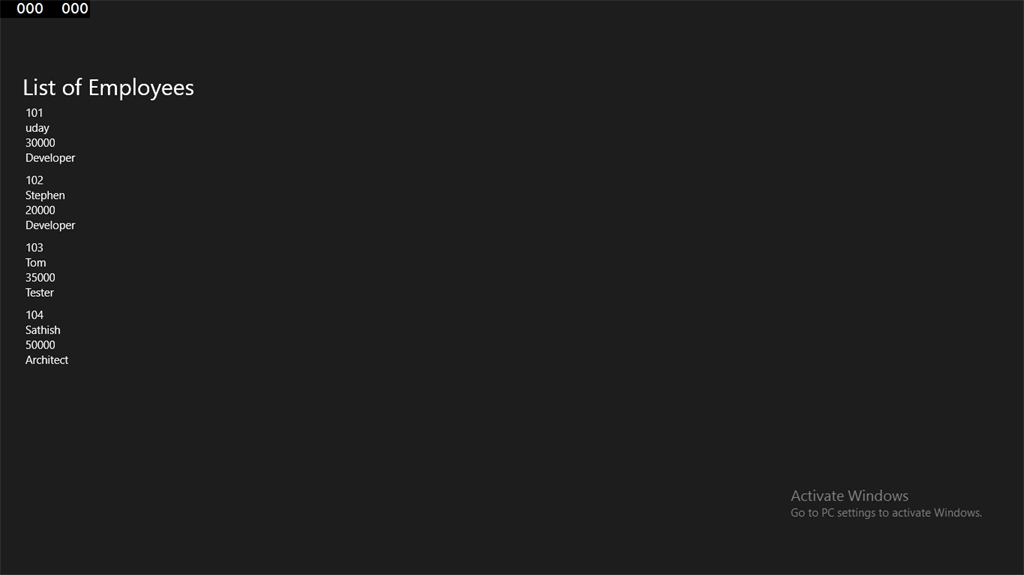
Now to get the information of each employee I added a combobox and the data is bound to the textboxes. If you want to edit you can edit and add a button to generate PDF.
- <StackPanel Margin="0,100">
- <ComboBox Header="Choose Employee Id" x:Name="cmbEmpId" SelectionChanged="cmbEmpId_Changed" ItemsSource="{Binding}" FontSize="25" HorizontalAlignment="Left" Width="231"
- SelectedItem="{Binding EmployeeId}" DisplayMemberPath="EmployeeId" SelectedValuePath="EmployeeId">
- <ComboBoxItem>Select</ComboBoxItem>
- </ComboBox>
- <TextBox x:Name="txtEmpName" Header="EmployeeName:" HorizontalAlignment="Left" FontSize="23" Width="231"/>
- <TextBox x:Name="txtSalary" Header="Salary:" HorizontalAlignment="Left" FontSize="23" Width="231"/>
- <TextBox x:Name="txtEmpDesignation" Header="Designation:" HorizontalAlignment="Left" FontSize="23" Width="231"/>
- <TextBox x:Name="txtPhoneNumber" Header="Designation:" HorizontalAlignment="Left" FontSize="23" Width="231"/>
- <Button HorizontalAlignment="Left" Click="GeneratePdf_Click" Margin="0,30" FontSize="23" Width="231" Content="Generate Pdf"/>
- </StackPanel>
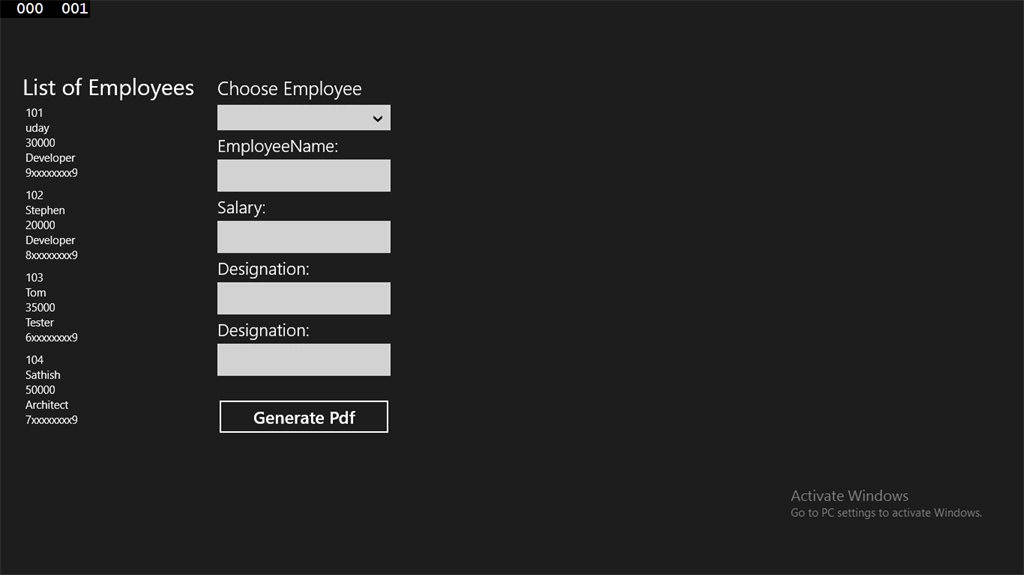
Step 5: Now to get the data into the textboxes I used selected Index changed event of combo box. Add the following code in MainPage.xaml.cs.
- private void cmbEmpId_Changed(object sender, SelectionChangedEventArgs e)
- {
- int EmployeeId = int.Parse(cmbEmpId.SelectedValue.ToString());
- Employee emp = _empModel.GetEmployeeById(EmployeeId);
- txtEmpName.Text = emp.EmployeeName;
- txtSalary.Text = emp.Salary;
- txtEmpDesignation.Text = emp.Designation;
- txtPhoneNumber.Text = emp.PhoneNumber;
- }
Now run and select the Employee Id and observe the output.
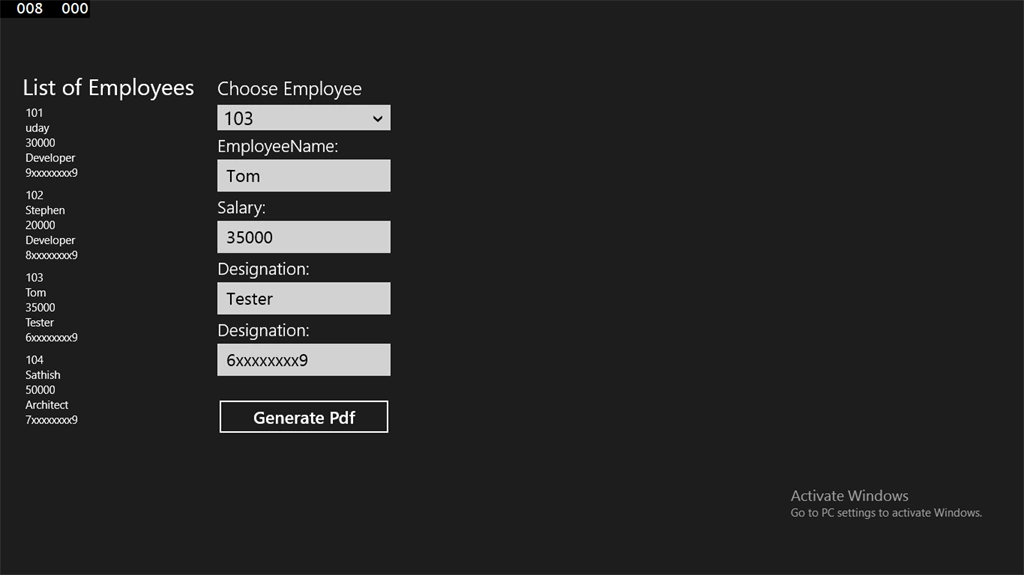
Step 6: Now is the time to generate pdfthe PDF. Double click on "Generate Pdf" button and add the following code, this code has the reference from the following link: PostScript Language Reference
- private async void GeneratePdf_Click(object sender, RoutedEventArgs e)
- {
- var file = await ApplicationData.Current.LocalFolder.CreateFileAsync("MyFirstPdf.pdf", Windows.Storage.CreationCollisionOption.ReplaceExisting);
- using (var stream = await System.IO.WindowsRuntimeStorageExtensions.OpenStreamForWriteAsync(file))
- {
- using (var writer = new System.IO.StreamWriter(stream, System.Text.Encoding.UTF8))
- {
- List<long> xrefs = new List<long>();
- writer.WriteLine("%PDF-1.2");
- writer.Write("%");
- writer.Flush();
- byte[] bytes = { 0, 0, 0, 0 };
- stream.Write(bytes, 0, 4);
- stream.Flush();
- writer.WriteLine("");
- writer.Flush();
- stream.Flush();
- xrefs.Add(stream.Position);
- writer.WriteLine("1 0 obj");
- writer.WriteLine("<<");
- writer.WriteLine(" /Type /Catalog");
- writer.WriteLine(" /Pages 2 0 R");
- writer.WriteLine(">>");
- writer.WriteLine("endobj");
- // #2: page-list - we have only one child page
- writer.Flush();
- stream.Flush();
- xrefs.Add(stream.Position);
- writer.WriteLine("2 0 obj");
- writer.WriteLine("<<");
- writer.WriteLine(" /Type /Pages");
- writer.WriteLine(" /Kids [3 0 R]");
- writer.WriteLine(" /Count 1");
- writer.WriteLine(">>");
- writer.WriteLine("endobj");
- // #3: page - this is our page. We specify size, font resources, and the contents
- writer.Flush();
- stream.Flush();
- xrefs.Add(stream.Position);
- writer.WriteLine("3 0 obj");
- writer.WriteLine("<<");
- writer.WriteLine(" /Type /Page");
- writer.WriteLine(" /Parent 2 0 R");
- writer.WriteLine(" /MediaBox [0 0 612 792]");
- // Default userspace units: 72/inch, origin at bottom left
- writer.WriteLine(" /Resources");
- writer.WriteLine(" <<");
- writer.WriteLine(" /ProcSet [/PDF/Text]");
- // This PDF uses only the Text ability
- writer.WriteLine(" /Font");
- writer.WriteLine(" <<");
- writer.WriteLine(" /F0 4 0 R");
- // I will define three fonts, #4, #5 and #6
- writer.WriteLine(" /F1 5 0 R");
- writer.WriteLine(" /F2 6 0 R");
- writer.WriteLine(" >>");
- writer.WriteLine(" >>");
- writer.WriteLine(" /Contents 7 0 R");
- writer.WriteLine(">>");
- writer.WriteLine("endobj");
- // #4, #5, #6: three font resources, all using fonts that are built into all PDF-viewers
- // We're going to use WinAnsi character encoding, defined below.
- writer.Flush();
- stream.Flush();
- xrefs.Add(stream.Position);
- writer.WriteLine("4 0 obj");
- writer.WriteLine("<<");
- writer.WriteLine(" /Type /Font");
- writer.WriteLine(" /Subtype /Type1");
- writer.WriteLine(" /Encoding /WinAnsiEncoding");
- writer.WriteLine(" /BaseFont /Times-Roman");
- writer.WriteLine(">>");
- writer.Flush();
- stream.Flush();
- xrefs.Add(stream.Position);
- writer.WriteLine("5 0 obj");
- writer.WriteLine("<<");
- writer.WriteLine(" /Type /Font");
- writer.WriteLine(" /Subtype /Type1");
- writer.WriteLine(" /Encoding /WinAnsiEncoding");
- writer.WriteLine(" /BaseFont /Times-Bold");
- writer.WriteLine(">>");
- writer.Flush();
- stream.Flush();
- xrefs.Add(stream.Position);
- writer.WriteLine("6 0 obj");
- writer.WriteLine("<<");
- writer.WriteLine(" /Type /Font");
- writer.WriteLine(" /Subtype /Type1");
- writer.WriteLine(" /Encoding /WinAnsiEncoding");
- writer.WriteLine(" /BaseFont /Times-Italic");
- writer.WriteLine(">>");
- // #7: contents of page. This is written in postscript, fully described in
- // chapter 8 of the PDF 1.2 reference manual.
- writer.Flush();
- stream.Flush();
- xrefs.Add(stream.Position);
- System.Text.StringBuilder sb = new System.Text.StringBuilder();
- sb.AppendLine("BT");
- // BT = begin text object, with text-units the same as userspace-units
- sb.AppendLine("/F0 30 Tf");
- // Tf = start using the named font "F0" with size "30"
- sb.AppendLine("30 TL");
- // TL = set line height to "30"
- sb.AppendLine("140.0 780.0 Td");
- // Td = position text point at coordinates "140.0", "780.0"
- sb.AppendLine("1.0 0.0 0.6 rg");
- // rg = font foreground set to 1.0 0.0 0.6 for pink
- sb.AppendLine("(Microsoft Corporation India) '");
- sb.AppendLine("ET");
- //Border on pdf
- //top
- sb.AppendLine("BT");
- sb.AppendLine("10 TL");
- sb.AppendLine("50.0 730.0 Td");
- sb.AppendLine("0.0 0.0 0.0 rg");
- sb.AppendLine("(__________________________________)'");
- sb.AppendLine("ET");
- //left
- sb.AppendLine("BT");
- sb.AppendLine("10 TL");
- sb.AppendLine("47.0 703.0 Td");
- sb.AppendLine("0.0 0.0 0.0 rg");
- for (int i = 0; i <= 60; i++)
- {
- sb.AppendLine("(|)'");
- }
- sb.AppendLine("ET");
- //middle border
- sb.AppendLine("BT");
- sb.AppendLine("10 TL");
- sb.AppendLine("240.0 703.0 Td");
- sb.AppendLine("0.0 0.0 0.0 rg");
- for (int i = 0; i <= 60; i++)
- {
- sb.AppendLine("(|)'");
- }
- sb.AppendLine("ET");
- //right end border
- sb.AppendLine("BT");
- sb.AppendLine("10 TL");
- sb.AppendLine("557.0 703.0 Td");
- sb.AppendLine("0.0 0.0 0.0 rg");
- for (int i = 0; i <= 60; i++)
- {
- sb.AppendLine("(|)'");
- }
- sb.AppendLine("ET");
- //bottom border
- sb.AppendLine("BT");
- sb.AppendLine("10 TL");
- sb.AppendLine("50.0 102.0 Td");
- sb.AppendLine("0.0 0.0 0.0 rg");
- sb.AppendLine("(__________________________________)'");
- sb.AppendLine("ET");
- //Lables
- sb.AppendLine("BT");
- sb.AppendLine("/F0 15 Tf");
- sb.AppendLine("20 TL");
- sb.AppendLine("70.0 670.0 Td");
- sb.AppendLine("0.0 0.2 1.0 rg");
- sb.AppendLine("(EMPLOYEE ID)'");
- sb.AppendLine("ET");
- //
- sb.AppendLine("BT");
- sb.AppendLine("/F0 15 Tf");
- sb.AppendLine("20 TL");
- sb.AppendLine("0.0 0.0 0.0 rg");
- sb.AppendLine("260.0 670.0 Td");
- sb.AppendLine("(" + cmbEmpId.SelectedValue.ToString()+ ") '");
- sb.AppendLine("ET");
- //
- sb.AppendLine("BT");
- sb.AppendLine("/F0 15 Tf");
- sb.AppendLine("20 TL");
- sb.AppendLine("0.0 0.2 1.0 rg");
- sb.AppendLine("70.0 645.0 Td");
- sb.AppendLine("(EMPLOYEE NAME)'");
- sb.AppendLine("ET");
- //
- sb.AppendLine("BT");
- sb.AppendLine("/F0 15 Tf");
- sb.AppendLine("20 TL");
- sb.AppendLine("0.0 0.0 0.0 rg");
- sb.AppendLine("260.0 645.0 Td");
- sb.AppendLine("(" + txtEmpName.Text + ") '");
- sb.AppendLine("ET");
- //
- sb.AppendLine("BT");
- sb.AppendLine("/F0 15 Tf");
- sb.AppendLine("20 TL");
- sb.AppendLine("0.0 0.2 1.0 rg");
- sb.AppendLine("70.0 615.0 Td");
- sb.AppendLine("(EMPLOYEE SALARY)'");
- sb.AppendLine("ET");
- //
- sb.AppendLine("BT");
- sb.AppendLine("/F0 15 Tf");
- sb.AppendLine("20 TL");
- sb.AppendLine("260.0 615.0 Td");
- sb.AppendLine("0.0 0.0 0.0 rg");
- sb.AppendLine("(" + txtSalary.Text + ") '");
- //
- //
- sb.AppendLine("BT");
- sb.AppendLine("/F0 15 Tf");
- sb.AppendLine("20 TL");
- sb.AppendLine("0.0 0.2 1.0 rg");
- sb.AppendLine("70.0 575.0 Td");
- sb.AppendLine("(PHONENUMBER)'");
- sb.AppendLine("ET");
- //
- sb.AppendLine("BT");
- sb.AppendLine("/F0 15 Tf");
- sb.AppendLine("20 TL");
- sb.AppendLine("260.0 575.0 Td");
- sb.AppendLine("0.0 0.0 0.0 rg");
- sb.AppendLine("(" + txtPhoneNumber.Text + ") '");
- sb.AppendLine("ET");
- //
- writer.WriteLine("7 0 obj");
- writer.WriteLine("<<");
- writer.WriteLine(" /Length " + sb.Length);
- writer.WriteLine(">>");
- writer.WriteLine("stream");
- writer.Write(sb.ToString());
- writer.WriteLine(" q"); //added
- writer.WriteLine(" 156 0 0 272 100 200 cm"); //[1 2 3 4 5 6 cm] translate to (5,6) and scale for 1
- writer.WriteLine(" /Img1 Do");
- writer.WriteLine(" Q");
- writer.WriteLine("endstream");
- writer.WriteLine("endobj");
- writer.Flush();
- stream.Flush();
- dynamic xref_pos = stream.Position;
- writer.WriteLine("xref");
- writer.WriteLine("1 " + xrefs.Count);
- long xref = 0;
- foreach (long xref_loopVariable in xrefs)
- {
- xref = xref_loopVariable;
- writer.WriteLine("{0:0000000000} {1:00000} n", xref, 0);
- }
- // PDF-TRAILER. Every PDF ends with this trailer.
- writer.WriteLine("trailer");
- writer.WriteLine("<<");
- writer.WriteLine(" /Size " + xrefs.Count);
- writer.WriteLine(" /Root 1 0 R");
- writer.WriteLine(">>");
- writer.WriteLine("startxref");
- writer.WriteLine(xref_pos);
- writer.WriteLine("%%EOF");
- }
- }
- await Windows.System.Launcher.LaunchFileAsync(file);
- }
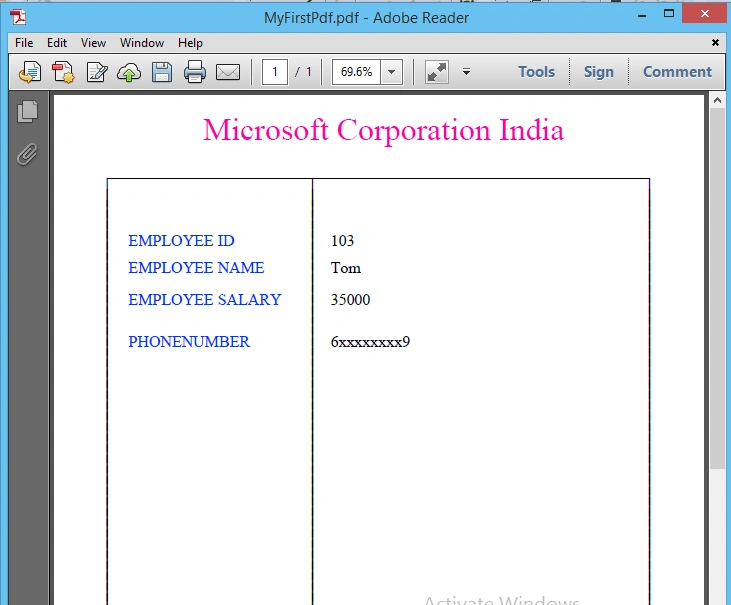
Now click on the PDF and observe it. If you want to add borders add them easily by appending to string builder.
Thanks for reading my article. If you have any questions, then please mention in the comments section.
Aaron Camacho LPosted Dec 18, 2017, 5:55 PM
How i can add an image?
Chandni SirwaniPosted Nov 7, 2016, 6:00 AM
Not able to open it in adobe reader...it is getting opened in Microsoft edge.. which adobe reader version u r using?
Afzaal Ahmad ZeeshanPosted Jan 14, 2016, 6:03 AM
Although this is interesting, but shouldn't you also mention the PDF standard? :-) Hardcoded string won't work when users would try to use it in their cases. I would recommend adding a section about PDF standard for the file format.
Ankit BansalPosted Jan 14, 2016, 12:12 AM
thanks for sharing..keep it up
Nanddeep NachanPosted Jan 13, 2016, 1:24 PM
Nice share
Del WoodcockPosted Jan 13, 2016, 10:33 AM
Great
Santhakumar MunuswamyPosted Jan 13, 2016, 9:47 AM
Thanks for nice article. Keep it up
Mohammed IbrahimPosted Jan 13, 2016, 8:22 AM
nice