

Introduction
When working with Power Platform solutions, we often add tables, flows, and other components. After some time, some of them are no longer needed. Many people delete them, but that can cause problems. A safer way is to remove them only from the solution. In this article, I will explain why removing is better than deleting objects.
Prerequisites
Before removing unused components from a Power Platform solution, you should have a basic idea of what Power Platform solutions are and how they are organized.
You should be familiar with the following concepts:
Basic knowledge of Power Platform Solutions.
Understanding of the difference between managed and unmanaged solutions.
How to create a solution in Power Platform.
How to add objects(Apps, Flows, Tables, etc.) to a solution.
Why Unused Components Become an Issue Over Time
When we build and update Power Platform solutions, they usually become bigger over time. During development, testing, and requirement changes, we often create multiple apps, flows, tables, and other objects that later become unnecessary.
Initially, these extra object don't seem like a problem. However, over time, they start creating confusion—especially when the solution is prepared for deployment or handed over to another team.
A large solution with unused objects can:
Be harder to understand
Take longer to deploy
Make troubleshooting more confusing
Understanding the Difference Between "Remove" and "Delete"
One of the most misunderstood concepts in Power Platform solutions is the difference between removing a objects and deleting it.
When you remove a objects from a solution, you are only removing its reference from that specific solution. The objects still exists in the Default Solution environment and can be used by other solutions or apps.
On the other hand, deleting a objects removes it completely from the environment, which can break other apps, flows, or solutions that depend on it.
In most real-world scenarios, removing objects from the solution is the safer and recommended approach.
When Removing from the Solution Is the Right Choice
Removing objects from a solution is useful when:
The objects was created for testing and is no longer needed.
The objects exists in the environment but is not part of the final solution.
You want to prepare a clean and optimized solution for production.
The objects is shared across multiple solutions.
Common objects That Are Often Left Unused
The following objects are most commonly left unused inside solutions:
Canvas Apps that were created for trials.
Power Automate flows used for testing logic.
Environment variables that are no longer referenced.
Step-by-Step to Remove Unused Objects from a Solution:
Step 1 : Open Your Solution
Go to make.powerapps.com and make sure you are in the correct environment.
From the left-hand menu, click on Solutions.
Find and select the solution from which you want to remove unnecessary objects.
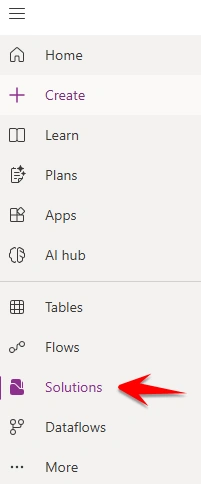
Step 2: Check Object Dependencies
Before removing anything from a solution, always check if it is being used somewhere else. If you remove an item that other parts depend on, your solution may stop working.
For example, in my case, I have a test Power Automate flow. Before removing it, I need to verify whether this flow is using or connected to any other objects in the solution. If no dependencies are found then, it is safe to remove.
Here is how to check dependencies:
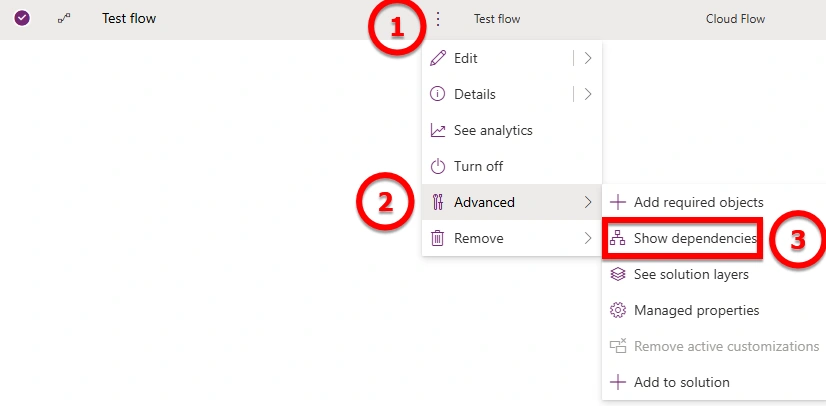
Click on the object you want to remove (in my case, it's the test flow). You can follow the same steps for any other objects like tables, Environment variables, forms, or apps, etc..
Click on the three-dot menu (⋯) .
Select Advanced and then select Show Dependencies.
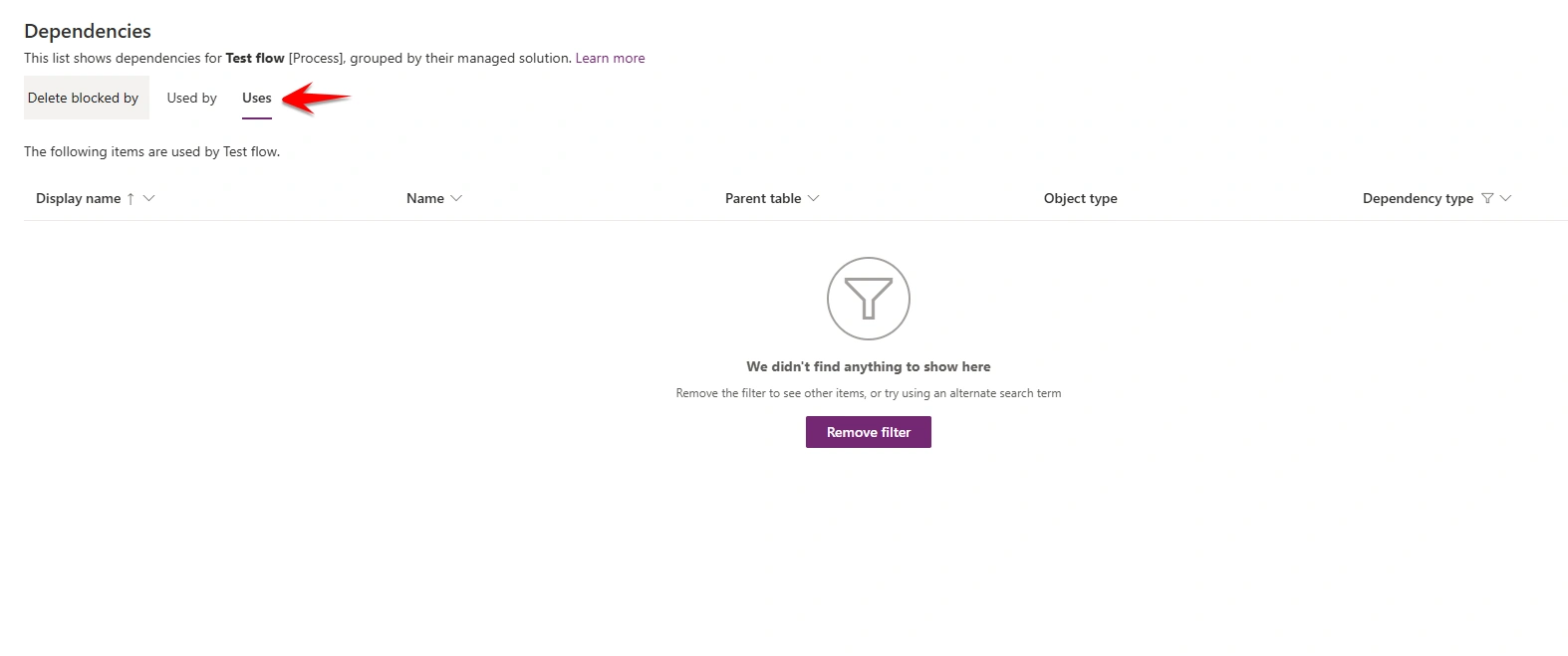
In the dependencies window, go to the Uses tab. This shows all the other objects that the selected object depends on.
If the Uses tab shows no dependencies, it means this object is safe to remove from the solution.
Step 3: Remove the Object from the Solution
Once you've confirmed that the object has no dependencies, you can safely remove it from your solution.
Here's how:
Click on the three-dot menu (⋯) next to the object you want to remove.
Select Remove then select Remove from this solution.
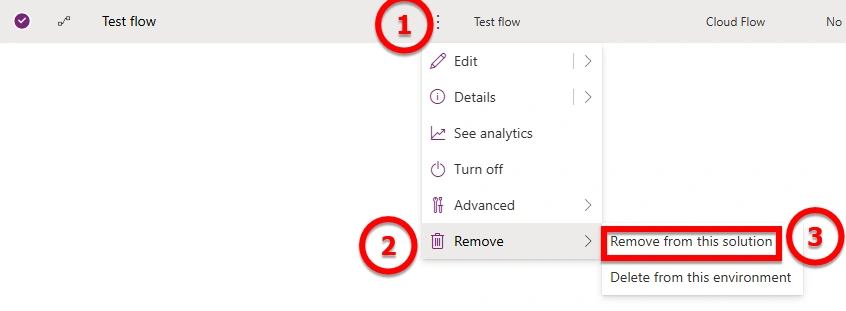
This action will remove the object only from the current solution. The object will still remain in the default environment and can be used elsewhere, unless you delete it from the environment.
Step 4: Check the Object in the Default Solution
After removing the object from your solution, it's important to confirm that it still exists in the default solution.
Here is how to do it:
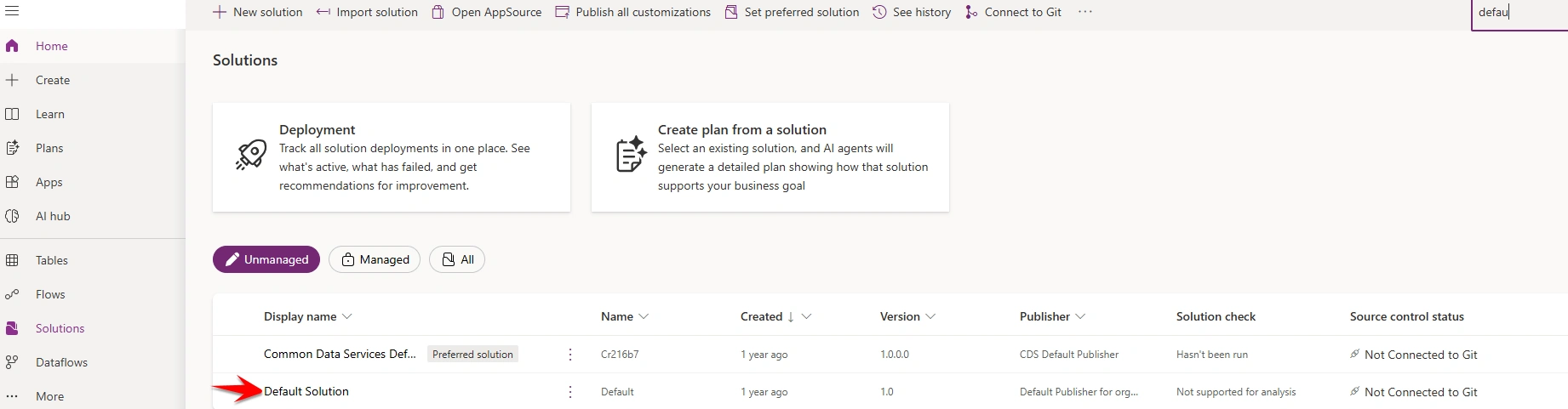
Go to the Default Solution in your environment.
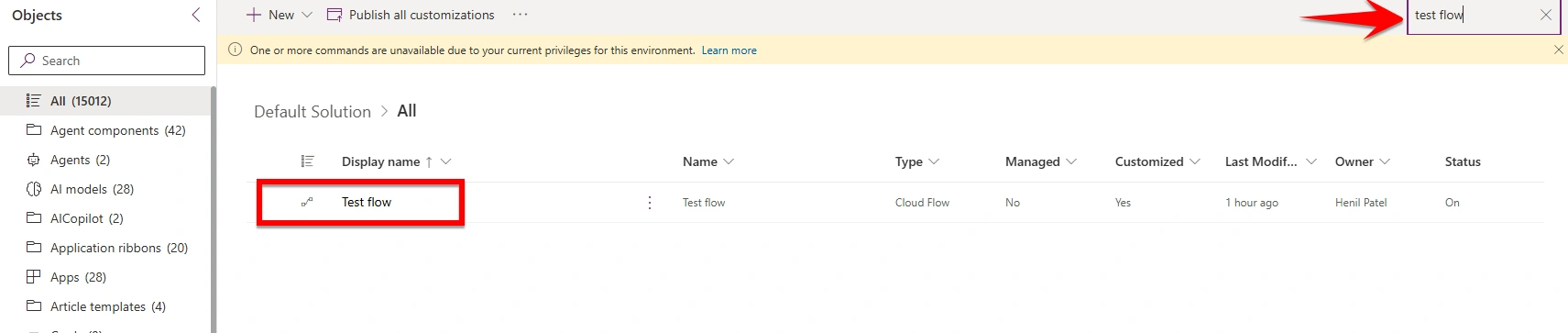
Use the search bar to look for the object you just removed from your solution.
In my case, I removed the Test Flow from my solution. When I search for it in the default solution, I can see that it is present.
Conclusion
That's it! By following these steps, you can quickly remove unused objects from a Power Platform solution without deleting them from the environment. This keeps your solution clean and organized, while the objects remain available in the default solution.
Join the conversation! Your thoughts help the community grow.