

Introduction
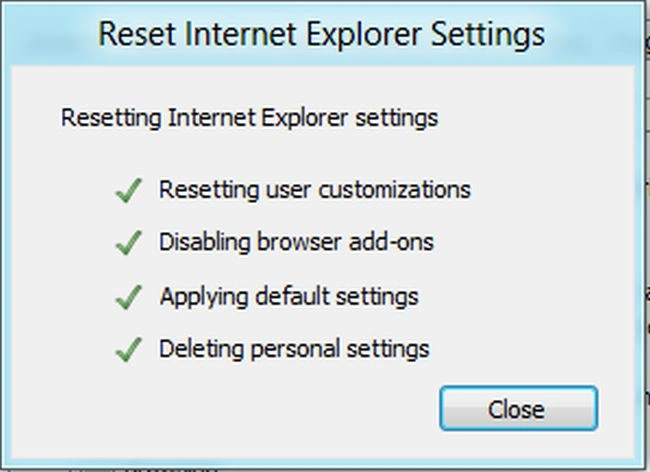
In this article, we are explaining how to reset Internet Explorer settings in Windows 8. If you are facing many problems in IE such as unresponsive add-ons, a corrupted browser, etc. then you can reset the Internet Explorer settings. After resetting IE, you can start with a fresh version of IE. In this way, you can delete personal settings such as history, cookies, web form information and delete temporary internet files, etc.
Steps How to Reset Internet Explorer Settings in Windows 8
Step 1
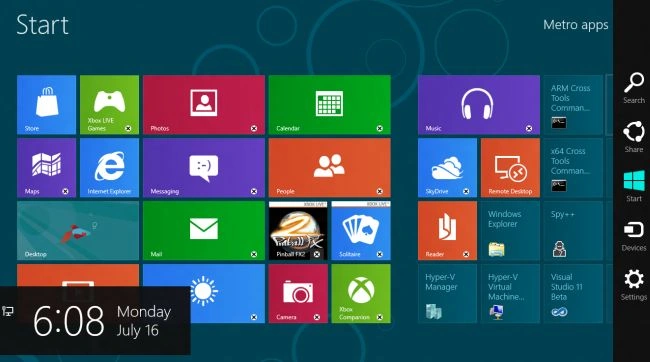
You can move the cursor on the bottom-right and click on the search box and type in it what you want.
Step 2
In the search box, you can type the name "inetcpl.cpl" and click on the inetcpl.cpl.

Step 3
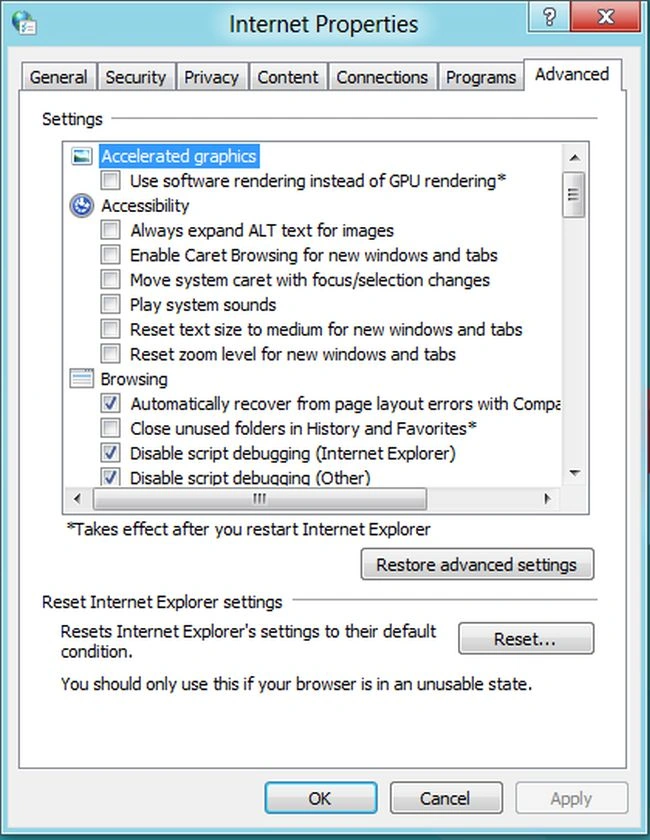
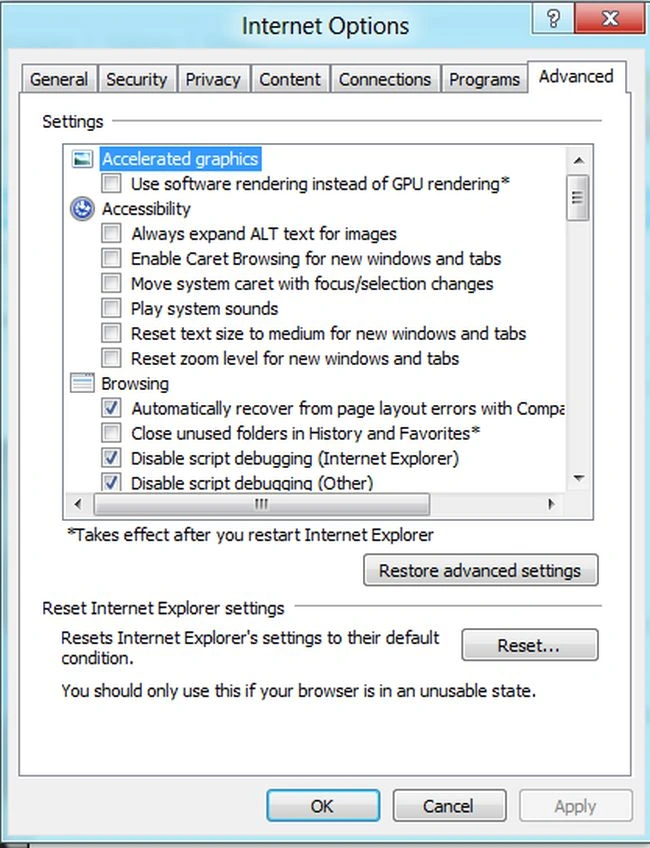
In this step, you will see the "Internet Properties" Window. In this Window, you click on the "Advanced Tab" then click on the "Reset" button.
Step 4
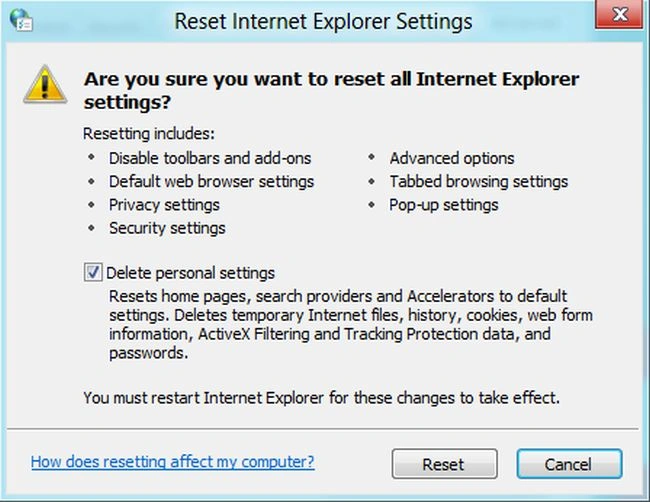
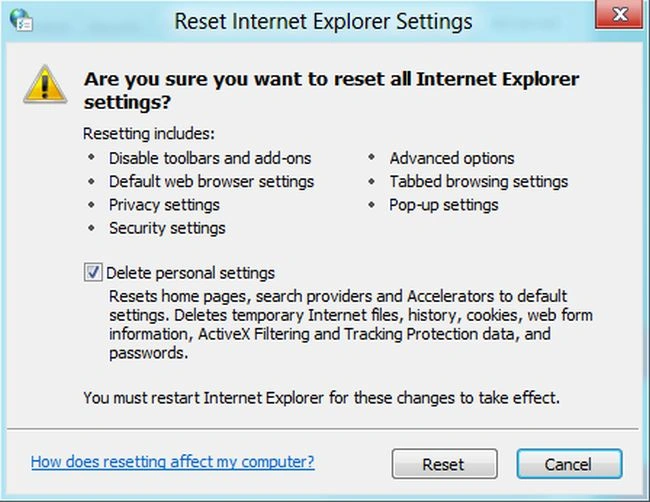
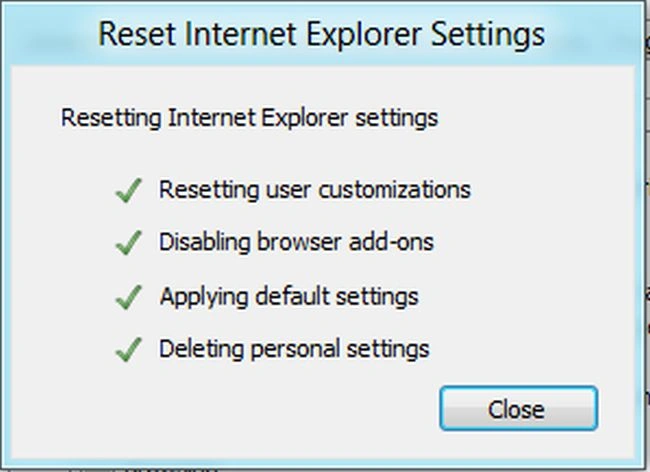
In this step, you will see the "Reset Internet Explorer Settings" Window. This window shows you what settings will be reset; if you want to delete all personal data then you click on the "Delete Personal Settings" checkbox for deleting all the personal data and then click the Reset Button.
Step 5
sandeep singheditedPosted Feb 28, 2013, 12:26 PMEdited Feb 28, 2013, 12:57 PM
HI To fix internet explorer step wise step watch here.. https://www.youtube.com/watch?v=0cg9LwGIr6c
Aman SinghalPosted Jul 17, 2012, 10:05 AM
Thanks... your article is very useful.....