

Introduction
Windows 8 Consumer Preview introduces two new
system recovery features named Refresh and Reset. Refresh gives you a
quick and easy way to start with a clean slate while also maintaining your apps,
data, Windows settings, and user profile. There is a big difference between
these two features.
- Refreshing your PC reinstalls Windows and keeps your personal files, settings, and any apps that came with your PC and apps that you installed from Windows Store.
- Resetting your PC reinstalls Windows but (except for the apps that came with your PC) deletes your files, settings, and apps.
Refresh your Device
Step 1
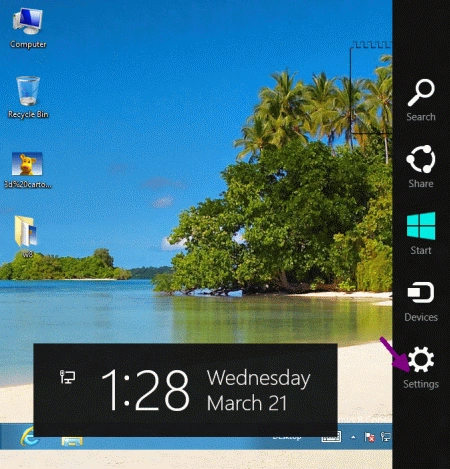
Whether you are on the Metro UI or desktop, move the mouse cursor
to the right side until the search and settings menu bar (called Charms Bar)
appears, then click on the Setting icon:
Step 2
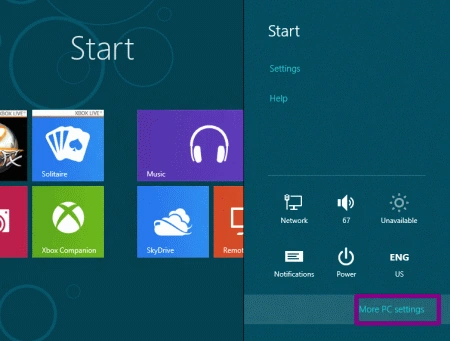
After clicking on
the Setting icon, click on More
PC Settings.
Step 3
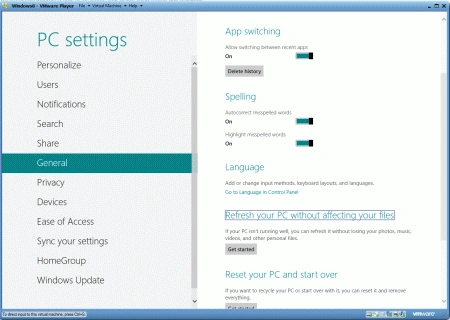
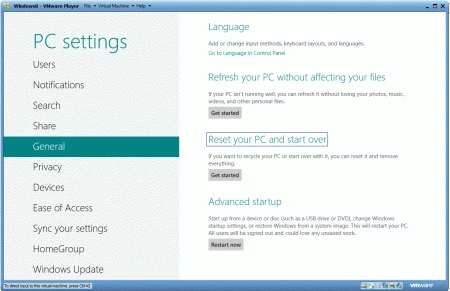
It will show you the General
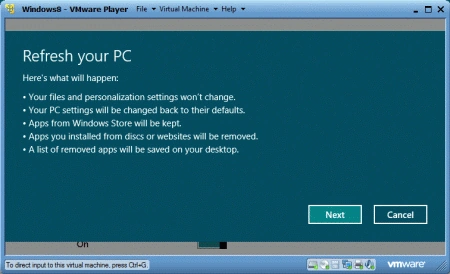
setting of your computer. Now select General and there Click on "Get
started" under Refresh your PC without affecting your files.
Note
You may be asked to provide a DVD or USB if
some system files are found missing.
Reset your Device
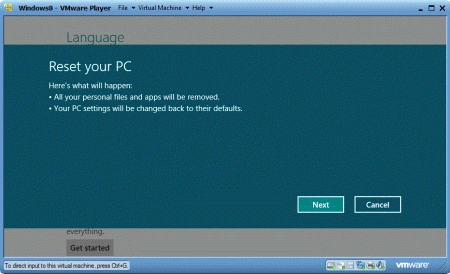
Click on "Get started" under Reset your PC and
Start Over. Follow the instructions.
Note
You may be asked to provide a DVD or USB if some system files are found missing.
Some of the useful resources are:
- Restore Files Using File History in Windows 8
- Canvas Reset Transform Using HTML 5
- How to Acess Control Panel in Windows 8
Summary
In this article, we learned about Restore Your Device Using Refresh and Reset in Windows 8.
Deepak DwijPosted Mar 26, 2012, 4:44 PM
Nice start up Sanjoli !!