

Introduction
In this blog post, we will explore the process of retrieving user information from Dataverse using the capabilities of Power Automate. Our primary objective will be to extract valuable data related to both System Users and Active Directory (AD) Users.
System Users vs. AD Users
Before diving into the technical details, it's essential to understand the distinction between System Users and AD Users within Dataverse.
- System Users: These are users who have access to your Dataverse environment. They are often associated with specific roles and permissions within your organization. It returns properties like OData ID, User Name, Primary Email, and so on.
- Active Directory (AD) Users: AD Users are typically your organization's employees. They have AD accounts, which might be synchronized with Dataverse, and you can retrieve additional information about them from the Azure Active Directory. (Azure AD). It returns properties like ID, Display name, Mail, and so on.
Prerequisites
To follow this guide, you will need.
- A Microsoft Power Automate account.
- Access to a Dataverse environment.
- Permission to retrieve user data from both Dataverse and Azure AD.
Create dataverse table
Move to the PowerApps > Click on Tables > Click on Create a new table.
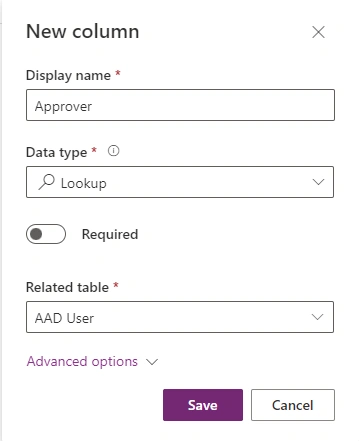
Create an AD user column
To achieve this, establish a lookup column and choose a table named "AAD User".
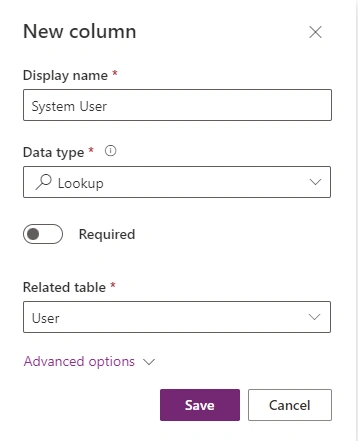
Create system user column
To achieve this, establish a lookup column and choose a table named "User".
Create power automate
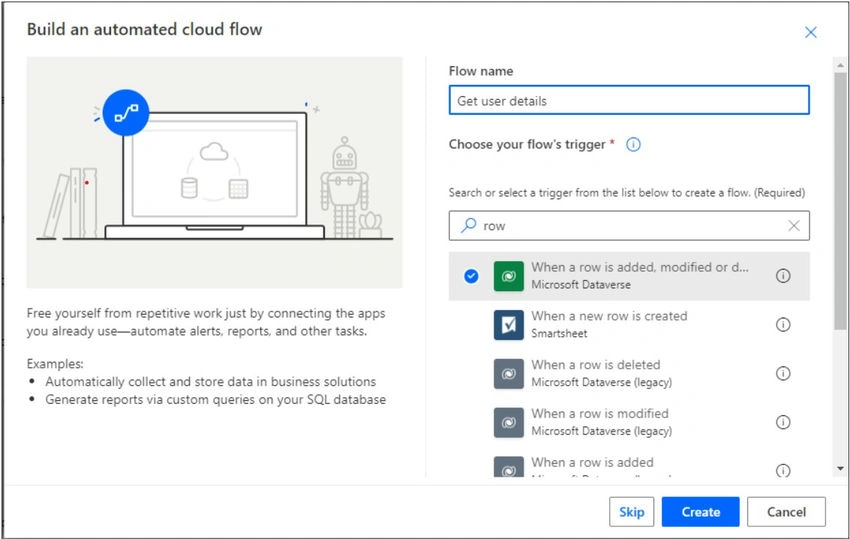
Move to the Power Automate > Click on Create a Flow> Select Automated flow.
Enter a flow name and select a trigger When a row is added, modified, or deleted (Microsoft Dataverse) as below.
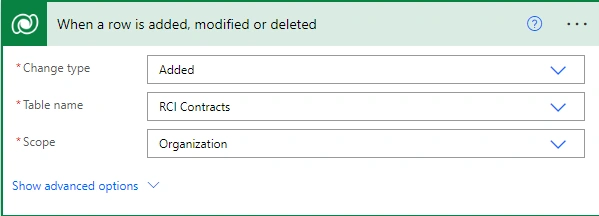
Click on Create, and it will look like this,
Get system user
Utilize the "Retrieve a Row by ID" action as follows.
In this context, you should access the "Users" table and specify the system user by selecting their ID as follows.
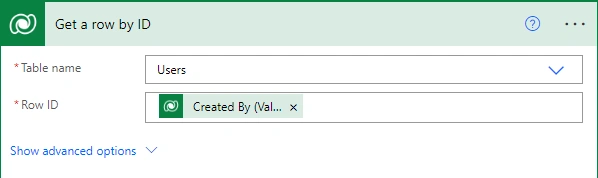
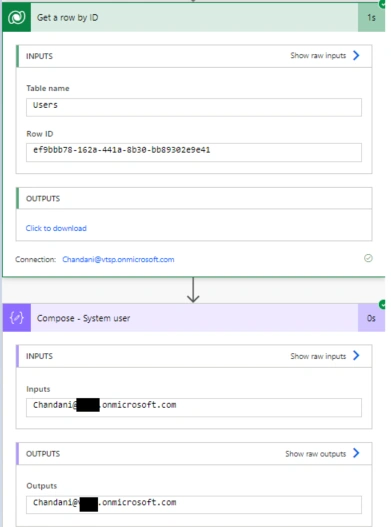
Following the execution of this action, you can employ user properties either within a compose function or by storing them in a variable, as illustrated below.

Output
Get AD user
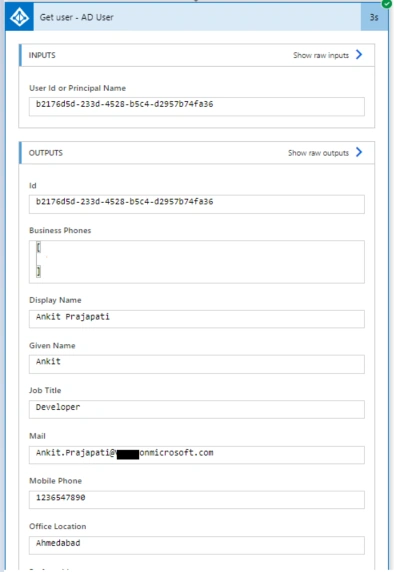
Get user (Select AD user)

Following the execution of this action, you can employ user properties either within a compose function or by storing them in a variable, as illustrated below:

Output
Summary
Getting information about Dataverse users, whether they are regular users or users from your organization's Active Directory, using Power Automate, can make it much easier to handle data and automate tasks in your company.
I hope this helps.
Sharing is caring!
Join the conversation! Your thoughts help the community grow.