

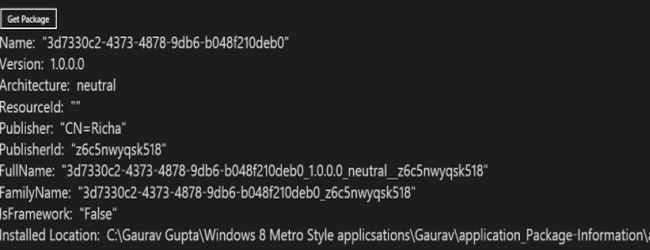
In this article we are going to see how to retrieve the current application's identity and it's installed location in Windows Store Apps using C#.
In Windows Store Apps, identity consists of several things such as Version, packageId, Publisher, Full Name etc.
Here I use the Package API to retrieve the current application's identity and current package's installed location.
Here is the procedure.
Step 1
Create a new Blank Windows Store Application using C#.
Step 2
In the MainPage.XAML create the following markup.
<Page
x:Class="application_Package_Information.MainPage"
xmlns="http://schemas.microsoft.com/winfx/2006/xaml/presentation"
xmlns:x="http://schemas.microsoft.com/winfx/2006/xaml"
xmlns:local="using:application_Package_Information"
xmlns:d="http://schemas.microsoft.com/expression/blend/2008"
xmlns:mc="http://schemas.openxmlformats.org/markup-compatibility/2006"
mc:Ignorable="d">
<Grid Background="{StaticResource ApplicationPageBackgroundThemeBrush}">
<Grid x:Name="Input">
<Grid.RowDefinitions>
<RowDefinition Height="Auto"/>
<RowDefinition Height="*"/>
</Grid.RowDefinitions>
<StackPanel Orientation="Horizontal" Margin="0,10,0,0" Grid.Row="0">
<Button x:Name="GetPackage" Content="Get Package" Margin="0,0,10,0" Click="GetPackage_Click"/>
</StackPanel>
<Grid x:Name="Output" HorizontalAlignment="Left" VerticalAlignment="Top" Grid.Row="1">
<TextBlock x:Name="OutputTextBlock" Text="" Grid.Row="0" Style="{StaticResource BasicTextStyle}" HorizontalAlignment="Left" FontSize="25" />
</Grid>
</Grid>
</Grid>
</Page>
Step 3
Here is the code of .cs file.
Add the following namespace to use the API:
using Windows.ApplicationModel;
Get the current Package using the Package API, as in:
Package package = Package.Current;
Get the Installed Location of the Package, as in:
Windows.Storage.StorageFolder installedLocation = Package.Current.InstalledLocation;
Reterive all the identity of the application and show in a textblock, as in:
OutputTextBlock.Text = String.Format("Name: \"{0}\"\n" +
"Version: {1}\n" +
"Architecture: {2}\n" +
"ResourceId: \"{3}\"\n" +
"Publisher: \"{4}\"\n" +
"PublisherId: \"{5}\"\n" +
"FullName: \"{6}\"\n" +
"FamilyName: \"{7}\"\n" +
"IsFramework: \"{8}\"\n"+
"Installed Location: {9}",
packageId.Name,
versionString(packageId.Version),
architectureString(packageId.Architecture),
Join the conversation! Your thoughts help the community grow.