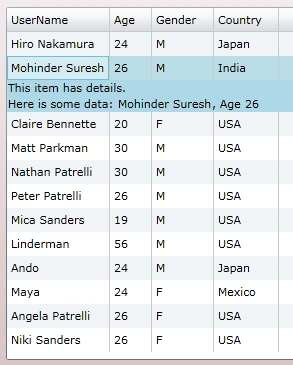
In this article we will see how we can see some detail in each row in a DataGrid.
Creating Silverlight Project
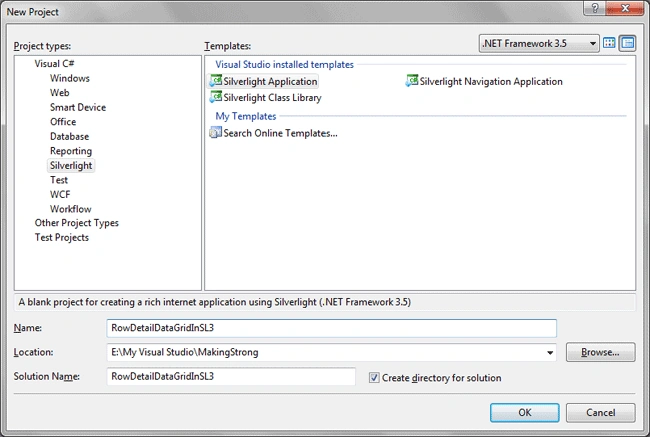
Fire up Visual Studio 2008 and create a Silverlight Application. Name it as RowDetailDataGridInSL3.
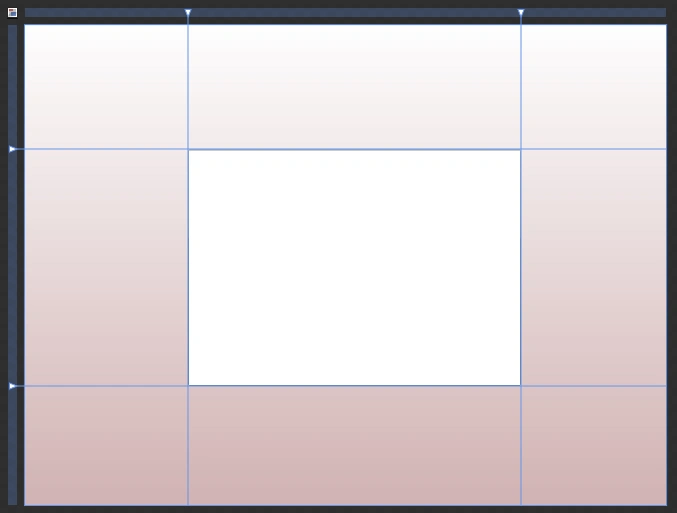
Go ahead and add a DataGrid to your application.
Now add a Class to define properties for sample data.
public class Users: INotifyPropertyChanged
{
#region INotifyPropertyChanged Members
public event PropertyChangedEventHandler PropertyChanged;
#endregion
#region UserName
private string _UserName;
public string UserName
{
get { return _UserName; }
set
{
if (value.Length < 4)
{
throw new ValidationException("User Name should contain atleast 4 chars");
}
_UserName = value;
RaisePropertyChanged("UserName");
}
}
#endregion
#region Age
private int _Age;
public int Age
{
get { return _Age; }
set
{
_Age = value;
}
}
#endregion
#region Gender
private string _Gender;
public string Gender
{
get { return _Gender; }
set
{
_Gender = value;
}
}
#endregion
#region Country
private string _Country;
public string Country
{
get { return _Country; }
set
{
_Country = value;
}
}
#endregion
private void RaisePropertyChanged(string propertyName)
{
if (this.PropertyChanged != null)
{
this.PropertyChanged(this, new PropertyChangedEventArgs(propertyName));
}
}
}
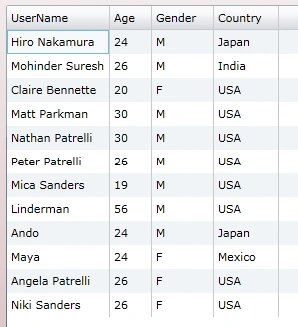
Now add some sample data to a List and assign the list to the ItemSource of the DataGrid.
public MainPage()
{
InitializeComponent();
List<Users> myList = new List<Users>
{
new Users{ UserName="Hiro Nakamura", Age=24, Gender="M", Country="Japan"},
new Users{ UserName="Mohinder Suresh", Age=26, Gender="M", Country="India"},
new Users{ UserName="Claire Bennette", Age=20, Gender="F", Country="USA"},
new Users{ UserName="Matt Parkman", Age=30, Gender="M", Country="USA"},
new Users{ UserName="Nathan Patrelli", Age=30, Gender="M", Country="USA"},
new Users{ UserName="Peter Patrelli", Age=26, Gender="M", Country="USA"},
new Users{ UserName="Mica Sanders", Age=19, Gender="M", Country="USA"},
new Users{ UserName="Linderman", Age=56, Gender="M", Country="USA"},
new Users{ UserName="Ando", Age=24, Gender="M", Country="Japan"},
new Users{ UserName="Maya", Age=24, Gender="F", Country="Mexico"},
new Users{ UserName="Angela Patrelli", Age=26, Gender="F", Country="USA"},
new Users{ UserName="Niki Sanders", Age=26, Gender="F", Country="USA"},
};
MyDataGrid.ItemsSource = myList;
}
Now that you have added some sample data, you can test your application.
Now we will add RowDetail in xaml. For this you need to use the DataTemplate as follows:
<data:DataGrid x:Name="MyDataGrid" Margin="0" Grid.Column="1" Grid.Row="1">
<data:DataGrid.RowDetailsTemplate>
<DataTemplate>
<StackPanel Background="LightBlue">
<StackPanel Orientation="Horizontal">
<TextBlock Text="This item has details." />
</StackPanel>
<StackPanel Orientation="Horizontal">
<TextBlock Text="Here is some data: " />
<TextBlock Text="{Binding UserName}" />
<TextBlock Text=", Age " />
<TextBlock Text="{Binding Age}" />
</StackPanel>
</StackPanel>
</DataTemplate>
</data:DataGrid.RowDetailsTemplate>
</data:DataGrid>
As you can see from the above xaml code I have defined the RowDetailsTemplate with displaying UserName and Age.
That's it now run your application. Initially when you see the Row Detail is not displayed. When you click on any Row it will display the Row Detail.
Enjoy Coding.

shaiffy singhPosted Apr 13, 2010, 8:13 AM
sir ! i want to access the controls placed inside the row template of datagrid in silverlight ! any help will be appreciated thnx in advance !
Ninoska EspidelPosted Apr 1, 2010, 2:52 PM
Hola estoy creando una aplicacion que contiene un datagrid con detalle pero en el detalle tengo otro datagrid, el mismo tiene nombre pero no logro hacer aparecer el nombre para conectarle el itemsource. en lo que me puedas ayudar.
Sunny WeiPosted Aug 27, 2009, 12:38 PM
but how can u get a dg cell value ?