

Initial Chamber
Step 1: Open Visual Studio 2010 and create an empty website, give it a suitable name (DataList_demo).
Step 2: In Solution Explorer, you will get your empty website, add a web form, SQL Database and proceed as in the following.
For Web Form
Gridviewrow_demo (your empty website): Right-click, Add New Item, then select Web Form and name it gridview_demo.aspx.
For SQL Server Database:
gridview_demo (your empty website): Right-click, Add New Item, then select SQL Server Database (add a database inside the App_Data_folder).
Database Chamber
Step 3: In Server Explorer, click on your database (Database.mdf), then Tables and Add New Table. Create the table as in the following.
Table: tbl_std (Don't forget to make ID as IS Identity : True.)
Add some values to the database by going as in the following: Database.mdf, Tables, then go to tbl_std and right-click to show the table data. Now, add some data to the database.
Design Chamber
Step 4: Open your design page (aspx page), gridview_demo.aspx and write the following code:
- <%@ Page Language="C#" AutoEventWireup="true" CodeFile="Default.aspx.cs" Inherits="_Default" %>
- <!DOCTYPE html PUBLIC "-//W3C//DTD XHTML 1.0 Transitional//EN" "http://www.w3.org/TR/xhtml1/DTD/xhtml1-transitional.dtd">
- <html xmlns="http://www.w3.org/1999/xhtml">
- <head runat="server">
- <title></title>
- <style type="text/css">
- .style1
- {
- width: 268px;
- }
- .style2
- {
- text-decoration: underline;
- font-size: x-large;
- }
- .style3
- {
- width: 345px;
- }
- .style4
- {
- text-align: left;
- }
- </style>
- </head>
- <body>
- <form id="form1" runat="server">
- <div>
- <div>
- <br />
- <br />
- </div>
- </div>
- <p>
- </p>
- <table style="width:100%;">
- <caption class="style4">
- <span class="style2"><strong>RowdataBound in Gridview</strong></span><br />
- </caption>
- <tr>
- <td class="style1">
- </td>
- <td class="style3">
- </td>
- <td>
- </td>
- </tr>
- <tr>
- <td class="style1">
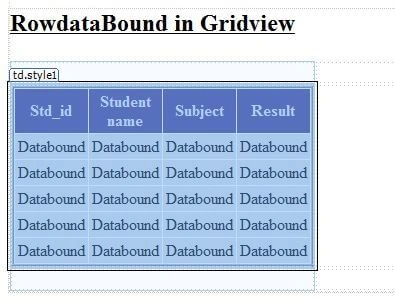
- <asp:GridView ID="GridView1" runat="server" AutoGenerateColumns="False"
- BackColor="White" BorderColor="White" BorderStyle="Ridge" BorderWidth="2px"
- CellPadding="3" CellSpacing="1" GridLines="None"
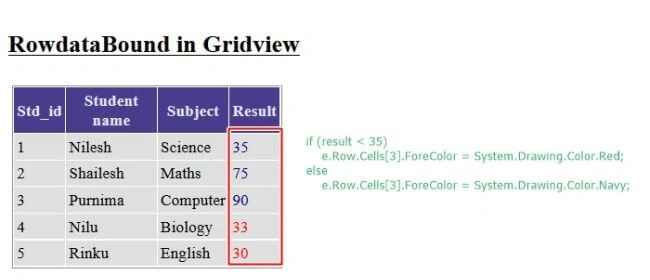
- onrowdatabound="GridView1_RowDataBound1">
- <Columns>
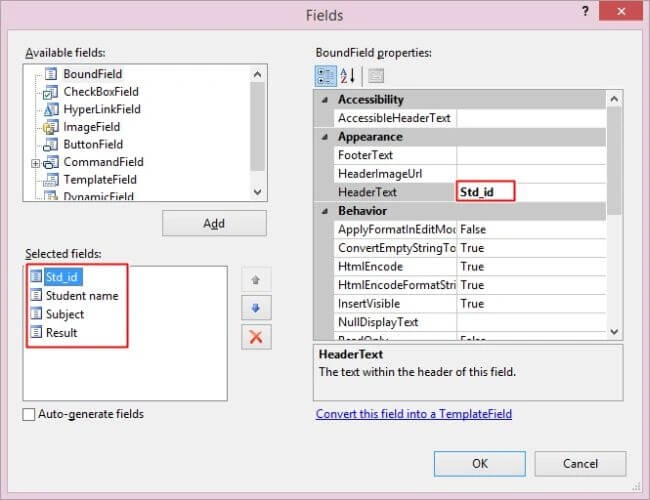
- <asp:BoundField DataField="id" HeaderText="Std_id" />
- <asp:BoundField DataField="stdname" HeaderText="Student name" />
- <asp:BoundField DataField="stdsubject" HeaderText="Subject" />
- <asp:BoundField DataField="result" HeaderText="Result" />
- </Columns>
- <FooterStyle BackColor="#C6C3C6" ForeColor="Black" />
- <HeaderStyle BackColor="#4A3C8C" Font-Bold="True" ForeColor="#E7E7FF" />
- <PagerStyle BackColor="#C6C3C6" ForeColor="Black" HorizontalAlign="Right" />
- <RowStyle BackColor="#DEDFDE" ForeColor="Black" />
- <SelectedRowStyle BackColor="#9471DE" Font-Bold="True" ForeColor="White" />
- <SortedAscendingCellStyle BackColor="#F1F1F1" />
- <SortedAscendingHeaderStyle BackColor="#594B9C" />
- <SortedDescendingCellStyle BackColor="#CAC9C9" />
- <SortedDescendingHeaderStyle BackColor="#33276A" />
- </asp:GridView>
- </td>
- <td class="style3">
- </td>
- <td>
- </td>
- </tr>
- <tr>
- <td class="style1">
- </td>
- <td class="style3">
- </td>
- <td>
- </td>
- </tr>
- </table>
- </form>
- </body>
- </html>

Arul RPosted Oct 28, 2015, 5:46 AM
Nice share!!!
Ayush JaiswalPosted Jun 8, 2015, 3:54 AM
Good
Khargesh RajputPosted Jun 6, 2015, 7:37 AM
nice
Santhakumar MunuswamyPosted Jun 6, 2015, 2:00 AM
Thanks for well explained
Nitin PanditPosted Jun 6, 2015, 1:33 AM
goooooooooooooood :)