

Introduction
Azure Pipelines is a cloud-based tool that automates the building and testing of code projects. It is compatible with a wide range of languages and project types, seamlessly integrating continuous integration (CI) and continuous delivery (CD) processes. This platform ensures thorough testing, efficient code building, and reliable code delivery to various destinations.
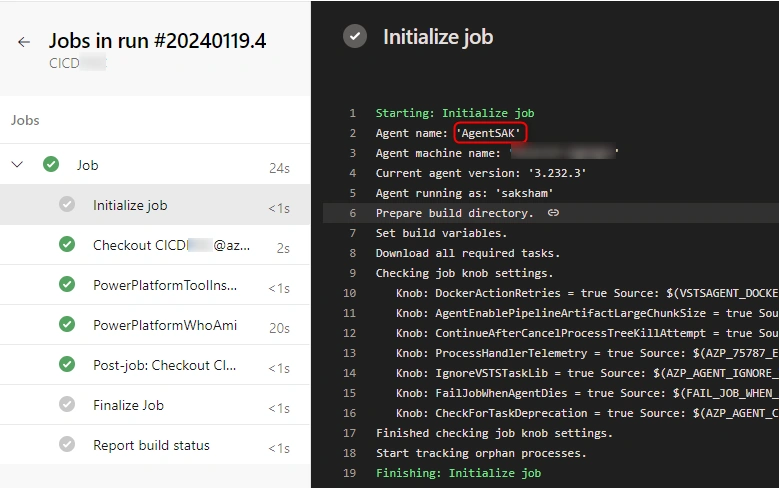
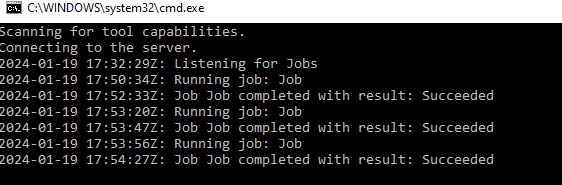
These pipelines run on Microsoft-hosted agents(which is a paid service) or we can create self-hosted agents in a VM or local machine. In this article, we will discuss Use Cases and how we can configure our system to work as an agent to run these pipelines followed by a demo using Power Platform Task.
Use Cases
- Cost Effective: Self-hosted Agent and that too on your own local machine is very cost-effective. Especially for students and learning professionals. We don't need to worry about trial completion or frequent update issues in Microsoft Hosted agents
- More Control/ Easy Troubleshooting: Microsoft-hosted agents act as a black box, a user does not have much control. In case of pipeline failure due to agent issues user has to wait sometimes days for a resolution of the ticket raised. With self-hosted agents troubleshooting becomes easy and the user has complete control over the agent.
- Availability/ Timeout issues: 24*7 availability is a great advantage that self-hosted agents can provide and users do not need to wait in case of service unavailability of Microsoft-hosted agents.
There might be several other use cases as well. Now let's discuss how we can achieve the above demands.
Steps to setup self-hosted agent
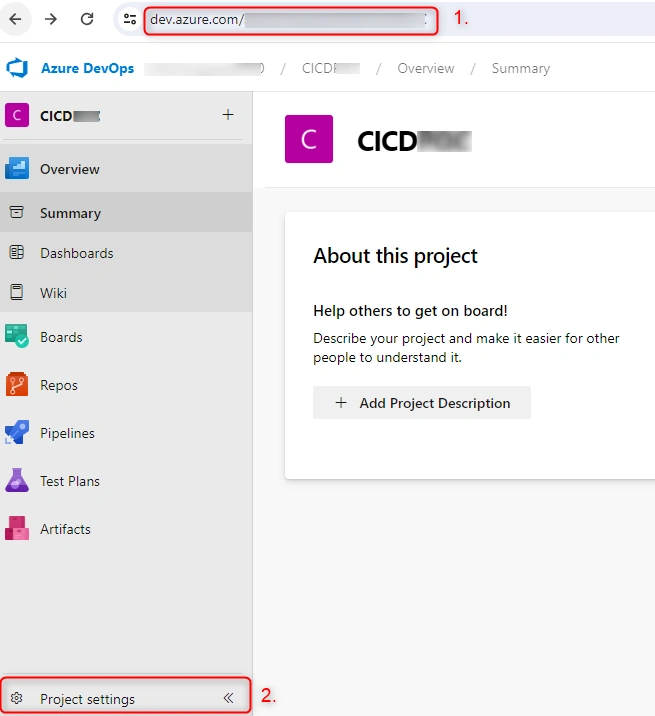
Step 1. Go to https://dev.azure.com/<organization name>/<project name>/ -> Click on Project Settings as shown in the image below.
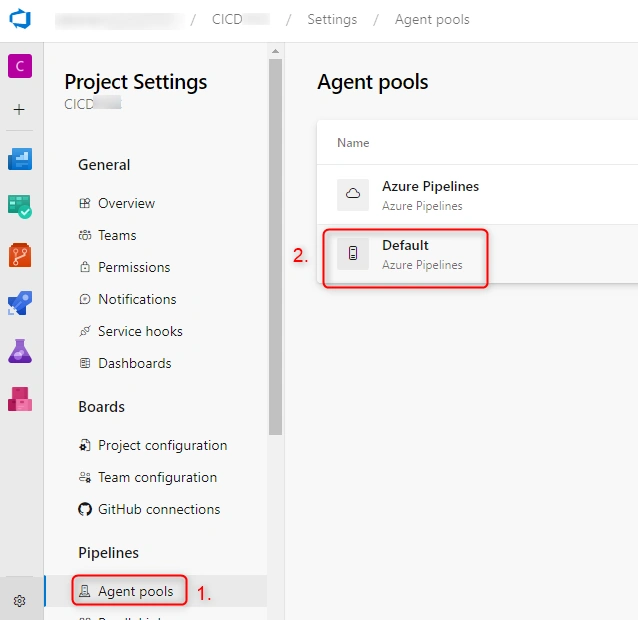
Step 2. In Project Settings, click on Agent Pools under Pipeline Section -> Select Default Pool from the list of pools as shown below.
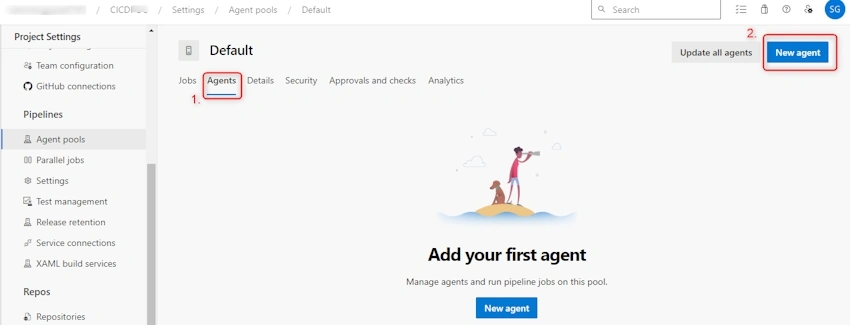
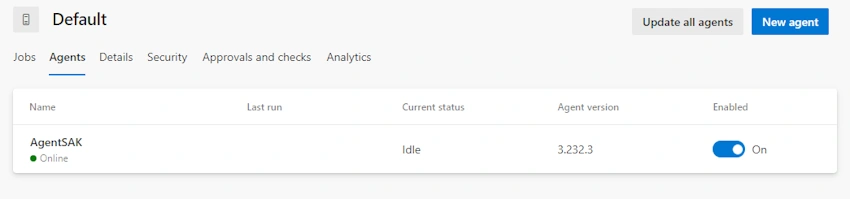
Step 3. In the Default pool, click on Agents Tab -> Click on New Agent Button as shown below.
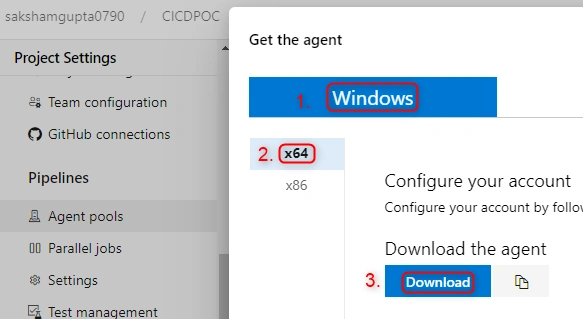
Step 4. A pop will appear. Select Windows OS -> Click on x64 architecture (Configuration can be selected based on user need)-> Click on Download as shown below.
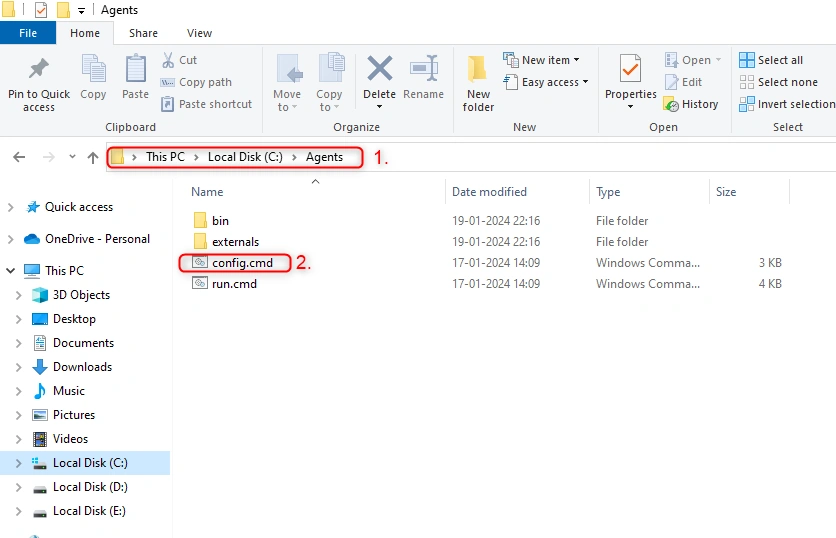
Step 5. A zip file will be downloaded. Extract that zip file in path 'C:\Agents'. Then run the config.cmd file is shown in the image below.
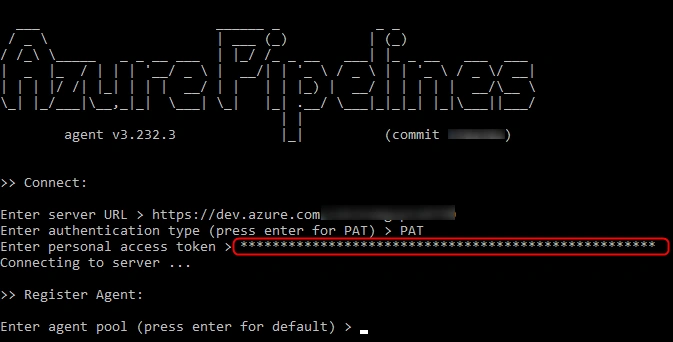
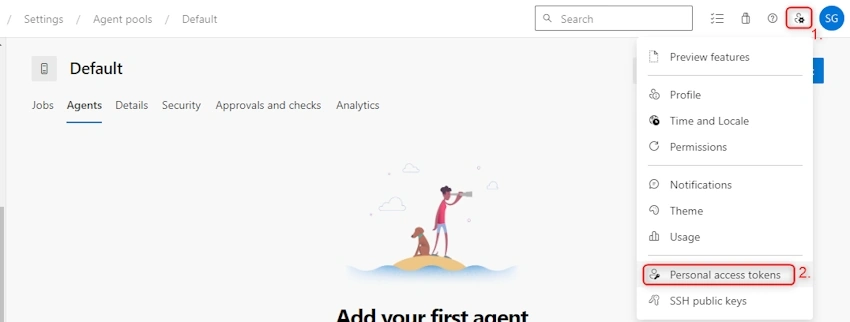
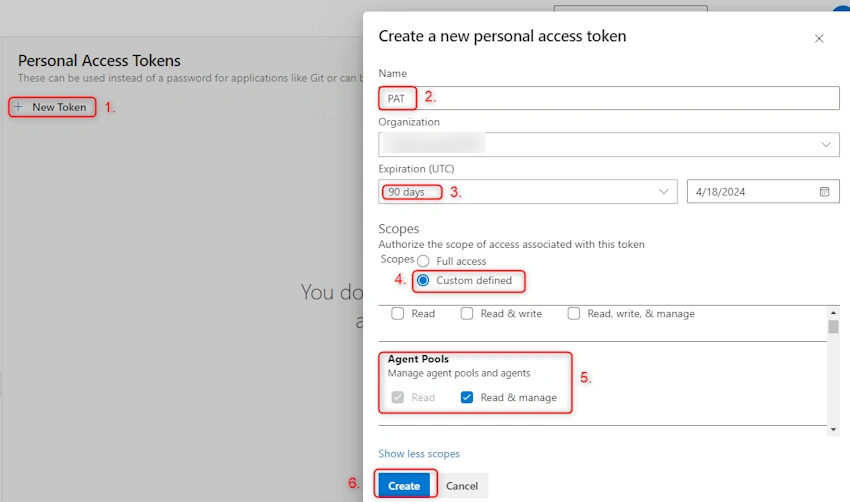
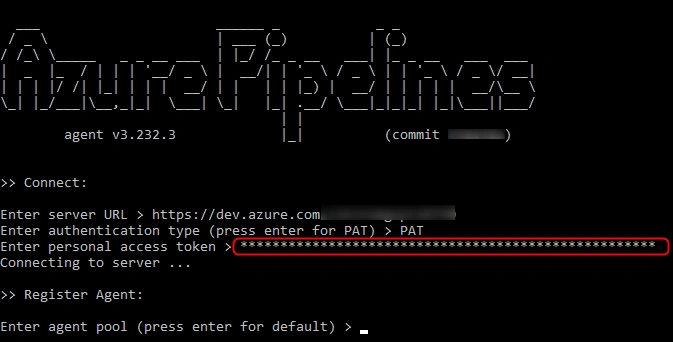
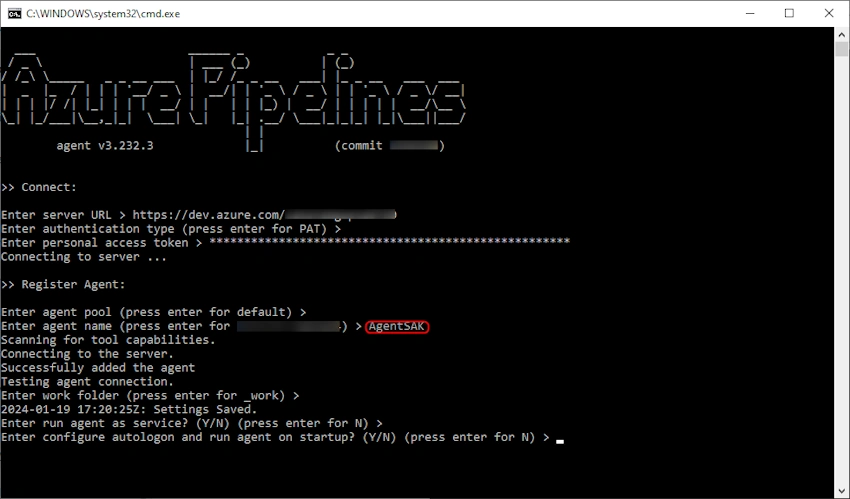
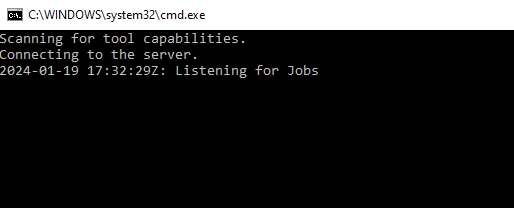
Step 6. A new command line terminal will open. Enter the server URL in the format: https://dev.azure.com/<your-organization>.
Yogi SPosted Jan 23, 2024, 5:21 AM
Informative article on azure pipelines.