

Introduction
In this article, we are going to search some data from ListView of Xamarin.Forms. Firstly, we will create a list in Xamarin.Forms PCL application. Then, add some data in the list and make a search bar to search the data from the list.
What is Search Bar?
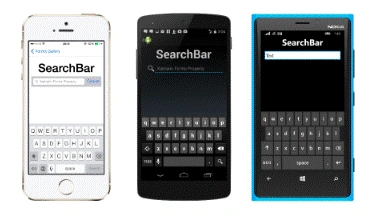
It is part of UI elements of Xamarin.Forms and is used to search the data from a list or web page or anything. You can place the search bar to make a search from web or from anywhere else. Most of us use search bar on Google homepage or on any other search engine.
Implementation
We are going to code in the following steps.
- Creating a UI
- Make a class and set binding to List View
- Add data to the list and add Functionality to search bar
Creating a UI
First of all, create a Xamarin.Forms project. If you are going to create your first Xamarin.Forms application, then this article will be helpful for you. So, create an application and make a ListView and search bar on XAML file. We can use stack layout and add a search bar and list view in stack layout. Search bar is placed on top of list.
Xaml
- <StackLayout>
- <SearchBar></SearchBar>
- <ListView x:Name="list">
- <ListView.ItemTemplate>
- <DataTemplate>
- <TextCell>
- </TextCell>
- </DataTemplate>
- </ListView.ItemTemplate>
- </ListView>
- </StackLayout>
Add Binding to List View
In the above code, we create a List View and a text cell in that. Now, we are going to set binding to the ListView. So, the data is shown properly in a text cell.
Firstly, make a class of contacts that contains two properties Name and Num. Just like this.
Class Code
- public class Contacts
- {
- public string Name { get; set; }
- public string Num { get; set; }
- public string imgsource { get; set; }
- }
Now, add the binding to text cell of a ListView. Replace the text cell code from your previous XAML.
- <TextCell Text="{Binding Name}" Detail="{Binding Num}"> </TextCell>
Here, our class is made and binding is set. Now, it’s time to do some code in xaml.cs file.
Add data in ListView and functionality to Search Bar
First, we will create a list of our contacts class, then initialize it and add some data. After this, we will set the item source of ListView to the list of contacts. This code will add the data to our ListView.
- public List<Contacts> tempdata;
- public MainPage()
- {
- InitializeComponent();
- data();
- list.ItemsSource = tempdata;
- }
- oid data()
- {
- // all the temp data
- tempdata = new List<Contacts> {
- new Contacts(){ Name = "umair", Num = "2323423"},
- new Contacts(){ Name = "saleh", Num = "23423"},
- new Contacts(){ Name = "umair", Num = "233423423"},
- new Contacts(){ Name = "sanat", Num = "2423"},
- new Contacts(){ Name = "jawad", Num = "323423"},
- new Contacts(){ Name = "shan", Num = "2323423"},
- new Contacts(){ Name = "ahmed", Num = "2323423"},
- new Contacts(){ Name = "abc", Num = "2323423"},
- new Contacts(){ Name = "umair", Num = "2323423"},
- new Contacts(){ Name = "etc", Num = "2323423"},
- };
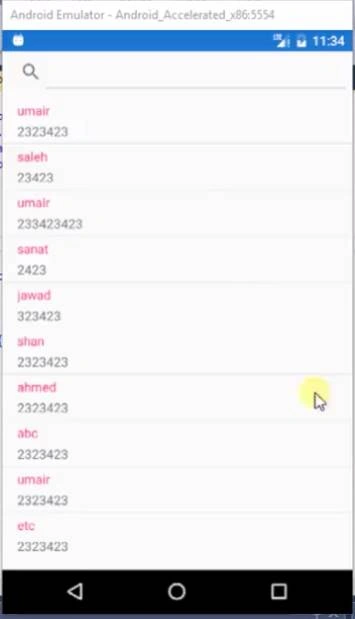
Output
Adding functionality
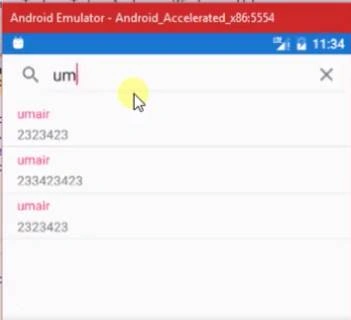
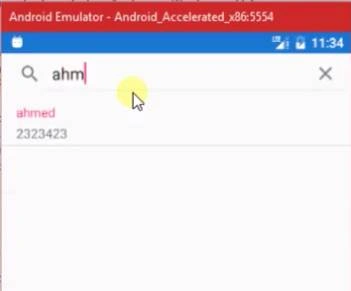
Make an event handler of Text Changed functionality of search bar. Just like this.
- <SearchBar TextChanged="SearchBar_TextChanged"></SearchBar>
Hafiz IrfanPosted Jul 15, 2020, 11:59 PM
Can we use dynamic template in list view?
Ahmed AliPosted Jun 17, 2020, 7:11 AM
Waw beatuful,thanks alot
Sridharan RenganathanPosted May 7, 2020, 1:28 AM
I wish to perform search for bothe number and the Name ,,,How should I implement
Musab AlRianiPosted Oct 30, 2019, 12:29 AM
Thanks ,That was helpful
Dhrubajyoti KalitaPosted Sep 17, 2019, 1:16 PM
How do I make the text_changed behaviour Not Case_Sensitive