Introduction
This article describes how to search the records and displays in a WebGrid in the Web API.
The following is the procedure for creating the application.
Step 1
First create an Web API Application using the following:
- Start Visual Studio 2012.
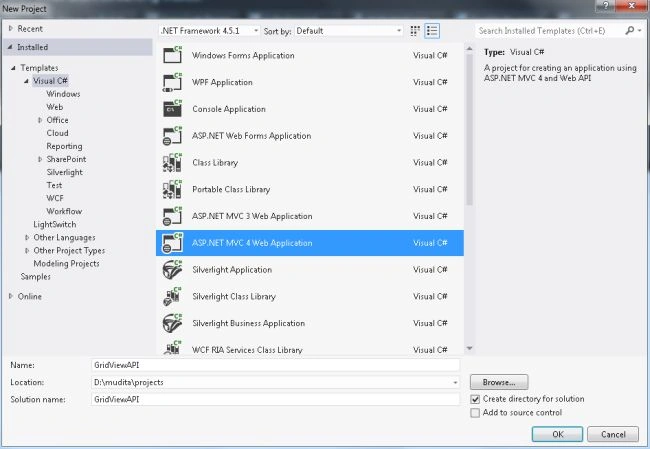
- From the start window select "New Project".
- From the new project window select "Installed" -> "Visual C#" -> "Web".
- Select "ASP.NET MVC4 web Application" and click the "OK" button.
- From the "MVC4 Project" window select "Web API".
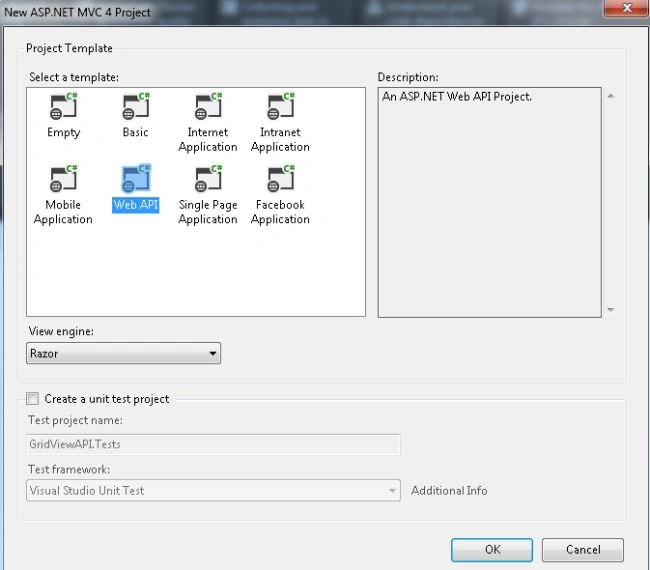
- Click the "OK" button.
Step 2
In this step add a model class:
- In the "Solution Explorer".
- Right-click on the Model folder.
- Select "Add" -> "Class".
- From the Add new item window select "Installed" -> "Visual C#".

- Select "Class" and then click the "Add" button.
Add the following code:
- using System;
- using System.Collections.Generic;
- using System.Linq;
- using System.Web;
- namespace GridViewAPI.Models
- {
- public class StudentModel
- {
- public string key { get; set; }
- public List<StudentRecord> StudentRModel { get; set; }
- }
- public class StudentRecord
- {
- public string Name {get; set;}
- public string Course{get;set;}
- public string Rank{get;set;}
- public string City { get; set; }
- }
- }
Step 3
In the "HomeController" write some code. This file exists:
- In the "Solution Explorer".
- Expand the "Controller" folder.
- Select "Homecontroller".

Add the following code:
- using System;
- using System.Collections.Generic;
- using System.Linq;
- using System.Web;
- using System.Web.Mvc;
- using GridViewAPI.Models;
- namespace GridViewAPI.Controllers
- {
- public class HomeController : Controller
- {
- [HttpGet]
- public ActionResult Index()
- {
- StudentModel obj = new StudentModel();
- obj.StudentRModel = new List<StudentRecord>();
- obj.StudentRModel = GetData().OrderBy(m => m.Course).ToList();
- return View(obj);
- }
- [HttpPost]
- public ActionResult Index(StudentModel student)
- {
- student.StudentRModel = GetData().Where(m => m.Course == student.key.ToUpper()).ToList();
- return View(student);
- }
- public List<StudentRecord> GetData()
- {
- List<StudentRecord> objmodel = new List<StudentRecord>();
- objmodel.Add(new StudentRecord { Course = "MCA", Name = "Smith", Rank = "10",City="Kanpur" });
- objmodel.Add(new StudentRecord { Course = "MCA", Name = "Jhon", Rank = "5", City = "Lucknow" });
- objmodel.Add(new StudentRecord { Course = "MBA", Name = "Tanya", Rank = "3", City = "Delhi" });
- objmodel.Add(new StudentRecord { Course = "MBA", Name = "Malini", Rank = "4", City = "Banglore" });
- objmodel.Add(new StudentRecord { Course = "MBA", Name = "Varun", Rank = "19", City = "Gurgao" });
- objmodel.Add(new StudentRecord { Course = "BTech", Name = "Arun", Rank = "13", City = "Noida" });
- objmodel.Add(new StudentRecord { Course = "BTech", Name = "Vishakha", Rank = "7", City = "Rajasthan" });
- objmodel.Add(new StudentRecord { Course = "BCA", Name = "Tarun", Rank = "9", City = "Gujrat" });
- objmodel.Add(new StudentRecord { Course = "BCA", Name = "Mayank", Rank = "1", City = "Kannauj" });
- objmodel.Add(new StudentRecord { Course = "BCA", Name = "Ram", Rank = "2", City = "Jaipur" });
- return objmodel;
- }
- }
- }
Step 4
In the "View" write some code. This view exists:
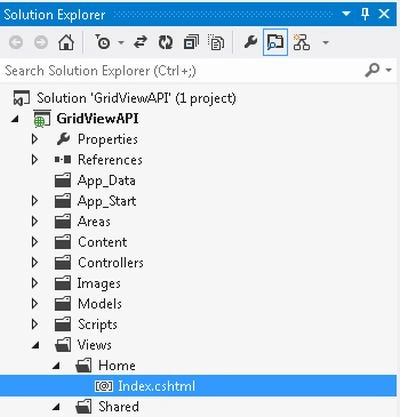
- In the "Solution Explorer".
- Expend the "Views" folder.
- Select "Home"->"index.cshtml".
Add the following code:
- @model GridViewAPI.Models.StudentModel
- @{
- ViewBag.Title = "Index";
- }
- <style type="text/css">
- table.gridtable {
- font-family: verdana,arial,sans-serif;
- font-size:11px;
- color:#333333;
- border-width: 1px;
- border-color: #4800ff;
- border-collapse: collapse;
- }
- table.gridtable th {
- border-width: 1px;
- padding: 8px;
- border-style: solid;
- border-color: #4800ff;
- background-color: #ffd800;
- }
- table.gridtable td {
- border-width: 1px;
- padding: 8px;
- border-style: solid;
- border-color: #4800ff;
- background-color: #999999;
- }
- </style>
- @using (Html.BeginForm())
- {
- <table width="40%" cellpadding="0" cellspacing="0">
- <tr>
- <td align="right">
- Search :
- </td>
- <td align="left">@Html.TextBoxFor(m => m.key) <input type="submit" value="Search" />
- </td>
- <td align="left">
- </td>
- </tr>
- <tr>
- <td colspan="2">
- <br />
- @{
- var grid = new WebGrid(source: Model.StudentRModel, rowsPerPage: 10);
- }
- @grid.GetHtml(alternatingRowStyle: "even",
- tableStyle: "gridtable",
- columns: grid.Columns(
- grid.Column("Course", "Course"),
- grid.Column("Name", header: "Name"),
- grid.Column("Rank", "Rank"),
- grid.Column("City", "City")
- ))
- </td>
- </tr>
- </table>
- }
Step 5
Now execute the application:
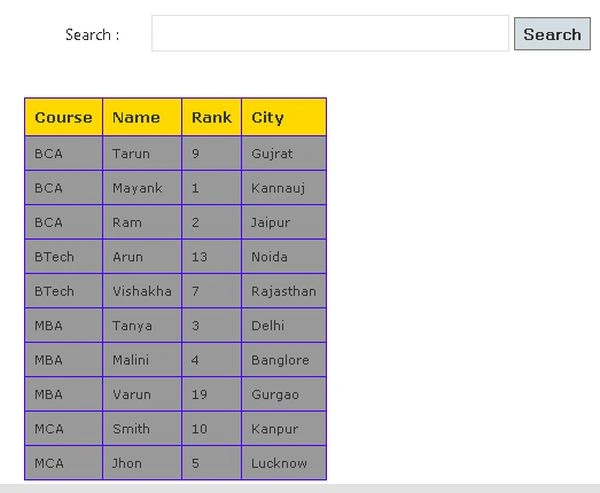
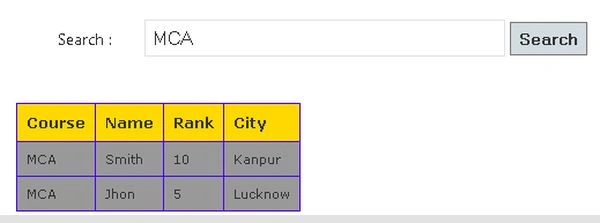
Search the record type and Course name in the search box then click on the search button.


Join the conversation! Your thoughts help the community grow.