

Introduction
This is not a coding article, but is important, very important for developers to do - if you don't lock down your data currently, then take ten minutes to do it now. This quick article will show you how, and it's really important!
(Did I say it was IMPORTANT !!!! :) )
In a lot of countries, keeping personal data secure is the law. Have a look at my article on data privacy/data protection for developers for more information.
Most organizations consider the code/work their employees produce property of some sort ... if your machine gets stolen or lost, and the data on it is not locked down, guess who's going to get the blame.... this is a quick run-through of using BitLocker in Windows 8 to create a secure drive where you can save your code and customer data to, ensuring you keep your rear end covered in case of machine loss!
This quick run-through assumes, you are using Windows 8. You can also do this in Windows 7 - the routine is more or less the same. One of the things you need to be watchful of is default save locations for things like MS SQL data ... when creating / restoring databases you need to set the path carefully. When using an encrypted drive, you also need to take into account that until you unlock/mount the drive, applications that need access tot he data on the drive might report errors. For this reason I leave my SQL-server for example in "manual start" mode, and turn it on from a batch file on delayed start after I unlock my secure drive.
It turns out that BitLocker is only available on certain versions of Windows-8, so for those it does not work on, I have included instructions for using a version of TrueCrypt that was available before it was unfortunately, abruptly with-drawn from the market. TrueCrypt works in a different way to BitLocker. Rather than operate on a disk level, it creates a secure file container, that gets "mounted" to the system using a device driver, and then appears to the system as a new hard-drive. You can mount and unmount the drive-file at will, and a great benefit is that it is easily transportable. I use both BitLocker and TrueCrypt on a regular basis and don't find any speed issues for data access.
There has been concern voiced that TrueCrypt is "no longer secure". Technically, it is no longer secure in the same way in which for the most part Windows XP is no longer secure. What is meant by this is that it is no longer actively maintained. Therefore, as there will be no more patches or security fixes/updates, it is not as up-to-date as it might have been. It is understood that the source of TrueCrypt will be branched and developed onward. For a good solid discussion on this, check out Gibson research. As the main site for TrueCrypt no longer allows downloads of the last secure version, I have attached it to this article. To get to it, you will need to download the zip at the top of this article, unpack the contents, then rename the file, giving it an "exe" extension to run.
Getting to secure...
#1 - BitLocker
Open Control Panel, search for disk, then click “Create and format hard disk partitions”.

If you don't have some un-allocated drive space already, you need to create some. In this case, select the drive you are going to resize.

Right-click, select “shrink volume”.
Wait for the system to query the disk volume.

Decide what size to make the new drive to.

Wait until a new drive appears.

Select, and click “new simple volume”.
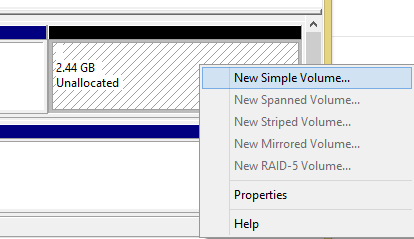
Walk through the wizard that pops up.


Drive is now ready for locking down.


Drive is now ready for locking down.

Back in control panel, search for BitLocker


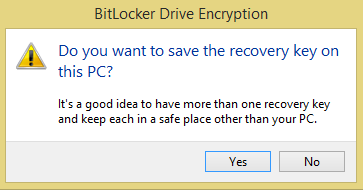


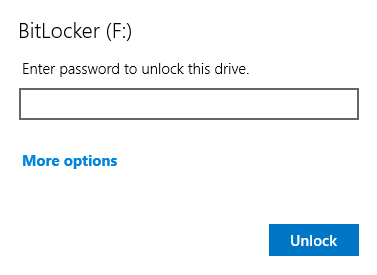


Join the conversation! Your thoughts help the community grow.