
Introduction

In this article, I will explain how to send some comments or messages to another activity in Android. In this article, I want to send my message to another activity that is a login activity of another company. To understand how to do that see the following instructions.
Step 1
Create a new Android project as "File" ->"New" -> "Android Application Project" as shown in the following image:
newActivity.jpg
Step 2
Now open the XML file as "res/layout/activity_main.xml" and update it with the following code:
  1. <?xml version="1.0" encoding="utf-8"?>
  2. <LinearLayout xmlns:android="http://schemas.android.com/apk/res/android"
  3. android:orientation="vertical"
  4. android:layout_width="fill_parent"
  5. android:layout_height="fill_parent"
  6. >
  7. <TextView android:layout_width="fill_parent"
  8. android:layout_height="wrap_content"
  9. android:text="Name : "/>
  10. <EditText android:id="@+id/name"
  11. android:layout_width="fill_parent"
  12. android:layout_height="wrap_content"
  13. android:layout_marginBottom="10dip"/>
  14. <TextView
  15. android:layout_width="fill_parent"
  16. android:layout_height="wrap_content"
  17. android:text="Email : "
  18. />
  19. <EditText android:id="@+id/email"
  20. android:layout_width="fill_parent"
  21. android:layout_height="wrap_content"
  22. android:layout_marginBottom="10dip"/>
  23. <TextView
  24. android:layout_width="match_parent"
  25. android:layout_height="wrap_content"
  26. android:text="Mobile :" />
  27. <EditText
  28. android:id="@+id/mobile"
  29. android:layout_width="match_parent"
  30. android:layout_height="wrap_content"
  31. android:ems="10"
  32. android:maxLength="10"
  33. android:inputType="phone" >
  34. <requestFocus />
  35. </EditText>
  36. <TextView
  37. android:layout_width="match_parent"
  38. android:layout_height="wrap_content"
  39. android:text="Comment :" />
  40. <EditText
  41. android:id="@+id/comment"
  42. android:layout_width="match_parent"
  43. android:layout_height="wrap_content"
  44. android:ems="10" />
  45. <Button
  46. android:id="@+id/btnNextScreen"
  47. android:layout_width="fill_parent"
  48. android:layout_height="wrap_content"
  49. android:layout_marginTop="15dip"
  50. android:text="Connect to Next" />
  51. </LinearLayout>
Step 3
Open the Java file as "MainActivity.java" and update it with the following code:
  1. package com.example.activityswitching;
  2. import android.app.Activity;
  3. import android.content.Intent;
  4. import android.os.Bundle;
  5. import android.util.Log;
  6. import android.view.View;
  7. import android.widget.Button;
  8. import android.widget.EditText;
  9. public class MainActivity extends Activity {
  10. EditText inputName, inputMobile;
  11. EditText inputEmail,inputComment;
  12. @Override
  13. public void onCreate(Bundle savedInstanceState) {
  14. super.onCreate(savedInstanceState);
  15. setContentView(R.layout.activity_main);
  16. inputName = (EditText) findViewById(R.id.name);
  17. inputEmail = (EditText) findViewById(R.id.email);
  18. inputMobile = (EditText) findViewById(R.id.mobile);
  19. inputComment = (EditText) findViewById(R.id.comment);
  20. Button btnNextScreen = (Button) findViewById(R.id.btnNextScreen);
  21. //Listening to button event
  22. btnNextScreen.setOnClickListener(new View.OnClickListener() {
  23. public void onClick(View arg0) {
  24. //Starting a new Intent
  25. Intent nextScreen = new Intent(getApplicationContext(), SecondActivity.class);
  26. //Sending data to another Activity
  27. nextScreen.putExtra("name", inputName.getText().toString());
  28. nextScreen.putExtra("email", inputEmail.getText().toString());
  29. nextScreen.putExtra("mobile", inputMobile.getText().toString());
  30. nextScreen.putExtra("comment", inputComment.getText().toString());
  31. Log.e("n", inputName.getText()+"."+ inputEmail.getText()+"."+inputMobile.getText()+"."+inputComment.getText());
  32. startActivity(nextScreen);
  33. }
  34. });
  35. }
  36. }
Step 4
Now create a new XML file in "res/layout/second_activity.xml" and update it with the following code:
  1. <?xml version="1.0" encoding="utf-8"?>
  2. <LinearLayout
  3. xmlns:android="http://schemas.android.com/apk/res/android"
  4. android:orientation="vertical"
  5. android:layout_width="match_parent"
  6. android:layout_height="match_parent">
  7. <TextView android:layout_width="fill_parent"
  8. android:layout_height="wrap_content"
  9. android:text="You Entered..."
  10. android:textSize="25dip"
  11. android:gravity="center"
  12. android:layout_margin="15dip"/>
  13. <TextView android:id="@+id/txtName"
  14. android:layout_width="fill_parent"
  15. android:layout_height="wrap_content"
  16. android:layout_margin="15dip"
  17. android:textSize="18dip"/>
  18. <TextView android:id="@+id/txtEmail"
  19. android:layout_width="fill_parent"
  20. android:layout_height="wrap_content"
  21. android:layout_margin="15dip"
  22. android:textSize="18dip"/>
  23. <TextView
  24. android:id="@+id/txtmobile"
  25. android:layout_width="match_parent"
  26. android:layout_height="wrap_content"
  27. android:layout_margin="15dip"
  28. />
  29. <TextView
  30. android:id="@+id/txtcomment"
  31. android:layout_width="match_parent"
  32. android:layout_height="wrap_content"
  33. android:layout_margin="15dip"
  34. />
  35. <Button android:id="@+id/btnClose"
  36. android:layout_width="fill_parent"
  37. android:layout_height="wrap_content"
  38. android:layout_marginTop="15dip"
  39. android:text="Close"/>
  40. </LinearLayout>
Step 5
Create a new Java file as "src/com.example.activityswitching/SecondActivity.java" and update it with the following code:
  1. package com.example.activityswitching;
  2. import android.app.Activity;
  3. import android.content.Intent;
  4. import android.os.Bundle;
  5. import android.util.Log;
  6. import android.view.View;
  7. import android.widget.Button;
  8. import android.widget.TextView;
  9. public class SecondActivity extends Activity {
  10. public void onCreate(Bundle savedInstanceState) {
  11. super.onCreate(savedInstanceState);
  12. setContentView(R.layout.activity_second);
  13. TextView txtName = (TextView) findViewById(R.id.txtName);
  14. TextView txtEmail = (TextView) findViewById(R.id.txtEmail);
  15. TextView txtmobile = (TextView) findViewById(R.id.txtmobile);
  16. TextView txtcomment = (TextView) findViewById(R.id.txtcomment);
  17. Button btnClose = (Button) findViewById(R.id.btnClose);
  18. Intent i = getIntent();
  19. // Receiving the Data
  20. String name = i.getStringExtra("name");
  21. String email = i.getStringExtra("email");
  22. String mobile = i.getStringExtra("mobile");
  23. String comment = i.getStringExtra("comment");
  24. //Log.e("Second Screen", name + "." + email);
  25. // Displaying Received data
  26. txtName.setText(name);
  27. txtEmail.setText(email);
  28. txtmobile.setText(mobile);
  29. txtcomment.setText(comment);
  30. // Binding Click event to Button
  31. btnClose.setOnClickListener(new View.OnClickListener() {
  32. public void onClick(View arg0) {
  33. //Closing SecondScreen Activity
  34. finish();
  35. }
  36. });
  37. }
  38. }
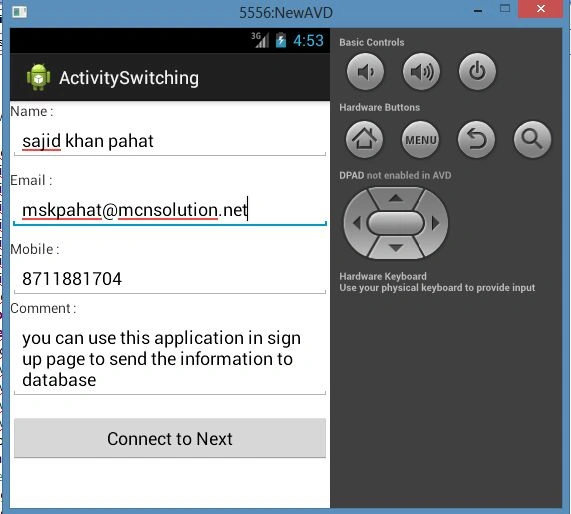
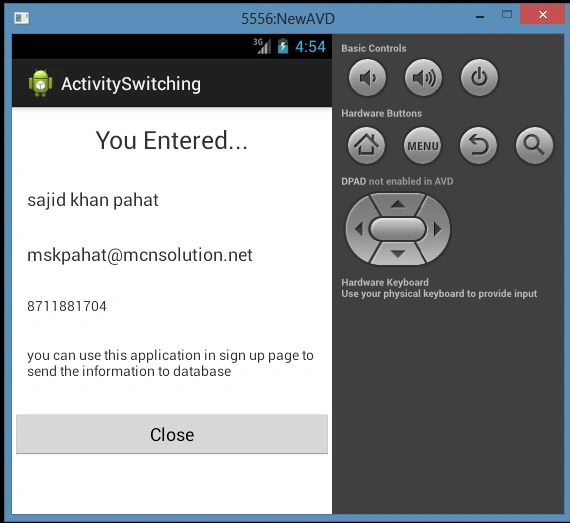
Step 6
The output is as shown in the following image:
Input
connectionActivity.jpg
Output
resultActivity.jpg