

Introduction
In this article, we will discuss everything related to the use of Serial Communication class, included in Windows.Devices namespace. We will see how it is possible with such a class to read and send data from the serial port. At the hardware level, we will make use of Raspberry Pi2 board, Arduino Uno, temperature sensor DHT11 and a simple diode Led both wired on the Arduino Uno pin. We will manage the temperature sensor for the display of data on Raspberry, while the LED will help us to demonstrate how we can send a command from the Arduino Raspberry by SerialComunication class. All of this is very simple, and the purpose of the article is to show how to exchange information between two devices connected with serial port.
Hardware required
After this brief introduction, let's move to the next step. For the realization of our circuit, we need the following hardware material,
- Raspberry Pi2 with 10.0.10586.0 version installed on SD card, equipped with a power supply.
- HDMI cable so as to connect the Raspberry Pi2 to a monitor.
- Monitor with HDMI input.
- ethernet cable.
- Ethernet-USB 3.0 adapter
- Breadboard, which is the necessary basis for mounting components and electrical wiring.
- male-male and male-female jumper.
- led diode
- Arduino Uno
- Power cable USB type B side Arduino Uno board and the USB type to connect the Raspberry.
Necessary software
A-level software you will need,
- Windows 10 build 10.0.10586.0 installed on pc
- Visual Studio 2015 Update 2
- Windows SKD 10.0.10586.0 (and the latter still included with Visual Studio 2015 update 2)
- Arduino IDE or Visual Micro for Arduino
- Windows 10 IoT core 10.0.10586.0 installed on SD card
Windows 10
Before proceeding with the creation of the two projects, namely with Visual Studio 2015 for the UWP and the Arduino, you must install all the software mentioned above. So it will start with the installation of Windows 10 that you find in this link.
Visual Studio 2015 update 2
For installing the operating system and the time to install Visual Studio 2015 update2, find the download link here.
Arduino Ide
After installing Visual Studio 2015, it's time to devote our attention to the Arduino. As stated earlier, you can choose to avail yourself of the IDE Arduino found at this link.
Visual Micro for Arduino
Alternatively, you can download and install this Plug-in that will let you create Arduino projects directly from Visual Studio 2015. The pros are that you have available the intellisense for those who know that an automatic prompter will help -- and not a little -- when writing code. Cons are that unlike the IDE Arduino, not including debugging, if you intend to debug your application you will have to buy it separately.
Raspbrerry Pi2
Now that we have everything you need on your PC, it's time to think about the Raspberry Pi2 card. Go to this link and you can download Windows 10 IoT Core. We must, however, for the installation have a micro SD of at least 8GB, then install the operating system on it, at the end insert the SD card inside the dedicated port on Raspberry. To install Windows 10 IoT Core, refer to the following procedure, which explains in a simple and comprehensive way throughout the procedure. We have installed all the necessary software components, and we also have all hardware components. Before turning to the creation of the projects, it is necessary to wire the electrical circuit. It is DHT11; connect the sensor and the LED diode to the Arduino board.
Electrical Circuit
Below is the final circuit of our project, we achieved it with Fritzing, an excellent software for the realization of electrical / electronic schemes.
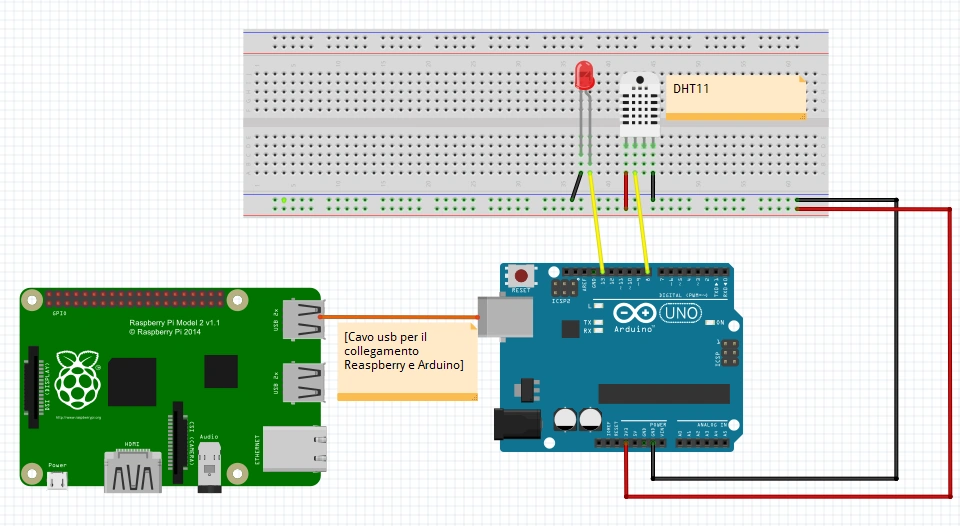
Figure 1: the electrical circuit.
The connections are the following,
- Anode of the LED diode on pin 13 of the Arduino board one
- Katodo the LED diode on the Arduino board gnd pin one
- pin "S" of DHT11 sensor (left pin) to pin 8 of the Arduino board one
- the central pin of the sensor DHT11, + 5V pin on the Arduino board one
- the right of DHT11 sensor pin, the pin of the Arduino board gnd one
- Finally, we connect on the breadboard, two black and red cables to bring power to all of the above components
- Lastly, connect the USB cable mentioned above, including a USB port of Raspberry Py 2 with the type usb output b of the Arduino board one.
These are all necessary connections, and nowit's time to devote ourselves to the creation of the test project.
Test project
We start Visual Studio 2015, on the File menu select New Project, select a universal project, and develop in C # as shown in the figure, and we call it Prova Comunicazione seriale.
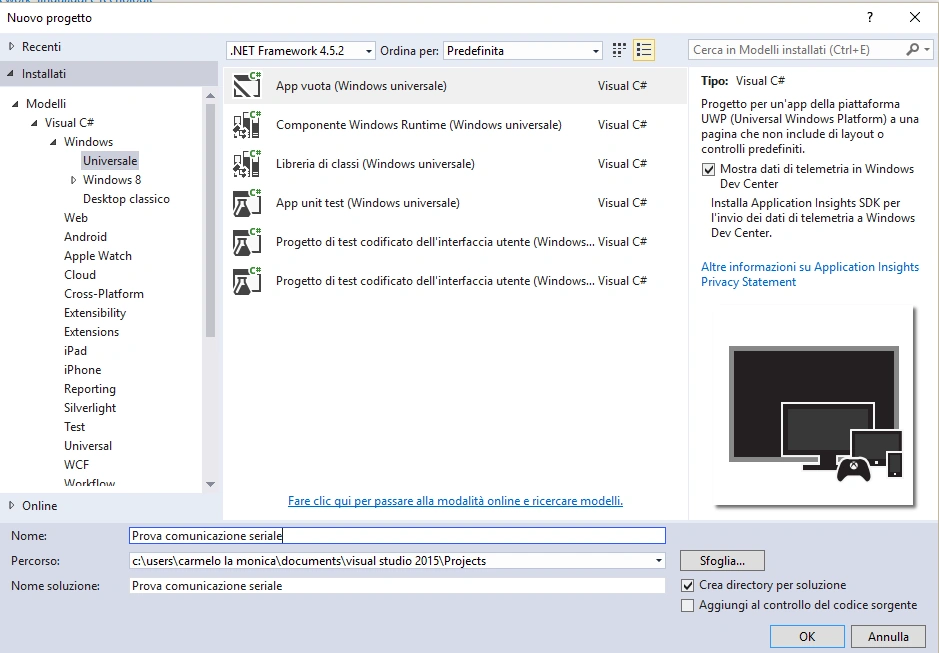
Figure 2: the test project.
We will be asked which version of the build we want our media project, the following dialog leaves everything unchanged, and confirm with ok button.
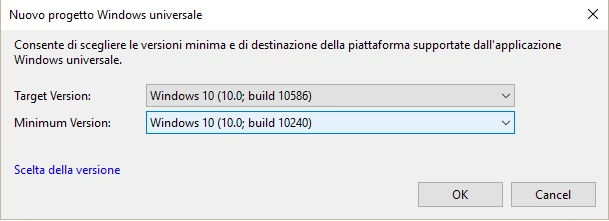
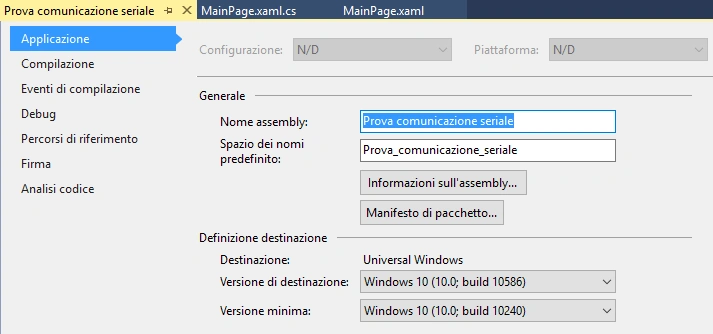
Figure 3: The minimum version and the target of the Windows build.
In this case, we left as a minimum version supported 10.0.10240, and target the 10.0.10586.
Confirm with the OK button, we will be led in the screen named App.xaml.cs. But before you write code to do the display and management of serial communication, we need to enable the capability required, this is to be able to make use of serial device class and DeviceInformation. Without setting capability, we will receive an exception at runtime, causing the application to crash. In other words, the capabilities are required to declare that in our application we make use of devices and / or system functionality. To enable them, usually just a double click with the mouse on the file in Package.appxmanifest on explorer solution is sufficient, but in this case it is a particular capability, and we must put everything in code. In explorer solutions, we select with a click of the mouse the files mentioned before, F7 key, and we will be led in the code as shown in the figure.
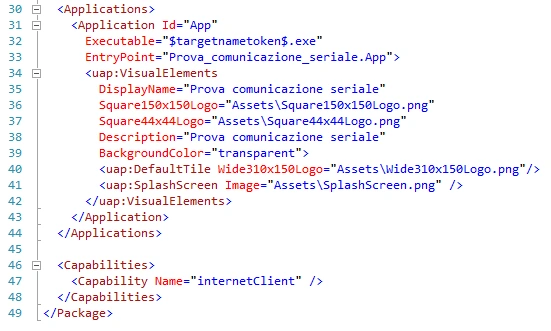
Figure 4: Applications and Capabilities section of Package.appxmanifest file.
Then we're going to enable the use of serial device and DeviceInformation Classes. Insert the following code.
- <DeviceCapability Name="serialcommunication">
- <Device Id="any">
- < Function Type="name:serialPort" />
- </Device>
- </DeviceCapability>
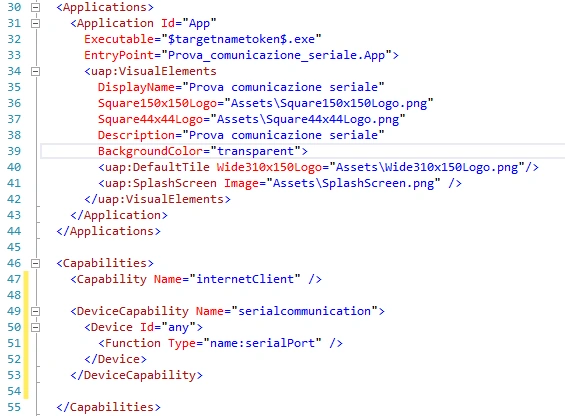
Figure 5: The Package.appxmanifest files after editing
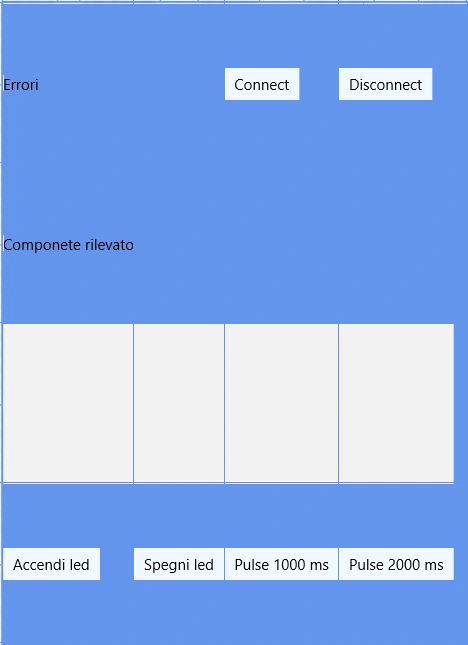
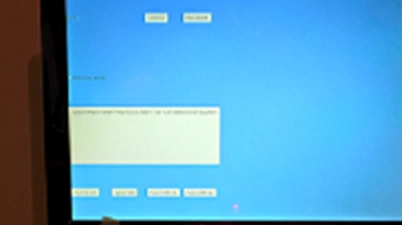
After these changes, save and close the file Package.appxmanifest. Let's take care of the graphics now. In explorer solutions, double click with the mouse on MainPage.xaml file, we will go into the screen where we define our code using XAML GUI. To summarize briefly, the XAML language, also called declarative code, and used in different technologies, made its debut with Silverlight and WPF applications from version 3.0 of the DOTNET framework, and given the potential was developed and still used for Mobile applications, desktops and universal, is the same as that which we will develop in this article, therefore it's necessary to define all the interface objects of our application. And it's very similar for those who know the XML and HTML syntax, and then enclosed between tags, where further customization of each individual object by means of the properties that we will see shortly is possible. Below, I leave the linkto the official Microsoft documentation for those who wish to learn every detail of the XAML language. Insert the following code inside the file MainPage.xaml.
- <Page
- x:Class="Prova_comunicazione_seriale.MainPage"
- xmlns="http://schemas.microsoft.com/winfx/2006/xaml/presentation"
- xmlns:x="http://schemas.microsoft.com/winfx/2006/xaml"
- xmlns:local="using:Prova_comunicazione_seriale"
- xmlns:d="http://schemas.microsoft.com/expression/blend/2008"
- xmlns:mc="http://schemas.openxmlformats.org/markup-compatibility/2006"
- mc:Ignorable="d">
- <Grid Background="CornflowerBlue"
- Margin="0,0,-104,0">
- <Grid.RowDefinitions>
- <RowDefinition Height="*"/>
- <RowDefinition Height="*"/>
- <RowDefinition Height="*"/>
- <RowDefinition Height="*"/>
- </Grid.RowDefinitions>
- <Grid.ColumnDefinitions>
- <ColumnDefinition Width="Auto"/>
- <ColumnDefinition Width="Auto"/>
- <ColumnDefinition Width="Auto"/>
- <ColumnDefinition Width="Auto"/>
- <ColumnDefinition Width="Auto"/>
- <ColumnDefinition Width="Auto"/>
- </Grid.ColumnDefinitions>
- <!--Riga 0-->
- <TextBlock x:Name="tbkAllarmi"
- Grid.Row="0"
- Grid.ColumnSpan="3"
- Grid.Column="0"
- HorizontalAlignment="Left"
- VerticalAlignment="Center"
- Text="Errori"/>
- <Button x:Name="btnSerialConnect"
- Background="AliceBlue"
- Grid.Row="0"
- Grid.Column="4"
- Content="Connect"
- Click="ButtonClick"/>
- <Button x:Name="btnSerialDisconnect"
- Background="AliceBlue"
- Grid.Row="0"
- Grid.Column="5"
- Content="Disconnect"
- Click="ButtonClick"/>
- <!--Riga 1-->
- <TextBlock x:Name="tbkNomeComponente"
- Grid.Row="1"
- Grid.Column="0"
- HorizontalAlignment="Left"
- VerticalAlignment="Center"
- Text="Componete rilevato"/>
- <!--Riga 2-->
- <ListBox x:Name="lstSerialDevices"
- Grid.Row="2"
- Grid.ColumnSpan="6">
- <ListBox.ItemTemplate>
- <DataTemplate>
- <TextBlock Text="{Binding Id}"/>
- </DataTemplate>
- </ListBox.ItemTemplate>
- </ListBox>
- <!--Riga 3-->
- <Button x:Name="btnAccendiled"
- Background="AliceBlue"
- Grid.Row="3"
- Grid.Column="0"
- Content="Accendi led"
- Click="ButtonClick"/>
- <Button x:Name="btnSpegniled"
- Background="AliceBlue"
- Grid.Row="3"
- Grid.Column="1"
- Content="Spegni led"
- Click="ButtonClick"/>
- <TextBlock x:Name="tbkStatusLed"
- Grid.Row="3"
- Grid.Column="2"
- VerticalAlignment="Center"
- HorizontalAlignment="Center"/>
- <Button x:Name="btnPulse1000ms"
- Background="AliceBlue"
- Grid.Row="3"
- Grid.Column="4"
- Content="Pulse 1000 ms"
- Click="ButtonClick"/>
- <Button x:Name="btnPulse2000ms"
- Background="AliceBlue"
- Grid.Row="3"
- Grid.Column="5"
- Content="Pulse 2000 ms"
- Click="ButtonClick"/>
- </Grid>
- < /Page>
Santhakumar MunuswamyPosted Jun 25, 2016, 3:11 AM
Nice share
Prasanna MuraliPosted Jun 21, 2016, 9:34 PM
Nice one...
Kuppurasu NagarajPosted Jun 14, 2016, 1:15 PM
Nice Sharing..
Vignesh ManiPosted Jun 14, 2016, 12:13 PM
Good one
Pramod ThakurPosted Jun 13, 2016, 4:08 AM
tnx for sharing...
RajaPosted Jun 13, 2016, 12:32 AM
Nice Sharing....
Debasis SahaPosted Jun 13, 2016, 12:13 AM
Nice share..
Deeksha PanditPosted Jun 12, 2016, 2:17 PM
Thanks for sharing