

Introduction
Android is one of the most popular operating systems for mobile. In this article, I will show you how to create an application that can be used to set silent mode, ringer mode, and vibrate mode in your Android phone.
Requirements
- Android Studio version 2.3.3
- Little bit XML and Java knowledge.
- Android Emulator (or) Android mobile
- Download link (Android Studio)
Steps should be followed
Follow these steps to build the app. I have included the source code below.
Step 1
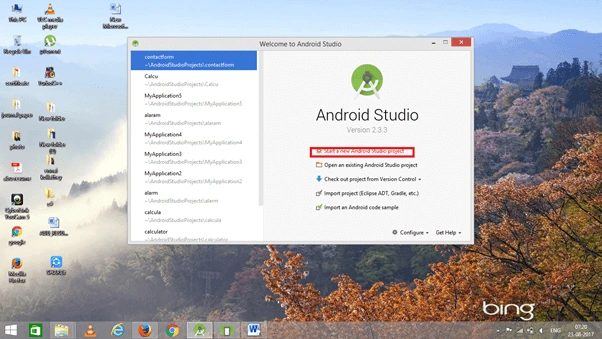
Open Android Studio and start a new Android Studio Project.
Step 2
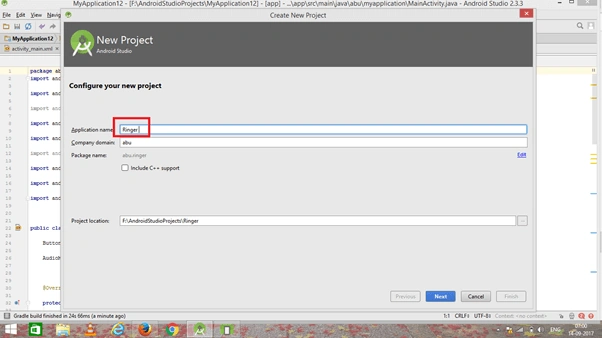
You can choose your application name and choose where your project is stored on the location. If you wish to use C++ for coding the project, mark the "Include C++ support", and click the "Next" button.
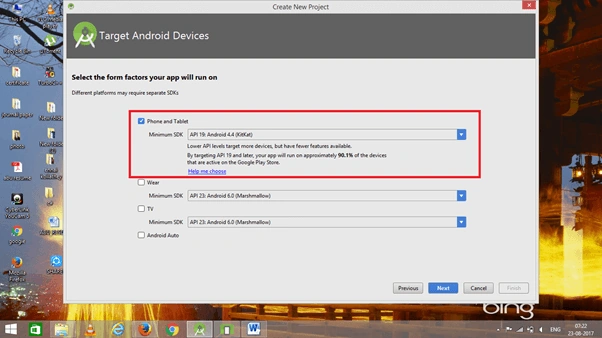
Now, select the version of Android and select the target Android devices.
Step 3
Now, add the activity and click the "Next" button.
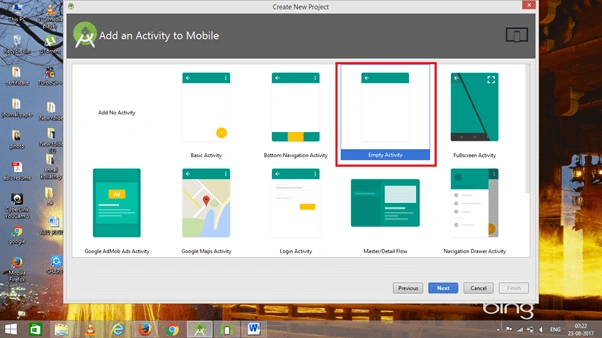
Add Activity name and click "Finish".
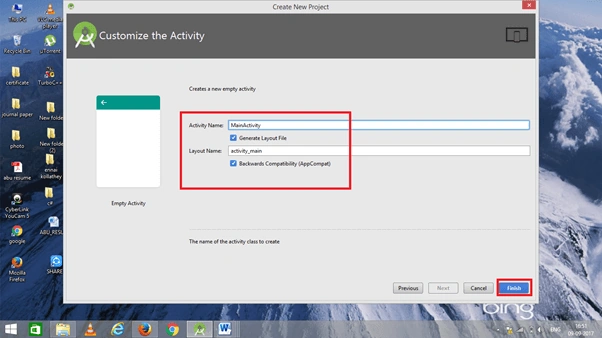
Step 4
Go to activity_main.xml. This XML file contains the designing code for the Android app.
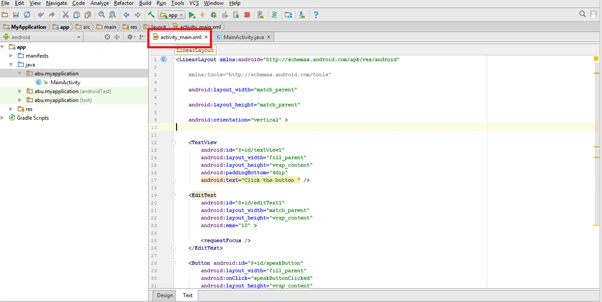
The XML code is given below.
- <RelativeLayout xmlns:android="http://schemas.android.com/apk/res/android"
- xmlns:tools="http://schemas.android.com/tools"
- android:layout_width="match_parent"
- android:layout_height="match_parent"
- tools:context="abu.myapplication.MainActivity" >
- <TextView
- android:id="@+id/textView1"
- android:layout_width="wrap_content"
- android:layout_height="wrap_content"
- android:text="ringer app" />
- <Button
- android:id="@+id/button1"
- android:layout_width="wrap_content"
- android:layout_height="wrap_content"
- android:layout_below="@+id/textView1"
- android:layout_marginTop="15dp"
- android:layout_toRightOf="@+id/textView1"
- android:text="silent" />
- <Button
- android:id="@+id/button2"
- android:layout_width="wrap_content"
- android:layout_height="wrap_content"
- android:layout_alignLeft="@+id/button1"
- android:layout_marginTop="98dp"
- android:text="vibrate" />
- <Button
- android:id="@+id/button3"
- android:layout_width="wrap_content"
- android:layout_height="wrap_content"
- android:layout_alignLeft="@+id/button2"
- android:layout_below="@+id/button2"
- android:layout_marginTop="30dp"
- android:text="ringer" />
- </RelativeLayout>
Step 5
Go to Main Activity.java. This Java program is the backend language for Android.
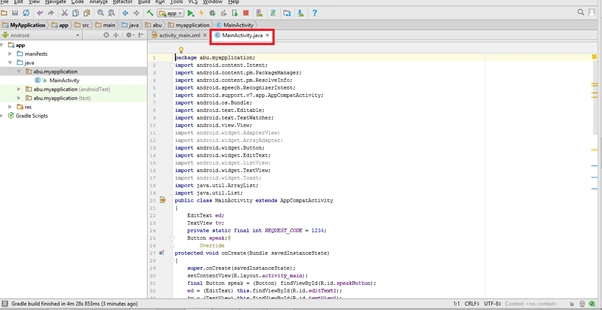
The java code is given below.
- package abu.myapplication;
- import android.media.AudioManager;
- import android.os.Bundle;
- import android.provider.MediaStore.Audio;
- import android.app.Activity;
- import android.content.Context;
- import android.view.Menu;
- import android.view.View;
- import android.view.View.OnClickListener;
- import android.widget.Button;
- public class MainActivity extends Activity {
- Button b1, b2, b3;
- AudioManager am;
- @Override
- protected void onCreate(Bundle savedInstanceState) {
- super.onCreate(savedInstanceState);
- setContentView(R.layout.activity_main);
- b1 = (Button) findViewById(R.id.button1);
- b2 = (Button) findViewById(R.id.button2);
- b3 = (Button) findViewById(R.id.button3);
- am = (AudioManager) getSystemService(Context.AUDIO_SERVICE);
- b1.setOnClickListener(new OnClickListener() {
- @Override
- public void onClick(View v) {
- // TODO Auto-generated method stub
- am.setRingerMode(0);
- }
- });
- b2.setOnClickListener(new OnClickListener() {
- @Override
- public void onClick(View v) {
- // TODO Auto-generated method stub
- am.setRingerMode(1);
- }
- });
- b3.setOnClickListener(new OnClickListener() {
- @Override
- public void onClick(View v) {
- // TODO Auto-generated method stub
- am.setRingerMode(2);
- }
- });
- }
- }
Step 6
Now, go to the menu bar and click "Make Project" or press ctrl+f9 to debug the error.
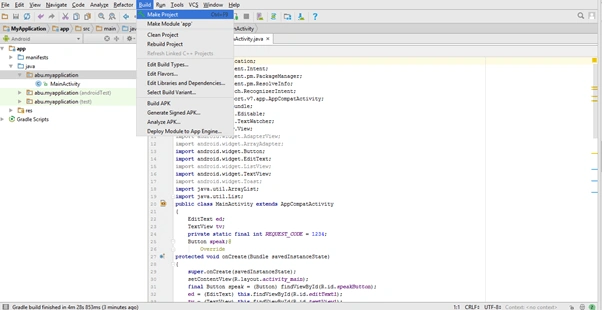
Step 7
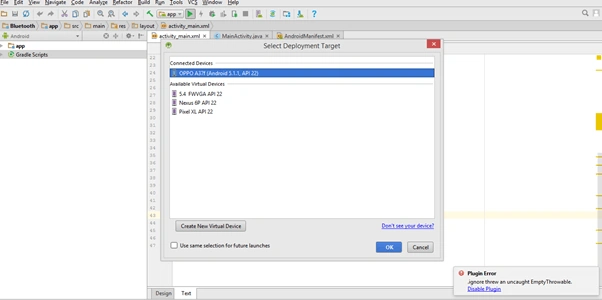
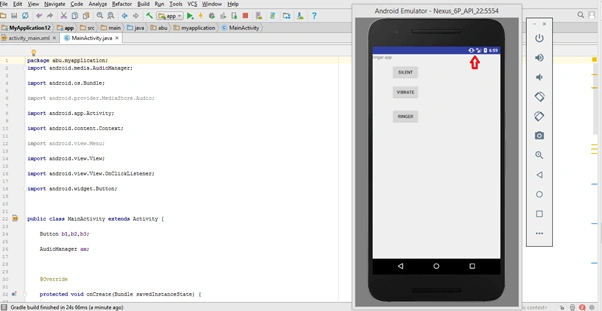
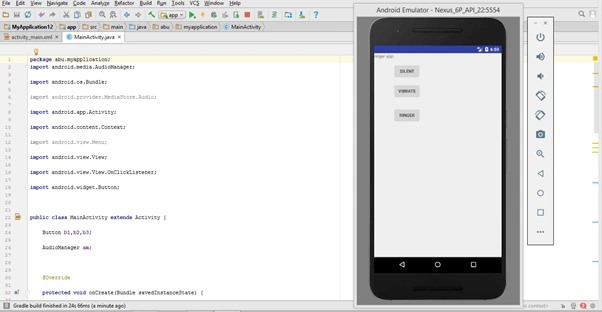
Then, click the "Run" button or press shift+f10 to run the project. Choose the virtual machine and click OK.
Conclusion
We have successfully created the application to set silent mode, ringer mode, vibrate mode in Android.
Zev FarkasPosted Jul 25, 2018, 4:25 PM
(follow-on to previous comment:) Any idea what I need to do to make Studio happy? Thanks.
Zev FarkasPosted Jul 25, 2018, 4:22 PM
Hi - I'm totally new to java and android studio. You gave some .xml code, which I copied into the activity_main.xml file in studio. Similarly, I copied the java code into MainActivity.java. (I tried this both with leaving the code that was already in those files, and removing the code that was already there - removing it seems to have given slightly better results). When I did build>Make Project, I got errors saying package R does not exist.
Mahesh SambharamPosted Apr 3, 2018, 3:29 AM
Nice can I know how did it