

Introduction
This was a basic topic before starting your development using SharePoint Framework, aka SPFx. There have been a lot of challenges for some of us while setting up the development environment. Some of those are,
- Getting a developer subscription, where Microsoft has stopped providing free developer subscriptions, is now limited to the Visual Studio subscription via personal or organization.
- Node version changes and other open-source tool version changes (React, TypeScript) and their compatibility with SPFx versions. In the references section, there is a chart that has supported node versions for SPFx.
- Setting up a development environment, where you need to go through multiple fixes to get it properly working.
This article focuses on setting up the development environment for SPFx based on the above challenges(#2,#3), and finally, you can also validate the setup by following simple steps. Please note that the steps are validated against Windows 11 OS, and a similar setup can be followed on other OS as NVS (Node Version Switcher); also, the tools used for SPFx development are cross-platform compatible.
Pre-requisites
You need to have Node Version Switcher (NVS) installed on your Windows 11 machine. Please refer to the references section to get NVS installed.
Steps
Please follow the below steps for setting up your SPFx development environment on a Windows 11 machine.
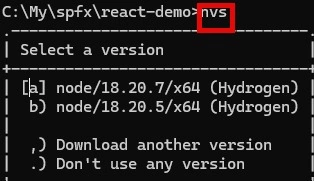
Step 1. Login to your machine using the credentials and make sure you have NVS installed on your machine. Just type NVS in the command prompt, you should be welcomed with available node versions.
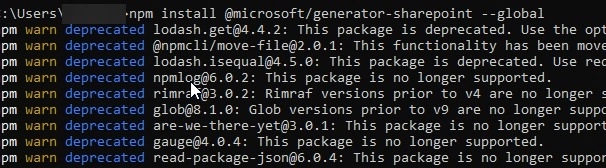
Step 2. Install the node version that is supported by the latest version of SPFx. The latest SPFx version as of this article is 1.20.0, and the supported node version is 18.
npm install @microsoft/generator-sharepoint --global
Step 3. Install the supported yeoman version.
npm install yo --global

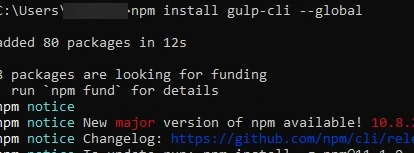
Step 4. Install the supported gulp version.
npm install gulp-cli --global
Step 5. Trust the Dev certificate. This is a time set up. SPFx uses a local web browser when testing the custom solutions and uses HTTPS by default. This HTTPS is implemented using a self-signed certificate. By default, the self-signed certificates are not trusted by your local development environment. It is required to configure the local development environment to trust the self-signed certificate. Run the command below from the root folder where you build your SPFx projects to trust the self-signed certificate using the gulp tool.
gulp trust-dev-cert
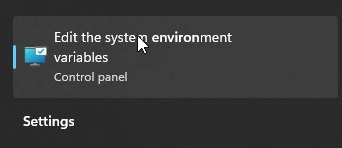
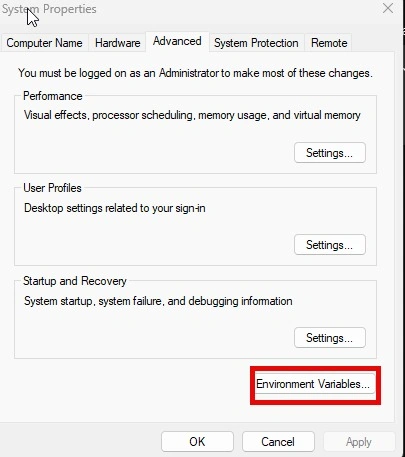
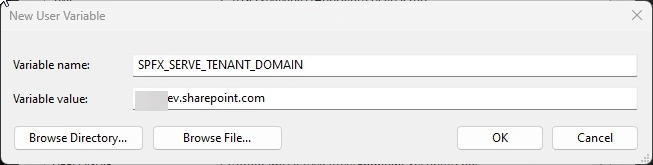
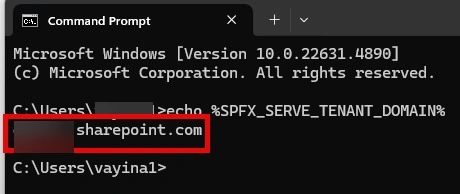
Step 6. Set up the environment variable SPFX_SERVE_TENANT_DOMAIN.
It is beneficial to set up this environment variable, as this eliminates changing the variable in the server file while testing the SPFx webpart.
I want to test the solution against two environments in my case, a temporary setting of the environment variable works. If you have a server dedicated to a specific test/dev environment, then it is obvious to set the environment variable permanently.
Setting Environment variables temporarily
Use the below command in the Windows terminal to set the environment variable SPFX_SERVE_TENANT_DOMAIN. If the tenant name is contoso.com, set the variable to contoso.sharepoint.com. Please note that this is active during the terminal session, which means when closed, the settings are cleaned up.


Join the conversation! Your thoughts help the community grow.