

Introduction
In my previous article, we have seen how to set up your Raspberry PI with the Raspbian operating system. Let’s try something different this time, here in this article you will learn how you can set up your Raspberry PI with the Microsoft Windows 10 IoT core. Both Windows 10 IoT core and Raspbian OS has its own advantages and disadvantages and that is a different topic, here we are not going to discuss it. For now, let’s just start working with the Windows 10 IoT core. Let’s just start then. You can always read this article on my blog here.
Background
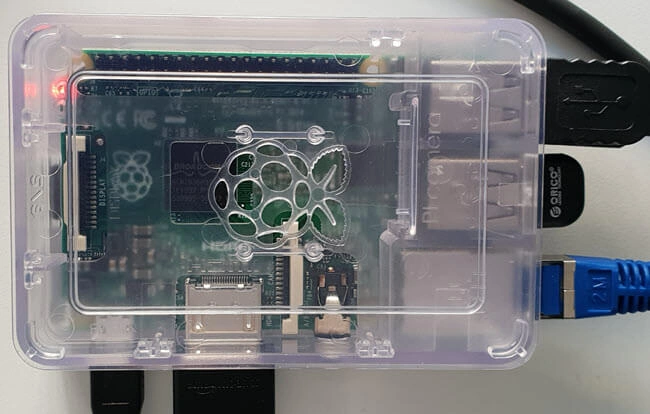
I wanted to connect a Bluetooth iBeacon to a Raspberry PI and as an initial step, I had to configure the Raspberry Pi. So I just thought to write this article while I am doing the configuration. Here we will install the IoT core OS in the Raspberry PI and connect a monitor, keyboard, and mouse to our mini computer. I hope you will find it useful.
Prerequisites
- Raspberry PI
- SD card
- Internet connection
- Ethernet, if your Raspberry PI supports wifi, you can skip this.
- Monitor and HDMI cable
- Keyboard
- Mouse
Setting up the Raspberry PI
Before you continue this step, please make sure that you have all the mentioned prerequisites.
Formatting an SD card
I am a person who likes to start everything from scratch, so as a first step, we are going to format our SD card. You can use the normal Format option your Operating System offers. I always use a tool called SD Card Formatter. You can easily download the tool from the Internet. Once you have it installed, open the tool, and select the SD card to be formatted and then click on Format.
Installing Windows 10 IoT Core Operating System
According to Microsoft, Windows 10 IoT is a member of the Windows 10 family that brings enterprise-class power, security, and manageability to the Internet of Things. It leverages Windows’ embedded experience, ecosystem, and cloud connectivity, allowing organizations to create their Internet of Things with secure devices that can be quickly provisioned, easily managed, and seamlessly connected to an overall cloud strategy.
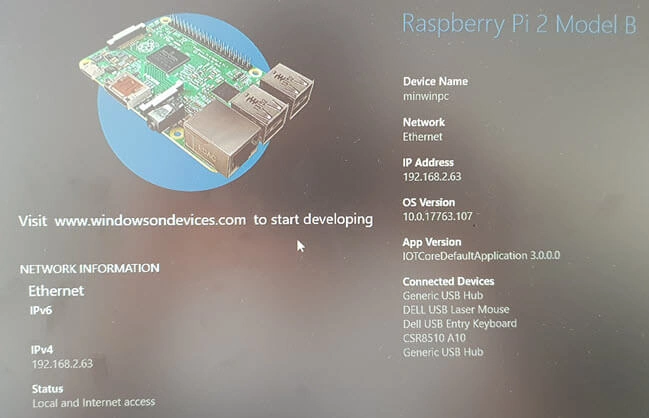
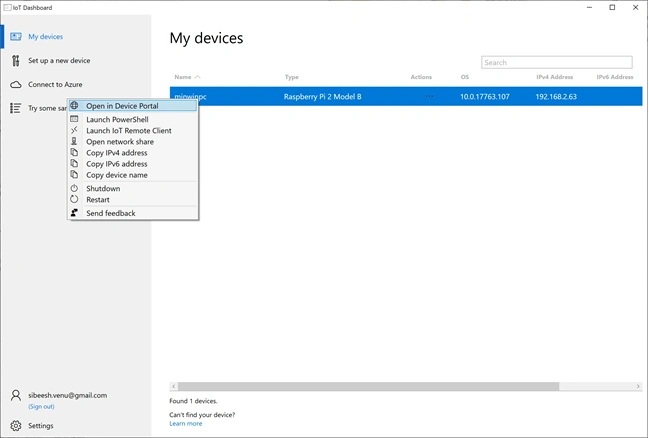
As a first step, we will be downloading a tool called Windows 10 IoT core dashboard, which will help us to format, write the IoT core OS to our SD card, connect to our Raspberry Pi. Once you have downloaded the dashboard, open the tool, and select the image you want to flash as preceding.
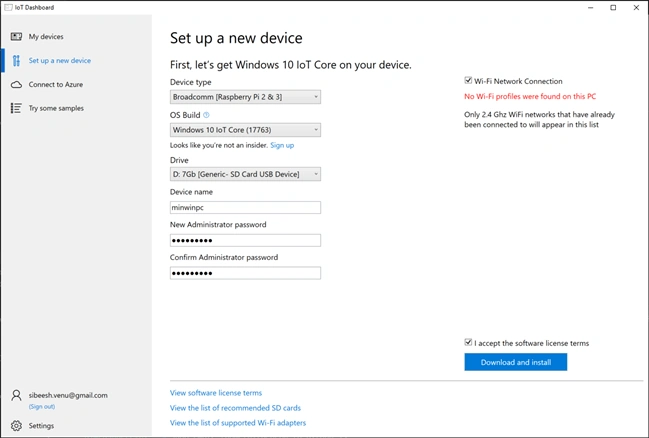
Set up a new device
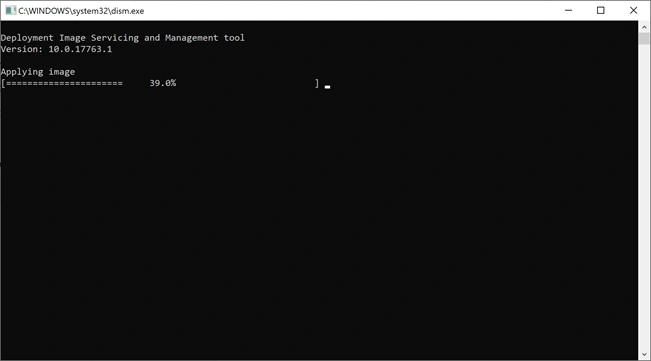
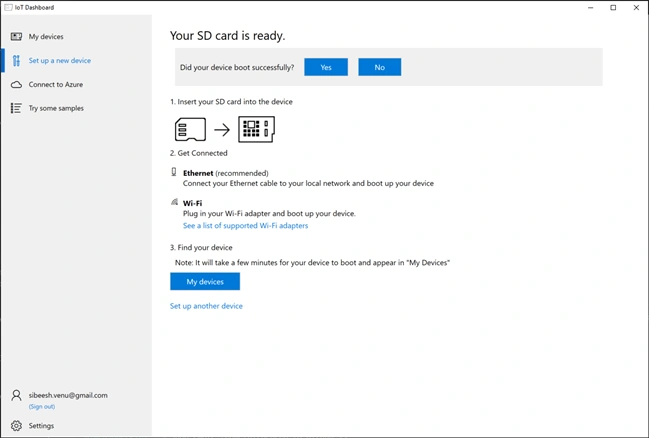
Once the flashing is done, it will start deploying your image. Please make a note of the password you had given as it is needed in the future to log in to the device portal. You can also change the device name as you wish.
Join the conversation! Your thoughts help the community grow.