

Introduction
Angular is an open-source framework for building single-page applications (SPA) using web technologies like HTML, CSS, and js. Angular is written in TypeScript and follows TypeScript syntax to write code and that TypeScript code tans compile to JS as output which loads in the browser.
This article demonstrates how to setup, create, and run the latest Angular app from VS Code on a step-by-step approach.
Prerequisite
- IDE - VS Code
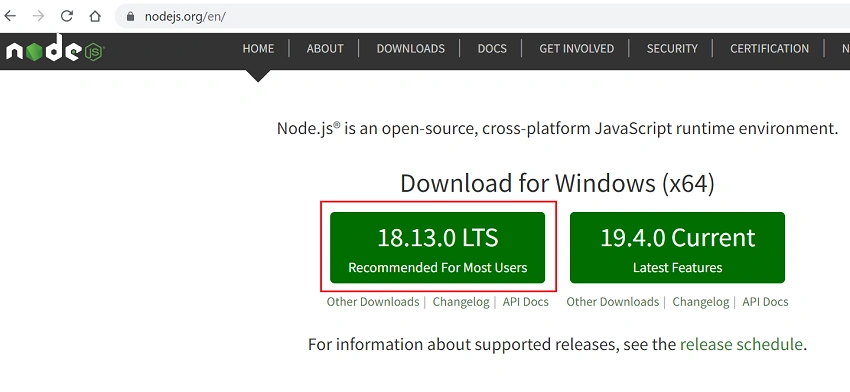
Step 1 - Install the latest LTS version of Node.js from https://nodejs.org/en/
Node.js is an open-source, cross-platform JavaScript runtime environment. It helps to run the js code on the server and it also helps to host the application. We need to use nodejs runtime for Angular development. And Node Package Manager (npm) is the tool within nodejs. It resolves the interdependencies of packages.
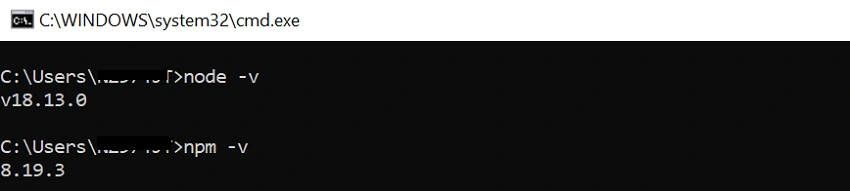
After installing node js, open the command prompt, and check node -v and npm version.
Step 2 - Install TypeScript
As I already mentioned, Angular follows TypeScript syntax to write code. That’s we need a typescript package to be installed from CMD.
> npm install typescript -g
Here, -g signifies to install globally into your PC (C:\Users\AppData\Roaming\npm\node_modules)
Once installed, let’s check the version of it using > tsc -v command.
Step 3 - Install Angular CLI
Angular CLI is a cmd line tool to create, build, compile, and serve angular app. Using CLI commands we can generate various building blocks like components, routes, pipe, modules, directives, etc of an angular app.
Installing Angular CLI from CMD
To install latest version > npm install @angular/cli -g
To Install specific version > npm install @angular/[email protected] -g
To check Angular CLI installed version > ng version
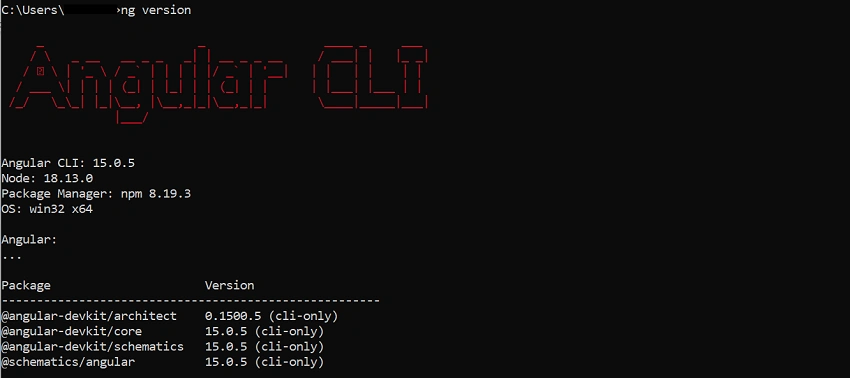
Angular CLI Options

Innocent LangaPosted Jan 10, 2023, 12:37 PM
Well documented. ng serve -o worked for me.