

Introduction
This is a follow-up article of “Create Virtual Environments with Azure Lab Services” If you are new to Azure Lab Services then it would be better to read it first. Moreover, this article is also part of the Azure Advent Calendar where experts from different communities share their knowledge through their own contributions in different formats, the most common being publications in their blogs, although they can also be videos, webinars, etc. Read more about it.
In this step-by-step tutorial, I will demonstrate how to create a virtual environment using Azure Lab Services to host an enterprise hackathon, reducing the time and effort of people to set up multiple virtual machines with the software developers probably need to innovate and solve the challenges of the hackathon. This tutorial covers the following topics.
- How to create lab plans
- How to grant access to a lab plan
- How to create a lab
- How to customize the template virtual machine
- How to publish the template virtual machine
- How to add users to the lab
- How to schedule events
- How to use a pre-configured VM
Hands-on experience
Let us suppose the enterprise Contoso develops APIs for its customers. Recently, they realized that some of their APIs could be migrated to serverless workloads to save costs. A Program Manager has suggested hosting a serverless hackathon to enhance the skills and knowledge of the developer teams. However, the developer teams cannot stop their daily activities to install and set up an environment to develop serverless functions and neither can the manager install the software in multiple virtual machines for every team. Someone has suggested using Azure Lab Services to prepare the environments and host a one-day hackathon. As the company is using .NET, most likely all virtual machines will require either Visual Studio or VSCode with some extensions and packages to develop serverless functions with the C# SDK.
Throughout the example, the terms “Educator” and “Student” continue to appear to refer to the roles explained in the previous article. In this example, the Educator could be the Program Manager and the Student could be a developer team.
Pre-requisites
To use Azure Lab Services you will need an Azure Subscription, you can get one here, or if you are a student you can create one with Azure for students.
Step 1: Create a lab plan
For this article, Azure Portal is used along all steps, but Azure CLI could be used instead.
Create a resource group with a name (see suggested pattern) and a region close to your users. Then, search for “azure lab services” in the marketplace and choose Lab plan. Click on Create and fill the Basics section (shown in Figure 2) from the wizard with a lab plan name (see suggested pattern) and a region (ideally the same region as your resource group).
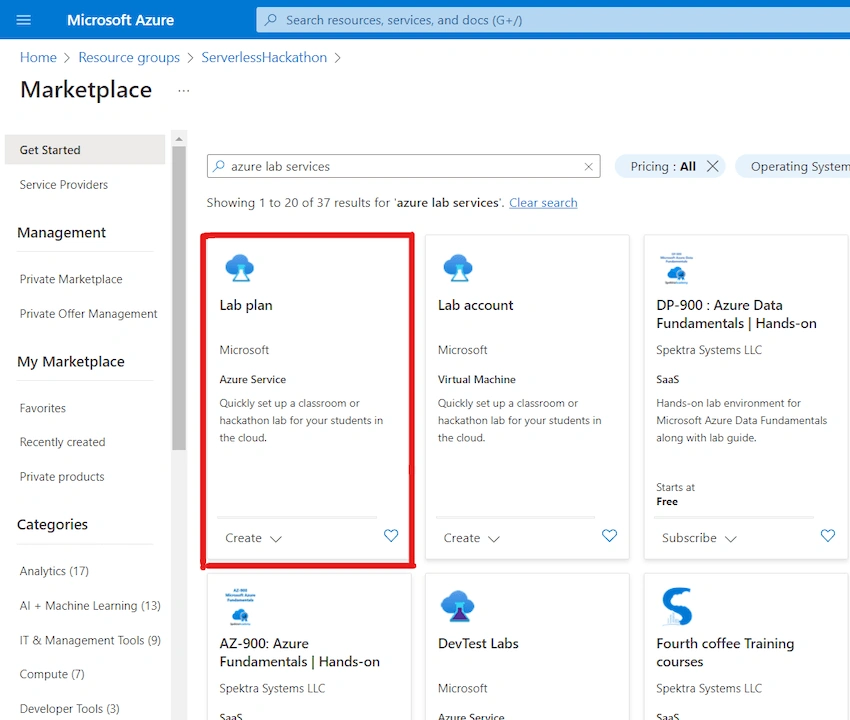
Figure 1
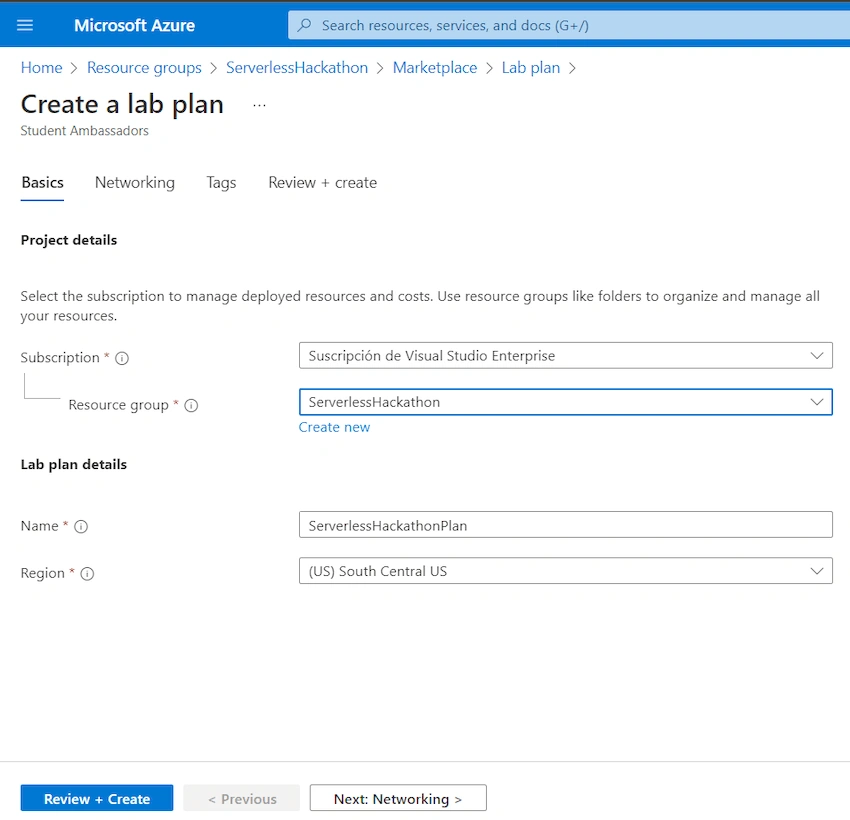
Figure 2
If you do not plan to connect your new virtual machines to other existing virtual machines from your network, skip advanced networking options. Later, you can add a tag if you want (it is always a good idea to do so). Finally, Click on Review + Create and wait for the deployment to be completed.
Click on Go to resource and you will see some options to configure your labs.
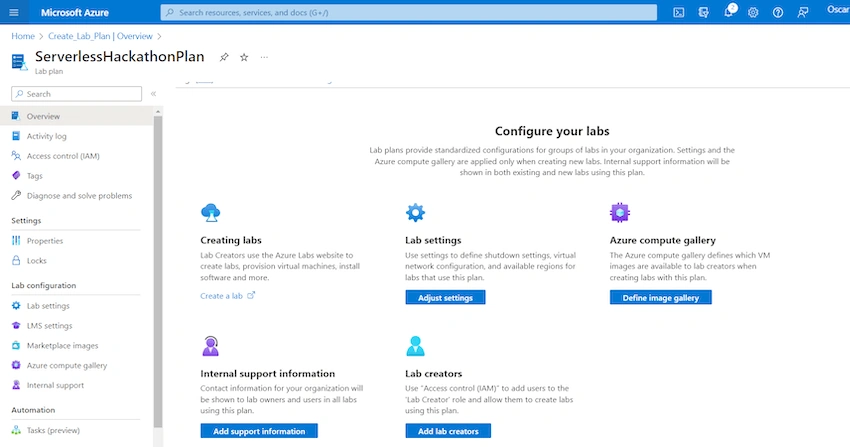
Figure 3
Step 2: Grant access
Click on Add lab creators (Figure 3) to assign Role-Based Access Control (RBAC) to the Educator.
In this article, the Educator is added to the Lab Creator role (Figure 4), if you need granular control check this out for a detailed description of the roles.
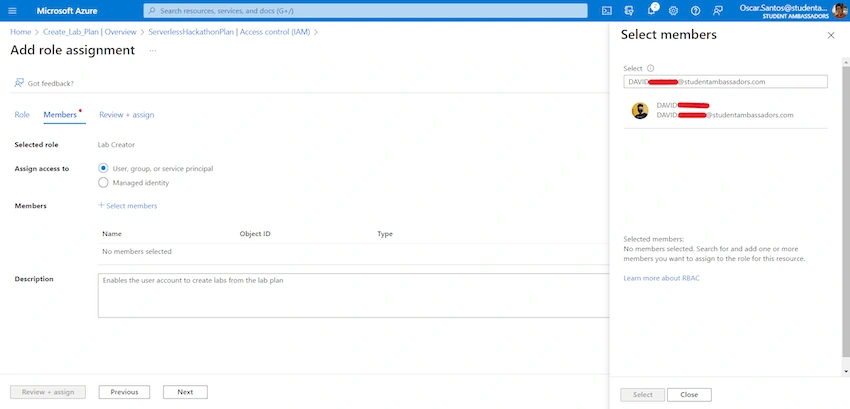
Figure 4
After you review and assign the role, this one will appear in the IAM panel (Figure 5)
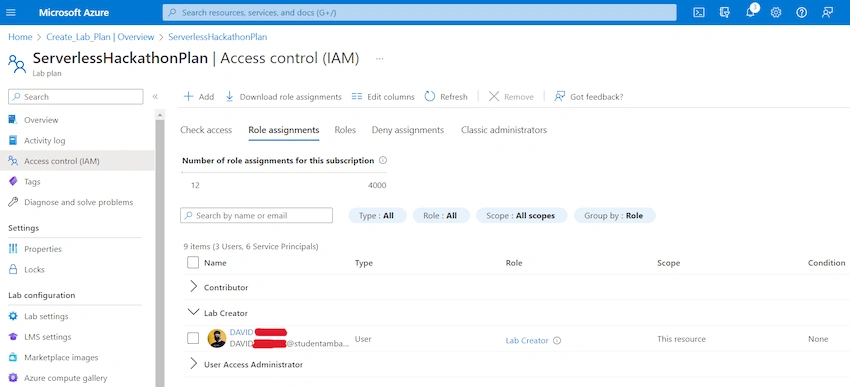
Figure 5
Then, you (the Owner) and the Educator can create labs. Go back to the overview section and click on Create a lab (Figure 3).
Step 3: Create a lab
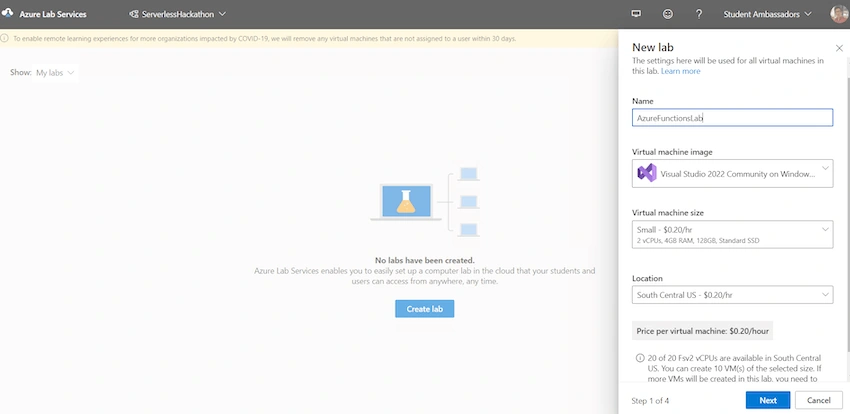
Figure 6
First, you will need a lab name (this is not the lab plan name) as you can have multiple labs in a single lab plan. Second, an image of the operating system (OS) (Linux or Windows), you will notice there is only a limited list in the dropdown menu, however, you can enable more from the marketplace images (Figure 7) and also use Azure Compute Gallery. Take a look at Figure 7, there is even an existing image with Visual Studio installed, that is already a part of the tasks we wanted to do. Third and fourth, choose size and location (depending on your selection costs may vary)
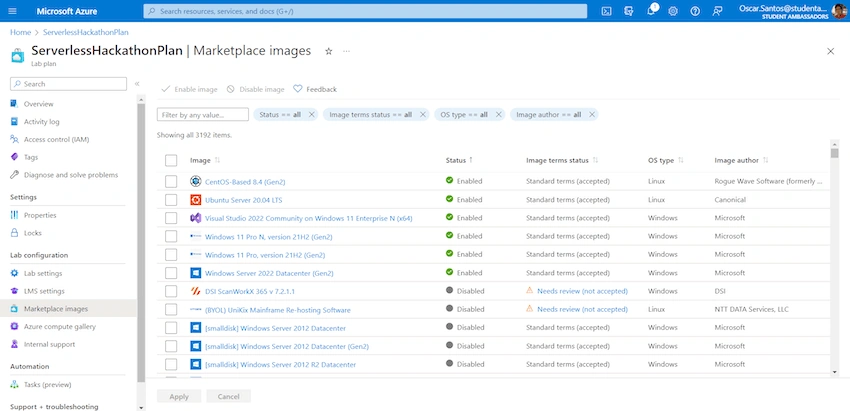
Figure 7
Click next and create a user for your template VM. You can create a non-admin account for the VMs, and you can opt to use that same password for all VMs or ask the user to create one immediately at his/her first login.
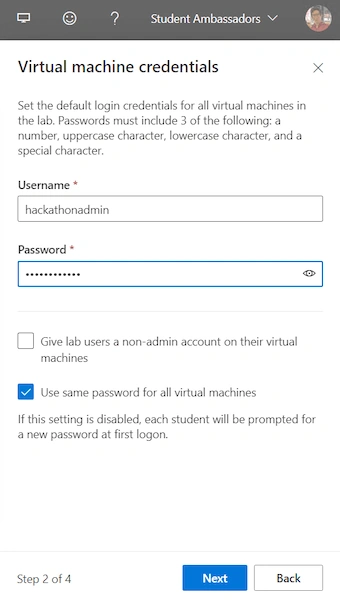
Figure 8
In step 3, you can set the number of hours that users can use their virtual machines outside of a scheduled event. This option could be useful for students who need some time to do the homework outside of class time. For a hackathon, this may not be necessary but let us give 2 hours so that the developers could save their solutions after the hackathon is finished. In the same step, you have some options to shut down the VMs automatically after user inactivity, after users have logged out or when a user did not log in.
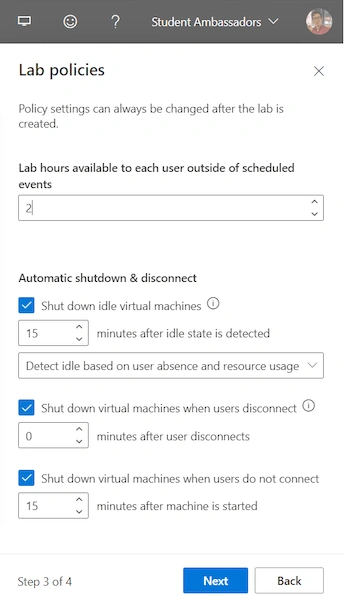
Figure 9
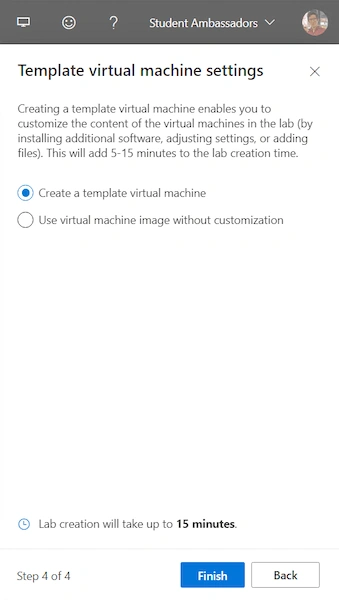
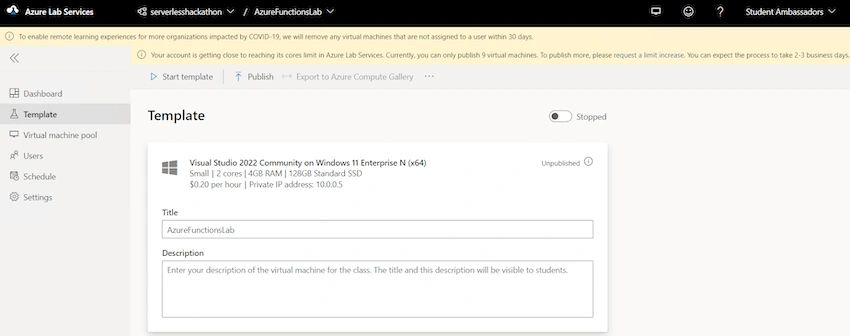
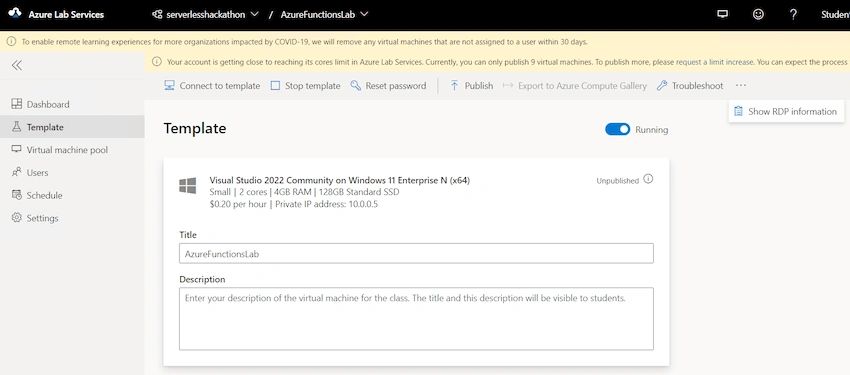
In the last step, Azure Lab Services asks if you need to customize something else, if that is the case, then it will provide you a template VM where you can install everything you need. If that was not the case and you are ready to go with the selected OS image the process will be shorter as you will not customize the template VM. For this article, let us suppose Visual Studio was not enough for the hackathon and the Educator needs to add additional software. Keep the first option selected (Figure 10)



Join the conversation! Your thoughts help the community grow.