I have already described in my earlier articles how to use Share Contract in Windows Store apps using C# and also given the details of all the data formats that you can share to others via email by using Share Contract.
Today I will describe the Share Contract with the WebView control. We can also share the content of a WebView control using Share Contract. WebView may contain either the HTML format data or it may contain the Navigate URL of a website.
Applications that use the WebView can share the contents of the WebView control via the Share contract. To share the content of a WebView control, select some part of the WebView content and share this using Share Contract.
The following are the steps to share the selected content of a WebView control using Share Contract in C#/XAML.
Step 1
Create a new Windows Store Application using C#.
Step 2
Here I design my MainPage.xaml with buttons to share content and an WebView control. I give some URL of that control to show the webpage.
- <Page
- x:Class="ShareContentwithWebViewControl.MainPage"
- xmlns="http://schemas.microsoft.com/winfx/2006/xaml/presentation"
- xmlns:x="http://schemas.microsoft.com/winfx/2006/xaml"
- xmlns:local="using:ShareContentwithWebViewControl"
- xmlns:d="http://schemas.microsoft.com/expression/blend/2008"
- xmlns:mc="http://schemas.openxmlformats.org/markup-compatibility/2006"
- mc:Ignorable="d">
- <Grid x:Name="LayoutRoot" Background="Red" HorizontalAlignment="Center" Margin="0,50,0,0" VerticalAlignment="Top">
- <Grid.RowDefinitions>
- <RowDefinition Height="800"/>
- <RowDefinition Height="*"/>
- </Grid.RowDefinitions>
- <StackPanel Orientation="Horizontal" Margin="0,10,0,0" Grid.Row="1">
- <Button x:Name="ShareContent" Content="Share Content" Margin="0,0,10,0" Click="Share_Click"/>
- </StackPanel>
- <Border BorderThickness="1" BorderBrush="#FF707070" Grid.Row="0" Margin="10,0,0,0">
- <Grid>
- <WebView x:Name="WebView7" Width="1000" Height="800"/>
- </Grid>
- </Border>
- </Grid>
- </Page>
In the .cs file you need to add the neccessary namespaces to your app so you can create and process the objects related to sharing.
- using Windows.ApplicationModel.DataTransfer;
Step 4
Now, we open the view for Share on button click using the GetForCurrentView() method of the DataTransferManager class.
- private void Share_Click(object sender, RoutedEventArgs e)
- {
- dataTransferManager = DataTransferManager.GetForCurrentView();
-
- DataTransferManager.ShowShareUI();
- }
Step 5
Create an Event handler of the DataRequested event in the click event. This event occurs when you share the content.
- dataTransferManager.DataRequested += dataTransferManager_DataRequested;
Step 6
Here is the coding of the DataRequested event that we defined previously.
First I get the DataPackage object from the webview control that contains the the selected contents; see:
- DataRequest request = args.Request;
-
- DataPackage p = WebView7.DataTransferPackage;
Check if any content is selected or not. If selected give it to the DataRequest object to share to other people via email; that is done with:
- if (p.GetView().Contains(StandardDataFormats.Text))
- {
- p.Properties.Title = "WebView Sharing Excerpt";
-
- p.Properties.Description = "This is a snippet from the content hosted in the WebView control";
-
- request.Data = p;
-
- }
- else
- {
- request.FailWithDisplayText("Nothing to share");
-
- }
Here is the full code
- using System;
- using System.Collections.Generic;
- using System.IO;
- using System.Linq;
- using Windows.ApplicationModel.DataTransfer;
- using Windows.Foundation;
- using Windows.Foundation.Collections;
- using Windows.UI.Xaml;
- using Windows.UI.Xaml.Controls;
- using Windows.UI.Xaml.Controls.Primitives;
- using Windows.UI.Xaml.Data;
- using Windows.UI.Xaml.Input;
- using Windows.UI.Xaml.Media;
- using Windows.UI.Xaml.Navigation;
- namespace ShareContentwithWebViewControl
- {
- public sealed partial class MainPage : Page
- {
- public MainPage()
- {
- this.InitializeComponent();
- }
- DataTransferManager dataTransferManager = null;
- protected override void OnNavigatedTo(NavigationEventArgs e)
- {
- WebView7.Navigate(new Uri("http://www.c-sharpcorner.com"));
- }
- private void Share_Click(object sender, RoutedEventArgs e)
- {
- dataTransferManager = DataTransferManager.GetForCurrentView();
- dataTransferManager.DataRequested += dataTransferManager_DataRequested;
- DataTransferManager.ShowShareUI();
- }
- void dataTransferManager_DataRequested(DataTransferManager sender, DataRequestedEventArgs args)
- {
- DataRequest request = args.Request;
- DataPackage p = WebView7.DataTransferPackage;
- if (p.GetView().Contains(StandardDataFormats.Text))
- {
- p.Properties.Title = "WebView Sharing Excerpt";
- p.Properties.Description = "This is a snippet from the content hosted in the WebView control";
- request.Data = p;
- }
- else
- {
- request.FailWithDisplayText("Nothing to share");
- }
- }
- }
- }
Step 7
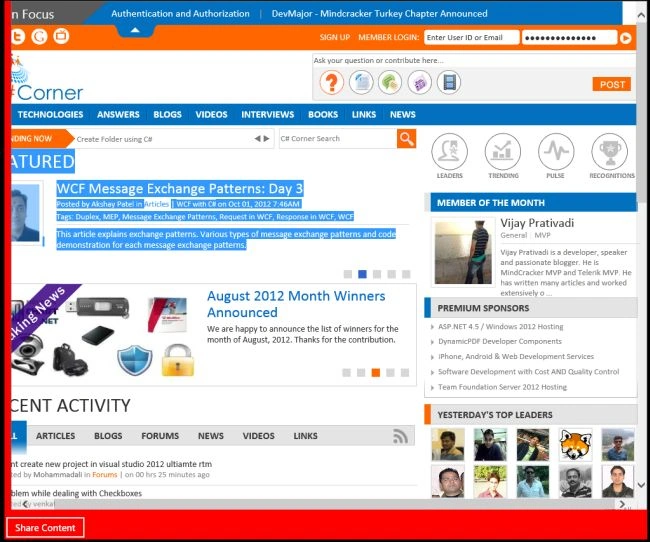
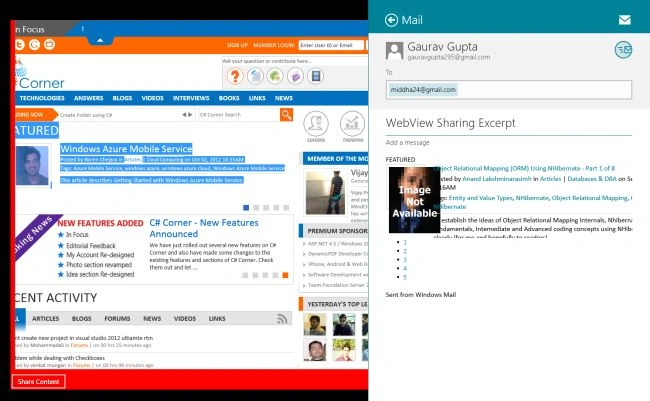
Now my app is ready to share contents of the WebView control through Share Contract. Run the app, select the content from the WebView control and press the button.
Give the Email Id and send it.


Shelly GogiaPosted Oct 11, 2012, 11:13 PM
Using this we can easily send the link of the article to my friends. Nice article.....
Nishant RoyPosted Oct 11, 2012, 11:11 PM
Good article to understands Share Content of WebView Control.