

Introduction
Blazor is a new framework built by Microsoft for creating interactive client-side web UI with a .NET codebase. We can write both client-side and server-side code in C#.NET itself. I have already written five articles about the Blazor server on C# Corner. Please refer to the below articles for more basics about the Blazor framework.
- Create A Simple Blazor Server Application With .NET Core 3.0
- Create a Single Page App with Blazor Server and Entity Framework Core 3.0
- Combine SQL-DB and MongoDB in the Same Blazor App
- Create A Blazor Server SPA with Dapper
- Combine ADO.NET, EF Core and Dapper in Same Blazor App
Components are implemented in Razor component files (. razor) using a combination of C# and HTML markup. A component in Blazor is formally referred to as a Razor component.
We can create a child component and reuse it in another component. We will share data between these components very easily. We will create a custom textbox as a child component. This custom textbox will show the current character count in the textbox and will restrict the total number of characters if needed. I will explain all the actions step by step.
Create Blazor application in Visual Studio 2019
Choose the Blazor template from Visual Studio 2019 and create a Blazor application.

We can create a new razor component inside the “Pages” folder.
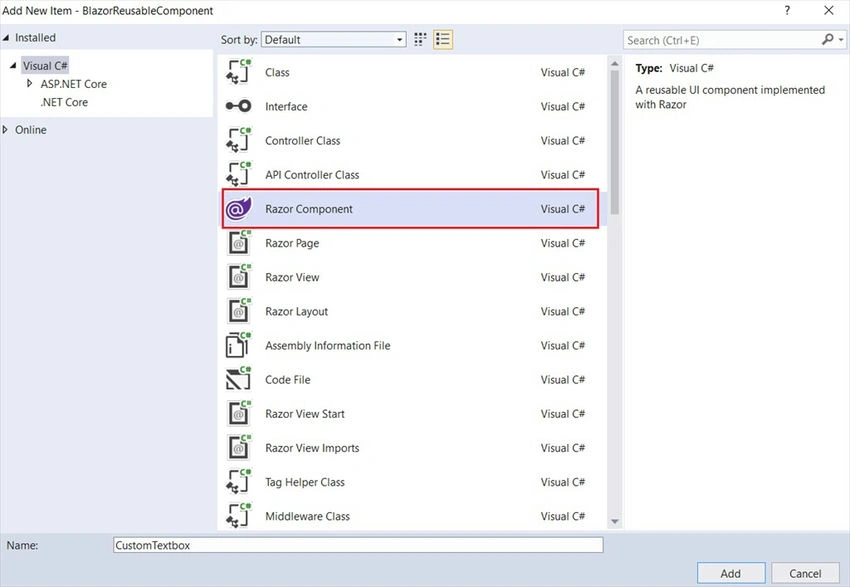
We can define the HTML markup in the component.
<div class="float-right">
    <i>Total Characters : @TextLength/@LengthString</i>
</div>
<div class="form-group row mb-2">
    <label class="col-md-3 col-form-label" for="Name">@FieldName</label>
    <div class="col-md-7">
        <input class="form-control" type="text" placeholder="@FieldName" value="@Value" @oninput="OnValueChanged" maxlength="@MaxLength" />
    </div>
</div>
We can add the C# code also inside the @code block.
@code {
    [Parameter]
    public string Value { get; set; }
    [Parameter]
    public string FieldName { get; set; }
    [Parameter]
    public int MaxLength { get; set; } = -1;
    [Parameter]
    public EventCallback<string> ValueChanged { get; set; }
    string LengthString;
    int TextLength;
    protected override void OnInitialized()
    {
        TextLength = Value.Length;
        LengthString = (MaxLength == -1) ? "Unlimited" : MaxLength.ToString();
    }
    private Task OnValueChanged(ChangeEventArgs e)
    {
        Value = e.Value.ToString();
        TextLength = Value.Length;
        return ValueChanged.InvokeAsync(Value);
    }
}
We have defined three parameter properties “Value”, “FieldName” and “MaxLength”.
FieldName is used for displaying the field name and placeholder value in the custom textbox. MaxLength is used to restrict maximum characters in the custom textbox if needed. FieldName and MaxLength properties in Blazor act as @Input decorators in Angular. These properties are used to share data from the parent component to the child component. Value property acts as @Output decorator in Angular. This will be used for sharing data back from the child component to the parent component. In Angular, we use EventEmitter along with Output decorators to share data from child to parent component. In Blazor, we use the “EventCallback” parameter to emit value from the child component to the parent component. Please note, the “Changed” suffix is added to the value property parameter. This is the default convention used in Blazor.


Andreas DeutschPosted Jun 10, 2020, 10:40 AM
And how instead to fill a variable address with @bind-Value="address" to call a methode with the value as argument to open in eg. a modal?
Thae HtetSanPosted Feb 3, 2020, 11:06 PM
Very Thank you
Sourav Kumar DasPosted Nov 30, 2019, 3:11 AM
Nice detailed explanation on Blazor Sir.
Chandradev PrasadPosted Nov 29, 2019, 11:07 PM
Good post. Your post is saving lots of our time to learn this technology.
Dipa MehtaPosted Nov 28, 2019, 3:30 AM
Deep explanation of child-parent in Blazor.
Chittaranjan SwainPosted Nov 27, 2019, 8:57 PM
Nice work.