

Today we are going to learn how to embed a sharing feature in Windows Store Apps using C#. In my previous article I already gave a basic introduction to the sharing feature in applications. In this article we learn another data format that we can share when emailing to colleagues or friends. For essentially when the user wants to share files by email.
Using the sharing feature in Windows Store Apps, the user can easily support shariing tasks such as sharing files with other people. When supporting something like sharing files, you need to consider when your app can have the files ready. The user can share files using the Share charm.
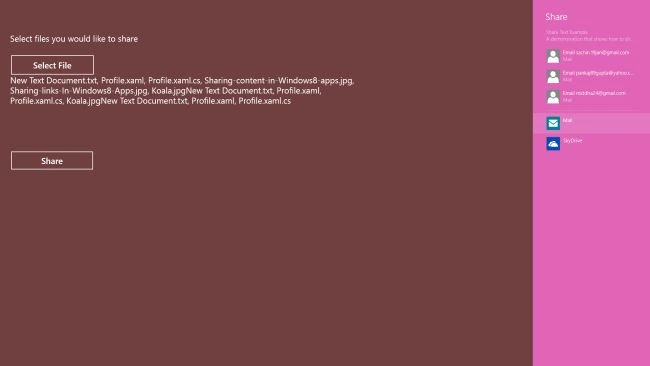
In this article we are going to set the sharing feature that enables the user to select a file using OpenFilePicker and share it with others.
Step 1
First we need to add some namespaces into our .cs file; they are
using Windows.ApplicationModel;
using Windows.Storage;
using Windows.Storage.Pickers;
using Windows.ApplicationModel.DataTransfer;
Step 2
Then, get the DataTransferManager object and add a DataRequested event handler of this class. This event occurs when the user opens the share charm for sharing.
DataTransferManager dataTransferManager = DataTransferManager.GetForCurrentView();
dataTransferManager.DataRequested += new TypedEventHandler<DataTransferManager,
DataRequestedEventArgs>(this.ShareTextHandler);
Step 3
Here is the functionality of the DataRequested event handler:
DataRequest request = e.Request;
request.Data.Properties.Title = "Share Text Example";
request.Data.Properties.Description = "A demonstration that shows how to share text.";
In the preceding code the DataRequest object is getting the contents the user wants to share such as title, description and data to be sent.
Step 4
Add the FileOpenPicker control to pick the file from the system to be shared:
FileOpenPicker filePicker = new FileOpenPicker
{
ViewMode = PickerViewMode.List,
SuggestedStartLocation = PickerLocationId.DocumentsLibrary,
FileTypeFilter = { "*" }
};
IReadOnlyList<StorageFile> pickedFiles = await filePicker.PickMultipleFilesAsync();
if (pickedFiles.Count > 0)
{
this.storageItems = pickedFiles;
string selectedFiles = String.Empty;
Output.Text = selectedFiles;
for (int index = 0; index < pickedFiles.Count; index++)
{
Output.Text += pickedFiles[index].Name.ToString();
if (index != (pickedFiles.Count - 1))
{
Output.Text += ", ";
}
}
}
Step 5
Add the files to the DataPackage, use the SetStorageItems method, as in:
request.Data.SetStorageItems(storageItems);
Step 6
Now, everything has been done. It's time to open the share charm to the share content. Here I use the ShowShareUI() method to open the share charm programmatically.
private void ShowUIButton_Click(object sender, RoutedEventArgs e)
{
DataTransferManager.ShowShareUI();
}
Here is the Complete Code:
using System;
using System.Linq;
using Windows.Foundation;
using Windows.Foundation.Collections;
using Windows.ApplicationModel;
using Windows.Storage;
using Windows.Storage.Pickers;
using Windows.ApplicationModel.DataTransfer;
using Windows.UI.Xaml;
using Windows.UI.Xaml.Controls;
using Windows.UI.Xaml.Controls.Primitives;
using Windows.UI.Xaml.Data;
using Windows.UI.Xaml.Input;
namespace SharingContent
{
public sealed partial class SharingFile : Page


Gowtham RajamanickamPosted Apr 19, 2016, 6:50 AM
good article..