Overview
Visual Studio is the product of Microsoft that is the most productive IDE in the industry and recently
Visual Studio 2015 Preview has been released that is the latest IDE. It was announced by Microsoft on November 12, 2014, on the day of the Visual Studio
Connect() event from New York, USA. If we want to watch this announcement, we can watch on the following link to Microsoft.
On the day of the announcement, very many new features as well as improvements in existing features were introduced by Microsoft's professionals/speakers but in this article, we will learn about only one feature,
Shared Project that is one of the most impressive features of Visual Studio 2015 Preview.
Shared Project
Visual Studio 2015 Preview provides a shared project so we can use this project in any other project, either console, Windows, or web applications by simply using add a project reference. This feature was not available with any previous version of Visual Studio. Let's see how to use it.
Note: Before the release of Visual Studio 2015 we often had to create a shared project and we would create it but the way of creating and using was quite different. But now we can create a shared project very easily. The following is the procedure to find and use shared projects of Visual Studio 2015 Preview.
Step: I
Open a new project dialog and search
share in the
search box available on the top-right of the new project dialog box. Now we can see the following dialog as in
Figure 1. In Visual Studio 2015 Preview select "File" -> "New" -> "Project..." then we see the following dialog. Now type
shared into the search box of this dialog.
Step: II
Now select the
Share Project Visual C# and provide the name
MySharedProject for the project and click on the
OK button. Our shared project has now been created. We now need to add some classes to do some logic that will be used by the other projects in which we want to use it.
Step: III
For example, we will add a class with the name
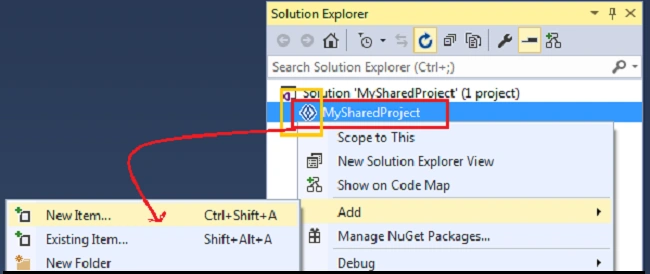
Employee.cs using the following procedure. Right-click on the project in Solution Explorer then select Add -> New Item -> and select a class file and name it
Employee.cs.
Step: IV
Now we can write the code in the
Employee.cs file depending on our requirements but for the time we will write the following lines of code.
Employee.cs
- public class Employee
- {
-
- public int EmployeeID { get; set; }
- public string FirstName { get; set; }
- public string LastName { get; set; }
- public string Phone { get; set; }
- public string Address { get; set; }
-
-
- public string GetEmployeeDetail()
- {
- EmployeeID = 247;
- FirstName = "Ved";
- LastName = "Prakasj";
- Phone = "9548587460";
- Address = "Janakpuri New Delhi, India";
-
- return string.Concat("Name : ", FirstName, " ", LastName,
- "\nEmp ID : ", EmployeeID, "\nAddress : ",
- Address, "\nPhone : ", Phone);
-
- }
-
- }
Build the project. It will then be ready for use with any other application. Let's create a new
Console,
Windows Form, and
Web applications in which we will use this shared project. First, do it with a Windows Forms application.
With Windows Form Application [Second Project]
Now we will create a new project as a Windows Forms application in which we will use this shared project. So let's use the following procedure to do it.
Step 1
To create a new Windows Forms Application using the following procedure.
Right-click on the Project Salutation then select Add -> New Project then and select Windows Forms Application and name it
WindowsFormApplication.
Step 2
Now add a reference of the MySharedProject into this Windows Forms application, to do it use the following procedure.
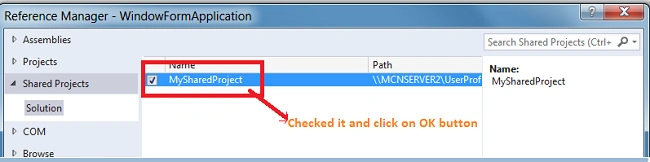
Right-click on the WindowsFormApplication's project and select Add Reference. You will then see the following dialog:
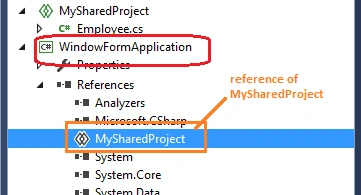
Now we have added the reference of the MySharedProject into this Windows Forms application. We can see this reference inside the references folder of the current project, it looks like the following:
Step 3
Now open the code file of Form1 and use the following namespace:
Step 4
Now add a button and a label onto Form1 and write the following line of code behind the button1_Click event.
- private void button1_Click(object sender, EventArgs e)
- {
- Employee employee = new Employee();
- string result=employee.GetEmployeeDetail();
- lblDetails.Text = result;
- }
Step 5
Now set this project (WindowsFormApplication) as the Startup Project and execute the application. To mark this project as the startup project right-click on the project
WindowsFormApplication and select Set as StartUp Project.
Step 6
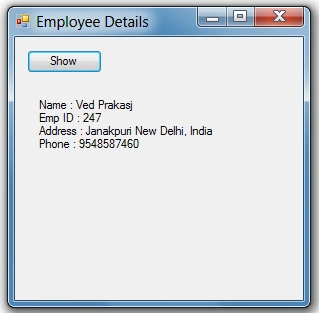
Now to see the output click on the button of the running window.
Output
Note:
We will do the same procedure for a Console Application as well as a Web Application. We followed the same procedure for ConsoleApplication and got the following output that is the same as the preceding because we are using the same shared project.
Summary
In this article, we learned how to create a Shared Project in Visual Studio 2015 Preview and we also saw how to use this project in another application. Thanks!


 On the day of the announcement, very many new features as well as improvements in existing features were introduced by Microsoft's professionals/speakers but in this article, we will learn about only one feature, Shared Project that is one of the most impressive features of Visual Studio 2015 Preview.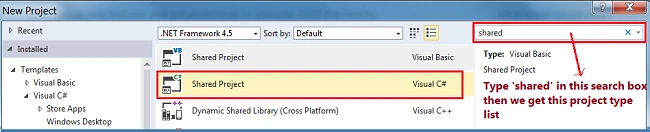

Karen MattoxPosted May 3, 2022, 5:40 PM
I have a Shared Project that I am attempting to reference from multiple projects in the same solution. I get CS0436 errors for all of the types used in multiple projects. Is there a way around this other than a #Pragma to disable the warning/error?
Rod FalangaPosted Mar 27, 2019, 3:50 PM
I've only recently learned about Shared Projects, even though they've been around for a few years. I'm trying to do this now in a situation we have at work. However, I don't want to do it like Praveen did. He created 1 solution, added a Shared Project to the solution, then added the console, Windows Forms and Web projects, all to the same solution. That's not how we're likely to do it. We'll have 1 solution with a Shared Project. Then later, perhaps a year or more later, we'll create another solution and want to add that Shared Project to the new solution. How do we do that?
Nitin PanditPosted Jan 26, 2015, 8:20 AM
sorry to say but i think we can do the same task by Class Library so what's new or diff from that in Shared project plz tell me bro :)
Praveen KumarPosted Dec 19, 2014, 5:01 AM
Thanks!
Vithal WadjePosted Dec 19, 2014, 4:37 AM
good
Michal HabalcikPosted Dec 19, 2014, 2:35 AM
neat feature, looking forward to it ...