

In this article I would like to discuss the Client Object Model feature of SharePoint 2010.
Overview
Client Object Model is a new feature of SharePoint 2010. It provides programming in a SharePoint site using .Net Managed Code or JavaScript.
The Client Object Model provides almost all the programming features of the Server Object Model plus advantages on deployment. The Client OM (Client Object Model) is being used as the core programming aid for SharePoint 2010 and thus widely used in the market.
Advantages
- Less Deployment Hassles: Using the Client OM, you do not need to install the components required by Server Object Model. Thus the Client OM provides significant conveniences for the end user.
- Language Flexibility: We can use the following languages to work with the Client OM:
a. Microsoft .Net
b. Silverlight
c. ECMA Script (JavaScript / Jscript)
- Query Speed Optimizations: In the Client OM, reduced network traffic is attained using Query Optimizations. Thus the user will feel reduced round trips and other advantages like paged results etc.
How it works?
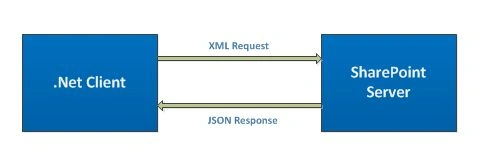
The Client OM works by sending an XML Request. The server will be returning a JSON response which is converted to the appropriate Object Model.
Supported Languages
The following are the programming languages/platforms supported for the Client Object Model:
- .Net Languages (C#, VB.Net etc.)
- Silverlight
- Scripting Languages (JavaScript, Jscript)
Core Assemblies
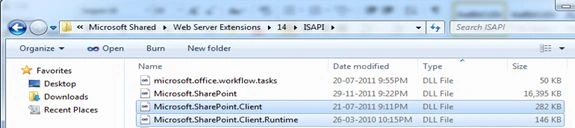
There are 2 assemblies to be referrenxws for working with the Client Object Model:
- Microsoft.SharePoint.Client.dll
- Microsoft.SharePoint.Client.Runtime.dll
These assemblies can be found in the 14 Hive folder:
%ProgramFiles%\Common Files\Microsoft Shared\web server extensions\14\ISAPI
Classes inside Client Object Model
In C#, when comparing with the classes of Server Object Model we can see that Client Object Model has similar classes with a suffix in the namespace and no SP prefix in the class name.
For example: An SPSite in the Server Object Model is represented in the Client OM as Site in the namespace Microsoft.SharePoint.Client.
|
Client Object Model |
Server Object Model |
|
Microsoft.SharePoint.Client.ClientContext |
SPContext |
|
Microsoft.SharePoint.Client.Site |
SPSite |
|
Microsoft.SharePoint.Client.Web |
SPWeb |
|
Microsoft.SharePoint.Client.List |
SPList |
Example
The following is an example of retrieving a list from a server using the Client OM:
ClientContext context = new ClientContext("http://hp");
List list = context.Web.Lists.GetByTitle("Tasks");
context.Load(list);
context.ExecuteQuery();
Console.WriteLine(list.Title);
Console.ReadKey(false);
I should say something about the above code:
-
Even though there are multiple calls, they are sent to the server until ExecuteQuery() is called
-
Network round trips between client and server are reduced by combining multiple calls into one
-
Object Identity is used to set up the queries. Object Identities are those which refer to the Server Object Model. Object Identities are valid only for the current client context
More Examples with Client Object Model
Here I would like to list some of the examples using the Client Object Model. For starting with the examples, please do the following:
-
Create a Windows Application
-
Change the Target Framework to .Net 4.0
-
Add reference to Microsoft.SharePoint.Client, Microsoft.SharePoint.Client.Runtime
Before continuing with the examples please ensure the site has valid data items in the Tasks list. We will be changing the data items during our session.
1. Get List Items
Here we are querying the list items of the Tasks list.
ClientContext context = new ClientContext(ServerText.Text);
List list = context.Web.Lists.GetByTitle("Tasks");
CamlQuery query = new CamlQuery();
query.ViewXml = "<View/>";
ListItemCollection items = list.GetItems(query);
context.Load(list);
context.Load(items);
context.ExecuteQuery();
After executing the code, the result can be stored into a DataTable as shown below:
DataTable table = new DataTable();
table.Columns.Add("Id");
table.Columns.Add("Title");
foreach (ListItem item in items)
table.Rows.Add(item.Id, item["Title"]);
datagrid.DataSource = table;
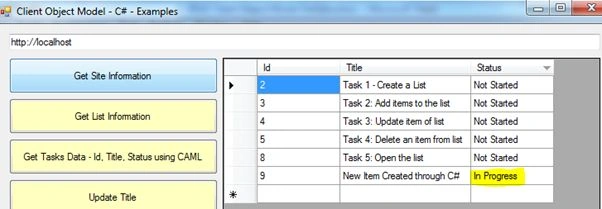
On my machine the data retrieved is shown below: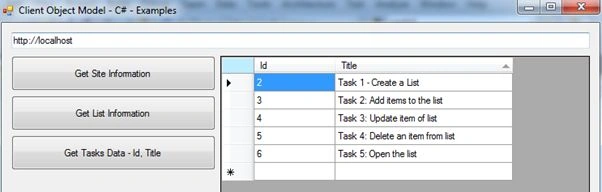
2. Update List Items
Here I would like to show the modification code. All the Titles are appended with two asterisks whose Id are an even number.
ClientContext context = new ClientContext(ServerText.Text);
List list = context.Web.Lists.GetByTitle("Tasks");
CamlQuery query = new CamlQuery();
query.ViewXml = "<View/>";
ListItemCollection items = list.GetItems(query);
context.Load(items);
context.ExecuteQuery();
foreach(ListItem item in items)
if ((item.Id % 2) == 0)
{
item["Title"] += "**";
item.Update();
}
context.ExecuteQuery();
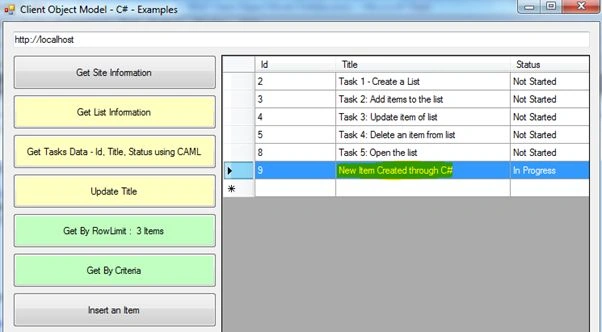
After executing the query, please refresh the data grid using the Get Data button. You will see the following result: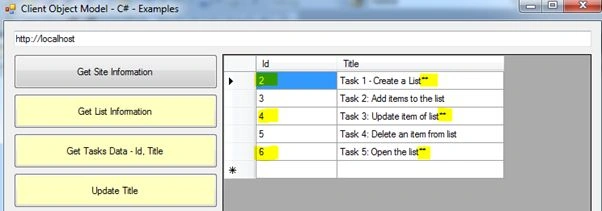
You will see that the Titles are modified for those Ids with an even number.
3. Get By Row Limit
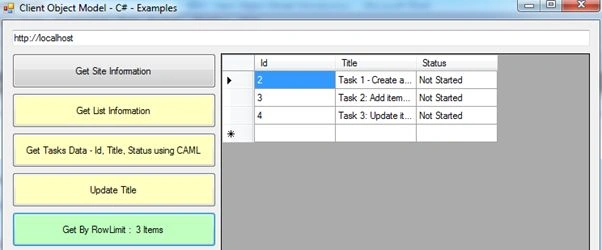
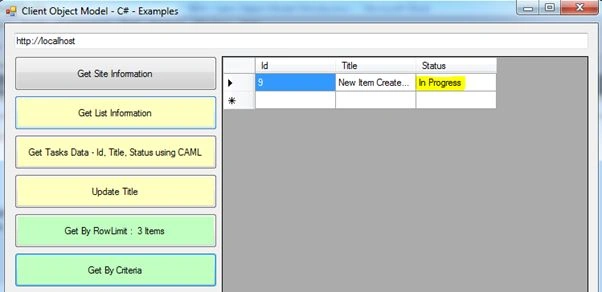
Here we can experiment with the Row Limit tag inside CAML queries. You can note that while accessing the list we are actually using a CAMLQuery class instance. Inside the query it is possible to set the RowLimit tag as well.
The RowLimit tag restricts the number of items retrieved from the server. Thus we can save a lot of bandwidth by reducing the volume of rows returned from the search.
ClientContext context = new ClientContext(ServerText.Text);
Web web = context.Web;
List list = web.Lists.GetByTitle("Tasks");
CamlQuery query = new CamlQuery();
query.ViewXml = "<View><RowLimit>3</RowLimit></View>";
ListItemCollection listItems = list.GetItems(query);
context.Load(listItems);
context.ExecuteQuery();
Jean PaulPosted Aug 5, 2012, 1:38 AM
Sure Venkatesh.. Have one: http://www.codeproject.com/Articles/60348/SharePoint-2010-Client-Object-Model-for-JavaScript
Venkatesh KumarPosted Aug 5, 2012, 1:32 AM
Hi in your subject you mentioned client object model will support JavaScript also. can u share some examples...
Jean PaulPosted Jun 16, 2012, 1:08 PM
Hei Lajapathy... You are Welcome my dear friend. i will continue to post real world scenarios!
Lajapathy ArunPosted Jun 16, 2012, 9:05 AM
Thanks jean, you articles good for learning, so trying to use your knowledge.
Jean PaulPosted Jun 15, 2012, 3:19 PM
Hi Arun, SharePoint 2010 is supported on Windows 7 64bit as well. http://jeanpaulva.com/2012/02/22/sharepoint-2010-installation/
Lajapathy ArunPosted Jun 15, 2012, 3:16 PM
We can use the sharepoint in home? What configuration required to install it?