

1. Create Document Library
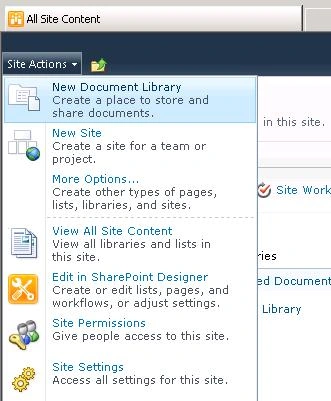
Click Site Actions > New Document Library
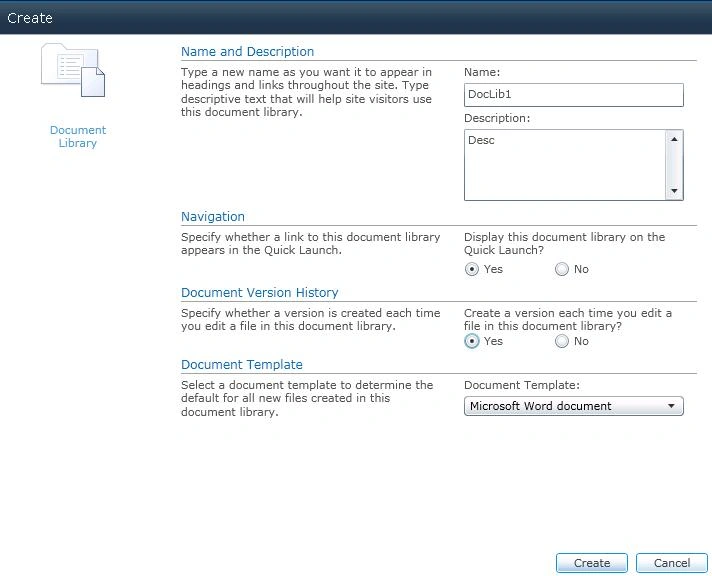
The Popup will ask for Name, Description, Versioning and Template settings. Fill
the fields as desired.
OR
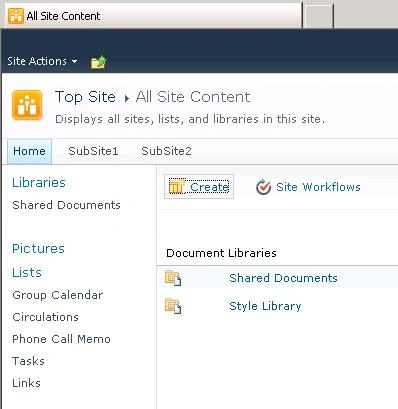
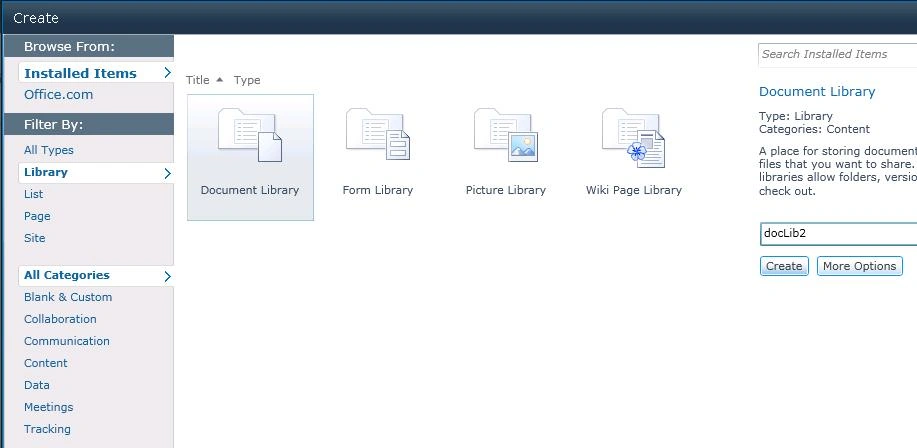
Click Libraries > Create
2. Change Address/URL
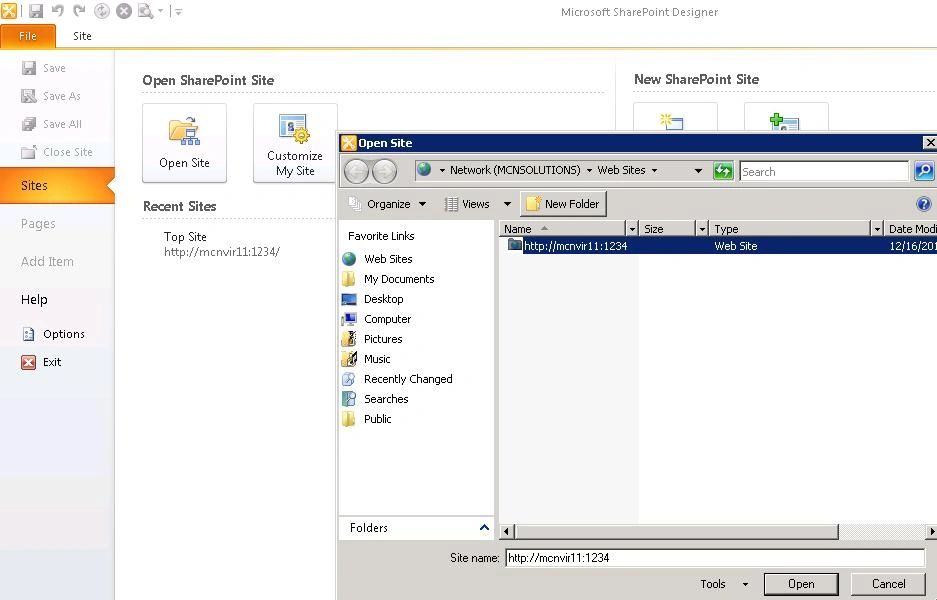
Open the site in SharePoint Designer
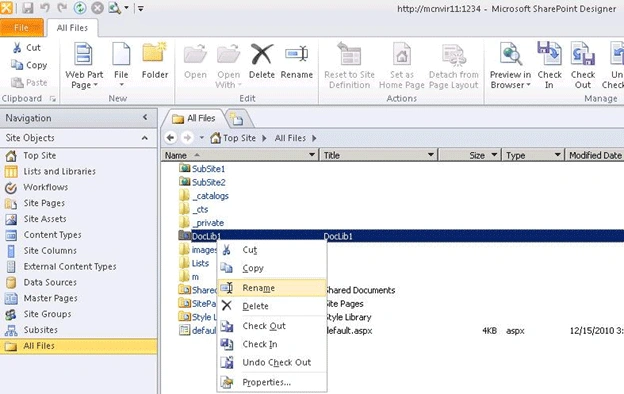
Select the All Files Tab from Site Objects
Right Click the library you want to rename and click Rename]
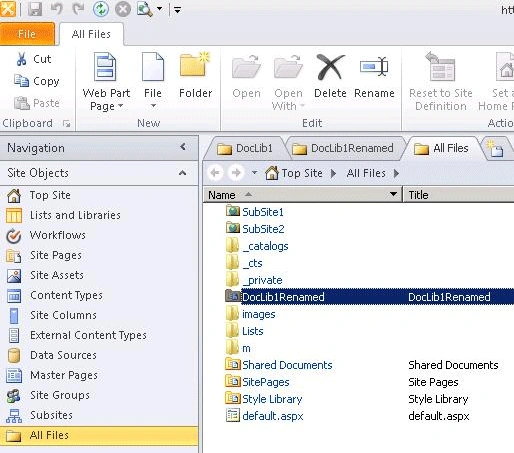
Type the desired name and hit enter. This will rename the Document Library Name
as well as Title.
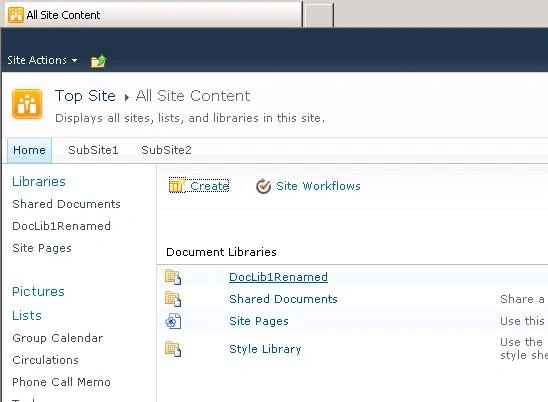
This will retain the metadata, document history and item counts.
NOTE: If your library is also in Quick Launch, then you may not see the
link updated-
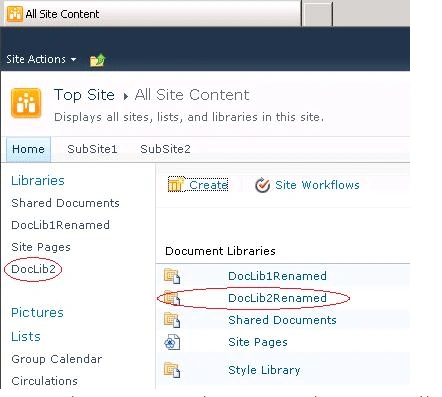
You may either go to Document Library Settings > Title Description and hit save
without changing anything. It will automatically update the link in quick launch
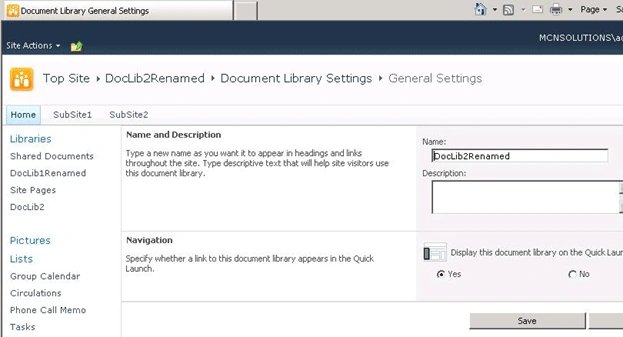
OR
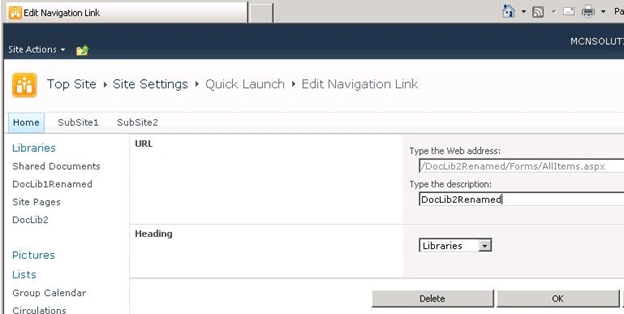
You may go to Site Settings > Quick Launch and edit the link to make the
Description same as URL.
Dave BernhardtPosted Dec 14, 2011, 12:49 PM
I don't see an All Files option under the Site Objects menu. Any ideas why not?