

Here I am showing five things
- Create a dummy table
- Configure Secure Store Service
- Configure BCS service
- Creating External Content type
- Creating External List
1. Before starting, you should have an SQL server Table. I am creating a database for that.
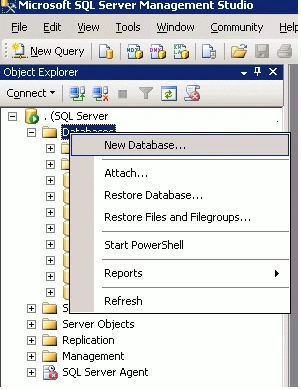
2. I give it the name Contact_List:
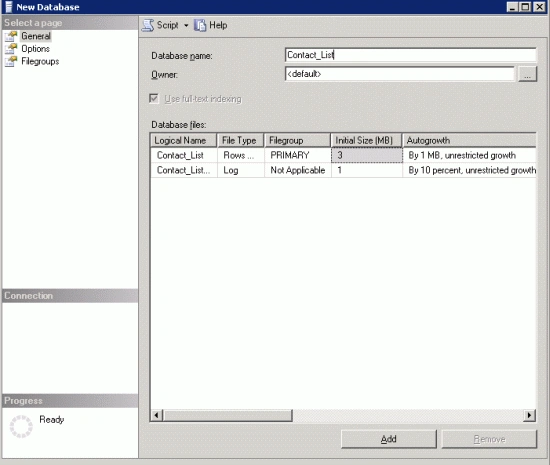
3. Click Ok and Save
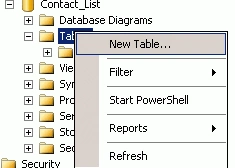
4. Now we have created the database. Now I have to create a table. Right-click the Table tab of the Contact_List and click on New Table.
5. I have created the following fields and saved the table with the name Contact_Table:

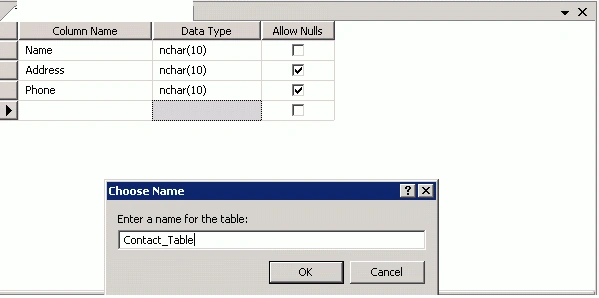
Table 1
6. Now go to your central Administration Screen. Click on application management and select Manage Services from Service Applications:
Configuring Secure Service Store

7. From the list of service applications select Secure Store Service:

8. You will get the following error when you open the service the first time. This is because you didn't create a key for the service.
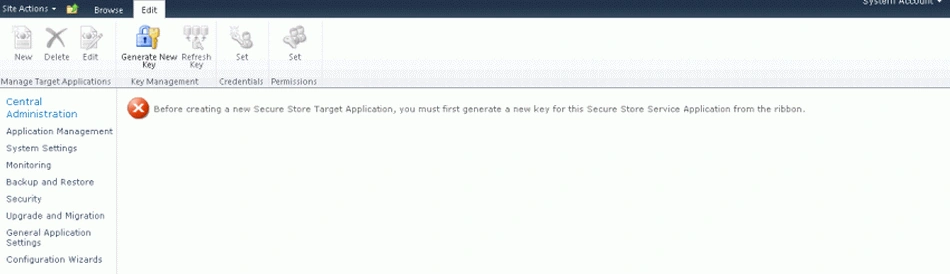
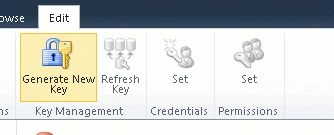
9. Click on Generate New Key tab from the top:
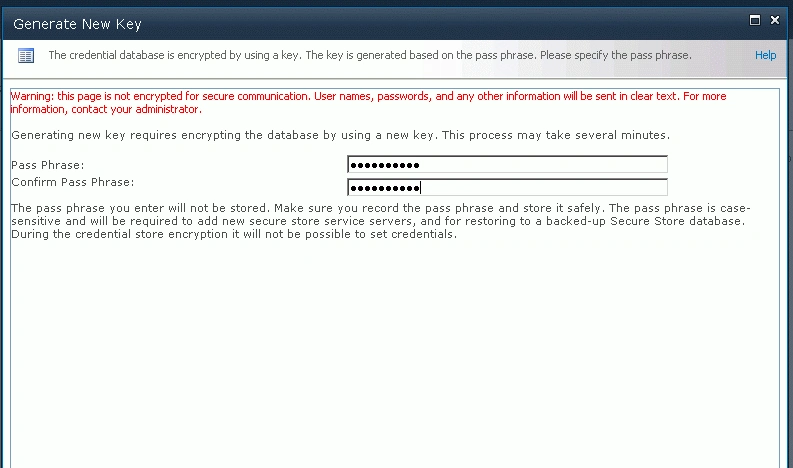
10. Give a Pass Phrase and confirm the Phrase:
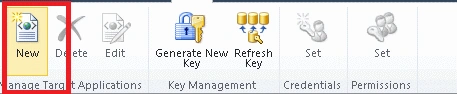
11. Click on new from the ribbon, after you are done with key generation:
12. You will get the following screen; give the following details:

Table 2
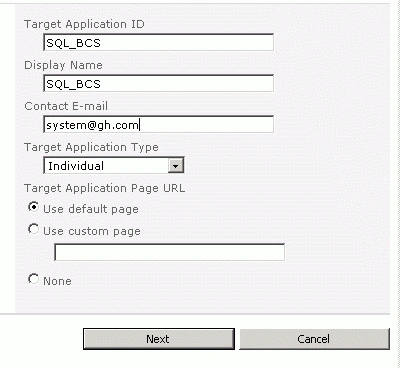
13. Click Next. You will get the following screen. Give the details as shown below.
14. Please note to select Username and password from the field type.
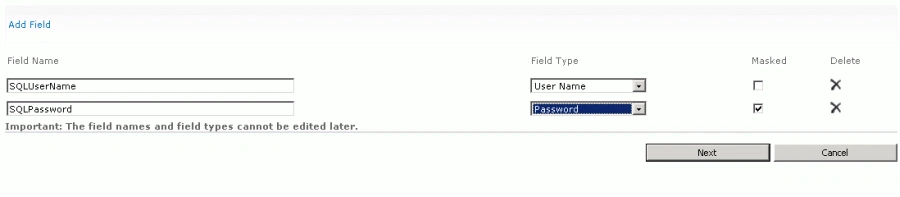
15. Once done with details, click Next.
16. Give service account name in the screen and give permission for the user to edit the details if needed later:
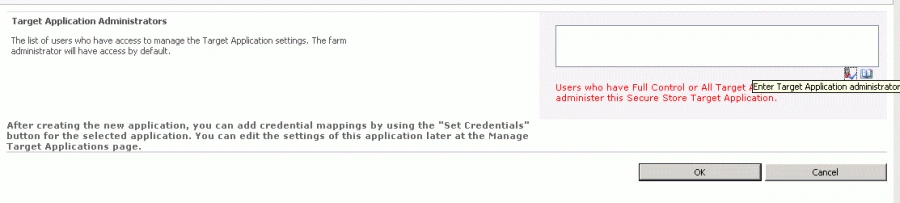
17. We are almost done with the Secure Service Store. Click on the menu SQL_BCS and select set Credentials from the menu:
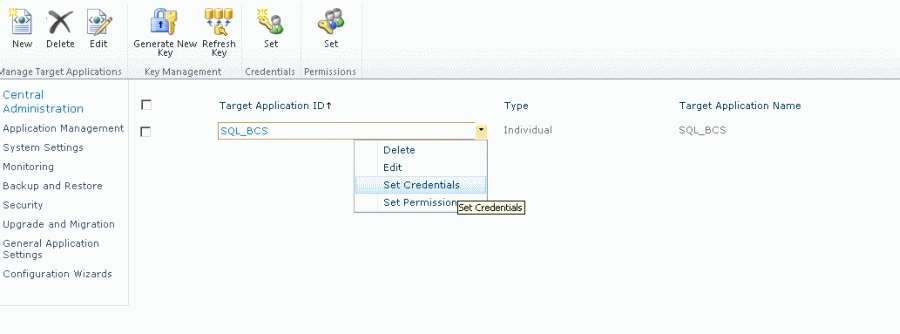
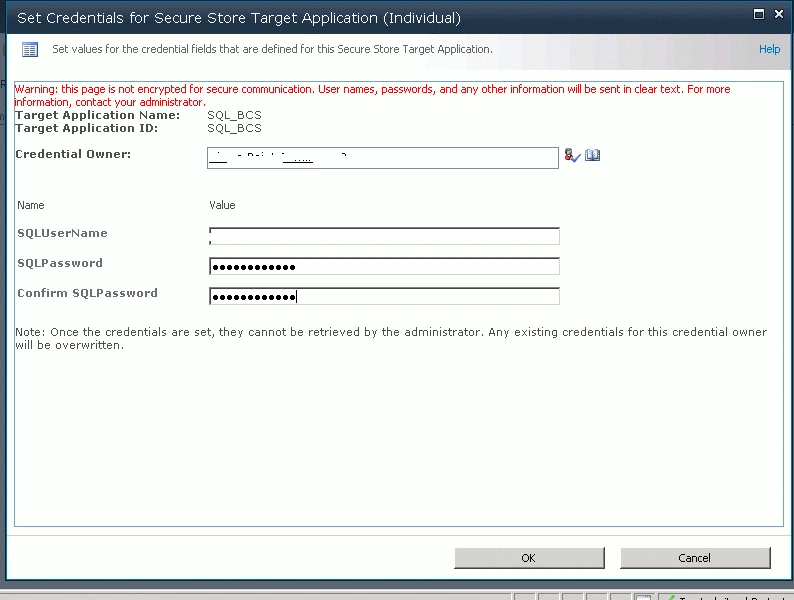
18. Give the credentials owner's .SQL user name and password to retrieve the data from SQL:
Creating External Content Type
19. Hopefully you already have a web application.
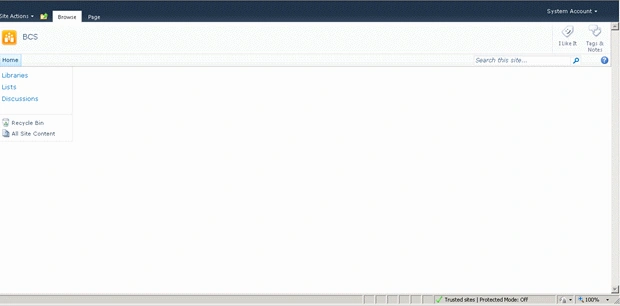
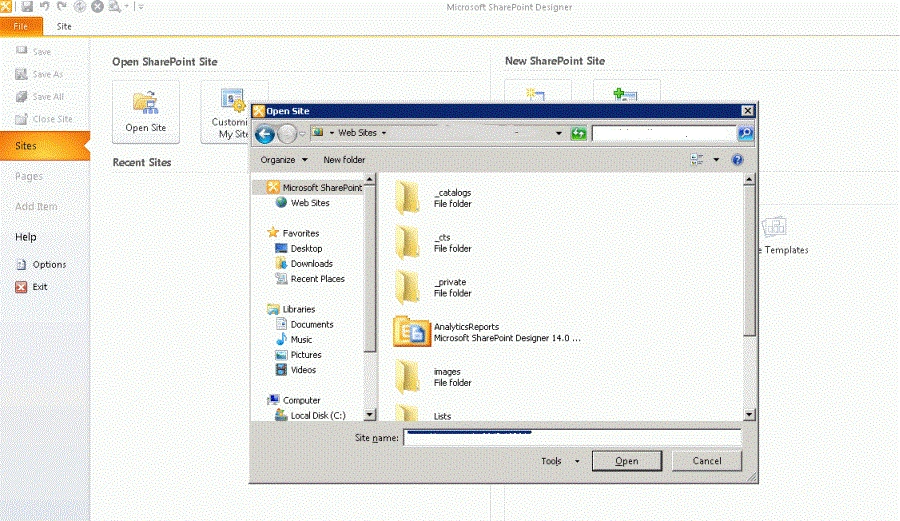
20. Open your web application in SharePoint designer:
21. Once opened in SharePoint Designer, click on External Content Types:
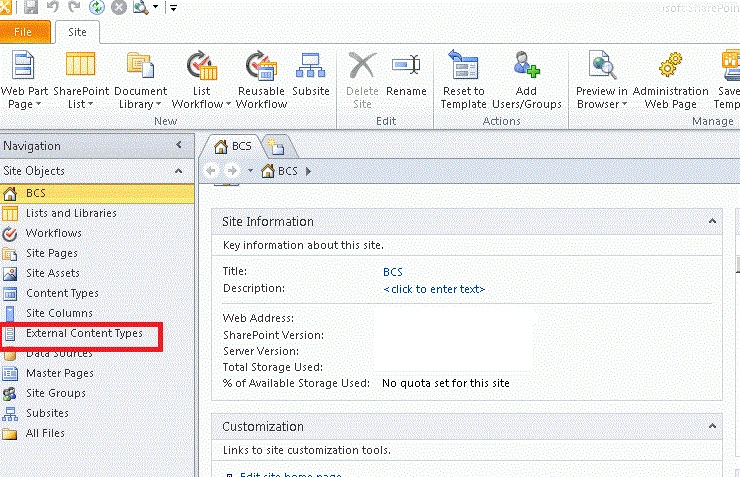
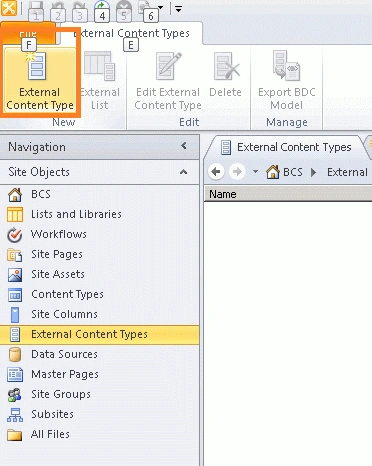
22. Select External Content type from the ribbon as shown below:
23. Give proper name and display name; I have given BCS_Contacts
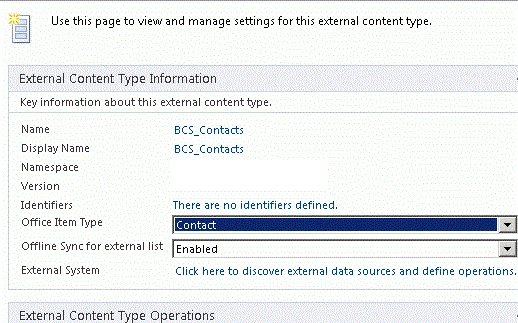
24. Select Office item type if you want to integrate the same data with Outlook
25. Click on the "Click here to discover external data source and define operations" link from External System
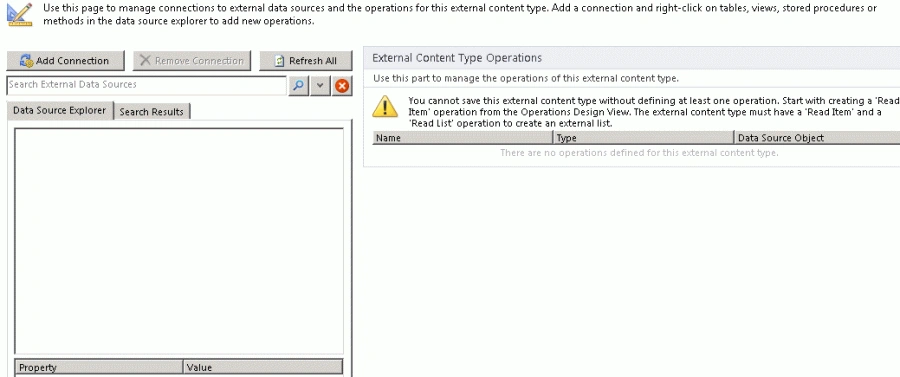
26. You will get the following screen; click on Add connections:
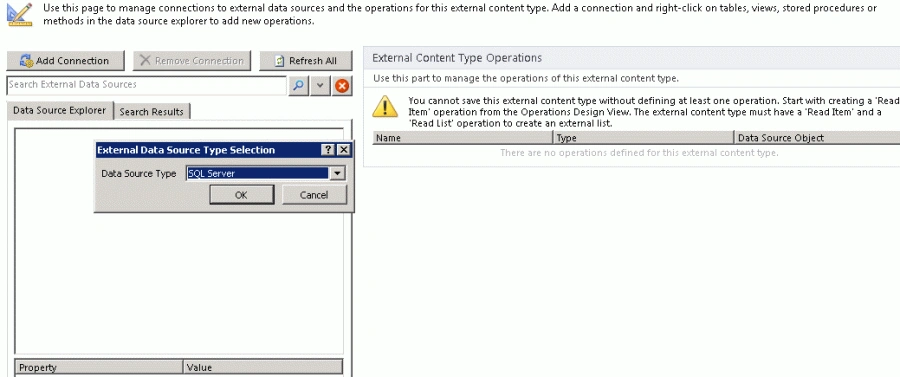
27. Select SWL Server as the Data Source Type.
28. Click ok:
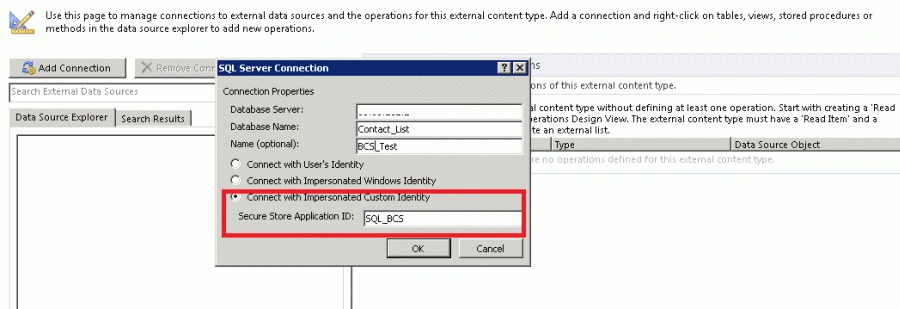
29. You will get the following screen. Give the following details:
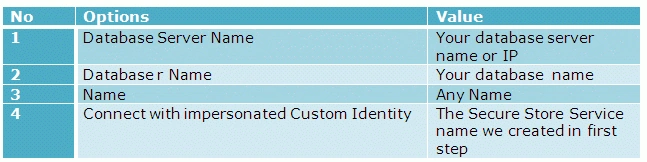
Table 3
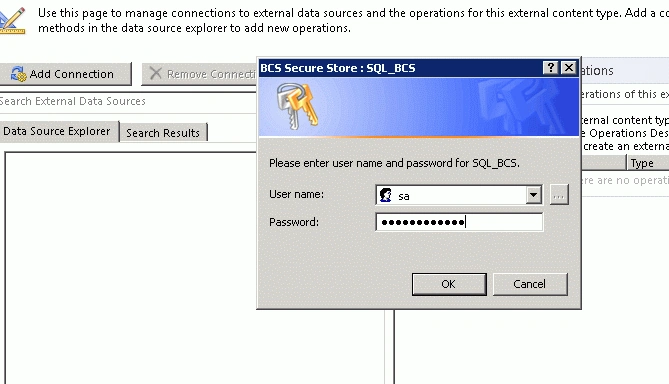
30. You will be prompted for the user name and password. Give the same as we entered to connect to SQL server database:
31. You will get the following screen populated with the database details:
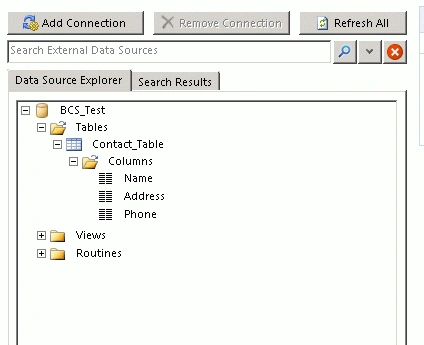
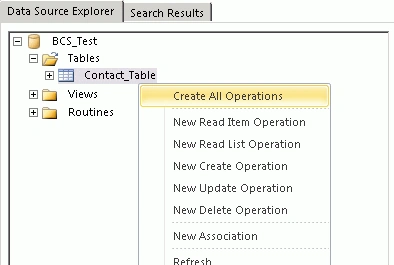
32. Right-click on the Table and select Create all operations if you want to do all the operations in the database.
33. You will be prompted with the following screen:
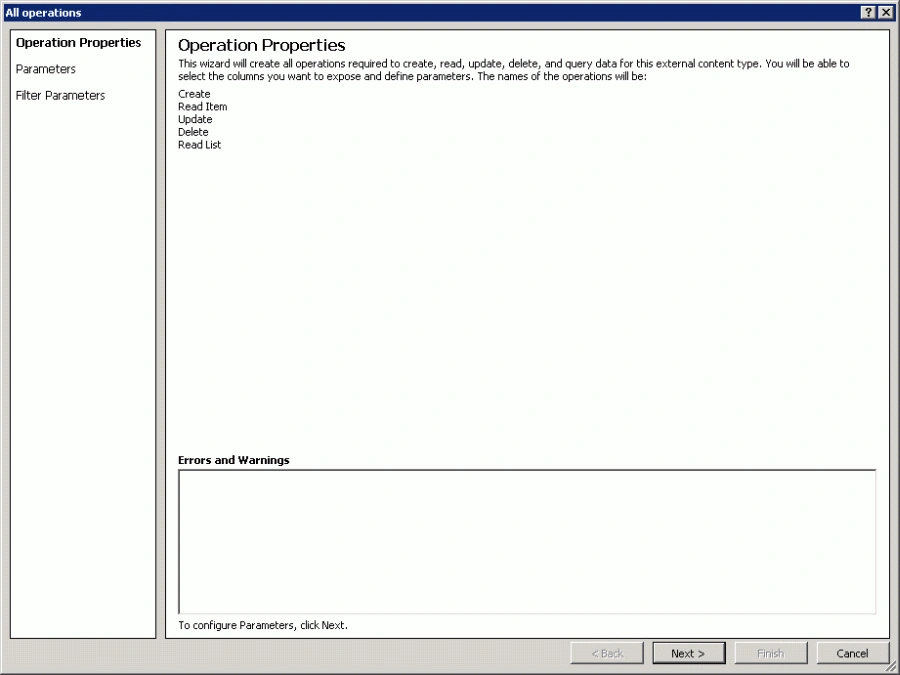
34. Click Next.
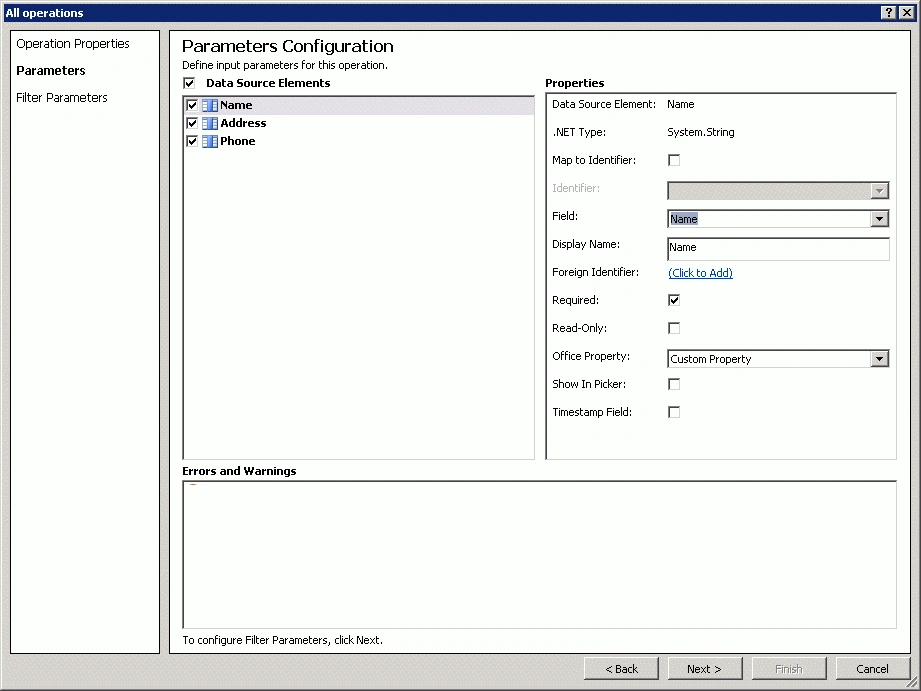
35. From the following screen map the field to the Outlook field, if you want to synchronize it with Outlook.
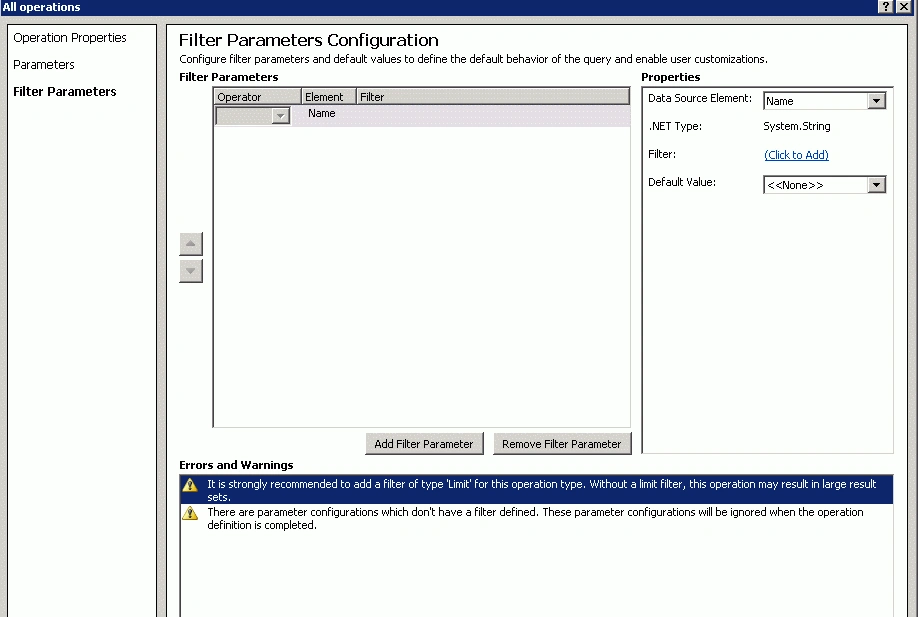
36. If you want to add a filter, add it from the following screen:
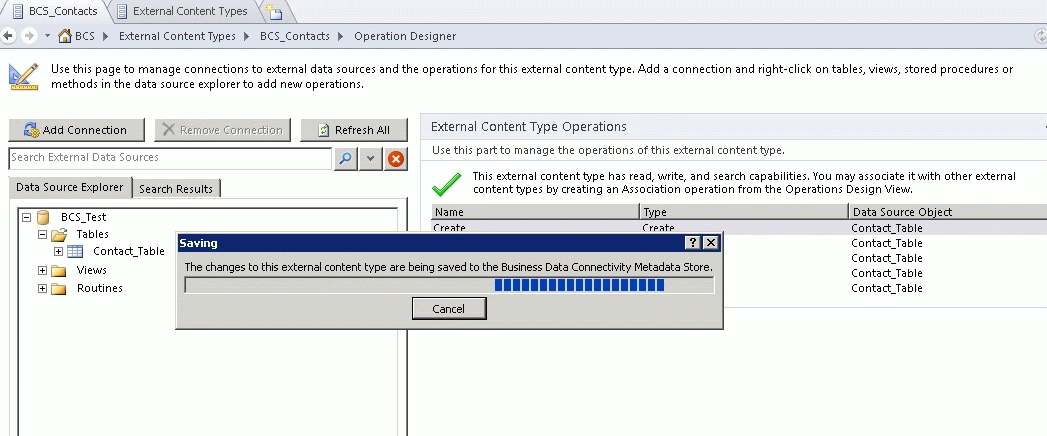
37. Click Save the BCS from the top:
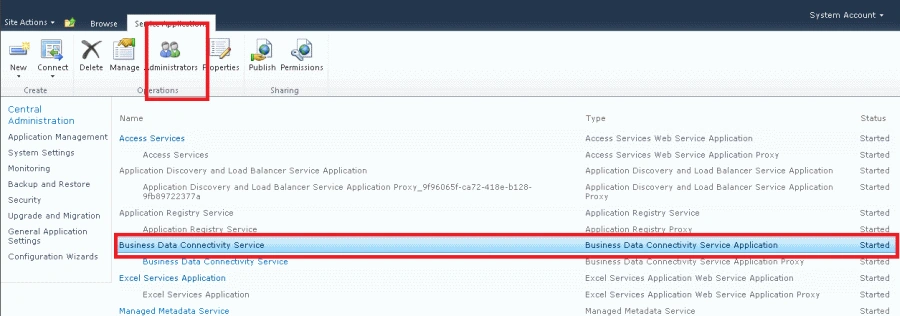
38. Go to manages services and select Business Connectivity service then click Administration:
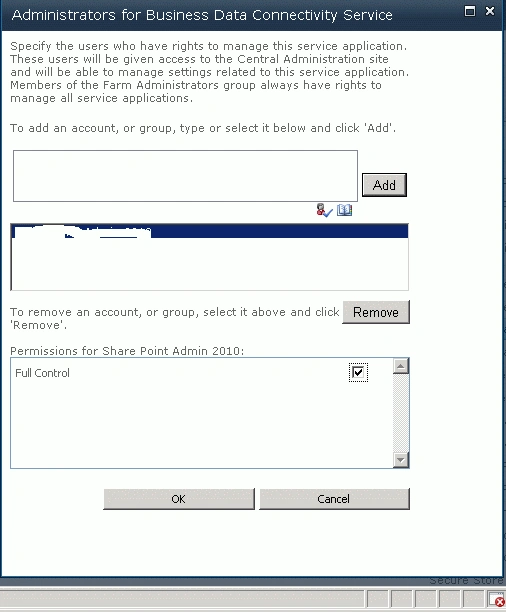
39. Give the ID of the user who can use this service:
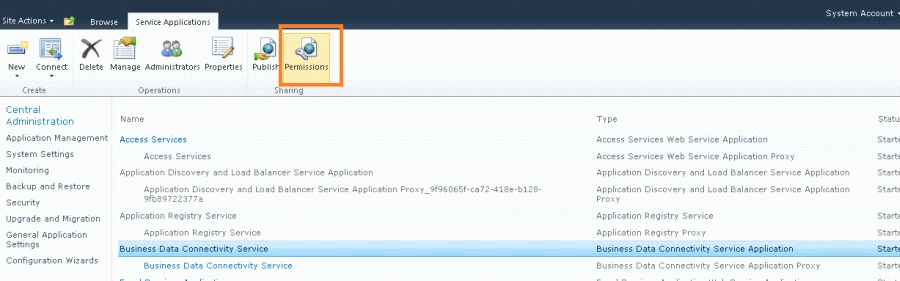
40. Then click on permission and give permission to who all need to use this service:
41. Give all permissions as shown below:
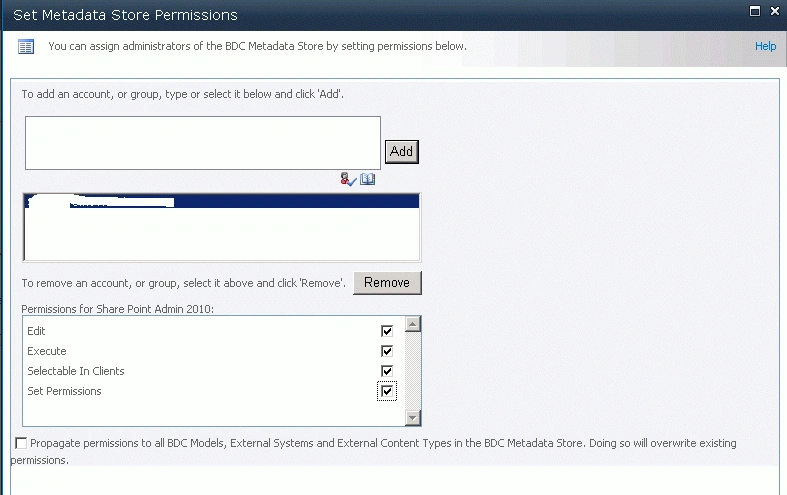
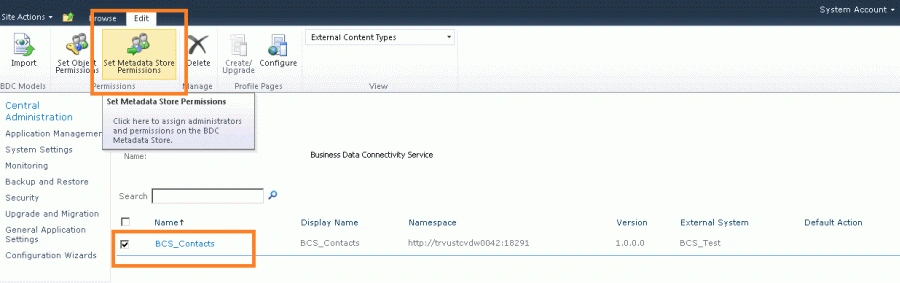
42. Then click on the Secure Store Service, select the metadata store permission from the ribbon:
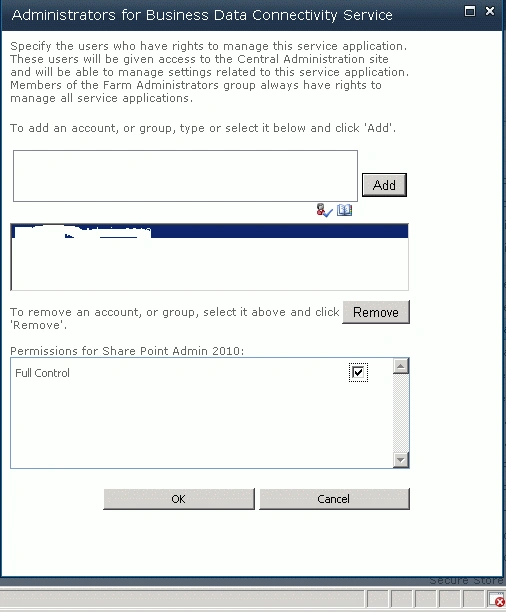
43. Give permission to all the users who want to use this service to read data from the data base:
Creating External List
44. Click on View all site content from your web application.
45. Click on create.
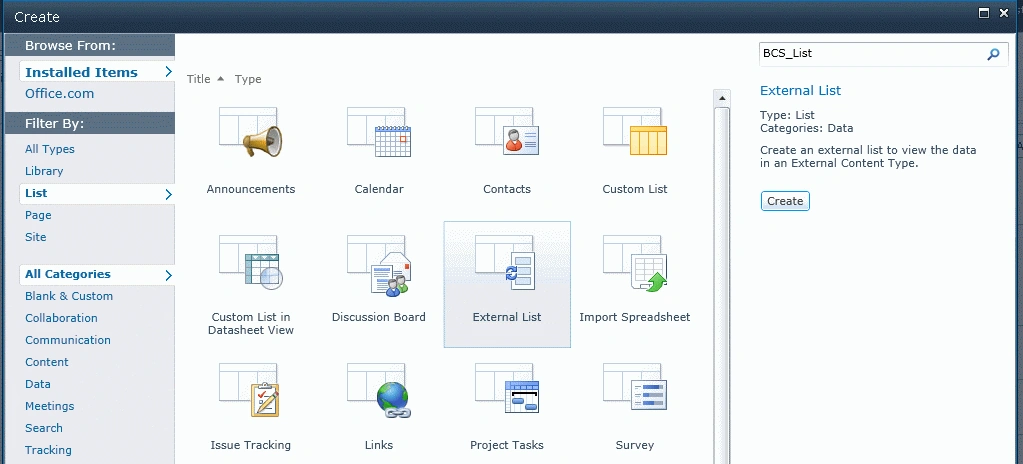
46. Select External list from the menu.
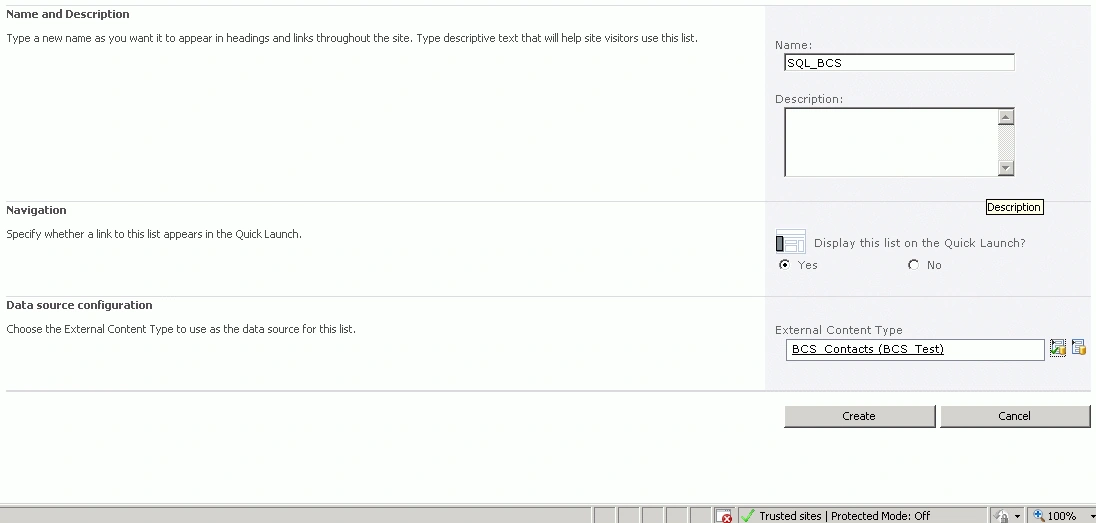
47. Give the proper name and click Create.
48. Give the name for the External content type and select the externalcontent Type; the one we created using the designer.
49. Click Create:
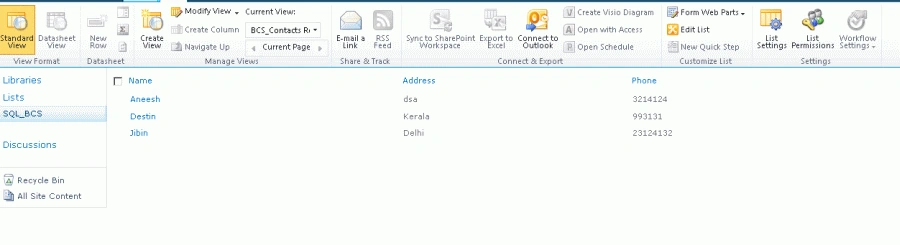
50. Now you can see your list populated with the data from database:
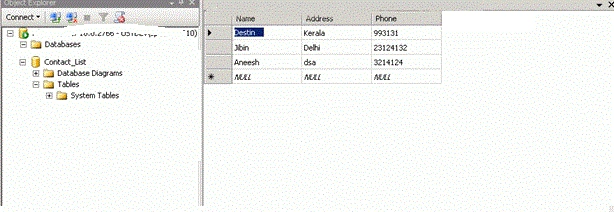
51. For verification I have shown the database table below:
I hopes everyone enjoyed my article. Please reach to me if you have any queries.
See you all in the Mindcracker MVP Summit next month 6th. I would be there with you.
nidhieditedPosted Nov 21, 2012, 9:01 AMEdited Nov 21, 2012, 9:03 AM
I have created External content source as u said,Now I have a requirement In which I need to combine the results from file share content source and the external content source (the newly created one following ur tutorial) as a single result.How do I achieve it.
Jean PaulPosted Jun 5, 2012, 11:22 AM
adding fix: If anybody received Access Denied Exception. http://blogs.msdn.com/b/ericwhite/archive/2010/06/11/access-denied-by-business-data-connectivity.aspx
Jean PaulPosted Jun 5, 2012, 10:21 AM
Good article to start with SSO! Thanks a lot Destin.
SevtiandyPosted Jun 4, 2012, 11:12 PM
I've create the external list on sharepoint with sharepoint designer, but when I try to preview this external list, It just shows the error message "Unable to display this Web Part. To troubleshoot the problem, open this Web page in a Microsoft SharePoint Foundation-compatible HTML editor such as Microsoft SharePoint Designer. If the problem persists, contact your Web server administrator. " I gave the user the permissions but it still shows error message. is there any solution for this problem? thanks.
Vipendra VermaPosted Apr 21, 2012, 7:19 AM
Thank you for providing me good knowledge about how to read data from SQL server in SharePoint. Can you explain how to read data from Oracle in SharePoint.
Mahesh VarmaPosted Apr 12, 2012, 5:51 AM
Its amazing. You are great Destin. Keep it up. Thank you so much for teaching us.
Jean PaulPosted Apr 11, 2012, 2:33 AM
Good Article in the SSS series. Thank You Destin for sharing.
Amit MaheshwariPosted Mar 13, 2012, 5:00 PM
It's really a great effort to accomplish such kind of auspicious task, Wonderful explanation about it. So Keep it up and thanks for sharing.....
Akash AhlawatPosted Mar 13, 2012, 12:18 AM
Great work Destin..Keep it up.
Arjun PanwarPosted Mar 13, 2012, 12:13 AM
Really very nice presented this article, thanks .
Destin JoyPosted Mar 12, 2012, 10:53 AM
Thank you Ravi
Ravishankar SinghPosted Mar 12, 2012, 5:13 AM
It is a wonderfull article :)