

Today, I want to share my experience working with SharePoint Workflows via SharePoint Designer. Sometimes it may be very painful, but I hope after reading this article you will not step on a rake.
Dictionary variables
Do not log a dictionary variable the Log History. This is a very common issue, your workflow just becomes stuck in the started state with the following error:
- Retrying last request. Next attempt scheduled in less than one minute. Details of last request: HTTP InternalServerError to https://plumsail.sharepoint.com/sites/Test/_api/web/lists(guid'04dc3f6a-968e-4ce0-a7cc-10949dfb15db')/Items Correlation Id: f54b9d7e-5242-1408-b066-5239a7b01c0a Instance Id: 967e7b1b-96cd-4fbf-b6d4-4df91199831b
A text field contains invalid data. Please check the value and try again. Retry now.
It occurs because your data is too big. This workflow action can display a limited number of symbols. Otherwise that error occurs. As a workaround, you can use Send E-Mail with Attachments (SMTP) instead of log to history.
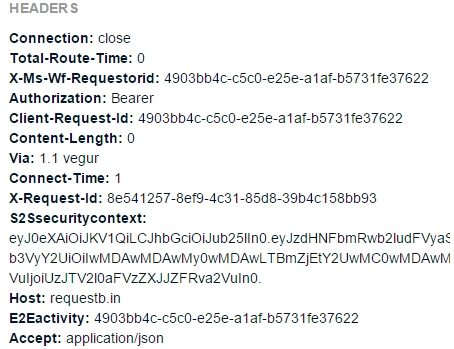
If you send a dictionary by email then you can receive it's structure in JSON format. It is very helpful to understand the structure.
Using Get an Item from Dictionary
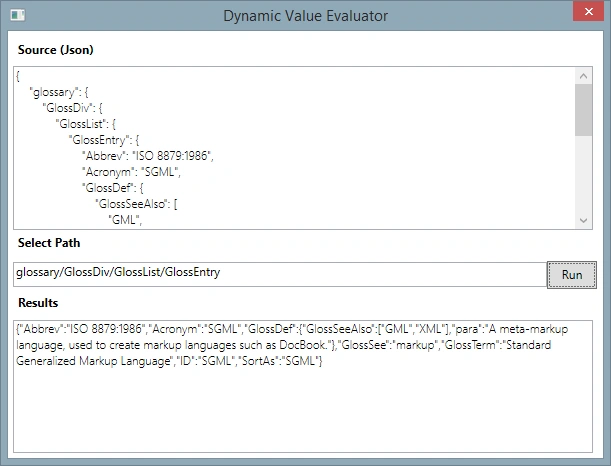
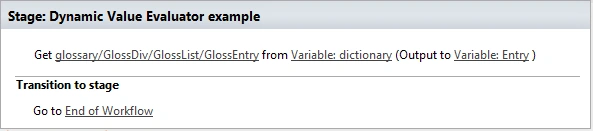
Be careful using Get an Item from Dictionary. Usually you need to get an item from an array and you use a "Get an Item from Dictionary" workflow action like this:
However, please be careful because if you have extra whitespace in the path, your workflow can be stuck in a suspended status with the following error:
- RequestorId: 261892b4-cf71-e580-0000-000000000000. Details: An unhandled exception occurred during the execution of the workflow instance. Exception details: System.FormatException: The DynamicValue property '(0) ' was incorrectly formatted. at Microsoft.Activities.Dynamic.DynamicValueBuilder.PathSegmentFactory.Parse(String segmentText, String fullPathName) at Microsoft.Activities.Dynamic.DynamicValueBuilder.PathSegmentFactory.Create(String segment, PathSegment next, String path) at Microsoft.Activities.Dynamic.DynamicValueBuilder.PathSegmentFactory.Create(String path) at Microsoft.Activities.GetDynamicValueProperty`1.Execute(CodeActivityContext context) at System.Activities.CodeActivity`1.InternalExecute(ActivityInstance instance, ActivityExecutor executor, BookmarkManager bookmarkManager) at System.Activities.Runtime.ActivityExecutor.ExecuteActivityWorkItem.ExecuteBody(ActivityExecutor executor, BookmarkManager bookmarkManager, Location resultLocation) Exception from activity GetDynamicValueProperty<DynamicValue> Sequence Microsoft.SharePoint.WorkflowServices.Activities.LoopNTimes Test WF Sequence Flowchart Sequence GetGroupMembers.WorkflowXaml_a9b1b4bd_9995_41a1_9da2_f8f57ce75c54
SharePoint Designer Cache Errors
SharePoint Designer Cache Errors can occur. The following error is very common when you work with SharePoint Designer:
“Failed to Load this workflow. To correct this problem, restart SharePoint Designer.” 
Figure 1: "Failed to Load this workflow.." error
To resolve it, you need to clear the SharePoint Designer cache.
And here are the commands for the command line to do it:

SriramPosted Jul 3, 2015, 3:12 AM
Good...
Sibeesh VenuPosted May 26, 2015, 1:02 AM
Good one.
Santhakumar MunuswamyPosted May 26, 2015, 12:36 AM
Thanks for sharing